material
R2026bSet reflectance of surfaces and patches
Syntax
Description
Preset Reflectance
material( sets the reflectance of all
the style)Surface and Patch objects in the current figure
based on the specified preset option. For example, specify "shiny" to
set the reflectance properties to values that produce a shiny appearance.
Custom Reflectance
material( sets the
reflectance of the target,___)Surface and Patch objects specified
in vector target. Specify target as the first
argument in any of the previous syntaxes.
Examples
Create and plot a sphere. Add a light source.
[X,Y,Z] = sphere(100);
surf(X,Y,Z,EdgeAlpha=0,FaceColor="red");
axis equal
camlight
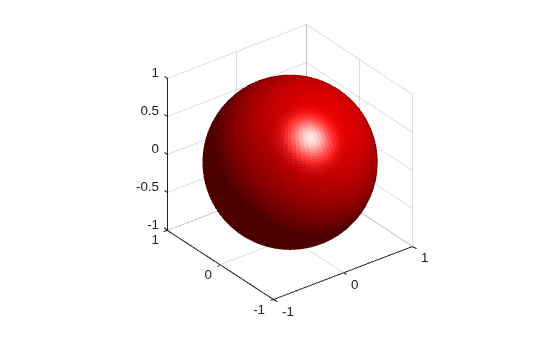
Make the sphere appear less shiny by using the preset style "dull".
material("dull")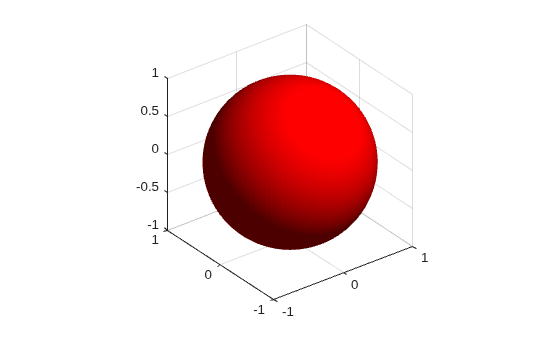
First, plot a sphere and make it appear metallic using the preset style "metal".
[X,Y,Z] = sphere(100);
surf(X,Y,Z,EdgeAlpha=0,FaceColor="red");
axis equal
camlight
material("metal")
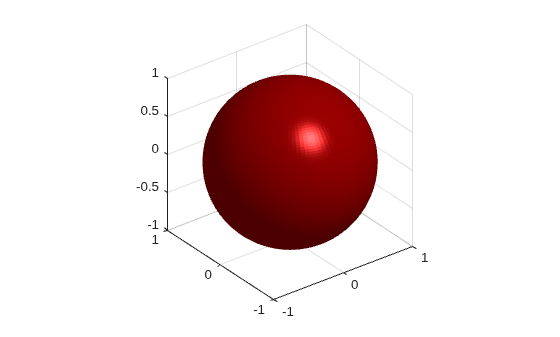
Now, set the reflectance of the sphere back to its default values.
material("default")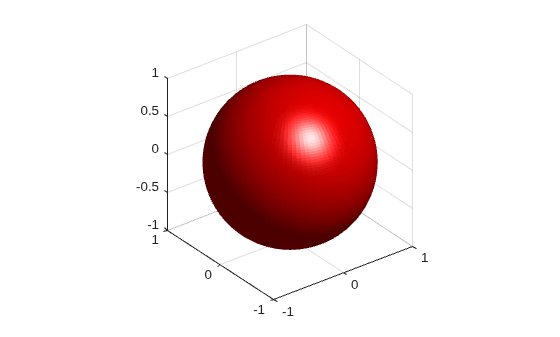
First, plot two spheres. Add a light source.
[X,Y,Z] = sphere(100);
s1 = surf(X,Y,Z,EdgeAlpha=0,FaceColor="red");
hold on
s2 = surf(X+1,Y,Z+3,EdgeAlpha=0,FaceColor="blue");
axis equal
camlight
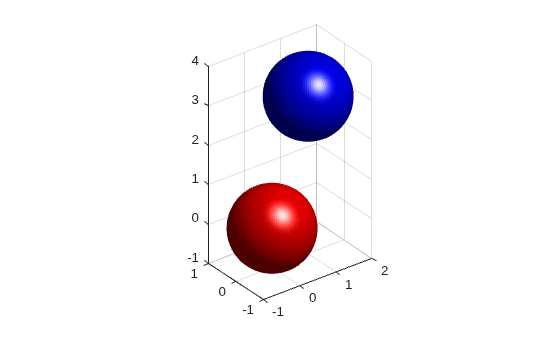
Now, make one sphere appear dull and one sphere appear shiny.
material(s1,"dull");
material(s2,"shiny");
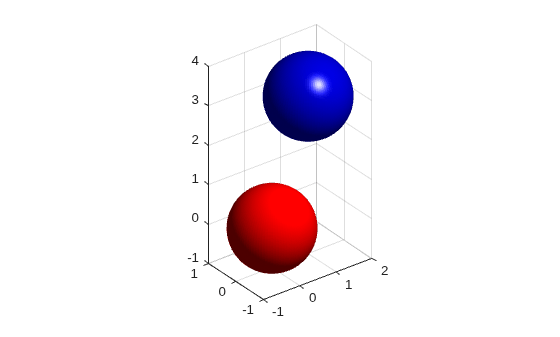
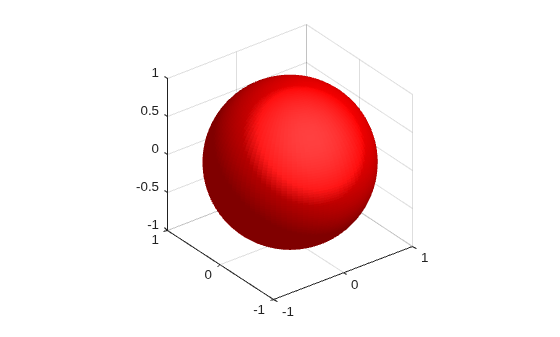
First, plot a sphere. Add a light source. Then, set a custom reflectance for the sphere.
[X,Y,Z] = sphere(100);
surf(X,Y,Z,EdgeAlpha=0,FaceColor="red");
axis equal
camlight
material([0.5,0.5,0.5,1,0.5])
Input Arguments
Preset material option, specified as one of these values:
"shiny"— Use a high specular reflectance strength relative to the ambient and diffuse strengths. The color of the reflected light depends only on the color of the light source."dull"— Reflect more diffuse light with no specular highlights. The color of the reflected light depends only on the color of the light source."metal"— Use a high specular reflectance strength and low ambient and diffuse strengths. The color of the reflected light depends on both the color of the light source and the color of the object."default"— Use the default reflectance. To define custom default reflectance, see Default Property Values.
The material function sets values for the
AmbientStrength, DiffuseStrength,
SpecularStrength, SpecularExponent, and
SpecularColorReflectance properties of Surface
and Patch objects. This table lists the preset styles and their
corresponding reflectance property values.
| Style | Ambient Strength | Diffuse Strength | Specular Strength | Specular Exponent | Specular Color Reflectance |
|---|---|---|---|---|---|
"shiny" | 0.3 | 0.6 | 0.9 | 20 | 1.0 |
"dull" | 0.3 | 0.8 | 0.0 | 10 | 1.0 |
"metal" | 0.3 | 0.3 | 1.0 | 25 | 0.5 |
"default" | 0.3 | 0.6 | 0.9 | 10 | 1.0 |
If you specify the style input argument without the
target argument, you can use the command form of the
material function. When using the command form, you do not need
to include quotes around these style values. For example,
material metal is equivalent to
material("metal").
Ambient light strength, specified as a scalar value in the range
[0,1]. Ambient light is nondirectional and illuminates the entire
scene. You can control the effect of ambient light on object appearance by choosing a
value from 0 to 1.
0— No ambient light. Object appearance is not affected.1— Maximum ambient light. Objects are brightly lit.
As the value increases from 0 to 1,
the effect of ambient light on object appearance increases gradually and
uniformly.
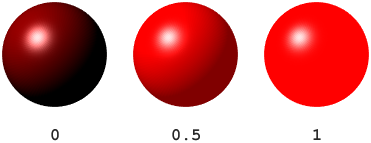
This input argument sets the AmbientStrength property of the
target Surface and Patch objects.
The ambient light color, which is set by the axes property AmbientLightColor, is the same for all objects in the axes.
Data Types: double
Diffuse light strength, specified as a scalar value in the range
[0,1]. Diffuse light is the reflectance on Surface
and Patch objects from Light objects in the axes,
excluding specular reflections. You can control the effect of external light sources on
object appearance by choosing a value from 0 to 1.
0— No diffuse light. Objects do not reflect light from external sources.1— Maximum diffuse light. Objects reflect the maximum amount of light from external sources.
As the value increases from 0 to 1,
the effect of external light sources on object appearance increases gradually.
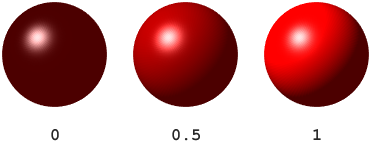
This input argument sets the DiffuseStrength property of the
target Surface and Patch objects.
Data Types: double
Specular reflectance strength, specified as a scalar value in the range
[0,1]. A specular reflection is a bright spot on a
Surface or Patch object from a
Light object in the axes. You can control the intensity of bright
spots by choosing a value from 0 to 1.
0— No bright spots are visible.1— Bright spots are visible at maximum intensity.
As the value increases from 0 to 1,
the intensity of the bright spots increases gradually.
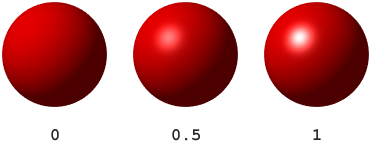
This input argument sets the SpecularStrength property of the
target Surface and Patch objects.
Data Types: double
Specular exponent, specified as a positive numeric scalar. The specular exponent
controls the size of the bright spots from Light objects in the axes.
Greater values produce less specular reflection, resulting in smaller bright
spots.
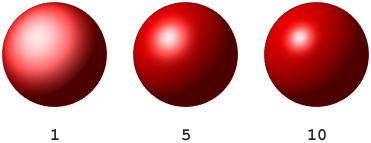
This input argument sets the SpecularExponent property of the
target Surface and Patch objects.
Data Types: double
Specular color reflectance, specified as a scalar value in the range
[0,1]. You can control the color of bright spots from
Light objects in the axes by choosing a value from
0 to 1.
0— Bright spot color depends on both the object color and the color of external light sources.1— Bright spot color depends only on the color of external light sources.
As the value increases from 0 to 1,
the proportion between object and light color decreases linearly.
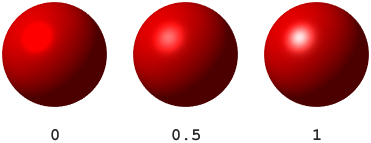
This input argument sets the SpecularColorReflectance property of
the target Surface and Patch objects.
The external light color is set by the Color property of each Light object.
Data Types: double
Target surfaces and patches, specified as a Surface or
Patch object, or a vector of graphics objects.
If target includes any graphics objects that are not
Surface or Patch objects, then
material sets the reflectance of any Surface and
Patch objects that are descendants of the specified objects.
Tips
Version History
Introduced before R2006a

