geotiffwrite
R2026bWrite GeoTIFF file
Description
geotiffwrite(___,
specifies options using one or more name-value arguments.Name=Value)
Examples
Read a JPEG image of Boston [1] into the workspace as an array.
jpgFilename = "boston_ovr.jpg";
RGB = imread(jpgFilename);
The image is referenced by a world file. Derive the name of the world file from the name of the image file. Then, read the world file into the workspace as a raster reference object.
worldfile = getworldfilename(jpgFilename);
R = worldfileread(worldfile,"geographic",size(RGB));
Write the image and the reference object to a GeoTIFF file.
tifFilename = "boston_ovr.tif";
geotiffwrite(tifFilename,RGB,R)
Read the GeoTIFF file into the workspace as an array and a reference object. Display the image on a map.
[RGB2,R2] = readgeoraster(tifFilename);

figure
geoimage(RGB2,R2)
geobasemap none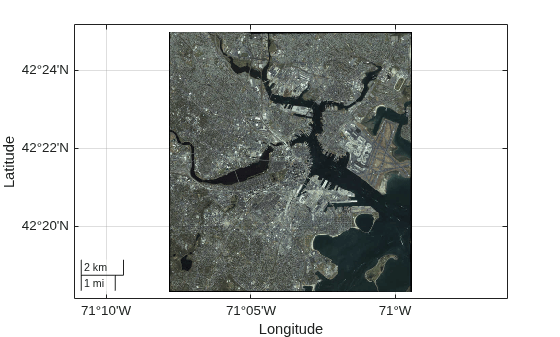
[1] The data used in this example includes material copyrighted by GeoEye, all rights reserved.
Convert a georeferenced classic TIFF file to a tiled BigTIFF file by extracting information from the classic TIFF file. First, import a classic TIFF image of Boston and a map cells reference object. Get metadata from the file using geotiffinfo.
infilename = "boston.tif";
[A,R] = readgeoraster(infilename);
info = geotiffinfo(infilename);
Specify tags to include in the tiled BigTIFF file. To do this, extract the GeoKey directory tag from the metadata. Then, create tags specifying the length and width of the tiles.
geoTags = info.GeoTIFFTags.GeoKeyDirectoryTag;
tiffTags = struct(TileLength=1024,TileWidth=1024);
Write the data to a new GeoTIFF file. Specify the file format as BigTIFF using the TiffType argument. Include tags by specifying the GeoKeyDirectoryTag and TiffTags arguments.
outfilename = "boston_bigtiff.tif";
geotiffwrite(outfilename,A,R,TiffType="bigtiff", ...
    GeoKeyDirectoryTag=geoTags,TiffTags=tiffTags)
Verify you have written the BigTIFF file by reading the file and querying the tags.
biginfo = geotiffinfo(outfilename);
biginfo.GeoTIFFTags.GeoKeyDirectoryTag
ans = struct with fields:
        GTModelTypeGeoKey: 1
       GTRasterTypeGeoKey: 1
    ProjectedCSTypeGeoKey: 26986
        PCSCitationGeoKey: 'State Plane Zone 2001 NAD = 83'
    ProjLinearUnitsGeoKey: 9003
t = Tiff(outfilename);
getTag(t,"TileLength")
ans = 1024
getTag(t,"TileWidth")ans = 1024
close(t)
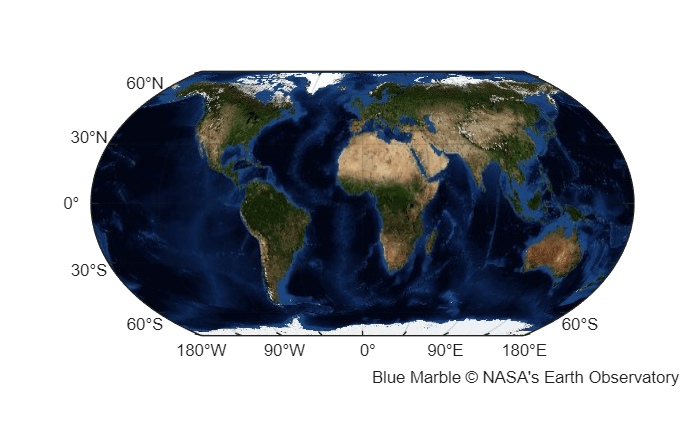
Search the WMS Database for a Blue Marble layer from EOX::Maps. For more information about EOX::Maps, see EOX::Maps.
layer = wmsfind("tiles.maps.eox.at",SearchFields="serverurl");
layer = refine(layer,"bluemarble",MatchType="exact");
Read the layer into the workspace as an array and a raster reference object.
[A,R] = wmsread(layer);
Write the data to a GeoTIFF file.
geotiffwrite("bluemarble.tif",A,R)Read the GeoTIFF file into the workspace as an array and a reference object. Display the image on a map.
figure
newmap
geoimage(A,R)
Add an attribution to the map using a text box annotation.
annotation("textbox",[0.52 0.05 0.47 0.1],EdgeColor="none", ...
    String="Blue Marble © NASA's Earth Observatory", ...
    VerticalAlignment="middle")
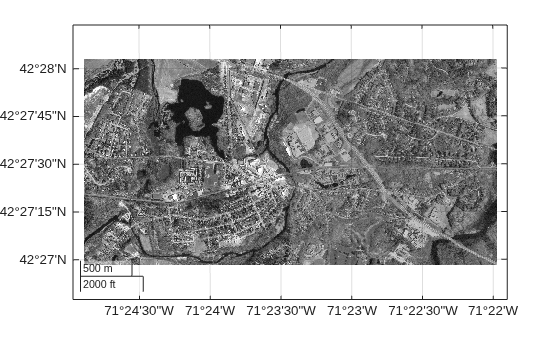
Read two adjacent orthophotos. Create reference objects for the orthophotos by reading their world files.
X_west = imread("concord_ortho_w.tif");
X_east = imread("concord_ortho_e.tif");

R_west = worldfileread("concord_ortho_w.tfw","planar",size(X_west));
R_east = worldfileread("concord_ortho_e.tfw","planar",size(X_east));
Merge the orthophotos.
[X,R] = mergetiles(X_west,R_west,X_east,R_east);
Write the merged image to a GeoTIFF file. Use the code number 26986, which indicates the NAD83 / Massachusetts Mainland projected coordinate reference system (CRS).
tifFilename = "concord_ortho.tif";
coordRefSysCode = 26986;
geotiffwrite(tifFilename,X,R,CoordRefSysCode=coordRefSysCode);
Read the GeoTIFF file into the workspace as an array and a reference object. Set up a new map using the projected CRS that is stored in the reference object. Then, display the image on the map.
[X2,R2] = readgeoraster(tifFilename);

figure
pcrs = R2.ProjectedCRS;
newmap(pcrs)
geoimage(X2,R2)
Read a GeoTIFF image of Boston [1] into the workspace as an array and a raster reference object.
[A,RA] = readgeoraster("boston.tif");Crop the data to the xy-limits specified by xlimits and ylimits.
xlimits = [764318 767678];
ylimits = [2951122 2954482];
[B,RB] = mapcrop(A,RA,xlimits,ylimits);
Read information about the GeoTIFF image into the workspace as a structure array. Extract the GeoKey directory tag from the structure array.
info = geotiffinfo("boston.tif");
key = info.GeoTIFFTags.GeoKeyDirectoryTag;
Write the cropped data and GeoKey directory tag to a new GeoTIFF file.
geotiffwrite("boston_subimage.tif",B,RB,GeoKeyDirectoryTag=key)Read the new GeoTIFF file into the workspace as an array and a reference object. Set up a new map using the projected CRS that is stored in the reference object. Then, display the image on the map.
[B2,RB2] = readgeoraster("boston_subimage.tif");

figure
pcrs = RB2.ProjectedCRS;
newmap(pcrs)
geoimage(B2,RB2)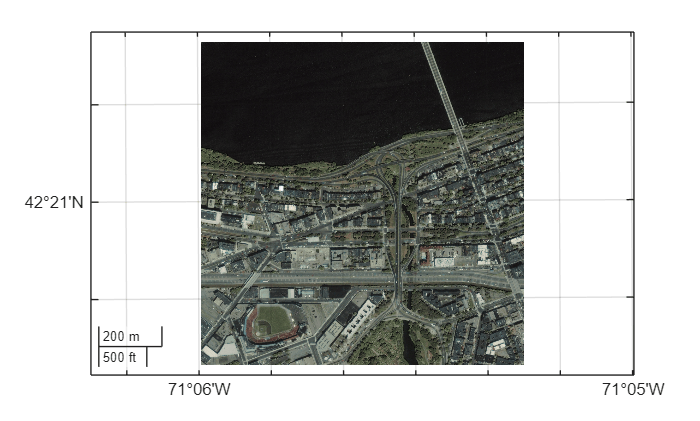
[1] The data used in this example includes material copyrighted by GeoEye, all rights reserved.
Write elevation data for an area around South Boulder Peak in Colorado to a GeoTIFF file.
Read the elevation data [1] into the workspace as a matrix and a raster reference object.
[Z,R] = readgeoraster("n39_w106_3arc_v2.dt1");Specify a GeoKey directory tag for the GeoTIFF file using a structure array. For a list of keys that you can specify, see Key ID Summary in the GeoTIFF specification.
Indicate that the data uses geographic coordinates by specifying the
GTModelTypeGeoKeyfield as2.Indicate that the data is a grid of posting point samples (rather than a grid of cells) by specifying the
GTRasterTypeGeoKeyfield as2.Indicate the geographic CRS for the data by specifying the
GeographicTypeGeoKeyfield as4326.
key.GTModelTypeGeoKey = 2;
key.GTRasterTypeGeoKey = 2;
key.GeographicTypeGeoKey = 4326;
Write the data and the GeoKey directory tag to a file.
filename = "southboulder.tif";
geotiffwrite(filename,Z,R,GeoKeyDirectoryTag=key)
Read the GeoTIFF file into the workspace as a matrix and a reference object. Then, display the data on a map. Apply a colormap that is appropriate for elevation data.
[Z2,R2] = readgeoraster(filename);

figure
geopcolor(Z2,R2)
demcmap(Z2)
geobasemap none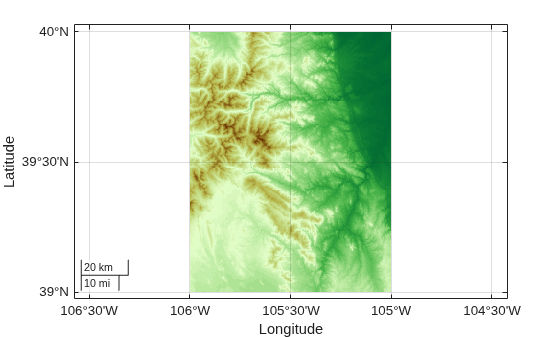
[1] The elevation data used in this example is from the US Geological Survey.
Create a sample TIFF file with RPC metadata. To do this, create an array of zeros and an associated reference object.
A = zeros(180,360);
latlim = [-90 90];
lonlim = [-180 180];
RA = georefcells(latlim,lonlim,size(A));
Then, create an RPCCoefficientTag metadata object and set some fields with typical values. The RPCCoefficientTag object represents RPC metadata in a readable form.
rpctag = map.geotiff.RPCCoefficientTag;
rpctag.LineOffset = 1;
rpctag.SampleOffset = 1;
rpctag.LineScale = 2;
rpctag.SampleScale = 2;
rpctag.GeodeticHeightScale = 500;
Write the image, the associated referencing object, and the RPCCoefficientTag object to a file.
geotiffwrite("myfile.tif",A,RA,RPCCoefficientTag=rpctag)This example shows how to write RPC coefficient metadata to a TIFF file. In a real workflow, you would create the RPC coefficient metadata according to the TIFF extension specification. This example does not show the specifics of how to create valid RPC metadata. To simulate raw RPC metadata, the example creates a sample TIFF file with RPC metadata and then uses imfinfo to read this RPC metadata in raw, unprocessed form from the file. The example then writes this raw RPC metadata to a file using the geotiffwrite function.
Create Raw RPC Coefficient Metadata
To simulate raw RPC metadata, create a simple test file and write some RPC metadata to the file. For this test file, create a toy image and a referencing object associated with the image.
myimage = zeros(180,360);
latlim = [-90 90];
lonlim = [-180 180];
R = georefcells(latlim,lonlim,size(myimage));
Create an RPCCoefficientTag metadata object and set some of the fields. The toolbox uses the RPCCoefficientTag object to represent RPC metadata in human readable form.
rpctag = map.geotiff.RPCCoefficientTag;
rpctag.LineOffset = 1;
rpctag.SampleOffset = 1;
rpctag.LineScale = 2;
rpctag.SampleScale = 2;
rpctag.GeodeticHeightScale = 500;
Write the image, the associated referencing object, and the RPCCoefficientTag object to a file.
geotiffwrite("myfile.tif",myimage,R,RPCCoefficientTag=rpctag)Read Raw RPC Coefficient Metadata
Read the RPC coefficient metadata from the test file using the imfinfo function. When it encounters unfamiliar metadata, imfinfo returns the data, unprocessed, in the UnknownTags field. Note that the UnknownTags field contains an array of 92 doubles. This is the raw RPC coefficient metadata, read from the file in unprocessed form.
info = imfinfo("myfile.tif");
info.UnknownTags
ans = struct with fields:
ID: 50844
Offset: 10680
Value: [-1 -1 1 1 0 0 0 2 2 1 1 500 0 0 0 0 0 0 0 0 0 0 0 0 0 0 0 0 0 0 0 0 0 0 0 0 0 0 0 0 0 0 0 0 0 0 0 0 0 0 0 0 0 0 0 0 0 0 0 0 0 0 0 0 0 0 0 0 0 0 0 0 0 0 0 0 0 0 0 0 0 0 0 0 0 0 0 0 0 0 0 0]
Write Raw RPC Metadata to a File
Write the raw RPC metadata to a file. First, extract the RPC coefficient metadata from the info structure.
value = info.UnknownTags.Value;
Then, construct an RPCCoefficientTag object, passing the raw RPC metadata (array of 92 doubles) as an argument.
rpcdata = map.geotiff.RPCCoefficientTag(value)
rpcdata =
  RPCCoefficientTag with properties:

                BiasErrorInMeters: -1
              RandomErrorInMeters: -1
                       LineOffset: 1
                     SampleOffset: 1
           GeodeticLatitudeOffset: 0
          GeodeticLongitudeOffset: 0
             GeodeticHeightOffset: 0
                        LineScale: 2
                      SampleScale: 2
            GeodeticLatitudeScale: 1
           GeodeticLongitudeScale: 1
              GeodeticHeightScale: 500
        LineNumeratorCoefficients: [0 0 0 0 0 0 0 0 0 0 0 0 0 0 0 0 0 0 0 0]
      LineDenominatorCoefficients: [0 0 0 0 0 0 0 0 0 0 0 0 0 0 0 0 0 0 0 0]
      SampleNumeratorCoefficients: [0 0 0 0 0 0 0 0 0 0 0 0 0 0 0 0 0 0 0 0]
    SampleDenominatorCoefficients: [0 0 0 0 0 0 0 0 0 0 0 0 0 0 0 0 0 0 0 0]
Pass the RPCCoefficientTag object to the geotiffwrite function and write the RPC metadata to a file.
geotiffwrite("myfile2.tif",myimage,R,RPCCoefficientTag=rpcdata)To verify that the data was written to the file, read the RPC metadata from the TIFF file using geotiffinfo. Compare the returned RPC metadata with the metadata written to the test file.
ginfo = geotiffinfo("myfile2.tif");
ginfo.GeoTIFFTags.RPCCoefficientTag
ans =
RPCCoefficientTag with properties:
BiasErrorInMeters: -1
RandomErrorInMeters: -1
LineOffset: 1
SampleOffset: 1
GeodeticLatitudeOffset: 0
GeodeticLongitudeOffset: 0
GeodeticHeightOffset: 0
LineScale: 2
SampleScale: 2
GeodeticLatitudeScale: 1
GeodeticLongitudeScale: 1
GeodeticHeightScale: 500
LineNumeratorCoefficients: [0 0 0 0 0 0 0 0 0 0 0 0 0 0 0 0 0 0 0 0]
LineDenominatorCoefficients: [0 0 0 0 0 0 0 0 0 0 0 0 0 0 0 0 0 0 0 0]
SampleNumeratorCoefficients: [0 0 0 0 0 0 0 0 0 0 0 0 0 0 0 0 0 0 0 0]
SampleDenominatorCoefficients: [0 0 0 0 0 0 0 0 0 0 0 0 0 0 0 0 0 0 0 0]
Input Arguments
Name-Value Arguments
Tips
If you are working with image coordinates in a projected coordinate system and
Ris a map raster reference object, set theGeoKeyDirectoryTagorCoordRefSysCodeargument, accordingly.You can find values for the
CoordRefSysCodeandGeoKeyDirectoryTagarguments by checking the GeoTIFF specification.For a list of
CoordRefSysCodevalues that you can specify for geographic coordinate systems, see Geographic CS Type Codes in the GeoTIFF specification.For a list of
CoordRefSysCodevalues that you can specify for projected coordinate systems, see Projected CS Type Codes in the GeoTIFF specification.For a list of keys that you can specify using the
GeoKeyDirectoryTagargument, see Key ID Summary in the GeoTIFF specification.
Version History
Introduced before R2006aSee Also
geotiffinfo | readgeoraster | imread | imwrite | RPCCoefficientTag | Tiff

