Results for

Ready to explore the latest advancements in engineering and science with MATLAB and Simulink?
MATLAB EXPO Online 2026 is taking place November 4-5, 2026, and registration is now open. Join engineers, researchers, educators, and industry leaders from around the world for two days of technical presentations, hands-on workshops, customer success stories, and live Q&A sessions.
What to Expect
✅ 40+ interactive sessions featuring MathWorks experts and industry leaders
✅ 5 technical tracks, including AI and Agentic AI, Digital Engineering and Model-Based Design, Electrification and Energy Systems, Robotics and Autonomous Systems, and Cloud, CI/CD and DevOps
✅ 9 live, 90-minute hands-on workshops using MATLAB Online and Simulink Online
✅ Keynotes on emerging engineering trends and the latest MATLAB and Simulink capabilities
✅ Opportunities to connect with experts and peers from around the globe through live Q&A and networking activities
Whether you're just getting started or are an experienced MATLAB and Simulink user, you'll find content tailored to a range of experience levels and application areas.
Participation is free, but registration is required. Reserve your spot and start building your personalized agenda today.
What session or topic are you most excited to explore this year? Let us know in the comments!

Hello everyone
After you read the blog post about all the new goodness in MATLAB 2026b I am sure you'll rush out to install it. If you do one more thing, however, I suggest that you install this add-on from MATLAB File-Exchange since it will make object-oriented code much faster.
"How much faster?" I hear you ask. This much faster:
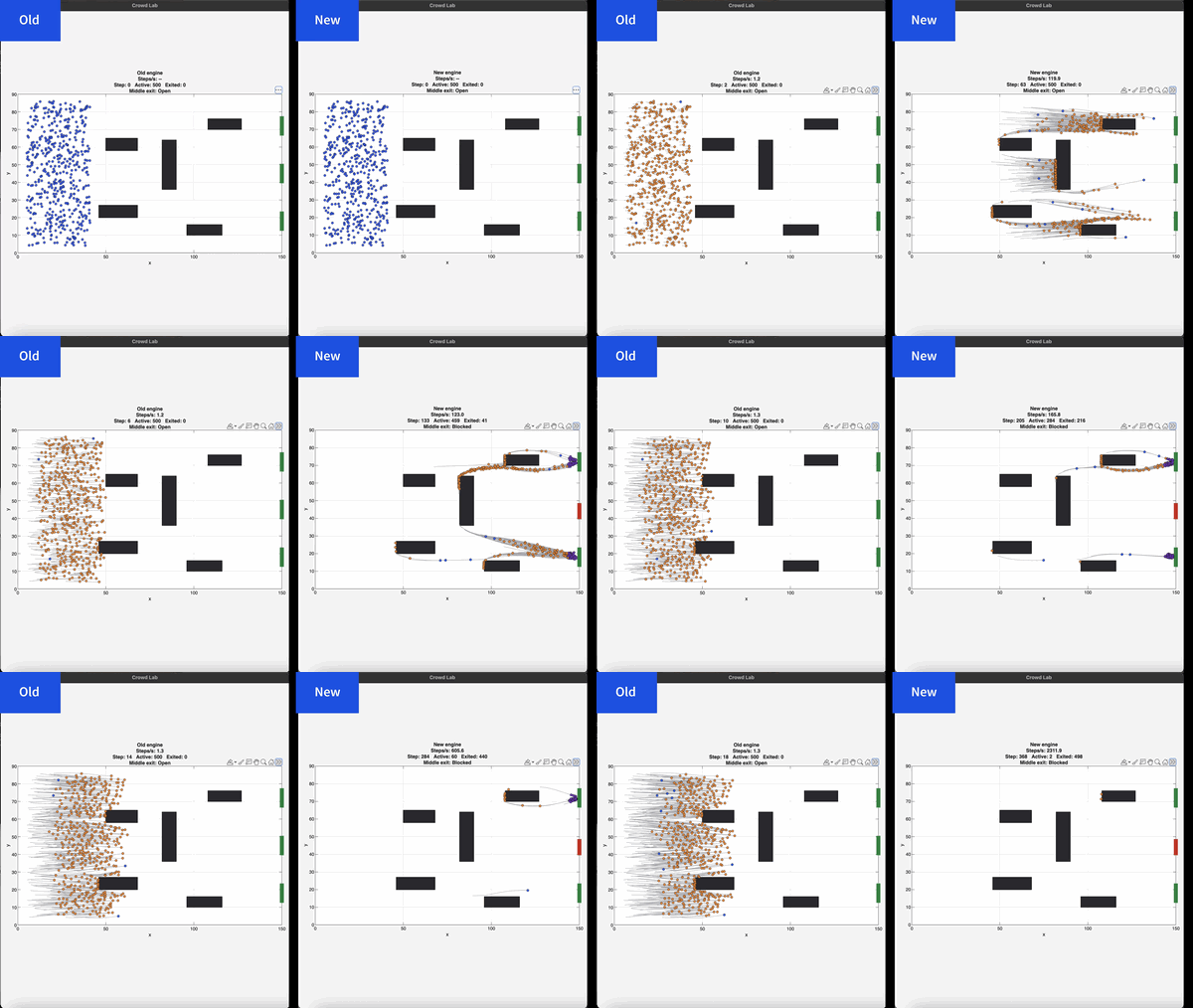
If you prefer numbers to pictures, all of the details are in a blog post from when we released the limited beta: Objects are about to get much faster in MATLAB » The MATLAB Blog - MATLAB & Simulink
"Why didn't we make this the default?" I hear you ponder. Because there is a small chance that the new system will break your code. It's a very small chance and I've personally not seen any code that does get broken. However, such code does exist and we want to be give you the chance to discover this and work with us to make your code compatibile before it does become the default.
I hope you enjoy using 2026b as much as we enjoyed making it.
Cheers,
Mike

I keep forgetting the functions and lack of pratices would be the reason

Extremely--I have real work to do
24%
Maybe talk about something else?
24%
Neutral
24%
Not very much
24%
Let's talk about nothing else
5%
21 votes

Hey, this is a safe space to share your cool projects you know. I have pet ducks, I use ThingSpeak to open the door to their house each morning. I just finished an upgrade to the LED strip lights on my driveway that are controlled via ThingSpeak. And the valves for my drip irrigation system. You got it. Controlled by ThingSpeak. Let me know your last cool project you finished or the one you keep dreaming of starting. I need some more inspiration :)

I contributed a guet post for @Mike Croucher - AI Agent Demystified – Building a Minimalist Agent in MATLAB
Basically, my use case is an coding agent built with MATLAB to code MALTAB, but you can actually roll your own agnet with MATLAB AI Agent SDK for more realistic use cases. Hopefully my post gives you a starting point for a fun exploration!

The example code below shows how to write version 7.3 MAT files directly from C++ using the HDF5 library (libhdf5) and HighFive, a header-only C++ wrapper for libhdf5. Version 7.3 MAT files are HDF5-based, but contain a proprietary header in the first 512 bytes of the file.
The implementation performs three primary tasks:
First, it creates an HDF5 file with a 512-byte userblock. After data has been added into the file, the file is closed. Then a 128-byte header is written into the userblock so that the file is recognized by MATLAB as a valid version-7.3 MAT file. This is done in function “makeMatHeader”.
Second, MATLAB-specific metadata attributes are added to each dataset. Attributes such as “MATLAB_class” and “MATLAB_int_decode” inform MATLAB how each dataset should be interpreted.
Third, MATLAB-compatible complex datasets are created by overriding HighFive's default complex-number layout. HighFive uses the field names `r` and `i` by default, while MATLAB expects `real` and `imag`. A Highfive custom compound type is therefore registered for `std::complex<double>` using the MATLAB field names.
With these changes in place, C++ code can write scalar values, vectors, structs, complex arrays, and character arrays to a file that MATLAB can read as a version 7.3 MAT file.
#include <iostream>
#include <vector>
#include <complex>
#include <cstddef>
#include <fstream>
#include <string>
#include <cstdint>
#include <utility>
#include <bitset>
#include <highfive/highfive.hpp>
#include "hdf5.h"
// Modify the 512-byte userblock at the front of the HDF5 file to make it compatible with MATLAB's v7.3 MAT file format.
void makeMatHeader(std::string filename)
{
char header[512]; // MATLAB-style header for HDF5 file
memset(header, 0, sizeof(header)); // Initialize header to all zeros
// Example header content
snprintf(header, sizeof(header), "MATLAB 7.3 MAT-file, Platform: HDF5");
header[124] = 0;
header[125] = 2;
// I/M indicate little-endian format (Intel Mac/Windows)
header[126] = 'I';
header[127] = 'M';
// Write the header to the beginning of the file
std::ofstream outFile(filename, std::ios::binary | std::ios::in | std::ios::out);
outFile.seekp(0);
outFile.write(header, sizeof(header));
outFile.close();
}
// https://www.geeksforgeeks.org/dsa/inplace-m-x-n-size-matrix-transpose/
void MatrixInplaceTranspose(int *A, int rows, int cols)
{
// Moves elements in-place to achieve the transpose.
// A is a pointer to a 2D array, rows is the number of rows, and cols is the number of columns.
int size = rows*cols - 1;
int t; // holds element to be replaced, eventually becomes next element to move
int next; // location of 't' to be moved
int cycleBegin; // holds start of cycle
int i; // iterator
const int HASH_SIZE = 8192; // define a suitable hash size for the bitset. Must be at least as large as the number of elements in the matrix.
std::bitset<HASH_SIZE> b; // hash to mark moved elements. Must be large enough to cover all indices.
if (rows <= 0 || cols <= 0) {
throw std::invalid_argument("Matrix dimensions must be positive");
}
else if ((rows * cols) > HASH_SIZE)
{
throw std::invalid_argument("Matrix size exceeds hash size for in-place transpose. Increase the HASH_SIZE constant.");
}
b.reset();
b[0] = b[size] = 1;
i = 1; // Note that A[0] and A[size-1] won't move
while (i < size)
{
cycleBegin = i;
t = A[i];
do
{
// Input matrix [rows x cols]
// Output matrix [cols x rows]
// i_new = (i*rows)%(N-1)
next = (i*rows)%size;
std::swap(A[next], t);
b[i] = 1;
i = next;
}
while (i != cycleBegin);
// Get Next Move (what about querying random location?)
for (i = 1; (i < size) && b[i]; i++)
;
}
}
template <typename T>
std::vector<std::vector<T>> transpose(const std::vector<std::vector<T>>& matrix)
{
// Performs a nonconjugate transpose on a vector of vectors
// The input matrix is a vector of vectors, where each inner vector represents a row of the matrix.
// Handle empty matrix edge case
if (matrix.empty() || matrix[0].empty()) {
return {};
}
size_t rows = matrix.size();
size_t cols = matrix[0].size();
// Initialize the transposed matrix with flipped dimensions: cols x rows
std::vector<std::vector<T>> transposed(cols, std::vector<T>(rows));
for (size_t i = 0; i < rows; ++i) {
for (size_t j = 0; j < cols; ++j) {
transposed[j][i] = matrix[i][j];
}
}
return transposed;
}
// Creates a HighFive compound type for representing MATLAB-style complex numbers
// HighFive by default uses r/i but that is not compatible with MATLAB's complex number representation, which uses real/imag.
HighFive::CompoundType matlabComplexDouble () {
return {
{"real", HighFive::AtomicType<double>{}},
{"imag", HighFive::AtomicType<double>{}}
};
}
// Register the CompoundType to represent std::complex<double>
HIGHFIVE_REGISTER_TYPE(std::complex<double>, matlabComplexDouble);
int main()
{
const std::string filename = "test.mat";
// Needed for the complex number literal suffix 'i'
using namespace std::literals;
/*
* MATLAB vs C++ array layout
*
* MATLAB stores arrays in column-major order, meaning values in the same column are
* laid out next to each other in memory. Typical C++ containers such as nested std::vector and arrays
* are written in row-major order, where values in the same row are adjacent in memory.
*
* That difference matters when something such as a 2D dataset is exchanged from C++ to MATLAB. A 2x3
* matrix written from C++ in row-major order will be interpreted by MATLAB as a 3x2 matrix, transposed relative
* to the original C++ layout. The user will have to transpose the array to view the original C++ layout
* correctly.
*
* C++ developers need to be aware of the memory layout when
* exchanging multidimensional arrays with MATLAB. To maintain the structure,
* one will need to transpose the array before writing it to the mat file.
*/
// Test data
// 2x3 Array of complex double
std::vector<std::vector<std::complex<double>>> dataComplex = {{10.0 + 1.0i, 20.0 + 2.0i, 30.0 + 3.0i},
{40.0 + 4.0i, 50.0 + 5.0i, 60.0 + 6.0i}};
// 1x3 Vector of double
std::vector<double> dataDoubleVec = {1.1, 2.2, 3.3};
// 1x5 Array of integers
int dataIntArray[5] = {1, 2, 3, 4, 5};
// 2x4 Array of integers
int dataIntArray2x4[2][4] = {{1, 2, 3, 4},
{5, 6, 7, 8}};
int dataInt = 79;
double dataDouble = 3.14;
std::string dataString = "Hello, MATLAB!!!!!";
{
// Put the highfive related code into its own block so that the file gets closed when the file object is no longer in scope.
// Create a highfive file create property, get the underlying HDF5 property ID, and set a userblock size
HighFive::FileCreateProps fcp = HighFive::FileCreateProps::Empty();
hid_t fcpl_id = fcp.getId();
H5Pset_userblock(fcpl_id, 512);
HighFive::File file(filename, HighFive::File::Truncate, fcp);
// Storing a double to the file
// For something that is only a single value, must create a 1x1 dataspace
HighFive::DataSpace scalarDoubleSpace({1, 1});
// This creates a variable in the MATLAB workspace with the name "double_value"
HighFive::DataSet doubleField = file.createDataSet<double>("double_value", scalarDoubleSpace);
doubleField.write(dataDouble);
// Metadata for MATLAB compatibility
doubleField.createAttribute("MATLAB_class", std::string("double"));
// Storing an integer to the file
// For something that is only a single value, must create a 1x1 dataspace
HighFive::DataSpace scalarIntSpace({1, 1});
// This creates a variable in the MATLAB workspace with the name "int_value"
HighFive::DataSet intField = file.createDataSet<int>("int_value", scalarIntSpace);
intField.write(dataInt);
// Metadata for MATLAB compatibility
intField.createAttribute("MATLAB_class", std::string("int32"));
// Storing a C-style 1x5 array of integers to the file
// Since it is a single dimension, there is no need to move the data, just reinterpret it as a 5x1 row-major array.
// When Matlab imports it, it will perceive it as a 1x5 column-major array.
// This line casts the 1x5 array to a 5x1 array to match MATLAB's column-major order
int (*numArrayTrans5x1)[1] = reinterpret_cast<int (*)[1]>(dataIntArray);
HighFive::DataSpace intArray5x1Space({5, 1});
// This creates a variable in the MATLAB workspace with the name "int_array"
HighFive::DataSet intArrayField = file.createDataSet<int>("int_array", intArray5x1Space);
intArrayField.write(numArrayTrans5x1);
intArrayField.createAttribute("MATLAB_class", std::string("int32"));
// Storing a C-style 2x4 array of integers to the file
// For something that is a multi-dimensional array, we need to transpose the array and create a dataspace with the dimensions swapped
// so that the data is stored in column-major order.
MatrixInplaceTranspose((int*)dataIntArray2x4, 2, 4);
// After moving the values around, we need to cast the array with the new dimensions to match the new layout
// Cast the transposed 2x4 array to a 4x2 array to match MATLAB's column-major order
int (*numArrayTrans)[2] = reinterpret_cast<int (*)[2]>(dataIntArray2x4);
HighFive::DataSpace intArray2x4Space({4, 2});
// This creates a variable in the MATLAB workspace with the name "int_array_2x4"
HighFive::DataSet intArray2x4Field = file.createDataSet<int>("int_array_2x4", intArray2x4Space);
intArray2x4Field.write(numArrayTrans);
intArray2x4Field.createAttribute("MATLAB_class", std::string("int32"));
// Creating a Matlab struct (HDF5 group)
HighFive::Group my_struct = file.createGroup("my_struct");
my_struct.createAttribute("MATLAB_class", std::string("struct"));
// The only difference between storing data into a struct or as a normal variable in the MAT file is the
// the parent object you use when you do "createDataSet".
// file.createDataSet would create a normal variable, my_struct.createDataSet creates it within the "my_struct" struct.
// Storing a string to the struct so that it will be accessible as a character array in MATLAB
// For something that is a string, we create a dataspace with dimensions [string_length, 1] and save the character data accordingly
// We create a vector that has dataString.size() elements, each of which is a char vector of size 1 to store individual characters.
std::vector<std::vector<char>> text_bytes(dataString.size(), std::vector<char>(1));
// MATLAB expects character arrays to be a row vector so we reshape it accordingly since dimensions are swapped between C++ and MATLAB
for (int i = 0; i < dataString.size(); ++i) {
text_bytes[i][0] = dataString[i];
}
HighFive::DataSpace charSpace({dataString.size(), 1});
// uint16_t is required for MATLAB character arrays
HighFive::DataSet textField = my_struct.createDataSet<uint16_t>("text_value", charSpace);
textField.write(text_bytes);
// Metadata for MATLAB compatibility
textField.createAttribute("MATLAB_class", std::string("char"));
// Tell MATLAB to interpret the data as characters rather than integers
textField.createAttribute("MATLAB_int_decode", 2);
// Storing a vector to the struct
// In order to transpose the vector correctly, we first wrap it in another vector to make it a 2D array.
std::vector<std::vector<double>> transposableDoubleVec = { dataDoubleVec };
// For vectors, we let HighFive infer the dataspace from the data itself
// Transpose the vector to match MATLAB's column-major order
HighFive::DataSet doubleVectorField = my_struct.createDataSet("double_vector", transpose(transposableDoubleVec));
// Metadata for MATLAB compatibility
doubleVectorField.createAttribute("MATLAB_class", std::string("double"));
// Storing a complex (and multi-dimensional) vector to the struct
// For multi-dimensional vectors, we need to perform a noncojugate transpose on the array to match
// MATLAB's column-major order so the data layout is consistent between C++ and MATLAB.
// For vectors, we let HighFive infer the dataspace from the data itself
HighFive::DataSet complexField = my_struct.createDataSet("complex_vector", transpose(dataComplex));
// Metadata for MATLAB compatibility
complexField.createAttribute("MATLAB_class", std::string("complex"));
}
// Finalize the MATLAB-compatible HDF5 file by writing the MATLAB header into the userblock
makeMatHeader(filename);
return 0;
}

Looking for a quick way to test your MATLAB knowledge and learn something new?
Starting today, we're launching Weekly Quizzes in Discussions. Each week, you'll find one multiple-choice question designed to challenge your MATLAB knowledge, spark curiosity, or teach you something new. Most quizzes take only a few minutes to complete, and after you solve, you can view the explanation, hints, or study guide provided by the quiz creator.
- New quiz every week
- No coding required
- Learn something new in minutes
- Build your participation streak
Ready for this week's challenge?
⚠️ Fair warning: It's trickier than it looks. I got it wrong. How about you?

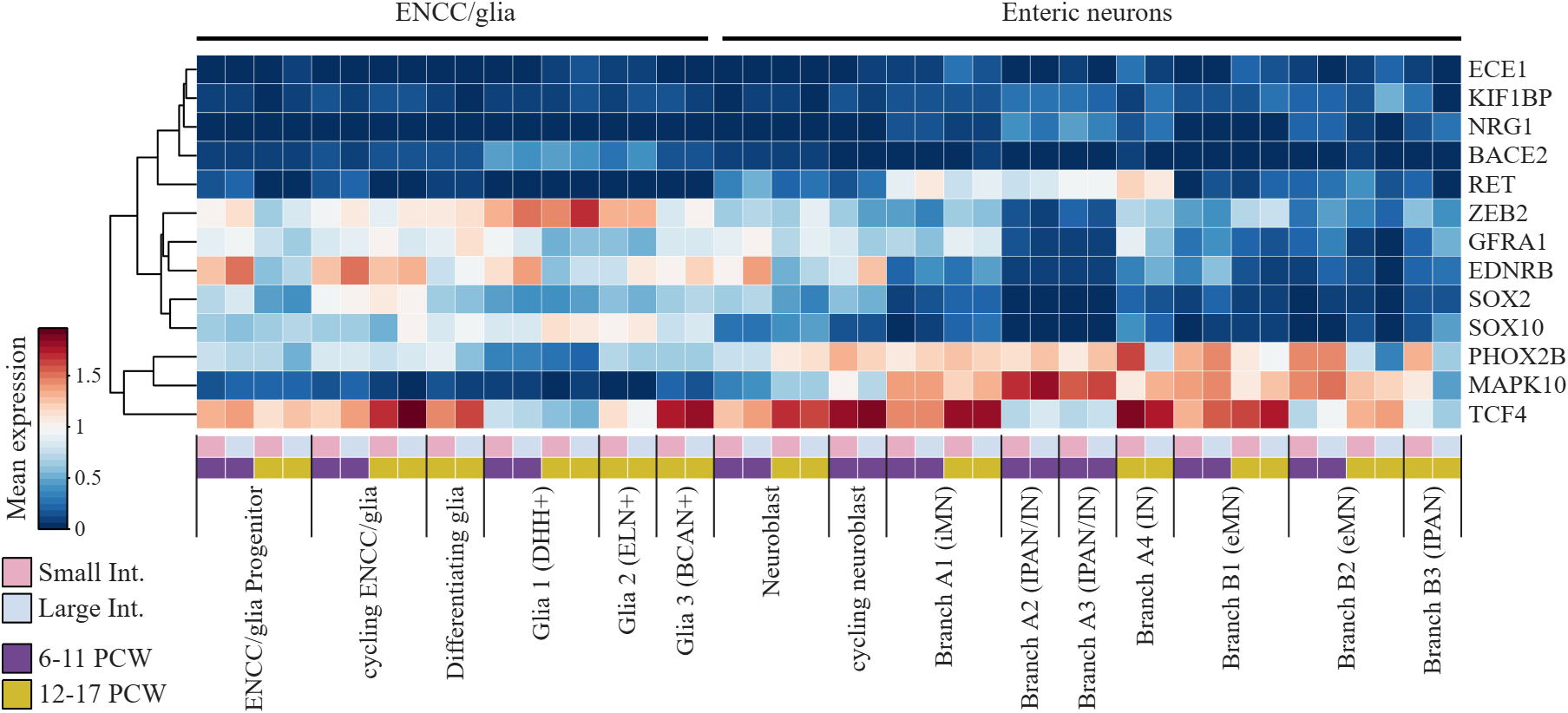
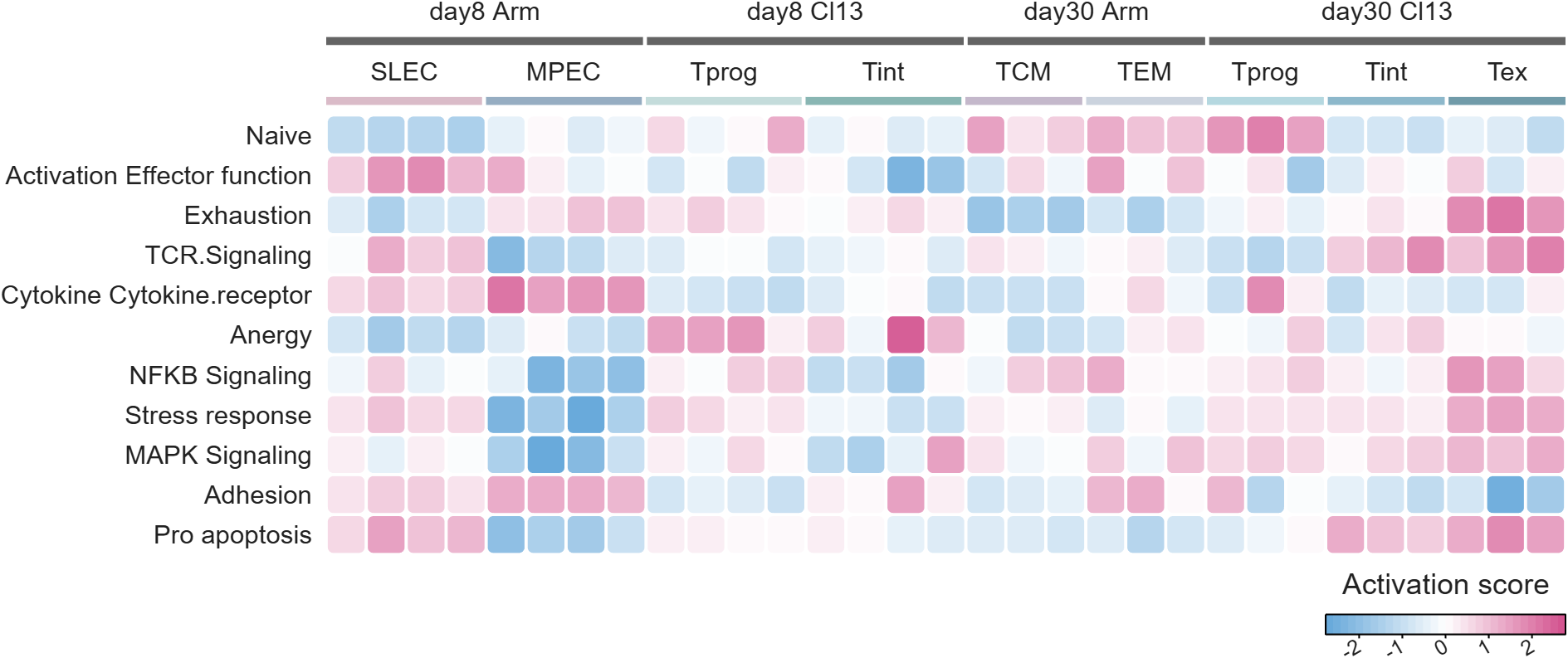
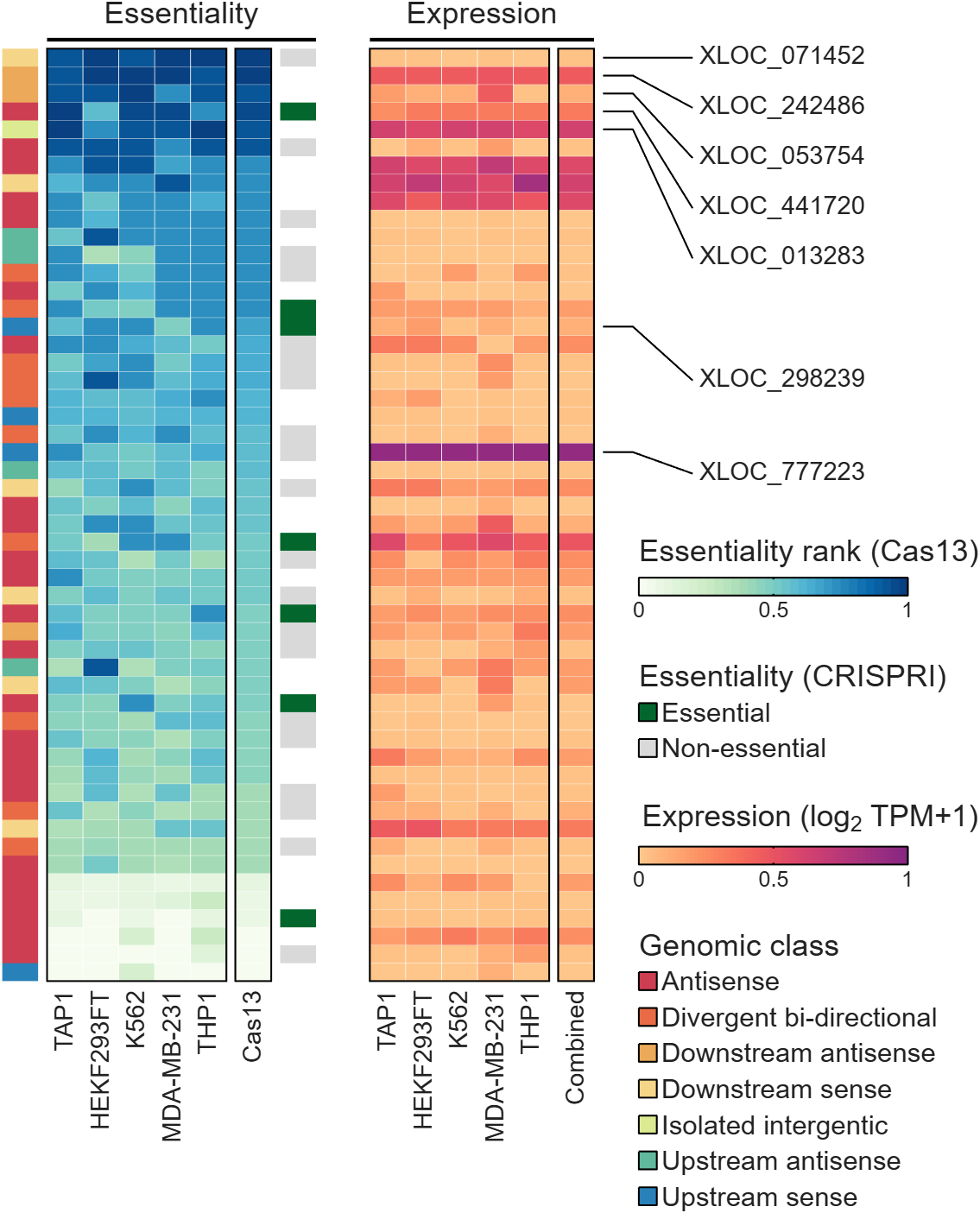
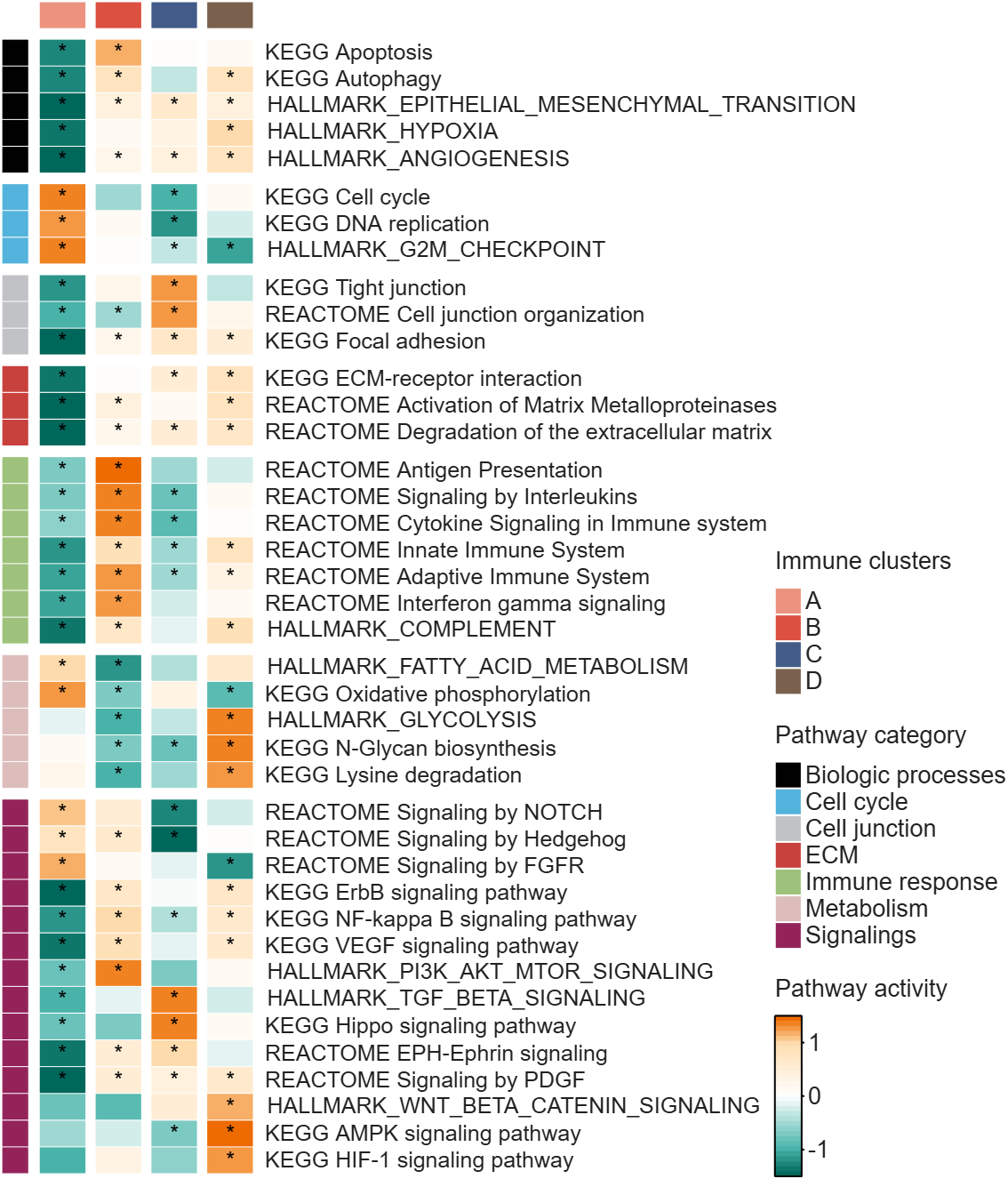
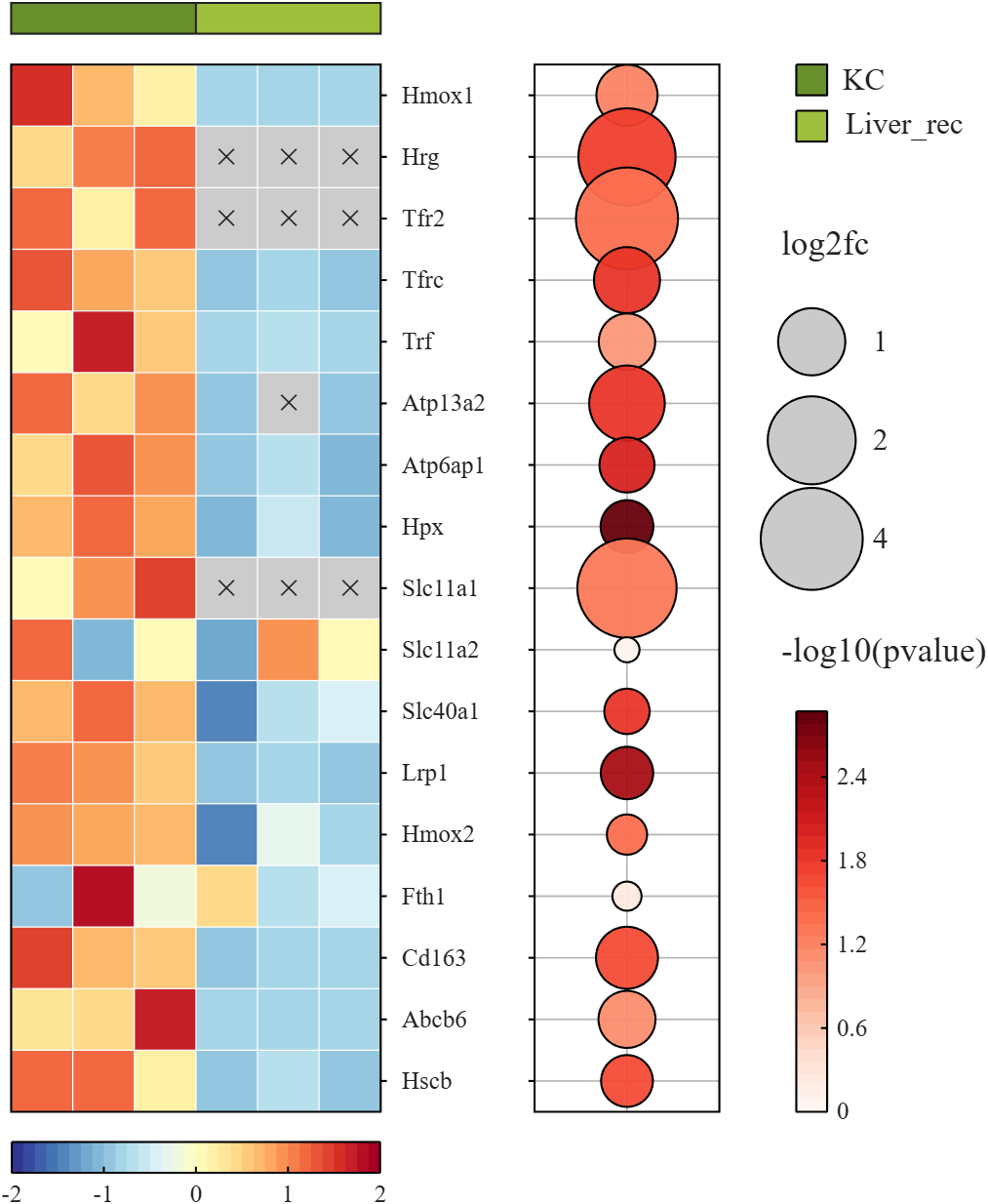
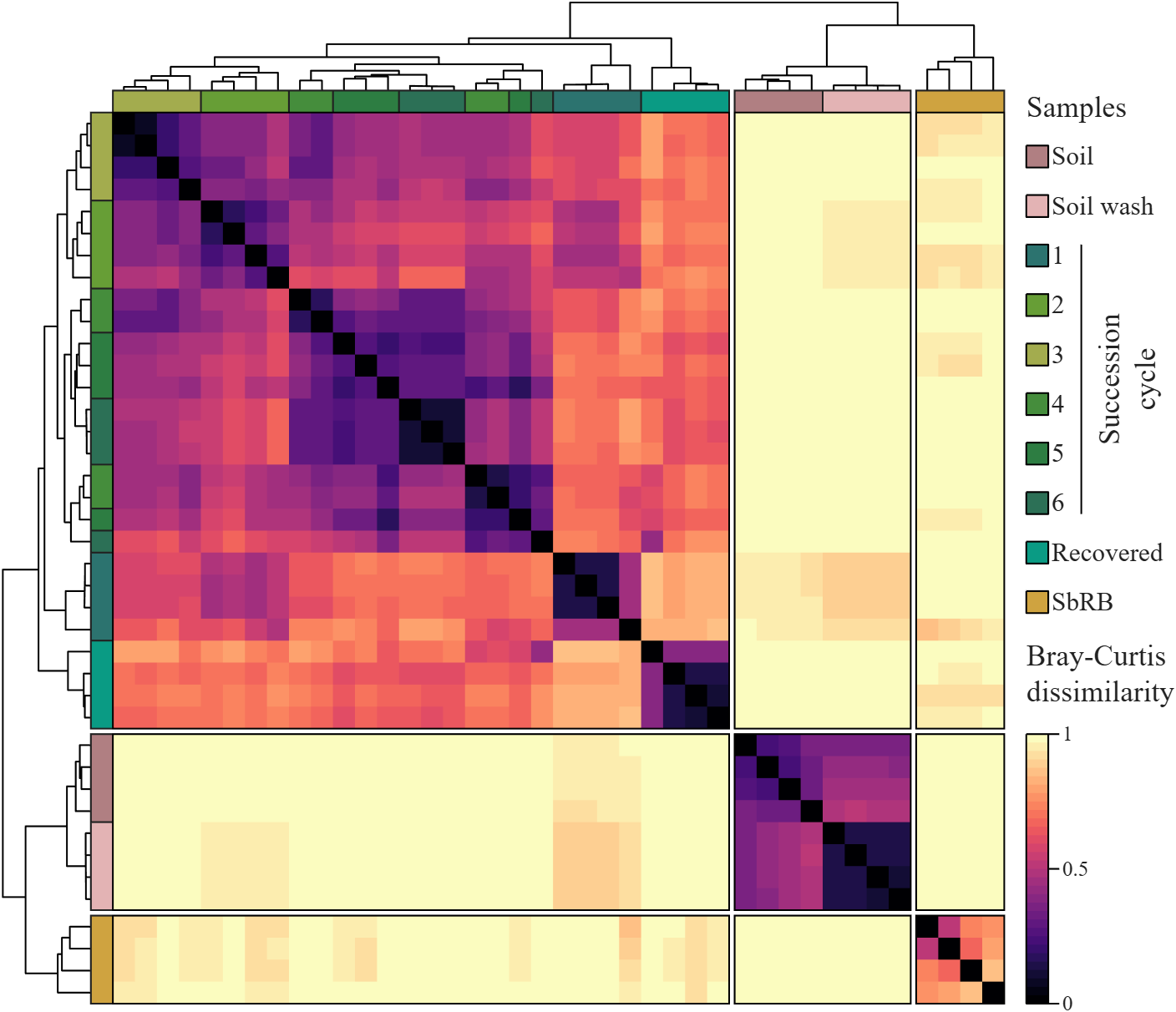
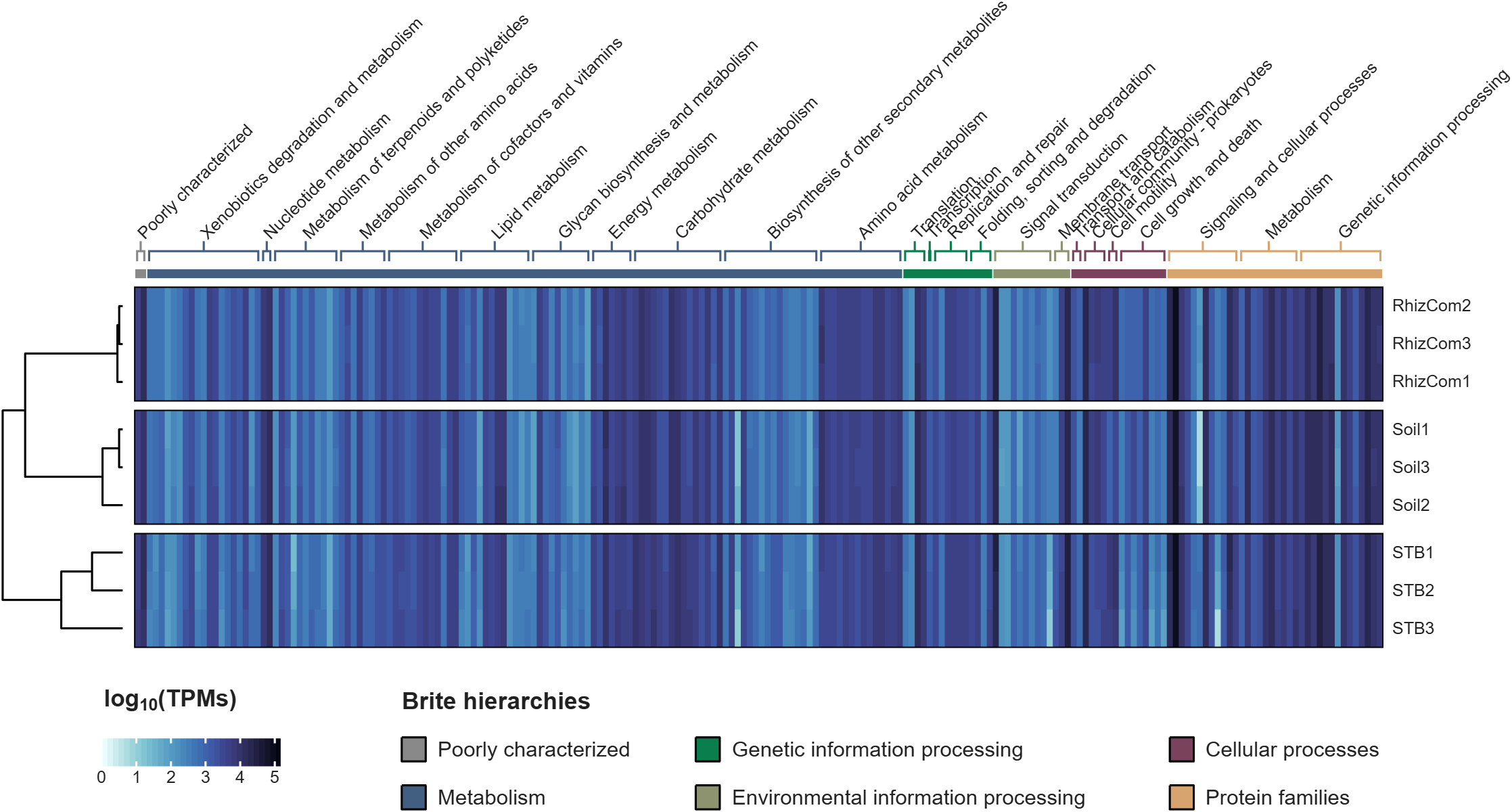
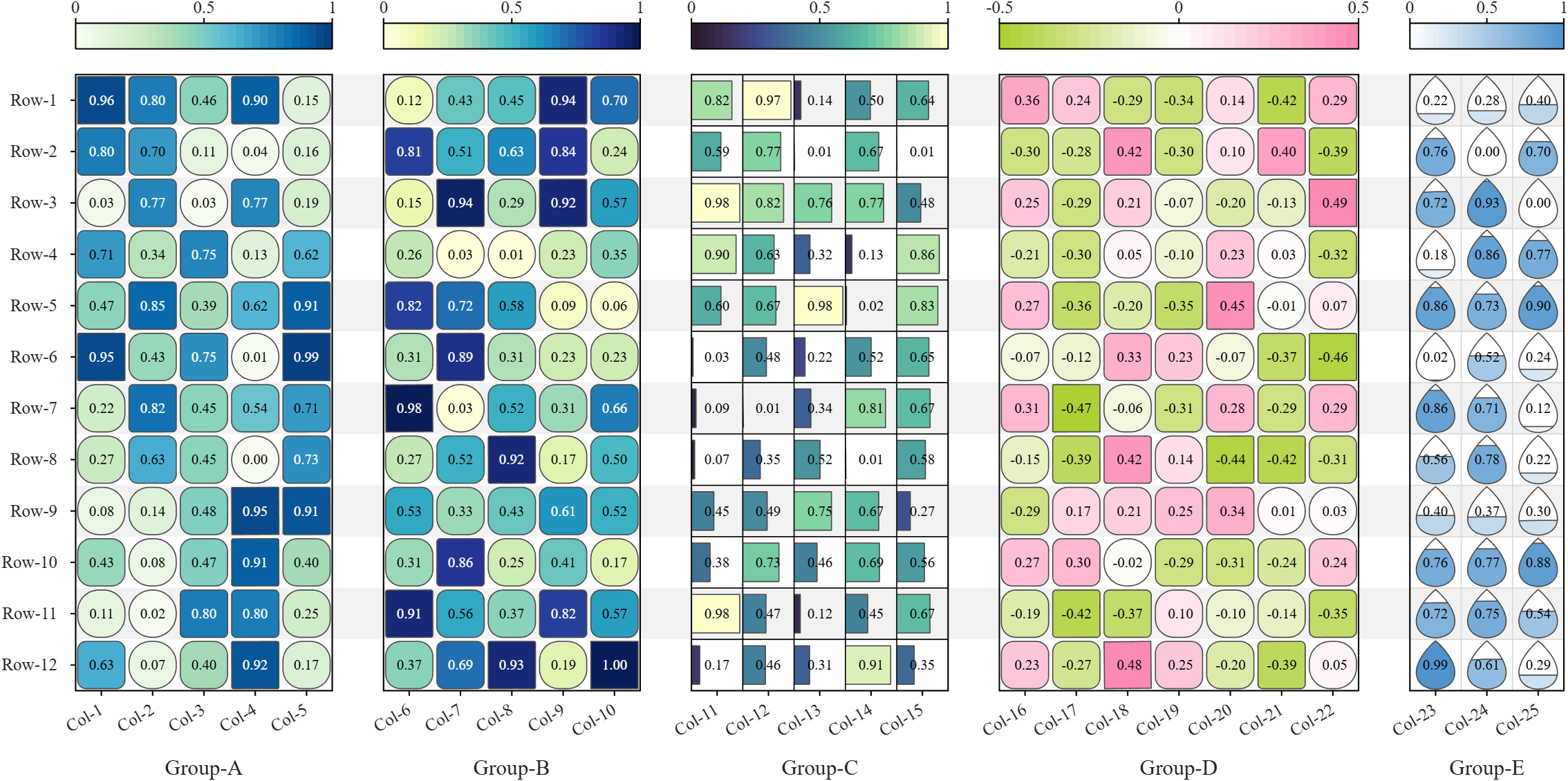
All these examples are plotted using SHeatmap. For details, please refer to the relevant examples in the demo_SColorbar folder included in the toolbox.

Claudifying MATLAB
Duncan Carlsmith
Department of Physics, University of Wisconsin-Madison

Introduction
AI mobile and desktop apps are convenient interfaces for exploration. For programmatic work not subject to variations in AI response, an AI can generate standalone code and web workflows. (See e.g. Web Automation with Claude, MATLAB, Chromium, and Playwright.) Intermediate is your own code that can batch process input data with AI via API.
Large Language Models (LLMs) with MATLAB permits a script to connect to OpenAI Chat Completions and Images, Azure OpenAI, Ollama, and other services that accept the OpenAI format. This submission introduces an educational Live Script Claude API from MATLAB for Coursework that illustrates how to access Anthropic models via API with MATLAB, using example tasks relevant to physics education, and might be adapted for other AI vendor APIs or emulated for other applications. This submission is essentially the Live Script introduction.
The script lists the available Claude models, sends text, images, and PDFs to a chosen model, holds a multi-turn conversation, extracts structured data from a document, lets Claude call MATLAB functions, and grades a set of short answers against a rubric. The examples show how an instructor or a student might use an AI model as a programmable assistant, for feedback on a figure, a check of a lab report, or a first pass at grading.
The Messages API is a web service at https://api.anthropic.com/v1/messages. A program sends it a request in JSON, the text format used for structured data on the web, and receives Claude's reply in JSON. A request names a model, sets a limit on the length of the reply, and carries a list of messages. An optional system prompt holds standing instructions that apply to every turn. The service keeps no memory between requests, so each request carries the whole conversation so far. MATLAB builds each request as a struct and jsonencode converts it to JSON.
Lengths and prices are counted in tokens. A token is a fragment of text, on average about four characters of English. Each response reports how many input and output tokens it used.
Helper functions in this folder handle the web requests and the bookkeeping. claudeRequest sends one request and reports the server's error message on failure. claudeListModels returns the models available to the key. claudeConversation and askClaude hold a multi-turn conversation and add up tokens and cost. claudeImageBlock and claudePdfBlock package a file for a message, claudeText extracts the reply text, and claudeCost converts token counts to dollars.
The example inputs sit in the inputs folder, which the Python version shares, and are fictional. example_flawed_figure.png is a plot with deliberate defects. example_lab_report.pdf is a student lab report with three planted errors, and example_lab_report_page1.png is an image of its page for display. student_answers.csv holds five short answers of varying quality. Output files go to the matlab_outputs folder and carry a timestamp in the name, so no run overwrites an earlier one, and the MATLAB and Python outputs stay apart.
"Try this" blocks mark the settings to change. The references list the API documentation. The appendix on privacy and security describes where requests go, how long the vendor keeps them, and precautions for student work and for the API key. A parallel Python version of the script and helper functions is in the Python folder. These functions could be called from MATLAB or invoked from a terminal.
Acknowledgments and disclaimer
The author has no financial interest in any company or product named here. Nothing in this post is endorsed by, sponsored by, or an official position of the University of Wisconsin-Madison.

For those using Matlab and ecountering difficulty with mex and Xcode v27
Fix for Xcode 27 breaking MATLAB MEX C++ compilation:
matlab
edit(fullfile(prefdir,'mex_C++_maca64.xml'))
% Set LINKEXPORTCPP=""
% Then rebuild normally
Every thriving community is built by people who generously share their time and expertise.
Today we're celebrating one of those people. Congratulations to @Sam Chak on earning MATLAB Answers MVP status by surpassing 5,000 reputation points.
Thank you for the thousands of answers, countless hours of help, and the positive impact you've had on the MATLAB community. We're lucky to have you with us! 👏 🎉
Hi everyone
Some of my colleauges at MathWorks are conducting a survey on how people use science and engineering file formats such as NetCDF, HDF5, Zarr and so on.
It will only take a few minutes to fill out and is completely anonymous unless you want to be contacted. Your thoughts, details of usage in your domain or industry, and current friction points will help us improve MATLAB to better support the kind of work you do in the future!
If there's anything not covered by the survey that you'd like to mention, feel free to reply to this thread.
Cheers,
Mike
Running Octave and other applications in a ChatGPT container
Duncan Carlsmith
Department of Physics, University of Wisconsin-Madison
Introduction
An AI assistant that can run code can write a script, run it, read the results, and fix errors before reporting back.
Prototyping MATLAB code in a Claude container with Octave describes one way I can supply Claude basic autonomous MATLAB executability by installing Octave in the Claude container instead of using an MCP connection or an HTTPS command server to hand the assistant my own Mac, with its MATLAB, the toolboxes, and the real files. This Octave hack is useful if, for example, I am on my phone while my laptop is offline or otherwise occupied.
ChatGPT runs code in a Linux container with Python, Node, and a shell. GNU Octave is not present and is not straightforwardly installed by the chat itself - an apt-get install octave fails because the container reaches selected package proxies and not the Debian repositories. This post describes a solution provided by Claude for ChatGPT, a solution provided that applies to other packages as well.
The trick is to prepare externally and upload an Octave (or whatever) package and simply drop it into the ChatGPT chat as needed with an installation instruction prompt. Once the chat accomplishes the installation, that chat is good to go. A 197 MB file uploaded to the conversation installs Octave 10.3.0 in about ten seconds. The install needs no root access, no apt, and no network connection from the container. I can then hand ChatGPT an .m file, read the numbers it prints, and retrieve the figure. The same method carries other programs built by conda-forge for Linux x86_64. The ExifTool bundle is 37 MB. The Pandoc bundle is 40 MB.
Be aware that in a ChatGPT Project environment, the uploaded package is available to all project chats but must be installed in each chat’s container that needs it, and can sometimes need a reinstall if you leave a chat in which it is installed. That installation action might be automated via persistent context -I’ve not tried that. Neither have I tried this trick with other AIs.
The rest of this submission is Claude-generated goop describing exactly how to implement this and the tests performed. It is not intended for normal sentient being consumption. Just hand it to your AI.
Background
The Claude container I used to prepare this post runs Ubuntu 24.04 with glibc 2.39, as root, with HTTPS access to an allowed set of hosts. apt-get update reaches the Ubuntu archives, pip reaches PyPI, and apt-get install octave would install Octave 8.4.0 from the distribution. That container also carries ffmpeg and ImageMagick and no Octave.
The ChatGPT container I tested runs Debian 13 with glibc 2.41, unprivileged, with a packages-only network policy. Its pip reaches an internal proxy and apt reaches nothing. Published reconnaissance reports the same policy (Willison, January 2026, container environment notes, sandbox exploration).
So the bundle is a requirement on ChatGPT and an upgrade on Claude. Ubuntu supplies Octave 8.4, the version the companion post worked around. The bundle supplies 10.3.0 on either, because it does not depend on what the distribution packages.
Those reports, and my own measurements, describe particular images in September 2026. The images change. The bundle therefore targets an application binary interface rather than a named vendor image. Conda-forge packages for linux-64 declare a minimum glibc version and an instruction-set baseline, and a Linux host new enough to meet both runs the same binaries. After the design was fixed, ldd --version in the ChatGPT container reported Debian GLIBC 2.41, above the glibc 2.28 floor the bundle assumes.
The method
Micromamba, a single statically linked executable, installs an explicit list of conda packages from local archive files. The bundle contains those files, a Linux micromamba binary and a short installer.
- On your own machine, solve the dependency graph for Linux x86_64 without installing it.
- Download the package archives returned by the solve.
- Put the archives, micromamba and the installer in one tar file.
- Upload the tar, extract it in the container and install under /mnt/data.
Step 4 needs no network, no root access and no system package manager. Everything is written below one directory the container already permits.
Building the Octave bundle
DROP='(qt-|qt6|pyqt-|qscintilla2|libllvm|libclang|ghostscript|mesa)' \
sh build_bundle.sh octave octave
The complete solve contains 181 packages, 460 MB of archives, and installs to 1.8 GB, much of it supporting a graphical interface the container cannot display. Dropping Qt, PyQt, QScintilla, LLVM, Clang, Mesa and Ghostscript leaves 171 packages, a 197 MB tar file and a 773 MB installed tree. Appendix A passes that exclusion list through DROP.
There is a limit to the pruning. octave-cli links libOpenGL.so.0, so libglvnd must remain even though no window is drawn.
Solving on macOS for a Linux target
My first solve on an Apple silicon Mac returned Octave 7.1.0, Python 3.9, Qt 5.12 and a 323 MB tar. The same solve run on Linux returned Octave 10.3.0, Python 3.14 and a 197 MB tar.
The difference comes from conda virtual packages, one of which is __glibc. A Mac has no glibc, so builds requiring __glibc >=2.17 appear unsatisfiable, and the solver walks backward to builds from 2022 and earlier, before that declaration was used. Setting CONDA_OVERRIDE_GLIBC=2.12 on a Linux machine reproduced the Mac result package for package.
Three settings remove the host from the decision.
export CONDA_OVERRIDE_GLIBC=2.28 # describe the target, not this Mac
export CONDA_OVERRIDE_ARCHSPEC=x86_64 # portable baseline, not the host CPU
# on the micromamba command line:
--no-rc --no-env --override-channels # ignore local conda configuration
CONDA_OVERRIDE_ARCHSPEC matters on a fast host. A solve on a machine with AVX-512 selected a metapackage pinned to x86_64_v4, which would fail in a container whose processor lacks those instructions.
Appendix A also rejects a solved Octave version below 10, which catches the silent fallback before hundreds of megabytes are downloaded.
An earlier bug in the build script was less obvious. Its URL filter matched only the linux-64 subdirectory and silently dropped 15 noarch packages. Octave still ran, and figure text fell back to whatever fonts the container had, because the DejaVu fonts are noarch.
Verification
Appendix C contains 13 checks. Each compares an Octave result with a value obtained independently. A truncated package set or a broken BLAS can start normally and return a plausible wrong answer.
The checks cover dense and sparse linear algebra, an ODE, quadrature, an FFT, root finding, minimization, MAT-file and text I/O, basic data structures and a PNG figure. The eigenvalues of the 3 by 3 second-difference matrix are compared with 2 - 2cos(k pi/4), and the ode45 value at t = 5 with the closed-form solution of y' = -2y + sin(t).
All 13 pass in the ChatGPT container. The 400 by 400 dense solve gives a residual of 1.3e-15 in 17 ms. The BLAS is real.

Figure 1. Output of the self-test under Octave 10.3.0 in a ChatGPT container. Blue solid curve, sin(x). Red dashed curve, sin(x)exp(-x/6). Black circles, the ode45 solution of y' = -2y + sin(t), sampled every 25th step.
What is missing
Octave itself does not provide MATLAB's table or string class. Octave Forge packages are unavailable because pkg install tries to download them.
The Qt graphics toolkit needs a display, so the self-test uses gnuplot and print -dpngcairo to write a PNG. Pruning Ghostscript removes EPS and PDF output and the plain -dpng device, and putting it back costs about 60 MB.
Three warnings accompany every figure. GraphicsMagick reports its 8-bit limit, Ghostscript is absent, and fontconfig prints an initialization notice. None changed the PNG output in these tests.
What persisted in the tests
I measured three behaviors in one ChatGPT project in September 2026.
Within one conversation, the container persisted across turns. An Octave install made at the start remained usable for the rest of that chat.
After several hours away, the installed directory was gone and the files uploaded or produced in the conversation had returned, with fresh timestamps. Reinstallation took one instruction and about ten seconds, with no new upload.
$ ls -la /mnt/data/
-rw-r--r-- 1 root oai_shared 206766592 Sep 13 14:40 octave-bundle-linux64.tar
-rw-r--r-- 1 root oai_shared 34124 Sep 13 14:52 octave_selftest.png
A new conversation in the same project started with an empty /mnt/data. Project files were available to ChatGPT for retrieval and did not appear in that conversation's container filesystem, so files belonged to the conversation rather than to the project.
I therefore keep one conversation as the Octave conversation and return to it whenever an .m file needs a trial run.
Other programs
ExifTool resolves to six packages and a 37 MB upload including micromamba. Pandoc resolves to one 23 MB package and a 40 MB bundle. Both use the same two scripts.
sh build_bundle.sh exiftool exiftool
sh build_bundle.sh pandoc pandoc
The Pandoc bundle converted the Markdown source of this post to RTF.
Try pip first. The Python package proxy worked here, and a bundle is unnecessary when pip supplies the program. The bundle earns its keep for compiled programs with shared-library dependencies, where apt would ordinarily be the answer.
The method does not solve a large-data problem. At the time of these tests, an upload was limited to 512 MB, so a program needing gigabytes of auxiliary data, such as the index files of a blind astrometric solver, does not fit merely because its executable does.
Security
The installer runs package scripts supplied by conda-forge, the same trust decision as creating an ordinary conda environment. The container is disposable and had no general outbound network access in these tests, which limits what a malicious package could reach. It does not make an untrusted package safe.
Wrap up
One upload and about ten seconds of installation gave a ChatGPT conversation a working Octave, and the same pair of scripts carried ExifTool and Pandoc. Octave is still not MATLAB. Parser differences, unsupported classes and toolbox calls remain, so the finished program needs a run in MATLAB.
For anyone already running a command server on a personal machine, a custom GPT action can call an HTTPS endpoint that runs MATLAB itself, on hardware that remembers yesterday's installation. The uploaded bundle is for the case in between, with no MATLAB connection, no root access and no useful apt, but a serviceable Linux container once the right files arrive.
Acknowledgments and disclaimer
The methods and measurements were assembled and tested by the author. A first draft of this post was prepared with Claude and revised with ChatGPT and further revised by the author.
The author has no financial interest in any company or product named here. Nothing in this post is endorsed by, sponsored by, or an official position of the University of Wisconsin-Madison. The affiliation is given for identification only.
Appendix A. build_bundle.sh
#!/bin/sh
# Build a self-contained, network-free bundle of any conda-forge package for
# a Linux x86_64 container. Runs on macOS or Linux. Nothing is installed on
# the host. Requires curl, tar and python3.
#
# Usage: sh build_bundle.sh <name> <package> [package ...]
# e.g. sh build_bundle.sh docs pandoc graphviz
# Output: <name>-bundle-linux64.tar in the current directory.
#
# Env: DROP extended regex of package names to exclude, for example
# DROP='(qt-|qt6|pyqt-|qscintilla2|libllvm|libclang|ghostscript|mesa)'
# GLIBC glibc version the target container provides. Default 2.28.
set -e
[ $# -ge 2 ] || { echo "usage: sh build_bundle.sh <name> <package> [package ...]"; exit 1; }
SCRIPTDIR=$(cd "$(dirname "$0")" && pwd)
NAME=$1; shift
PKGS=$*
WORK="$PWD/${NAME}-bundle-build"
mkdir -p "$WORK"
DROP=${DROP:-'(^$)'}
GLIBC=${GLIBC:-2.28}
# Describe the TARGET container, not this host. Without these a macOS solve
# falls back to pre-2022 builds, and a fast host selects AVX-512 packages.
export CONDA_OVERRIDE_GLIBC=$GLIBC
export CONDA_OVERRIDE_ARCHSPEC=x86_64
ISO='--no-rc --no-env --override-channels' # ignore ~/.condarc and CONDA_* vars
cd "$WORK"
case "$(uname -s)/$(uname -m)" in
Darwin/arm64) HOSTPLAT=osx-arm64 ;;
Darwin/x86_64) HOSTPLAT=osx-64 ;;
Linux/aarch64) HOSTPLAT=linux-aarch64 ;;
*) HOSTPLAT=linux-64 ;;
esac
echo "Host $HOSTPLAT, target linux-64 glibc $GLIBC, packages: $PKGS"
mkdir -p hostbin bundle/pkgs
curl -sSL "https://micro.mamba.pm/api/micromamba/$HOSTPLAT/latest" \
| tar -xj -C hostbin --strip-components=1 bin/micromamba
chmod +x hostbin/micromamba
curl -sSL https://micro.mamba.pm/api/micromamba/linux-64/latest \
| tar -xjO bin/micromamba > bundle/micromamba
chmod +x bundle/micromamba
echo "Solving ..."
export MAMBA_ROOT_PREFIX="$WORK/solveroot"
./hostbin/micromamba create -n solve $ISO --platform linux-64 -c conda-forge \
$PKGS -y --dry-run --json > solve.json
python3 - "$DROP" <<'PY' > urls.txt
import json, re, sys
drop = re.compile('/' + sys.argv[1])
links = json.load(open('solve.json'))['actions']['LINK']
# A host with no glibc override can silently select an old Octave.
octave = next((p for p in links if p['name'] == 'octave'), None)
if octave and int(octave['version'].split('.')[0]) < 10:
raise SystemExit('refusing solved Octave version ' + octave['version'])
out = open('bundle/explicit.txt', 'w')
out.write("# offline install list, linux-64\n# platform: linux-64\n@EXPLICIT\n")
kept = 0
for p in links:
url = p.get('url') or "%s/%s/%s-%s-%s.conda" % (
p['channel'], p['platform'], p['name'], p['version'], p['build_string'])
if drop.search(url):
continue
md5 = p.get('md5')
out.write('@PKGS@/' + url.rsplit('/', 1)[1] + ('#' + md5 if md5 else '') + '\n')
print(url)
kept += 1
out.close()
print("kept %d of %d packages" % (kept, len(links)), file=sys.stderr)
PY
echo "Downloading $(wc -l < urls.txt) packages ..."
xargs -n1 -P8 curl -sS -L -O --output-dir bundle/pkgs < urls.txt
cp "$SCRIPTDIR/install_bundle.sh" bundle/
COPYFILE_DISABLE=1 tar -cf "../${NAME}-bundle-linux64.tar" -C bundle .
cd ..
du -h "${NAME}-bundle-linux64.tar"
cat <<EOF
Bundle: $PWD/${NAME}-bundle-linux64.tar
Upload it, then extract and run install_bundle.sh in the container.
EOF
Appendix B. install_bundle.sh
#!/bin/sh
# Install a bundle built by build_bundle.sh into a prefix inside a container.
# No network. No root. No apt.
# Usage: sh install_bundle.sh [prefix] default: <bundle dir>/prefix
set -e
HERE=$(cd "$(dirname "$0")" && pwd)
PREFIX=${1:-$HERE/prefix}
chmod +x "$HERE/micromamba"
sed "s|@PKGS@|file://$HERE/pkgs|" "$HERE/explicit.txt" > "$HERE/explicit_resolved.txt"
MAMBA_ROOT_PREFIX="$HERE/mroot" "$HERE/micromamba" create -p "$PREFIX" --offline -y \
--file "$HERE/explicit_resolved.txt" >/dev/null
# One launcher that sets the environment and runs any binary from the prefix.
cat > "$HERE/run" <<EOF
#!/bin/sh
export PATH="$PREFIX/bin:\$PATH"
export LD_LIBRARY_PATH="$PREFIX/lib:\${LD_LIBRARY_PATH:-}"
[ -d "$PREFIX/share/octave" ] && export OCTAVE_HOME="$PREFIX"
[ -f "$PREFIX/etc/fonts/fonts.conf" ] && export FONTCONFIG_FILE="$PREFIX/etc/fonts/fonts.conf"
[ -d "$PREFIX/share/gnuplot" ] && export GNUPLOT_DRIVER_DIR="$PREFIX/libexec/gnuplot"
exec "\$@"
EOF
chmod +x "$HERE/run"
echo "Installed to $PREFIX"
echo "Executables:"
ls "$PREFIX/bin" | head -20
echo "Run with: $HERE/run <command> [args]"
Appendix C. octave_selftest.m
% octave_selftest.m
% Self-check for the Octave bundle installed in a ChatGPT container.
% Each test compares against a value known independently of Octave.
% Run: /mnt/data/oct/run octave-cli -q octave_selftest.m
% Writes octave_selftest.png next to the working directory.
npass = 0;
function r = chk(name, got, want, tol)
ok = all(abs(got(:) - want(:)) <= tol);
printf('%-28s %s got %-14.8g want %-14.8g\n', name, ...
merge(ok, 'PASS', 'FAIL'), got(1), want(1));
r = ok;
end
printf('Octave %s on %s\n\n', version(), computer());
% 1. Dense linear algebra. magic(4) is singular, rank 3.
A = magic(4);
npass += chk('rank(magic(4))', rank(A), 3, 0);
% 2. Eigenvalues of the 3x3 second-difference matrix, 2 - 2cos(k pi/4).
T = full(gallery('tridiag', 3, -1, 2, -1));
want = sort(2 - 2*cos((1:3)*pi/4));
npass += chk('eig(tridiag) vs closed form', sort(eig(T))', want, 1e-12);
% 3. Solve a 400x400 system, check the residual and time it.
n = 400; rand('seed', 42);
M = rand(n) + n*eye(n); b = ones(n,1);
t0 = tic; x = M\b; dt = toc(t0);
npass += chk('400x400 solve residual', norm(M*x - b, inf), 0, 1e-10);
printf('%-28s %.3f s\n', 'solve wall time', dt);
% 4. ode45 against y(t) = (2 sin t - cos t)/5 + (6/5)exp(-2t),
% the solution of y' = -2y + sin(t), y(0) = 1.
f = @(t,y) -2*y + sin(t);
opt = odeset('RelTol', 1e-9, 'AbsTol', 1e-11);
[T5, Y5] = ode45(f, [0 5], 1, opt);
ya = @(t) (2*sin(t) - cos(t))/5 + 1.2*exp(-2*t);
npass += chk('ode45 vs analytic at t=5', Y5(end), ya(5), 1e-8);
% 5. Quadrature: integral of exp(-x^2) on [0,Inf) is sqrt(pi)/2.
npass += chk('quadgk vs sqrt(pi)/2', quadgk(@(x) exp(-x.^2), 0, Inf), sqrt(pi)/2, 1e-10);
% 6. FFT of a pure tone: peak bin amplitude n/2 for unit sine.
n = 1024; k = 17; s = sin(2*pi*k*(0:n-1)/n);
S = abs(fft(s));
npass += chk('fft peak bin', S(k+1), n/2, 1e-8);
% 7. Root finding and unconstrained minimization.
npass += chk('fzero cos(x)=x', fzero(@(x) cos(x)-x, [0 1]), 0.73908513321516, 1e-10);
npass += chk('fminsearch Rosenbrock', ...
fminsearch(@(v) 100*(v(2)-v(1)^2)^2 + (1-v(1))^2, [-1.2 1], ...
optimset('TolX',1e-8,'TolFun',1e-10)), [1 1], 1e-3);
% 8. Sparse matrices.
Sp = sparse(1:5, 1:5, 2:6);
npass += chk('sparse trace', full(sum(diag(Sp))), 20, 0);
% 9. MAT file round trip in v7 format, which MATLAB also reads.
Mg = magic(5); save('-v7', 'selftest.mat', 'Mg'); clear Mg
load('selftest.mat');
npass += chk('save/load -v7', sum(Mg(:)), 325, 0);
% 10. Text file I/O.
fid = fopen('selftest.txt', 'w'); fprintf(fid, '%d\n', 1:100); fclose(fid);
v = dlmread('selftest.txt');
npass += chk('fprintf/dlmread', sum(v), 5050, 0);
% 11. Strings, cells, structs, regexp.
c = cellfun(@(s) upper(s), {'ab','cd'}, 'UniformOutput', false);
st = struct('a', {1,2,3});
tok = regexp('Octave 10.3.0', '(\d+)\.(\d+)\.(\d+)', 'tokens');
ok = isequal(c, {'AB','CD'}) && numel(st) == 3 && str2double(tok{1}{1}) == 10;
printf('%-28s %s\n', 'cell/struct/regexp', merge(ok, 'PASS', 'FAIL'));
npass += ok;
% 12. Figure to PNG through the gnuplot toolkit.
warning('off', 'Octave:gnuplot-graphics');
graphics_toolkit('gnuplot');
fh = figure('visible', 'off');
set(fh, 'position', [0 0 900 400]);
x = linspace(0, 4*pi, 400);
plot(x, sin(x), 'b-', 'linewidth', 1.2); hold on
plot(x, sin(x).*exp(-x/6), 'r--', 'linewidth', 1.5);
kk = 1:25:numel(T5);
plot(T5(kk), Y5(kk), 'ko', 'markersize', 5, 'markerfacecolor', 'none');
legend('sin(x)', 'sin(x) exp(-x/6)', 'ode45 solution y(t)', ...
'location', 'northeastoutside');
xlabel('x'); ylabel('amplitude');
title('sin(x), damped sin(x), and ode45 solution of y prime = -2y + sin(t)');
ylim([-1.3 1.3]); grid on
print(fh, 'octave_selftest.png', '-dpngcairo', '-r120');
d = dir('octave_selftest.png');
ok = ~isempty(d) && d.bytes > 5000;
printf('%-28s %s %d bytes\n', 'figure to PNG', merge(ok, 'PASS', 'FAIL'), ...
merge(isempty(d), 0, d.bytes));
npass += ok;
ntot = 13;
printf('\n%d of %d checks passed\n', npass, ntot);
if npass < ntot
printf('FAILURES PRESENT\n');
end
printf('Forge packages installed: %d (expected 0, pkg install needs network)\n', ...
numel(pkg('list')));
Appendix D. Commands to give ChatGPT
Upload the tar and the .m file to one conversation. A literal prompt is less likely to produce a substitute method or imagined output.
Run these shell commands in order and show me all output. Do not substitute Python for any step.
mkdir -p /mnt/data/oct
tar -xf /mnt/data/octave-bundle-linux64.tar -C /mnt/data/oct
sh /mnt/data/oct/install_bundle.sh
/mnt/data/oct/run octave-cli -q /mnt/data/yourscript.m
If a command fails, stop and show the command and its complete error output. Return any PNG files created by the script.
ExifTool and Pandoc follow the same pattern.
/mnt/data/exiftool/run exiftool -s -ImageWidth -ImageHeight image.png
/mnt/data/pandoc/run pandoc -s -f markdown -t rtf -o post.rtf post.md
If the upload is not visible at the expected path, ask for ls -la /mnt/data first. Attach the tar to the conversation in which it will run. If the extract directory is mounted without execute permission, copy the tree to a writable executable directory and install there.

TokaLab is an open-access virtual tokamak platform built in MATLAB for nuclear fusion modeling, diagnostics, inverse problems, and computational experimentation.
- App installer for MATLAB Online — run TokaLab directly in your browser.
- Two new tutorials covering the core modules, SimPla and SynDiag, in detail.
- Two new modules: TokaPlot for advanced plotting, and SynRad for radiation generation.
- Real tokamak geometries, supporting more realistic tokamak modeling.

You can use MATLAB's rat() function to obtain a rational approximation of a decimal value. For example, rat(0.625) gives a representation equivalent to 5/8. If you simply want to verify decimal/fraction conversions without running MATLAB, a browser-based decimal-to-fraction calculator can also be useful.

If you're a student looking for tips, resources, or guidance for learning MATLAB, check out my new blog: Learn MATLAB – A Student’s Guide
The blog highlights a variety of student resources, including getting started guides, cheat sheets, learning materials, and other helpful tools to make learning MATLAB easier. I hope you find it useful!
Vibe Coding with a Remote Desktop
Duncan Carlsmith, Department of Physics, University of Wisconsin-Madison
Introduction
A phone is all you need to develop coding projects with an agentic AI like Claude. With the Claude App voice input or a voice-to-text app, you don’t even have to type text on your phone. You can leave your laptop at home, take a stroll, respond to a Claude notification en route, and pretend you are not working at the coffee shop.
But there are advantages to having a phone-based remote desktop, and free or nearly free options are available. This post describes experience with two full remote desktop applications and one AI-built quick file-browser-viewer that serves most use cases. Boring technical descriptions follow, but don’t be overwhelmed by them. Claude can bootstrap the installation and setup of everything described here. Just ask and maybe point it to this submission.
Background information
How to set up and use AI Desktop Apps with MATLAB and MCP servers covers the MCP setup. A universal agentic AI for your laptop and beyond describes what a desktop AI does with it. Web automation with Claude, MATLAB, Chromium, and Playwright describes a browser assistant on the same footing. Giving All Your Claudes the Keys to Everything puts an HTTP command server on the Mac behind an ngrok tunnel, so any AI chat interface runs MATLAB, shell commands and AppleScript there. The code is on File Exchange.
With my setup, the Claude app on the phone carries the same conversations and Cowork sessions as the app on the Mac, with the same shell, the same MCP connections, and the same ngrok tunnel. A chat started at the desk continues on the phone where it stopped seamlessly. One conversation can dispatch subagents and run a long computation while a second conversation works on something else.
I am terrible at using the tiny keyboard on my wee iPhone. I now dictate most prompts into the Claude app and use Wispr Flow for dictation into other apps on the phone. I generally ask Claude to back up and version products on my laptop for safekeeping and easy access rather than use GitHub. For example, I might have the AI develop a MATLAB code and test it using GNU Octave in its container to avoid a lot of costly back-and-forth transfers, and then transfer a working product to my Mac as a Live Script that I can render and run with the MATLAB Live Editor. I could ask the AI to run MATLAB and to save a PDF of the Live Script and ship that to me, but it is easier to just run it with real-time feedback. With a remote desktop on my phone, I can have that feedback without carrying the laptop with me.
Remote Desktops
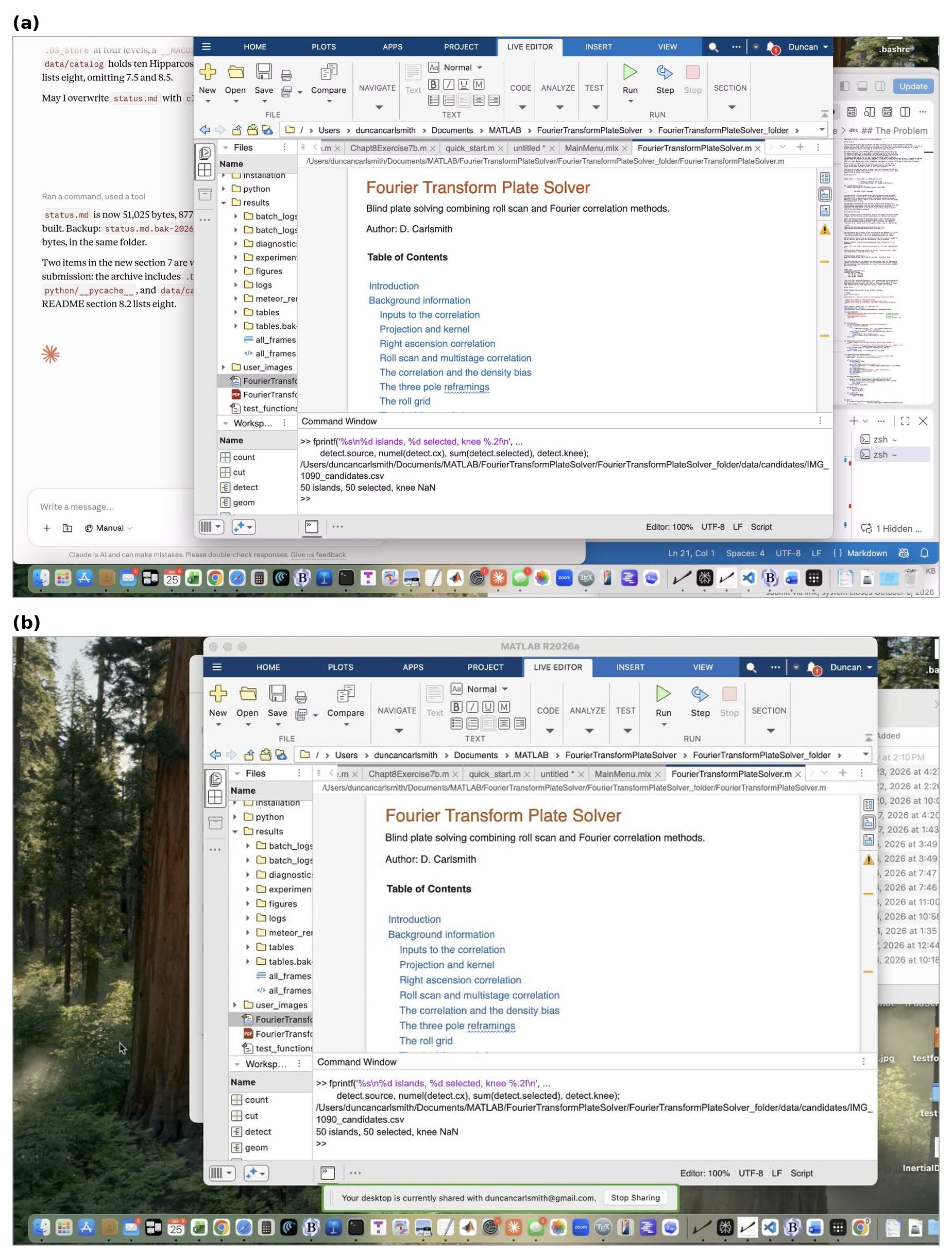
Figure 1. A Mac desktop displayed on an iPhone. (a) Screens, a VNC client, over Tailscale. (b) Chrome Remote Desktop in mobile Safari. MATLAB R2026a is open in the Live Editor in both.
Figure 1 shows iPhone screenshots (partly cropped for privacy) of two remote desktop applications, Screens and Chrome Remote Desktop, serving my MacBook Pro. The full desktop is provided in miniature. Each iPhone app has mechanisms for navigation and operation of macOS and its applications. A drag in Screens moves the whole desktop. Scrolling inside a MATLAB window uses the controls along the bottom of the Screens interface. Chrome Remote Desktop supplies a cursor to drag and click. These suffice for most simple operations. In particular, a Live Script renders in the Live Editor, with figures, equations, and formatted text in place. Tapping Run runs it. One can, of course, direct the AI to launch the laptop application you want beforehand. It is reassuring to see in real time that my laptop has not been hijacked by some wayward mechanism, and to watch a file transfer complete.
Chrome Remote Desktop is free. RealVNC Viewer is free and reaches the same port, but I’ve not tried it. The App Store lists other clients which, like Screens, may require a subscription.
The File Server
New here is an AI-built quick file-browser-viewer. It serves any designated folder over HTTP, and the folder appears in Safari. No file is copied, converted, or sent through the chat. That saves some token charges and headaches. Briefly described:
iPhone Safari -> http://100.x.y.z:8080/some/file.html
|
| WireGuard, encrypted end to end
| direct peer-to-peer, or relayed if NAT blocks it
v
Mac, tailnet address 100.x.y.z
python3 serve_folder.py ~/Documents/courses --port 8080
|
v
the actual folder, unchanged
Safari displays the folder, including subfolders, as easy-to-read clickable links; iPhone handles the display of common file types. HTML renders with its JavaScript, so interactive HTML5 appears instantly and is interactive. PDF, JPEG, PNG, and SVG all display. Markdown, plain text, and JSON display as text. MP3, WAV, and MP4 play in the page, and the back arrow returns to the listing. CSV, ZIP, and .m files download to the Files app, to iCloud Drive or to On My iPhone according to the setting in Settings, Safari, Downloads. A .m file opened from the Files app launches the MATLAB Mobile app, which runs it in the cloud. Cool!
Figure 2a shows what this looks like on iPhone, and Figure 2b shows an educational product I am developing to teach students physics and effective use of AI simultaneously. Figure 3 shows a pair of iPhone views of an HTML5 application at two display sizes, both fully interactive on a phone.
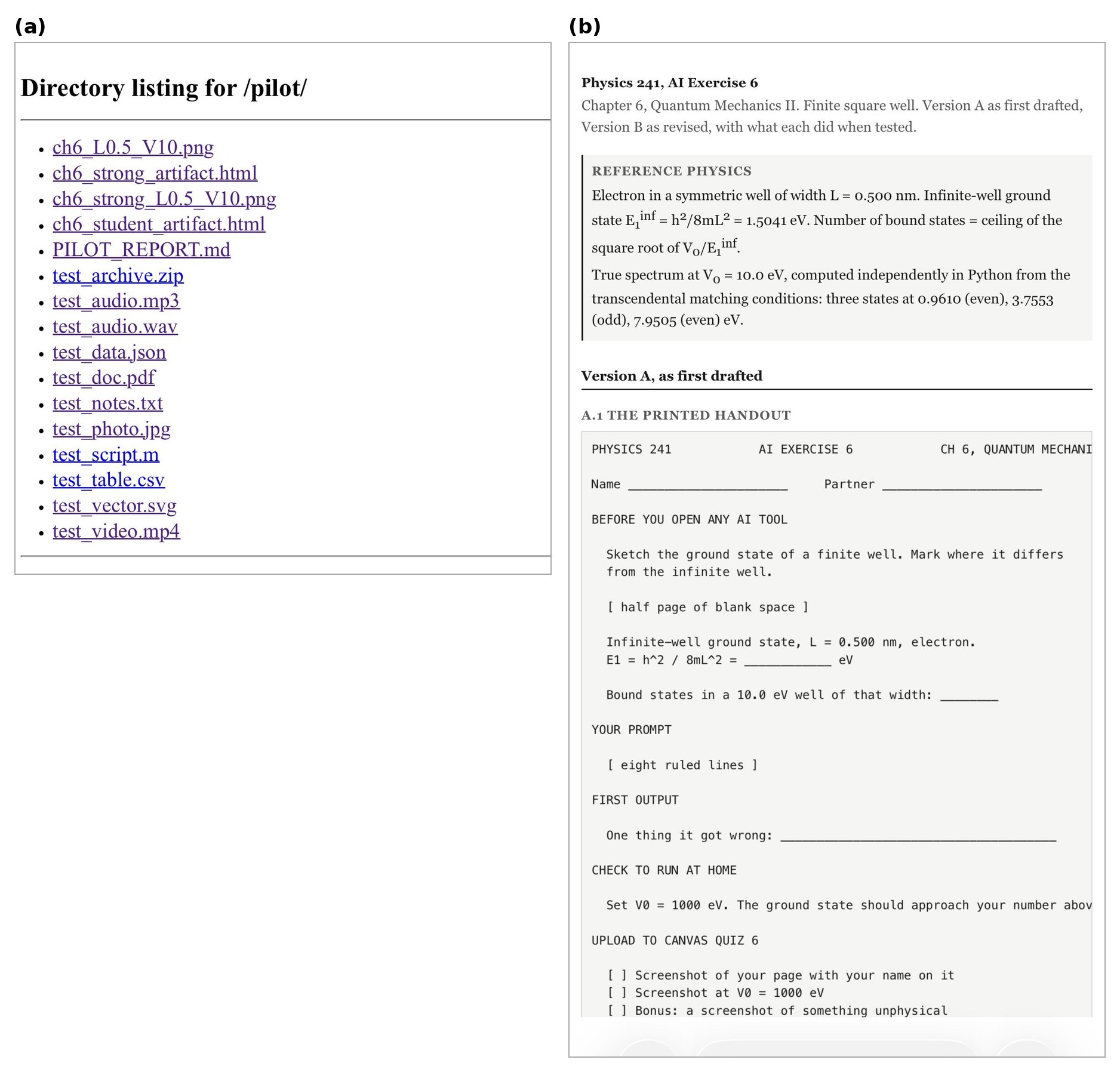
Figure 2. A served folder in Safari. (a) The listing for a subdirectory holding test files of various types. (b) An HTML file from that folder.
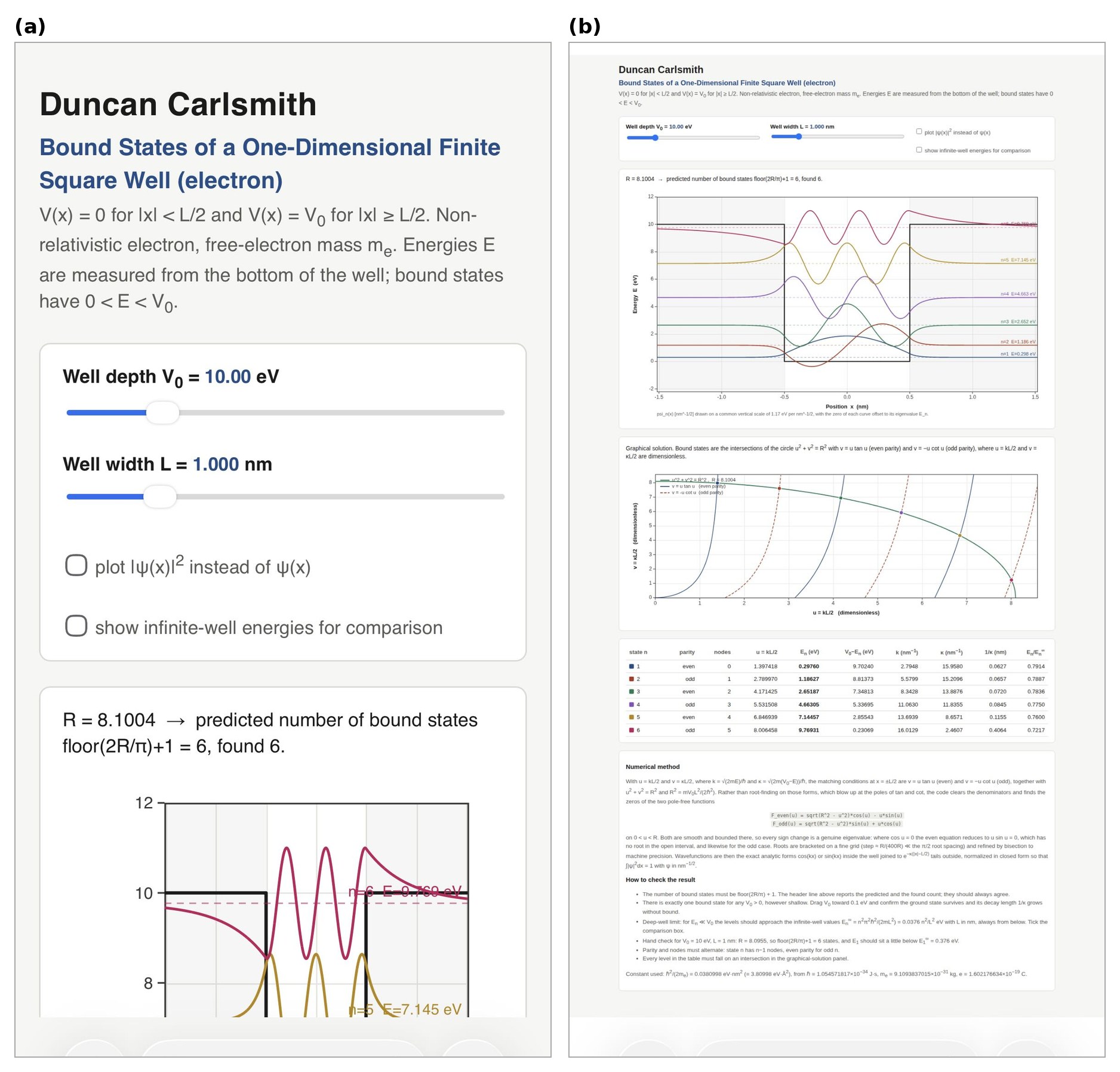
Figure 3. One HTML page in iPhone Safari at two display sizes. The sliders, checkboxes, plots, and table are the page's own controls and respond to touch in both.
Security
A server bound to the tailnet address answers tailnet devices and nothing else. Add a password when the folder holds anything you want protected, and check for dotfiles before serving a directory. Chrome Remote Desktop authenticates with a Google account, so enable two-factor authentication on it. Lock the phone, of course, when using any tool providing access to your stuff from anywhere.
Wrap up
Now back to work, coffee in hand, studying results of an interactive numerical quantum mechanics application built by a mock student (a Haiku-class subagent given one message, no code execution, no browser, no iteration, no references) to investigate the energy levels of a particle bound in a finite potential well, supervised by an instructor agent attempting to assess the subagent’s work. The mock student’s mock assignment submission page reports wrong energy levels which sit at the poles of the transcendental equations, not roots. Moreover, the mock student’s wavefunction parity sequence is wrong. A real student’s job will be to figure this out if and when this happens. My job is to somehow facilitate and assess that. There will be no test about that. The message is I am hoping to replace myself with AI. ;) Yes, it’s a crazy world we now live in. Oh no, my phone just went into power-saving mode, trying to tell me something! I think my coffee needs a refill.
Acknowledgments and disclaimer
The methods were assembled and tested by the author. This submission and the supplied code and installation descriptions were created with Claude's assistance.
The author has no financial interest in any company named here, and no product named here was supplied on special terms. Nothing in this post is endorsed by, sponsored by, or an official position of the University of Wisconsin-Madison, and the author's affiliation is given for identification only.
Product names are the property of their respective owners and are used for identification only. MATLAB, MATLAB Mobile and Live Editor are trademarks of The MathWorks, Inc. Claude and Cowork are trademarks of Anthropic PBC. Wispr Flow is a product of Wispr AI. Google, Google Chrome, Chrome Remote Desktop, Chromium and Android are trademarks of Google LLC. Apple, Mac, macOS, MacBook Pro, iPhone, iOS, iCloud Drive, Safari, Files, App Store and Keychain are trademarks of Apple Inc. Tailscale is a trademark of Tailscale Inc. WireGuard is a registered trademark of Jason A. Donenfeld. VNC and RealVNC are trademarks of RealVNC Ltd. Screens is a product of Edovia Inc. Jump Desktop is a product of Phase Five Systems. Python is a trademark of the Python Software Foundation. Microsoft, Windows and Playwright are trademarks of Microsoft Corporation. Linux is a registered trademark of Linus Torvalds. GitHub is a trademark of GitHub, Inc. ngrok is a trademark of ngrok, Inc. Octave is a trademark of the Free Software Foundation.
- - - - -
Appendix A. Tailscale
Required for Appendix B and Appendix D, not for Appendix C. Free for personal use up to 100 devices. Sign in with Google, Microsoft, GitHub or Apple, and use the same account on every device so they join one tailnet.
Tailscale builds a private network across your devices using WireGuard. Each device gets an address in the 100.64.0.0/10 range that belongs to the tailnet rather than to any physical network. The address follows the device across home wifi, cellular, hotel and campus, and does not change, so a bookmark keeps working.
On macOS, install and sign in, then confirm:
/Applications/Tailscale.app/Contents/MacOS/Tailscale status
/Applications/Tailscale.app/Contents/MacOS/Tailscale ip -4
Use that bundled path. A Homebrew CLI installed alongside the Mac App Store build fails with a socket error, because it looks for /var/run/tailscaled.socket, which the sandboxed App Store build does not create.
On iOS, install from the App Store, sign in with the same account, and toggle the VPN on. iOS asks to add a VPN configuration.
tailscale status lists every device. tailscale ping shows the route in use:
$ tailscale ping iphone-13-pro
pong from iphone-13-pro (100.67.204.58) via 10.0.1.9:41641 in 101ms
That reply came over the LAN with both devices at home. On cellular, Tailscale tries direct peer-to-peer through NAT hole punching and falls back to a relay. tailscale netcheck predicts which:
* UDP: true
* MappingVariesByDestIP: false
* Nearest DERP: Chicago
- ord: 37.3ms (Chicago)
- tor: 48.8ms (Toronto)
- iad: 66.4ms (Ashburn)
UDP: true with MappingVariesByDestIP: false means hole punching usually succeeds. When it fails, the relay carries WireGuard packets it cannot read.
Appendix B. Screen Sharing Over the Tailnet
macOS ships a VNC server. System Settings, General, Sharing, turn on Screen Sharing. The account name shown there and your login password are the credentials. Confirm the listener:
lsof -nP -iTCP:5900 -sTCP:LISTEN
Connect from any VNC client that reaches port 5900 at the address tailscale ip -4 reports. Screens, RealVNC Viewer and Jump Desktop all work, and the App Store lists others. Tailscale must be connected on the phone first.
Some clients speak only the legacy VNC handshake and reject a macOS account password. For those, open the information button beside Screen Sharing, then Computer Settings, and tick "VNC viewers may control screen with password". That password is limited to eight characters.
Display sleep and system sleep are separate settings:
$ pmset -g custom
AC Power:
displaysleep 60
sleep 0
Battery Power:
displaysleep 20
sleep 1
displaysleep blanks the panel and sleep suspends the machine. On AC power with sleep 0 the Mac stays reachable with the screen dark. On battery it sleeps after a minute idle. Stay plugged in, or hold system sleep off:
caffeinate -i &
Enable Wake for network access in System Settings, Battery, Options. Closing the lid sleeps a laptop regardless of caffeinate or pmset sleep 0, unless it is in clamshell mode with power and an external display. Lid open with the screen dark works.
Appendix C. Chrome Remote Desktop
The host on the Mac makes an outbound connection to Google's infrastructure and the phone reaches it through the same infrastructure. No VPN is involved.
On the Mac, in Chrome, go to remotedesktop.google.com/access and choose Set up Remote Access. Chrome downloads a package that installs the host at /Library/PrivilegedHelperTools/ChromeRemoteDesktopHost.app. Installing it requires an administrator password.
The installer requests Screen Recording and Accessibility for Chrome Remote Desktop Host. Both appear in System Settings, Privacy and Security, and both must be on. The Accessibility entry in that list is the permission to control the computer, not the System Settings, Accessibility pane of assistive features. The two permissions separate the view from the input. With Accessibility off the remote screen still draws and clicking a link does nothing. Restoring the permission restores the click.
Name the machine and set a PIN of at least six digits. The PIN is neither the Google password nor the macOS password. Confirm the host:
ps -Ao comm | grep remoting_me2me_host
Connect from the Chrome Remote Desktop app or from mobile Safari at remotedesktop.google.com. Sign in with the same Google account, tap the machine name, enter the PIN. The pmset and caffeinate notes in Appendix B apply here too.
Appendix D. The Tailnet File Server
serve_folder.py is listed in Appendix E. Python standard library only, no pip, no Node, no Docker.
tailscale_ip() supplies the default bind address. Binding to the tailnet address rather than 0.0.0.0 keeps the folder off the physical network the Mac is on.
send_head() refuses paths whose real location escapes the served root. SimpleHTTPRequestHandler blocks ../ traversal but follows symbolic links out of the tree. My skills folder holds six symlinks into ~/Developer, so serving ~/Documents without this check also serves part of ~/Developer.
hmac.compare_digest compares the credential in constant time, so a wrong first character and a wrong last character take equally long.
Run it on a folder of your own writing:
python3 serve_folder.py ~/Documents/courses/241-F26/AIExercises
serving /Users/duncancarlsmith/Documents/courses/241-F26/AIExercises
http://100.103.217.59:8080
auth OFF
Run it with a password on anything else. Store the password in the Keychain, so it is absent from the command line, the shell history and the script:
security add-generic-password -a "$USER" -s tailnet-files -w 'yourpassword' -U
python3 serve_folder.py ~/Documents --user duncan --keychain tailnet-files
On Linux or Windows, use the environment variable form:
export FILESRV_PW='yourpassword'
python3 serve_folder.py ~/Documents --user duncan --password-env FILESRV_PW
Background it and stop it:
nohup python3 serve_folder.py ~/Documents/courses > ~/Library/Logs/filesrv.log 2>&1 &
pkill -f serve_folder.py
On the phone, open http://100.x.y.z:8080 in Safari and bookmark it or add it to the Home Screen. With auth on, Safari asks once, offers to save the credential to Keychain, and stops asking. Basic Auth has no logout, so clearing website data for that host is how you forget it. Chrome on Android and any browser on a laptop behave the same.
Measured from an M1 MacBook Pro on residential internet in August 2026, a direct peer-to-peer ping with both devices on home wifi was 101 ms, and the nearest relay was Chicago at 37.3 ms. A request with no credentials against a server with auth on returns 401 with the Basic challenge, a wrong password returns 401, and the right password returns 200. A symlink pointing outside the root returns 404, as does /../.ssh/. Serving all of ~/Documents listed 235 entries without macOS TCC intervening, and a request with the Mac's display asleep returned 200.
tailscale serve publishes a directory over HTTPS with a certificate and a MagicDNS name, and it is the better tool where it runs. On this Mac it does not:
$ /Applications/Tailscale.app/Contents/MacOS/Tailscale serve --bg ~/Documents
The Tailscale GUI failed to start: The operation couldn't be completed.
(Tailscale.CLIError error 3.)
The installed app is the Mac App Store build. /Applications/Tailscale.app/Contents/_MASReceipt/receipt exists and the bundle identifier is io.tailscale.ipn.macos. That build runs inside a sandboxed network extension and cannot serve filesystem paths. The standalone build from tailscale.com/download fixes both this and the Homebrew CLI socket error.
Appendix E. serve_folder.py
#!/usr/bin/env python3
"""
serve_folder.py -- publish a folder to your Tailscale tailnet over HTTP.
python3 serve_folder.py ~/Documents/courses
python3 serve_folder.py ~/Documents --keychain tailnet-files
python3 serve_folder.py ~/Documents --port 8081 --password-env FILESRV_PW
Binds only to the Tailscale address, so the folder is reachable from your own
tailnet devices and from nothing else on whatever network you are on.
Optional HTTP Basic Auth. Symlinks that point outside the served root are
refused.
"""
import argparse, base64, hmac, os, subprocess, sys
from functools import partial
from http.server import SimpleHTTPRequestHandler, ThreadingHTTPServer
TAILSCALE_CANDIDATES = [
"/Applications/Tailscale.app/Contents/MacOS/Tailscale", # macOS app bundle
"/usr/local/bin/tailscale", # macOS standalone
"/opt/homebrew/bin/tailscale", # Homebrew
"tailscale", # Linux, Windows, PATH
]
def tailscale_ip():
"""First IPv4 address Tailscale reports for this machine."""
for exe in TAILSCALE_CANDIDATES:
try:
r = subprocess.run([exe, "ip", "-4"], capture_output=True,
text=True, timeout=10)
except (FileNotFoundError, subprocess.TimeoutExpired, OSError):
continue
if r.returncode == 0 and r.stdout.strip():
return r.stdout.strip().splitlines()[0].strip()
return None
def keychain_password(service):
"""Read a password from the macOS Keychain. Returns None elsewhere."""
try:
r = subprocess.run(["security", "find-generic-password", "-s", service, "-w"],
capture_output=True, text=True, timeout=10)
except (FileNotFoundError, subprocess.TimeoutExpired, OSError):
return None
return r.stdout.strip() if r.returncode == 0 else None
class Handler(SimpleHTTPRequestHandler):
token = None # base64 of "user:password", or None to disable auth
root = None # realpath of the served directory
def authorized(self):
if self.token is None:
return True
sent = self.headers.get("Authorization", "")
if sent.startswith("Basic ") and hmac.compare_digest(sent[6:], self.token):
return True
self.send_response(401)
self.send_header("WWW-Authenticate", 'Basic realm="files"')
self.send_header("Content-Length", "0")
self.end_headers()
return False
def send_head(self):
# Refuse anything whose real location escapes the served root.
target = os.path.realpath(super().translate_path(self.path))
if target != self.root and not target.startswith(self.root + os.sep):
self.send_error(404, "Not found")
return None
return super().send_head()
def do_GET(self):
if self.authorized():
super().do_GET()
def do_HEAD(self):
if self.authorized():
super().do_HEAD()
def main():
ap = argparse.ArgumentParser(description=__doc__,
formatter_class=argparse.RawDescriptionHelpFormatter)
ap.add_argument("folder")
ap.add_argument("--port", type=int, default=8080)
ap.add_argument("--user", default="me")
ap.add_argument("--keychain", metavar="SERVICE",
help="read the password from this macOS Keychain item")
ap.add_argument("--password-env", metavar="VAR",
help="read the password from this environment variable")
ap.add_argument("--bind", help="override the address to bind (default: Tailscale IP)")
args = ap.parse_args()
root = os.path.realpath(os.path.expanduser(args.folder))
if not os.path.isdir(root):
sys.exit(f"not a directory: {root}")
addr = args.bind or tailscale_ip()
if not addr:
sys.exit("No Tailscale IPv4 address. Is Tailscale connected?")
password = None
if args.keychain:
password = keychain_password(args.keychain)
if password is None:
sys.exit(f"no Keychain item named {args.keychain!r}")
elif args.password_env:
password = os.environ.get(args.password_env)
if not password:
sys.exit(f"environment variable {args.password_env} is empty")
Handler.root = root
if password:
Handler.token = base64.b64encode(
f"{args.user}:{password}".encode()).decode()
httpd = ThreadingHTTPServer((addr, args.port),
partial(Handler, directory=root))
print(f"serving {root}")
print(f" http://{addr}:{args.port}")
print(f" auth {'on, user ' + args.user if password else 'OFF'}")
try:
httpd.serve_forever()
except KeyboardInterrupt:
print("\nstopped")
if __name__ == "__main__":
main()

Week of September 21, 2026
149 responses
This Week's Quiz
149 responses

