Wave effect over an image in matlab
Show older comments
Is there a way to import a color image into matlab and then create a wave over the image? I know that you can use the fact that x = x + amp*cos(freq*y); y = y can be used to create the wave, but is there any general code that will form this wave with a specific amplitude and frequency and make sure that x and y are kept inside the domain.
3 Comments

Jan
on 15 Mar 2017
What should the "wave" effect? Move the color? Move the pixel positions? In the latter case, hwo should the result look like? What shoudl happen at the margins?

John Abe
on 15 Mar 2017
Jan
on 15 Mar 2017
:-) I have no idea. It shoudl be the same, but... ?! What is "an overlay"? Of course I could start to guess. But it would be much easier, if you try to explain it more exhaustively. What is "the effect"?
Answers (2)

Chad Greene
on 15 Mar 2017
If you have this color image as your background:
I = imread('greens.jpg');
imshow(I)

then you shoudl be able to overlay the wave effect pretty easily like this:
W = imread('wave.png');
hold on
h = imshow(W);
set(h,'alphadata',0.5)

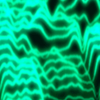
Both "effect" and "overlay" are terribly ambiguous. Literally anything that influences an image could be called be an "effect". There are countless ways of combining two images, some of which are literally called 'overlay', but are almost never mentioned in technical contexts.
That said, we aren't even at the point of resolving how two images are to be combined. We haven't even determined whether we're combining the content of two images or whether we're modifying the content of a single image. Since we don't know what the goal is, let's do a bunch of ostensibly related things and maybe we'll strike close to the intent held by present and future readers. Who knows; maybe it'll be fun.
As @Chad Greene points out, the seemingly obvious interpretation would be to approach this via basic image composition. Again, there are many ways this can be done. Chad shows a basic in-figure means of scalar alpha compositing. Here, I do the same by operating directly on the images themselves. All you need is your background image, and a foreground image of a wave. Both images need to have the same geometry (height and width).
% THE OBVIOUS JOKE
% read foreground and background images
BG = imread('peppers.png');
FG = imread('waveq.jpg');
% force FG geometry to match BG
% this can be done by cropping, padding, and/or resizing
FG = imresize(FG,[size(BG,1) NaN]); % resize to fit height
FG = FG(:,1:size(BG,2),:); % trim width (this depends on the relative aspect ratios!)
% composite both images using simple scalar alpha
alpha = 0.6;
outpict = alpha*im2double(FG) + (1-alpha)*im2double(BG);
% show the results
imshow(outpict)

... but I guess "wave" is open to interpretation as well.
If you intended to draw some sort of plot over the image, that could be done a number of ways. Let's assume it's super-simple and we can just draw the curve ourselves without having to resort to figure capture.
% NO DANGIT I MEAN A COSINE WAVE
% read background image
BG = imread('peppers.png');
% generate foreground image
amp = 150;
freq = 0.05;
[h,w,~] = size(BG);
x = 1:w;
y = h/2-min(amp,h/2)*cos(freq*x);
% use IPT ROI tools to create a non-aa polyline mask
% display BG to set figure geometry for ROI creation
imshow(BG);
ROI = images.roi.Polyline(gca);
ROI.Position = [x(:) y(:)];
mk = createMask(ROI);
% use the mask to overlay a colored line
fgcolor = [0.7 0.3 1];
outpict = imoverlay(BG,mk,fgcolor);
% show the results
imshow(outpict)

Note that we're really still just combining images. Like I said; there's a lot of different ways. In the first example, our alpha content was reduced to a scalar. In this example, our alpha content is a 2D binary map and our foreground is reduced to a single tuple. The linear combination used in the first example could also have been used here with the right accomodations.
That said, the expression given doesn't really look like an attempt at a simple 1D curve. It looks like a position map of some sort. If one knows how they want to calculate the displacement maps, imwarp() could be used if that's the goal.
% WHAT DO YOU MEAN "FOREGROUND"?
% read background image
BG = imread('peppers.png');
% generate output image
amp = 20;
freq = 0.05;
[h,w,~] = size(BG);
dx = repmat(amp*cos(freq*(1:h)'),[1 w]); % displacement, not position
dy = zeros(h,w);
outpict = imwarp(BG,cat(3,dx,dy));
% show the results
imshow(outpict)

Note that the maps describe displacement, not the pixel position.
While that seems closest to what is being described, the effect is supposed to be applied as an overlay. That brings us full circle. In this example, I'm going to choose to blend the images in a way that I feel is interesting. The particular method used is a relatively uncommon one, but it's relevant to the topic of simple alpha compositing (i.e. weighted means). See if you notice why.
% DISTORTION OR COMPOSITION? YES.
% AKA AN EFFECT AS AN OVERLAY
% read background image
BG = imread('peppers.png');
% generate foreground image
amp = 20;
freq = 0.08;
[h,w,~] = size(BG);
dx = repmat(amp*cos(freq*(1:h)'),[1 w]);
dy = zeros(h,w);
FG = imwarp(BG,cat(3,dx,dy));
% combine images using self-masking (foglighten) blend
FG = im2double(FG);
BG = im2double(BG);
outpict = FG.*FG + BG.*(1-FG);
outpict = im2uint8(outpict);
% show the results
imshow(outpict)

Categories
Find more on Image Arithmetic in Help Center and File Exchange
Community Treasure Hunt
Find the treasures in MATLAB Central and discover how the community can help you!
Start Hunting!
