Removing the background from imagesc image.
15 views (last 30 days)
Show older comments

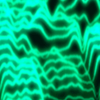
Hi everybody, I'd like to remove the dark blue component from imagesc figure without erasing the shades of litgh blu. In order to achieve something similir to this
Tihs is my code.
[datahist,xedges,yedges] = histcounts2(data(1,:), data(3,:), bins);
heatmap = datahist';
heatmap = interp2(heatmap,'cubic');
% Create the heatmap
imagesc(xedges, yedges, heatmap, 'CDataMapping', 'scaled');
ax = gca;
ax.YDir = 'normal';
colormap('jet');
Thank you in advance.
0 Comments
Answers (3)
Image Analyst
on 5 Nov 2023
You just need to either adjust the colormap, or overlay an RGB image onto your original image. See
Please attach your image if you need more help and tell us the gray level at which you want the colormap to start. Something like
cmap = turbo(256);
% Start colors at 100.
cmap(1:101, 1) = 0:100;
cmap(1:101, 2) = 0:100;
cmap(1:101, 3) = 0:100;
colormap(cmap); % Apply the new colormap
2 Comments
DGM
on 5 Nov 2023
It's not really clear what all the other stuff is in the example image, but if's clear that it's using a different color map and the slope of the data is opposite what you have. That is, the "background" region is represented by the colors at the top of the colormap (red-white) instead of the colors at the bottom (cyan-blue).
Either way, it's a different colormap.
DGM
on 5 Nov 2023
Edited: DGM
on 5 Nov 2023
What are your actual goals? What do you want in the areas you "removed"? Is the background actually an image? Is the foreground opaque? Is this for display only, or is the goal to produce a raster image?
This is one way.
% fake data
inpict = imread('cameraman.tif');
Z = peaks(256);
% create two axes
hax1 = axes;
hax2 = axes;
% display image in lower axes
imagesc(inpict,'parent',hax1);
% display data in upper axes
hi = imagesc(Z,'parent',hax2);
% define alpha based on the values in the data
% it's up to you to figure out what's appropriate
hi.AlphaData = Z >= 0.8;
% set colormaps
colormap(hax1,gray(256));
colormap(hax2,jet(256));
% wrangle axes setup
linkaxes([hax1 hax2]);
axis(hax1,'equal','tight');
set(hax2,'visible','off','xtick',[],'ytick',[]) % hide top axes decorations
set(hax2,'position',hax1.Position,'xlim',hax1.XLim,'ylim',hax1.YLim, ...
'plotboxaspectratio',hax1.PlotBoxAspectRatio); % try to align both axes
This relies on overlaying multiple axes in a figure. This assumes the goal is:
- background is an image
- foreground is opaque
- masking is binary
- undecorated raster output is not needed
If you want an actual raster image without dealing with figure wrangling, aliasing damage, etc, then this is how I'd do it in MIMT. This could be done without MIMT, but conveniences exist for a reason.
% fake data
inpict = imread('cameraman.tif');
Z = peaks(256);
% define alpha based on the values in the data
% this is a smooth PWL eased thresholding operation
w = 0.3; % ease width (data units)
c = 0.8; % threshold center (data units)
FGa = imclamp((Z - c)/w + 0.5);
% convert data to pseudocolor RGB image
FG = gray2pcolor(Z,jet(256),'cdscale');
% composite the two images
outpict = replacepixels(FG,inpict,FGa);
imshow(outpict)

0 Comments
See Also
Categories
Find more on White in Help Center and File Exchange
Products
Community Treasure Hunt
Find the treasures in MATLAB Central and discover how the community can help you!
Start Hunting!