Neighborhood
R2026bNeighborhood block

Description
The Neighborhood block serves as a control block for the Neighborhood Processing Subsystem block. The Neighborhood Processing Subsystem block iterates over an input matrix. At each iteration, the inport inside the subsystem receives a small matrix representing a configurable window of elements around one element of the input matrix. Use the Neighborhood block parameters to configure the behavior of the Neighborhood Processing Subsystem block, such as the window dimensions, the size of the output matrix, and the region of interest (ROI) over which to iterate.
Examples
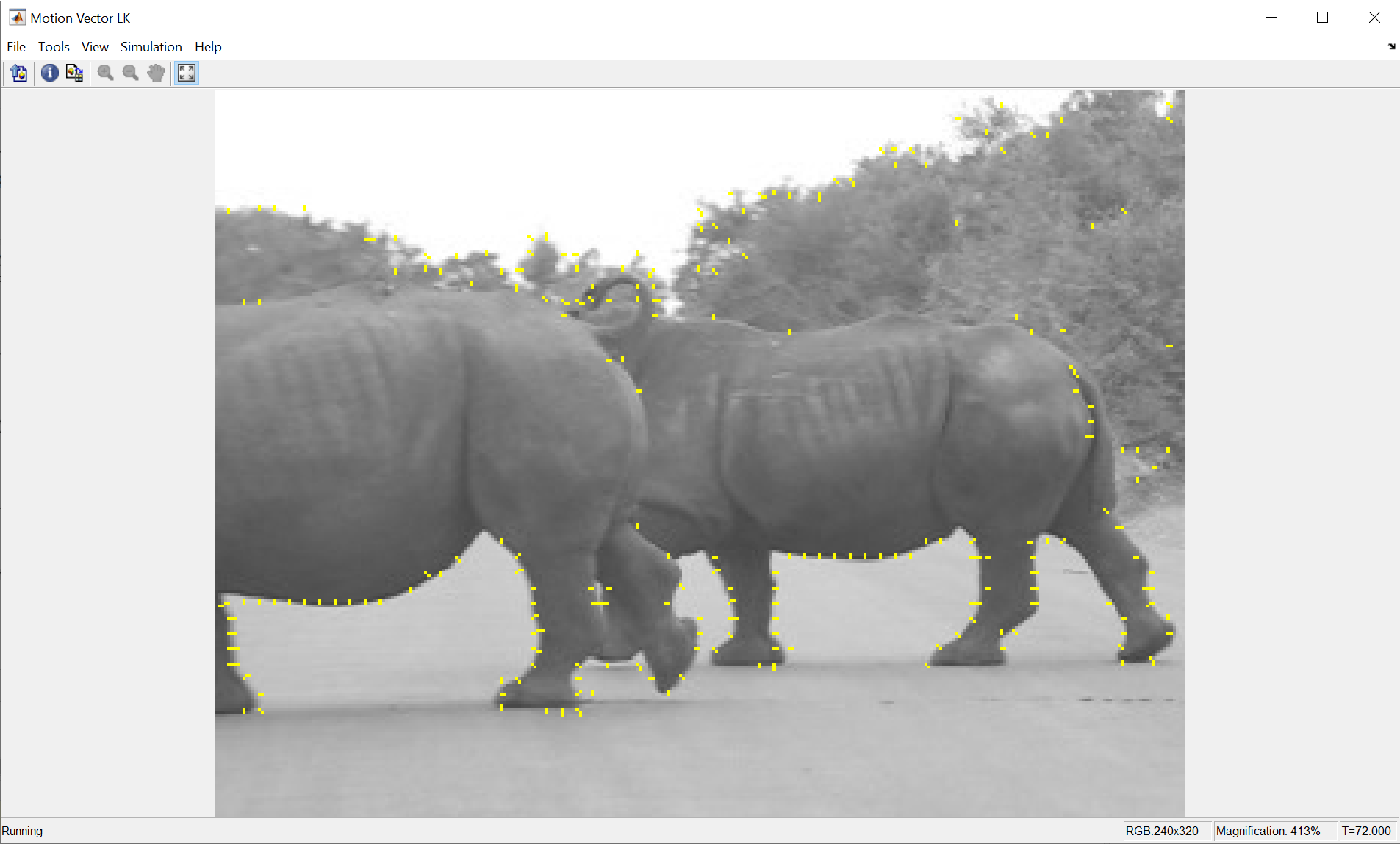
Calculate Optical Flow by Using Neighborhood Processing Subsystem Blocks
Use Neighborhood Processing Subsystem blocks to calculate the apparent motion of objects in a video.
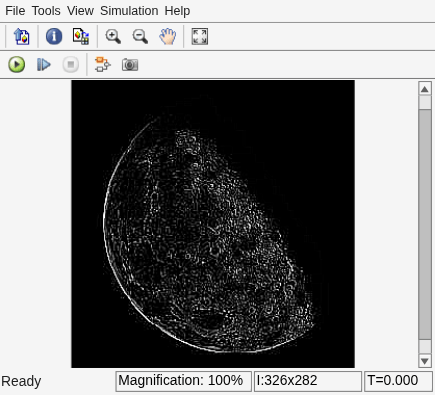
Perform Edge Detection by Using a Neighborhood Processing Subsystem Block
Use a Neighborhood Processing Subsystem block to detect edges in an image.
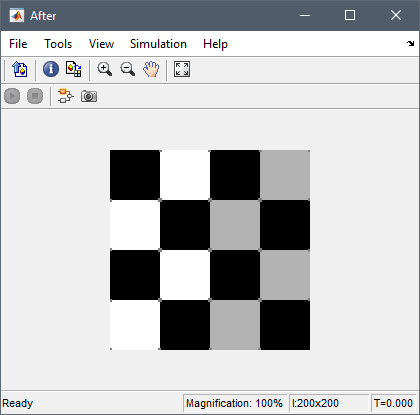
Perform Corner Detection by Using Neighborhood Processing Subsystem Blocks
Use Neighborhood Processing Subsystem blocks to detect corners in an image.
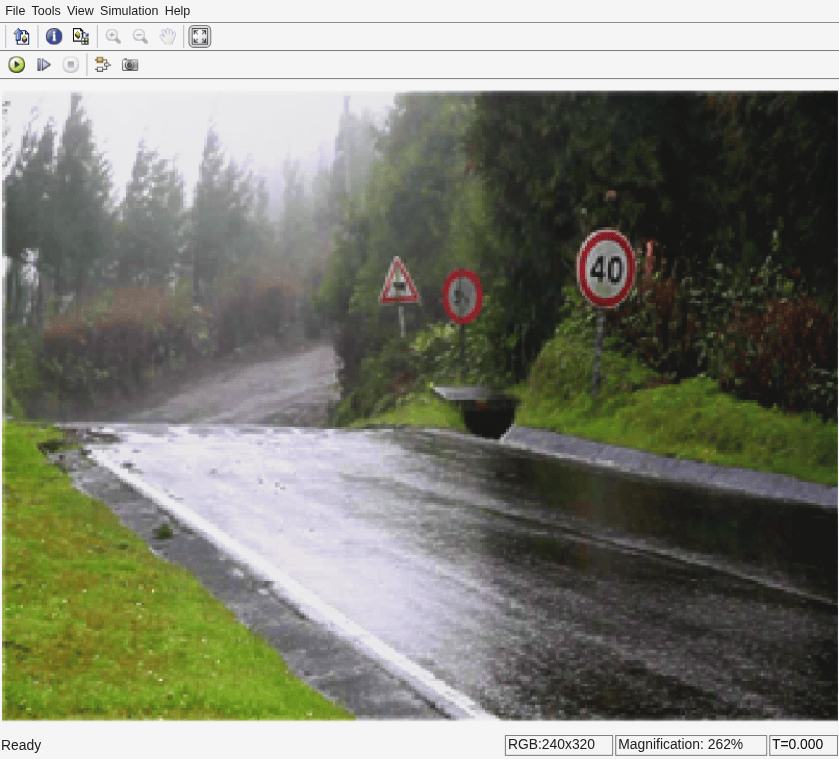
Perform Fog Rectification by Using Neighborhood Processing Subsystem Blocks
Use Neighborhood Processing Subsystem blocks to remove fog from an image.
Convert RGB Image to Grayscale by Using a Pixel Processing Subsystem Block
Use a Neighborhood Processing Subsystem block to convert a color image to grayscale.
Parameters
Configure the dimensions of the neighborhood window that the subsystem receives at each iteration. The dimensions of the neighborhood cannot exceed the dimensions of the region of interest that you specify with the Processing width and Processing offset parameters.
For example, consider this input matrix:
If you set Neighborhood size to [3 3] and
Output size to Same, then on the
seventh iteration, the Neighborhood Processing Subsystem block receives
this 3-by-3 window that surrounds the seventh element:
Programmatic Use
Block Parameter:
NeighborhoodSize |
| Type: array |
Values: [3 3] |
'<array>' |
Default: [3 3] |
Configure the Neighborhood Processing Subsystem block to skip a
number of elements in the input matrix between each iteration. For example, the value
[1 2] configures the subsystem to iterate over alternating columns
from the input matrix and the value [3 1] configures the subsystem to
iterate over every third row from the input matrix. Larger Stride
values produce smaller output matrices because the Neighborhood Processing
Subsystem block processes fewer elements.
See the difference between the Stride parameter values of
[1 1] and [2 3].
![Model that passes a constant through two Neighborhood Processing Subsystem blocks, each of which outputs to a Display block. The constant is a 5-by-5 matrix containing the values from 1 to 25. Each Neighborhood Processing Subsystem block uses a 1-by-1 neighborhood and feeds its Inport directly to its Outport. One Neighborhood Processing Subsystem block uses a Stride parameter value of [1 1] and returns the input matrix unchanged. The other Neighborhood Processing Subsystem block uses a Stride parameter value of [2 3] and returns a 3-by-2 subsection of the input matrix containing the values from every third column and every alternating row in the input matrix.](neighborhood_processing_stride.png)
Programmatic Use
Block Parameter:
Stride |
| Type: array |
Values: [1 1] |
'<array>' |
Default: [1 1] |
Configure a distance by which to offset each iteration of the algorithm. This distance defines the top left boundary of the ROI within the input matrix.
For example, consider this input matrix:
If you use the default Processing offset parameter value of
[0 0], then the first iteration uses a neighborhood around the
element 1, the second iteration centers around element
2, and so on. If you set the Processing offset
parameter value to [1 2], then the Neighborhood Processing
Subsystem block offsets the center of each iteration by 1 along the vertical
axis and 2 along the horizontal axis. The first iteration centers on element
8, the second iteration centers on element 9,
and so on. Because the region of interest cannot extend outside the input matrix, the
output matrix is smaller than the input matrix.
![Model that passes a constant through two Neighborhood Processing Subsystem blocks, each of which outputs to a Display block. The constant is a 5-by-5 matrix containing the values from 1 to 25. Each Neighborhood Processing Subsystem block uses a 1-by-1 neighborhood and feeds its Inport directly to its Outport. One Neighborhood Processing Subsystem block uses a Processing offset parameter value of -1 and returns the input matrix unchanged. The other Neighborhood Processing Subsystem block uses a Processing offset parameter value of [1 2] and returns a subsection of the input matrix spanning from the 8th element to the 25th.](neighborhood_processing_offset.png)
Use the Processing offset and Processing width parameters together to process only a subsection of an input matrix. For an example, see Specify Region of Interest for Neighborhood Processing.
Programmatic Use
Block Parameter:
ProcessingOffset |
| Type: array |
Values: [0 0] |
'<array>' |
Default: [0 0] |
Dependencies
To enable this parameter, set Output
size to Same, Full,
or Valid.
Configure the dimensions of the ROI of the input matrix to process. The dimensions of the Processing width parameter cannot exceed the dimensions of the input matrix.
For example, consider this input matrix:
If you use the default Processing width parameter value of
-1, then the Neighborhood Processing Subsystem block
iterates over the entire input matrix. In this example, this behavior is equivalent to a
Processing width parameter value of [5 5]. If
you use a Processing width parameter value of [3
4], then the Neighborhood Processing Subsystem block iterates
over only the top left 3-by-4 region of the input matrix.
You can use the value -1 within a Processing
width parameter vector value to configure the Neighborhood
Processing Subsystem block to iterate over the full length of a particular
dimension. In the preceding example, if you use a Processing width
parameter value of [2 -1], then the Neighborhood Processing
Subsystem block iterates over the top 2-by-5 region of the input
matrix.
![Model that passes a constant through two Neighborhood Processing Subsystem blocks, each of which outputs to a Display block. The constant is a 5-by-5 matrix containing the values from 1 to 25. Each Neighborhood Processing Subsystem block uses a 1-by-1 neighborhood and feeds its Inport directly to its Outport. One Neighborhood Processing Subsystem block uses a Processing width parameter value of -1 and returns the input matrix unchanged. The other Neighborhood Processing Subsystem block uses a Processing offset parameter value of [3 4] and returns the top left 3-by-4 subsection of the input matrix.](neighborhood_processing_width.png)
Use the Processing offset and Processing width parameters together to define the top left and bottom right boundaries of a region of interest. For an example, see Specify Region of Interest for Neighborhood Processing.
Programmatic Use
Block Parameter:
ProcessingWidth |
| Type: array |
Values: -1 |
'<array>' |
Default: -1 |
Dependencies
To enable this parameter, set Output
size to Same, Full,
or Valid.
Configure which elements you want the Neighborhood Processing
Subsystem block to iterate over. This determines the dimensions of the output
matrix. The Same, Full, and
Valid values specify output sizes that are based on the
size of the input matrix and neighborhood. To specify a custom output size, use the
Custom value.
Each example graphic shows a 5-by-5 region of interest with three highlighted subsections.
The blue top left subsection represents the neighborhood that the Neighborhood Processing Subsystem block processes in the first iteration.
The orange bottom right subsection represents the neighborhood of the last iteration.
The green center subsection represents the dimensions of the output matrix, which spans the centers of the first and last iterations.
For settings that use padded values, the example graphics denote padded values as
?.
Each example graphic assumes a Neighborhood size parameter
value of [3 3], which defines a 3-by-3 neighborhood. Because each
example graphic assumes the default value of [0 0] for the
Processing offset parameter and the default value of
-1 for the Processing width parameter, the
region of interest is the full input matrix. For information about how the
Neighborhood Processing Subsystem block pads values when you configure
a region of interest, see Use Neighborhood Processing Subsystem Block Padding Options with Region of Interest.
Same–– The output matrix has the same dimensions as the region of interest. For elements near the edges, the neighborhood extends beyond the input matrix. Use the Padding option parameter to configure how to pad elements outside the input matrix.
Full–– The output matrix is larger than the region of interest. The matrix includes an element for every neighborhood that includes at least one element from the region of interest, even if the neighborhood center is outside the region of interest. Use the Padding option parameter to configure how to pad elements outside the input matrix.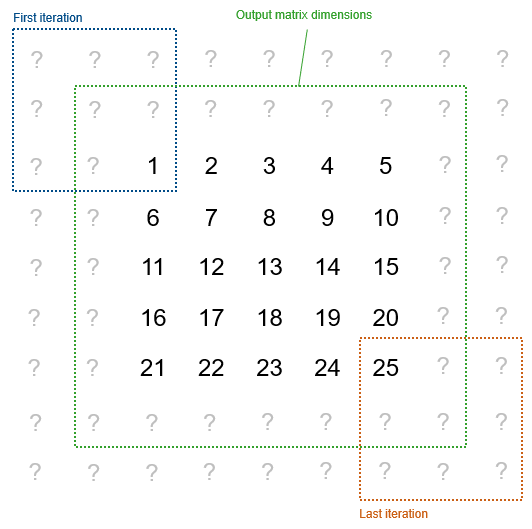
Valid–– The output matrix is smaller than the region of interest. The output matrix includes only the elements whose neighborhoods fall entirely within the region of interest.
Custom–– This value enables the Padding size parameter, which you can use to specify a custom amount of padding. The output size of each dimensionnis:where:
inputSizen.neighborhoodSizen, as you specify with elementnof the Neighborhood size parameter.paddingStartn, as you specify with element 2n-1 of the Padding size parameter.paddingEndn, as you specify with element 2nof the Padding size parameter.striden, as you specify with elementnof the Stride parameter.
Programmatic Use
Block Parameter:
OutputSize |
| Type: character vector |
Values: 'Same' |
'Full' | 'Valid' |
'Custom' |
Default: 'Same' |
Specify how far beyond the input matrix the subsystem should generate padded values
when you select the Custom padding option. The value must be
an array with two elements for each dimension of the input matrix. Each pair of elements
in the array configures the amount of padding at the start and end, respectively, of a
dimension of the input matrix. The first and second elements configure the padding for
the first dimension, the third and fourth elements configure the padding for the second
dimension, and so on. The Neighborhood Processing Subsystem block
generates the specified padded values, then iterates over neighborhoods that do not
extend beyond the padded values.
For example, consider the value [0 2 1 0]. The first two elements
0 and 2 apply to the beginning and end of the
first dimension, respectively, so the subsystem pads two rows below the subsystem and no
rows above it. The next two elements 1 and 0 apply
to the second dimension, so the subsystem pads one column to the left of the subsystem
and no columns to the right. For a 5-by-5 matrix with a 3-by-3 neighborhood size, this
produces this output:
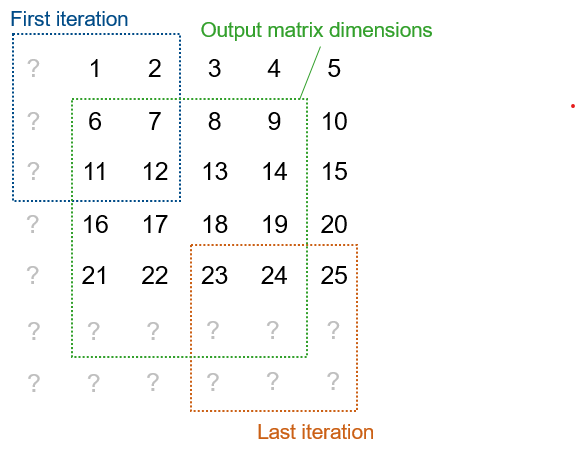
Note that, because the subsystem iterates only over neighborhoods that do not extend
beyond the padded values, using a larger neighborhood size produces a smaller output. A
Padding size parameter value of all zeros produces the same
behavior as the Valid
Output size parameter value.
The following screenshot demonstrates the parameter behavior by passing a 5-by-5
matrix through Neighborhood Processing Subsystem blocks that have
different padding sizes. Each subsystem uses a 1-by-1 neighborhood and returns the input
value without modifying it. For the padded values, each subsystem uses the constant
value 0.
![Model that passes a 5-by-5 matrix through three Neighborhood Processing Subsystem blocks. Each element of the input matrix contains the value 1. The first subsystem has a padding size of "[0 0 0 0]" and produces a copy of the input matrix. The second subsystem has a padding size of "[1 0 2 0]" and returns a matrix that contains a row of zeros and two columns of zeros above and to the left of the input matrix. The third subsystem has a padding size of "[0 1 0 2]" and returns a matrix that contains a row of zeros and two columns of zeroes below and to the right of the input matrix.](neighborhood_processing_subsystem_custom_padding_model.png)
Dependencies
To enable this parameter, set Output size to
Custom.
Programmatic Use
Block Parameter:
PaddingSize |
| Type: array |
Values: -1 |
'<array>' |
Default: [0 0 0
0] |
Configure how to pad values outside the input matrix. When you select the value
Full or Same for the
Output size parameter, some neighborhoods extend beyond the input
matrix and use padded matrix element values.
To illustrate the logic of each padding option, each example graphic shows the
5-by-5 input matrix padded with 5-by-5 matrices. In practice, not every padded value is
necessarily part of a neighborhood, depending on the Neighborhood
size, Output size, and Padding
size parameters. For example, if you set Neighborhood
size to [3 3] and Output size to
Same, the subsystem uses only the innermost layer of padded
values.
Constant–– Use a configurable constant value for elements outside the input matrix. For example, this matrix uses a constant value of0.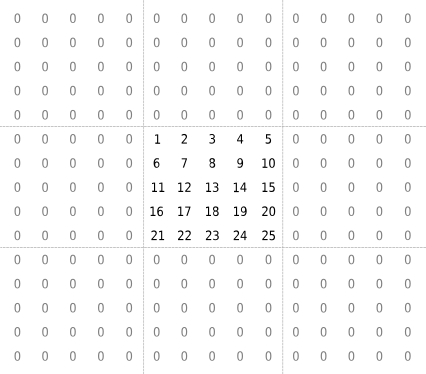 .
.Replicate–– Extend the values of the edge parameters.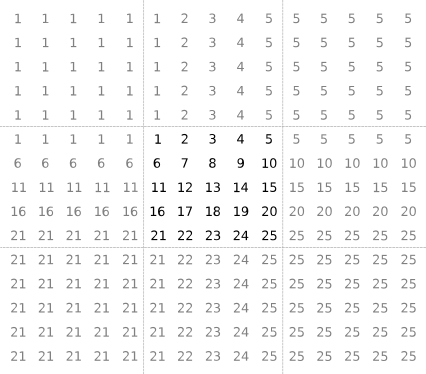 .
.Symmetric–– Mirror the input matrix.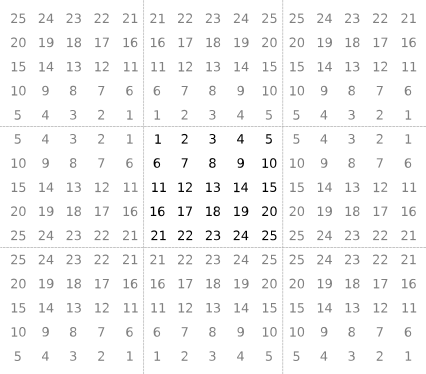 .
.Circular–– Repeat the input matrix in a tiled pattern.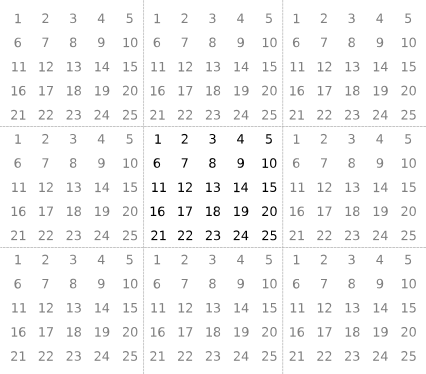 .
.For information about how the Padding option parameter interacts with the Processing offset and Processing width parameters, see Use Neighborhood Processing Subsystem Block Padding Options with Region of Interest.
Programmatic Use
Block Parameter:
PaddingOption |
| Type: character vector |
Values: 'Constant' |
'Replicate' | 'Symmetric' |
'Circular' |
Default:
'Constant' |
Dependencies
To enable this parameter, set Output
size to Same, Full,
or Custom.
Configure the value to use for the Constant padding
option.
Dependencies
To enable this parameter, set Padding option to
Constant.
Programmatic Use
Block Parameter:
PaddingConstant |
| Type: scalar |
Values: 0 |
'<scalar>' |
Default: 0 |

