Main Content

CursorMeasurementsConfiguration

R2026b

Measure signal values using vertical waveform cursors that track along the signal

Since R2022a

    Description

    Use the CursorMeasurementsConfiguration object to enable waveform cursors. You can control the cursor settings from the toolstrip of the scope or from the command line.

    To display vertical cursors on each signal and to modify the cursor settings in the scope UI, click the Measurements tab and enable Data Cursors. Each cursor tracks a vertical line along the signal. The scope displays the difference between x- and y-values of the signal at the two cursors in the box between the cursors. The cursors appear only when the scope has at least one signal in its display. You can use the mouse to move the vertical cursors left and right.

    Time Scope Toolstrip
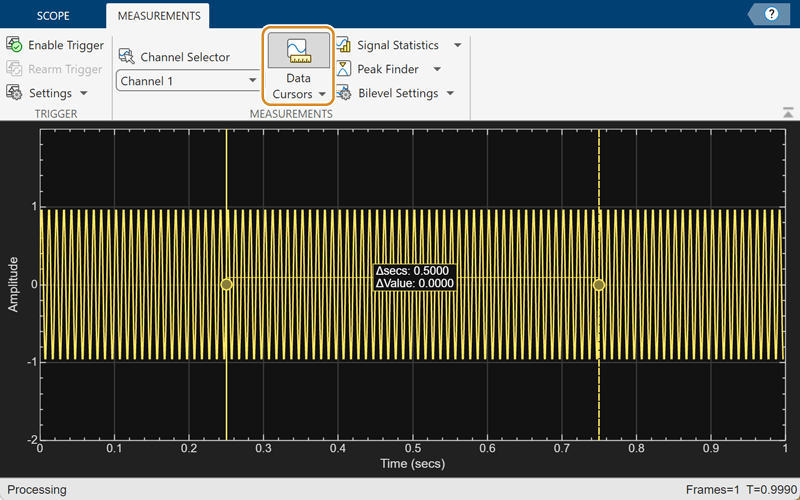
    Snapshot showing cursor measurements in Time Scope toolstrip.

    Creation

    Description

    cursormeas = CursorMeasurementsConfiguration() creates a cursor measurements configuration object.

    example

    Properties

    expand all

    All properties are tunable.

    Common Properties

    x-coordinates of the cursors, specified as a vector of real numbers. For the spectrumAnalyzer object, the vector must have only two elements.

    Scope Window Use

    On the Measurements tab, select Data Cursors and then click the Data Cursors drop-down arrow to specify the x-coordinates of the cursors.

    Data Types: double

    Position cursors on the signal data points, specified as true or false.

    Scope Window Use

    On the Measurements tab of the scope toolstrip, select Data Cursors, click the Data Cursors drop-down arrow, and then select Snap to data.

    For timescope objects, on the Measurements tab of the scope toolstrip, select Data Cursors, click Data Cursors > Cursor Settings, and then select Snap to data.

    Data Types: logical

    Lock spacing between cursors, specified as true or false. Set this property to true to lock the frequency difference between the cursors.

    Scope Window Use

    On the Measurements tab of the scope toolstrip, select Data Cursors, click the Data Cursors drop-down arrow, and then select Lock cursor spacing.

    For timescope objects, on the Measurements tab of the scope toolstrip, select Data Cursors, click Data Cursors > Cursor Settings, and then select Lock cursor spacing.

    Data Types: logical

    Enable cursor measurements, specified as true or false. Set this property to true to enable cursor measurements.

    Scope Window Use

    On the Measurements tab, select Data Cursors.

    Data Types: logical

    timescope, dsp.ArrayPlot, and dsp.DynamicFilterVisualizer Objects Only

    Since R2026a

    Option to link cursors to waveform, specified as one of these:

    • true — The cursors are associated with the waveform. You specify the XLocation values only and the scope populates the YLocation property with the corresponding values of the waveform.

    • false — The cursors are associated with the screen. You can customize the XLocation and YLocation property values.

    Data Types: logical

    Since R2026a

    This property is read-only.

    y-coordinates of the data cursors, specified as a vector of length equal to the number of cursors. To enable this property, set LinkToWaveform to false.

    Scope Window Use

    On the Measurements tab, select Data Cursors and then click the Data Cursors drop-down arrow to specify the vector in the Value property.

    Data Types: double

    Since R2026a

    Option to show horizontal cursors, specified as true or false.

    To enable this property, set LinkToWaveform to false.

    Scope Window Use

    On the Measurements tab, select Data Cursors and then click Data Cursors > Cursor Settings to select the Horizontal property.

    Data Types: logical

    Since R2026a

    Option to show vertical cursors, specified as true or false.

    To enable this property, set LinkToWaveform to false.

    Scope Window Use

    On the Measurements tab, select Data Cursors and then click Data Cursors > Cursor Settings to select the Vertical property.

    Data Types: logical

    Since R2026a

    Option to inherit cursor channels from data, specified as one of these:

    • true — The scope inherits cursor channels from the MeasurementChannel property of the timescope object.

    • false — Specify the cursor channels using the CursorChannel property.

    Scope Window Use

    On the Measurements tab, select Data Cursors and then click the Data Cursors drop-down arrow to select the Inherit Measurement Channel property.

    Data Types: logical

    Since R2026a

    Cursor channels, specified as a vector of length equal to the XLocation vector.

    To enable this property, set InheritMeasurementChannel to false.

    Scope Window Use

    On the Measurements tab, select Data Cursors and then click the Data Cursors drop-down arrow to specify the Cursor Channels property.

    Data Types: double

    Since R2026a

    Option to show cursor measurements panel, specified as true or false. Set this property to true to show the cursor measurements panel.

    Scope Window Use

    On the Measurements tab, select Data Cursors and then click Data Cursors > Cursor Settings to select Show Panel.

    Data Types: logical

    Since R2026a

    Option to show cursor measurement readout, specified as true or false. Set this property to true to show the cursor measurement readout.

    Scope Window Use

    On the Measurements tab, select Data Cursors and then click Data Cursors > Cursor Settings to select Show Measurement.

    Data Types: logical

    Examples

    collapse all

    Create a sine wave and view it in the Time Scope. Enable data cursors programmatically.

    The timescope object requires one of these products:

    • DSP System Toolbox™

    • Navigation Toolbox™

    • Sensor Fusion and Tracking Toolbox™

    Initialization

    Create the input sine wave using the sin function. Create a timescope MATLAB® object to display the signal. Set the TimeSpan property to 1 second.

    f = 100;
    fs = 1000;
    swv = sin(2.*pi.*f.*(0:1/fs:1-1/fs)).';
    scope = timescope(SampleRate=fs,...
        TimeSpanSource="property",...
        TimeSpan=1);

    Enable Data Cursors

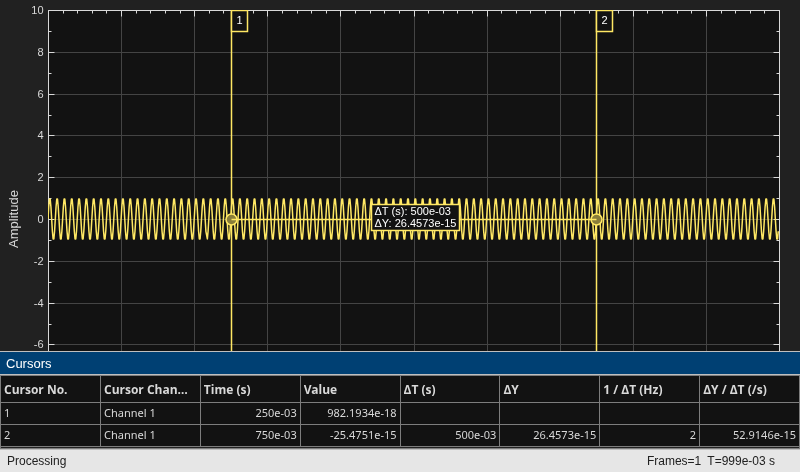
    Enable data cursors in the scope programmatically by setting the Enabled property of the CursorMeasurementsConfiguration object to true.

    scope.CursorMeasurements.Enabled = true;
    scope(swv);
    Specify Multiple Data Cursors

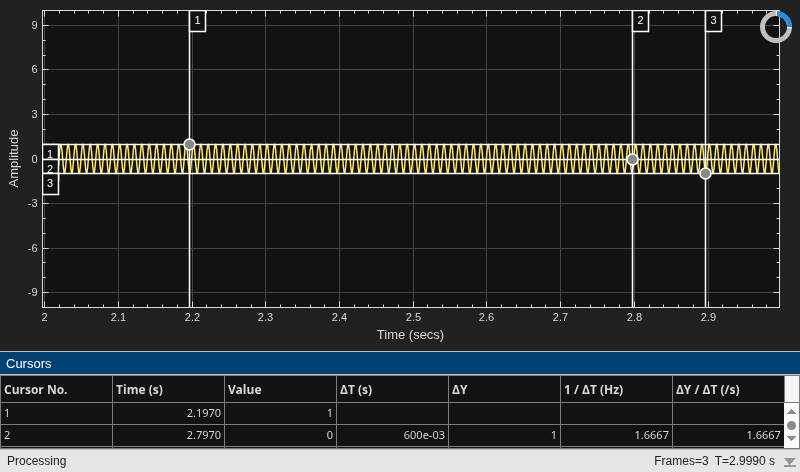
    Specify XLocation to [0.2 0.8 0.9]. The scope shows waveform cursors at these locations.

    scope.CursorMeasurements.XLocation = [0.2 0.8 0.9]
    scope = 
      timescope handle with properties:
    
                   SampleRate: 1000
               TimeSpanSource: 'property'
                     TimeSpan: 1
        TimeSpanOverrunAction: 'scroll'
                  YLimitsMode: 'auto-expand'
    
      Show all properties
    
    
    scope(swv)

    If you specify LinkToWaveform as false, the scope shows screen cursors based on the XLocation and YLocation values you specify.

    scope.CursorMeasurements.LinkToWaveform = false;
    scope.CursorMeasurements.YLocation = [1 0 -1];
    scope(swv)
    Version History

    Introduced in R2022a

    expand all