Compare and Revert Lookup Tables
R2026bThe History display enables you to view the history of any table or normalizer in a CAGE session. You can:
Revert to previous versions of tables and normalizers. Any locked cells and extrapolation mask cells are saved with table history. Reverting to a version includes reverting to that version masks and locks (except any table history from release earlier than R2014a.
Compare different versions of tables and normalizers.
You can view the History display of a table or normalizer by selecting View > History, or clicking View History in the Table Details pane.
Reset to Previous Lookup Table Versions
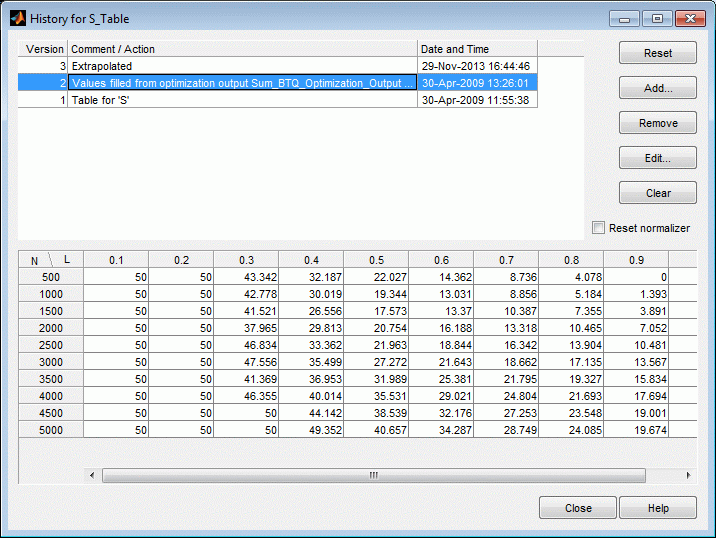
To reset the normalizer or lookup table to a previous version, select View > History to open the History display.
Highlight the previous version that you want to revert to.
Lookup tables are independent of normalizers, so if you reset a lookup table to a previous version you must also reset the normalizers to that version (if they have changed). To reset normalizers to match the reverted lookup table version, select the Reset normalizers check box.
Click Reset.
Click Close to see the updated lookup table view.
To remove previous versions of the object or comments,
Highlight the version that you want to remove.
Click Remove.
Click Clear to remove all lookup table history.
Adding and Editing Comments About Versions
To add comments,
Click Add.
In the dialog box, enter your comment.
Click OK. A new History set point is added when you add a comment.
To edit comments,
Select the comment that you want to edit.
Click Edit comment.
In the dialog box, edit the comment.
Click OK.
Compare Versions
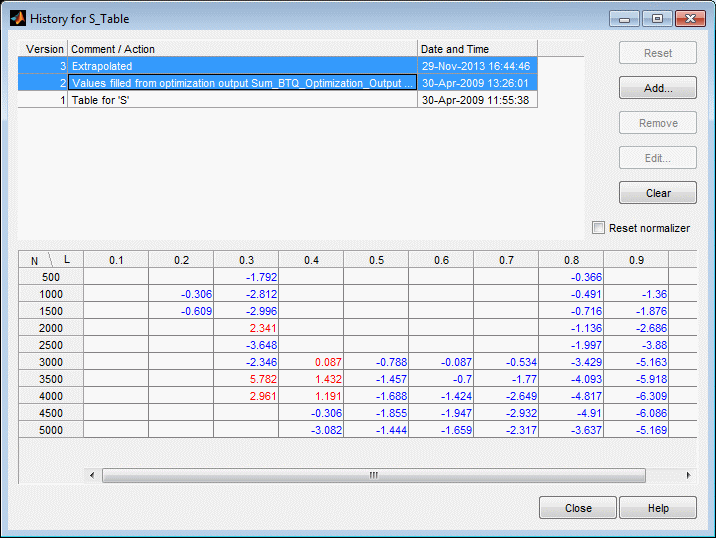
To compare two different versions of a normalizer or lookup table, highlight the two versions using Ctrl+click. Note the following:
The lower pane shows the difference between the later and the earlier versions.
Cells that have no entries have no difference.
Cells that have red entries have a higher value in the later version.
Cells that have blue entries have a lower value in the earlier version.