MATLAB Copilot Basics
R2026bMATLAB® Copilot provides generative AI–powered capabilities specifically for the MATLAB desktop environment and MATLAB Online™. With MATLAB Copilot, you can ask questions, get explanations for selected code and error messages, and generate code, comments, or help text. Responses in the Copilot Chat panel are grounded by relevant MathWorks® documentation and code examples.
There are several ways to use MATLAB Copilot capabilities:
To chat with MATLAB Copilot, use the Copilot Chat panel. Copilot Chat is an interactive assistant that can help you explore ideas and express them in code. Its responses can include both conversational text and generated code.
To perform common tasks such as explaining code and errors or generating comments, use MATLAB Copilot actions. You can access MATLAB Copilot actions from menus in the Editor, Live Editor, and Command Window.
To generate or modify code in the Editor, Live Editor, or Command Window, open an Ask Copilot box. Describe the code you want. Then accept or discard the generated code directly in your code file or in the Command Window.
To get code suggestions from MATLAB Copilot as you type in the Editor or Live Editor, use Copilot autocompletions. Instead of responding to prompts, MATLAB Copilot generates code based on the code and comments in your file.
To use MATLAB Copilot, you must have a MATLAB Copilot license. If you do not have a license for MATLAB Copilot, then contact your license administrator. Or, if you do not have a license for MathWorks products through an organization, you can buy a license or request a trial from the MathWorks Store.
Set Up MATLAB Copilot
To start using MATLAB Copilot, install it from the Add-Ons panel and then restart MATLAB. For more details, see Get and Manage Add-Ons. (since R2026b)
Before R2026b: MATLAB Copilot is installed with MATLAB and does not require a separate installation.
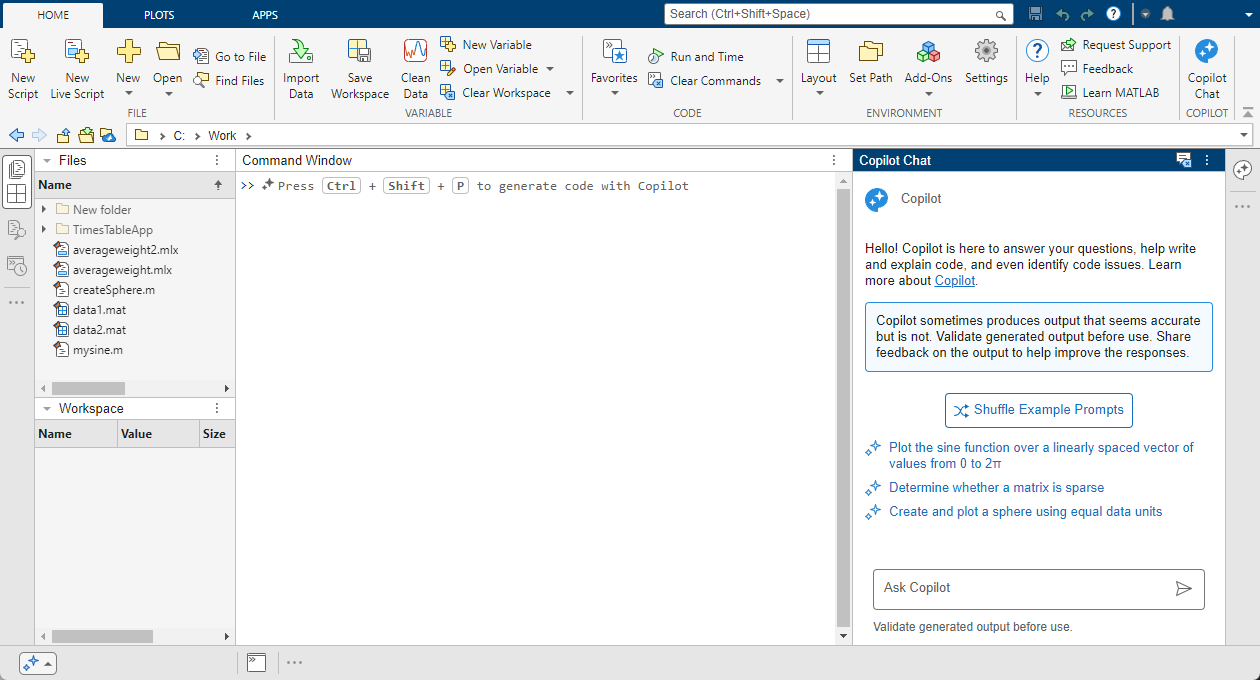
When MATLAB starts up, several MATLAB Copilot features appear, as indicated by the symbol. These features include:
Copilot Chat panel on the right. To show or hide this panel, click either the Copilot Chat button on the Home tab of the MATLAB Toolstrip or the Copilot Chat icon on the right sidebar.
Ctrl+Shift+P help text in the Command Window.
MATLAB Copilot status indicator on the lower-left corner. It indicates if MATLAB Copilot is enabled or busy with a request. It also provides access to Copilot Settings.
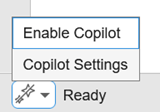
If you see only the status indicator in the lower-left corner, then MATLAB Copilot is disabled. To enable MATLAB Copilot, click the status indicator and select Enable Copilot.
To use MATLAB Copilot features, you must be signed in to your MathWorks Account as a licensed user. To sign in to your MathWorks Account, use the Sign In button at the upper-right corner of MATLAB.
Chat with MATLAB Copilot
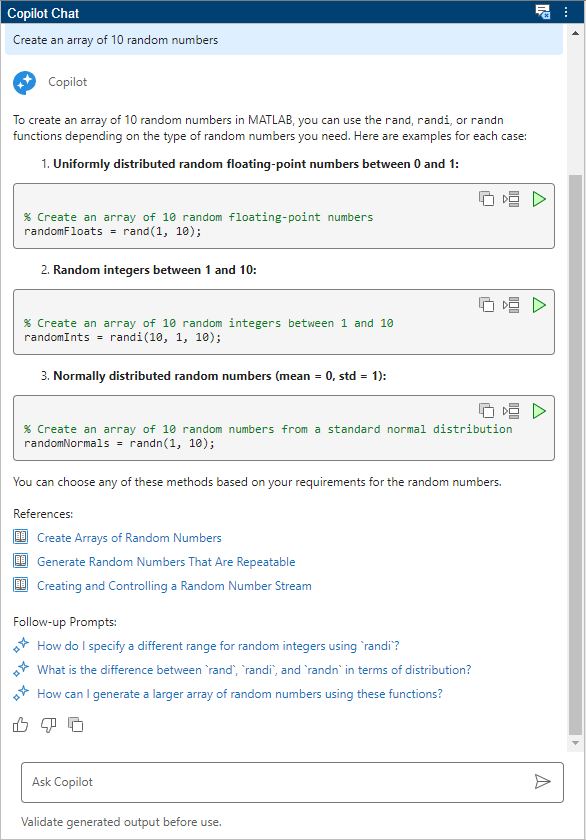
The Copilot Chat panel has an Ask Copilot box where you can enter prompts—statements or questions that you write using natural language. For example, enter this prompt:
Create an array of 10 random numbers
MATLAB Copilot returns a response that can include generated code, references to documentation, and follow-up prompts. If you write a prompt in a language other than English, MATLAB Copilot returns a response in that language.
MATLAB Copilot responses can contain errors and inaccuracies. Validate any generated code and text before using it.
Add Files to Copilot Chat for Context
You can add your own code files to provide additional context for Copilot Chat responses. MATLAB Copilot shows the files used as references in a chat response. MATLAB Copilot also warns you if the context from the files used as references exceeds the size of the context window.
Add Files to Chat
Since R2026a
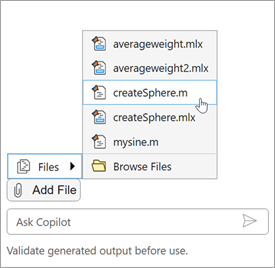
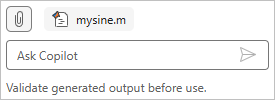
If you click Add File in the Copilot Chat panel, you can provide
MATLAB Copilot with MATLAB code files (.m) and live code files
(.mlx) to use as additional context in its responses. You can either
browse for files or select them from your current folder.
Note
If you have a file open in the Editor or Live Editor, MATLAB Copilot adds the current file to the chat as context automatically.
For example, if you open a file named mysine.m and it is the
current file in the Editor, then mysine.m is automatically added to
the chat as context.
Show Used References in Chat Responses
Since R2026b
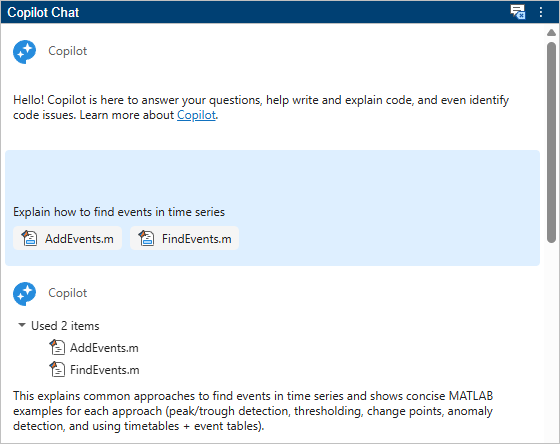
If you select files to provide added context, then MATLAB Copilot shows the selected files as used references in the Copilot Chat panel. To
see the list of used references, expand Used N
items in the chat response.
If you select any used reference, then MATLAB Copilot opens the corresponding file in the Editor (for code files) or the Live Editor (for live code files).
In this example, the selected files AddEvents.m and
FindEvents.m provide additional context for the prompt
Explain how to find events in time series. In the Copilot Chat
response, the Used 2 items section lists the two files.
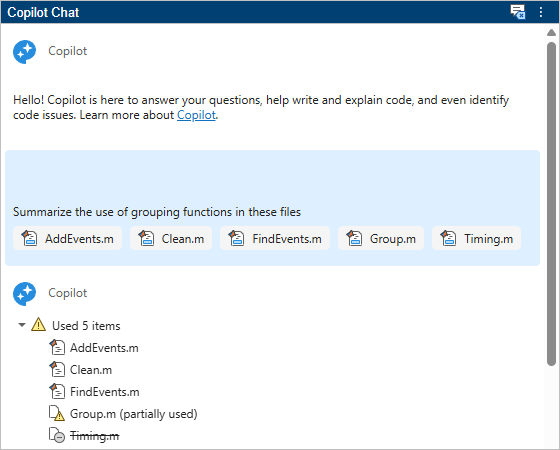
If MATLAB Copilot cannot use all the selected files as context due to the size of the context window, the Used N items section heading includes a icon. Within the section, icons indicate the status of the reference files:
— A warning badge next to a filename indicates that only part of the file is used to provide context. The phrase "partially used" appears next to the filename.
— An inactive badge next to a filename indicates that the file is not used to provide context. The filename is crossed out.
In this example, the files AddEvents.m, Clean.m,
FindEvents.m, Group.m, and
Timing.m provide context for the prompt Summarize the use of
grouping functions in these files. However, Group.m is only
partially used, and Timing.m is not used.
Use Copilot Actions
Copilot provides a set of actions in the Editor, Live Editor, and Command Window. You can use these actions to generate new code, modify selected code, explain code, or generate code comments and function help. For example, select some code in a code file. To get an explanation of the code, select Copilot > Explain Code on the Editor or Live Editor tab of the MATLAB Toolstrip.

Alternatively, you can right-click and select Explain Code from the context menu.
You can also right-click the icon to the left of the code and select Explain code in selection. (since R2026b)
Generate Code from Your Prompts
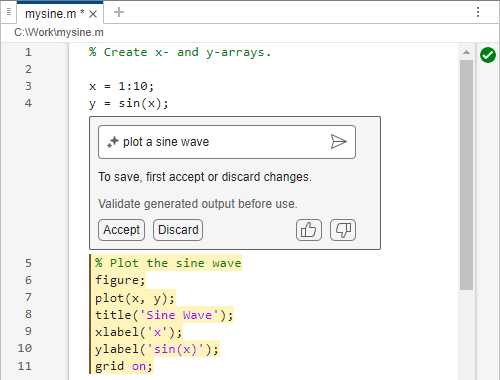
You can generate new code or modify selected code using MATLAB Copilot in the Command Window, Editor or Live Editor. If you press Ctrl+Shift+P, or right-click and select Ask Copilot (Command Window) or Generate with Copilot > Ask Copilot (Editor or Live Editor), then an Ask Copilot box appears at your cursor location. MATLAB Copilot generates code in response to prompts that you type in the box.
For example, write a script that calls the sin function. Then open
an Ask Copilot box. Ask Copilot to plot a sine wave. In response,
MATLAB Copilot generates code to plot the sine wave.
Generate Code as You Type
Copilot autocompletion provides code predictions as you work in the Editor or Live Editor. With autocompletion you do not need to provide prompts. Instead, MATLAB Copilot generates suggestions based on the code and comments that you have just written.
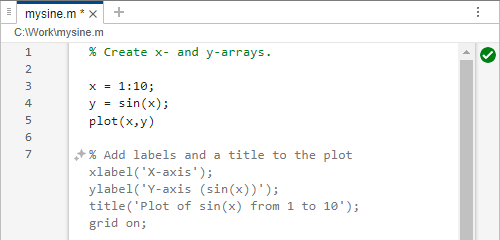
For example, write a script that calls the sin function and then
the plot function. Then press Enter. Copilot autocompletion generates code for a next possible step. To accept all or part
of the suggested code, press Tab or Right Arrow. To
discard the suggestion, press Esc.
Check Copilot Responses
Because generative AI responses can contain errors and inaccuracies, validate any generated code and text before using it.
You can use these strategies to validate MATLAB Copilot responses:
Review generated code before using it.
Run generated code and review its output. Confirm that the output is what you expected.
Check that the generated response aligns with the documentation.
In the Copilot Chat panel, ask MATLAB Copilot to explain the code it just generated.
Select code, right-click and select Explain Code. If you select several lines, MATLAB Copilot can return a line-by-line explanation in the Copilot Chat panel.
Provide Feedback
MathWorks uses your feedback to improve MathWorks products and services.
There are three buttons at the end of every MATLAB Copilot response:
— Send positive feedback that the answer is helpful.
— Provide negative feedback that the answer is unhelpful. This button opens a dialog box where you can provide more details. You can choose to send your chat history as part of your feedback.
— Copy the entire response to the clipboard.

