Explain Code Using MATLAB Copilot
R2026bMATLAB® Copilot provides generative AI–powered capabilities specifically for the MATLAB desktop environment and MATLAB Online™. You can use MATLAB Copilot to help you better understand your code. For example, you can ask MATLAB Copilot to explain code, explain error messages, or chat with MATLAB Copilot to get explanations. MATLAB Copilot responses are augmented with domain-specific material from MathWorks® documentation.
Explain Code in Editor
In the Editor or Live Editor, you can ask MATLAB Copilot to explain code in the current file.
Select the code you want MATLAB Copilot to explain.
To explain all code in a file, place your cursor anywhere in the file, without making a selection. (since R2026b)
Select Copilot > Explain Code on the Editor or Live Editor tab of the MATLAB Toolstrip.

Alternatively, you can right-click and select Explain Code from the context menu.
If you selected code, you can also click the icon that appears to the left of the selection and select Explain code in selection. (since R2026b)
MATLAB Copilot explains the code in the Copilot Chat panel.
Explain Code in Command Window
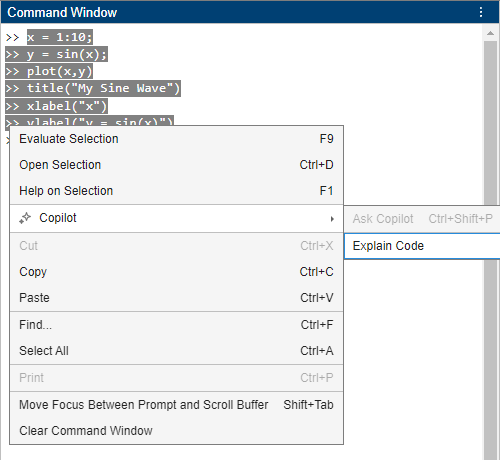
You can also ask MATLAB Copilot to explain a selection of code in the Command Window. Select lines of code in the Command Window. You can select lines of code that you have already executed. Then right-click the selected code and select Explain Code from the context menu. In the Copilot Chat panel, MATLAB Copilot explains the selected code.
Explain Error
When writing code in MATLAB, you might encounter errors in the Editor, Live Editor, or Command Window. You can ask MATLAB Copilot to explain these errors.
To get an explanation of an error, click the Explain Error button that appears in the Command Window or Live Editor. MATLAB Copilot explains the error in the Copilot Chat panel. Typically, the response provides an explanation and a recommendation for how to fix it. If the error occurred in a function or script file on your MATLAB search path, MATLAB Copilot adds the file to the Copilot Chat panel as context and might suggest changes to that file.

Chat with MATLAB Copilot
Alternatively, you can chat directly with MATLAB Copilot to ask questions to better understand code or error messages. For example, you can copy MATLAB code from another source, such as a webpage that displays a block of code. Then you can paste that code directly into the Ask Copilot box in the Copilot Chat panel and ask MATLAB Copilot to explain it.
After MATLAB Copilot generates an explanation, you can ask follow-up prompts, such as:
Help me understand the code in the previous promptAdd comments to the code to make it more readable

