Generate and Modify Code Using MATLAB Copilot
R2026bMATLAB® Copilot provides generative AI–powered capabilities specifically for the MATLAB desktop environment and MATLAB Online™. You can ask questions, generate code, and use follow-up prompts and links to documentation. In the Copilot Chat panel, you can effectively have a conversation with MATLAB Copilot that helps you solve a problem using MATLAB. Copilot Chat responses are grounded by relevant MathWorks® documentation and code examples.
You can ask MATLAB Copilot to generate and modify code in several ways:
Copilot Chat — Use the Copilot Chat panel to explore different solutions to a problem or question. To show this panel, click the Copilot Chat button on the Home tab of the MATLAB Toolstrip. MATLAB Copilot provides responses that include explanations, generated code, references, and follow-up prompts. You can insert code from the chat into your code in the Editor or Live Editor, or you can run it in the Command Window.
Ask Copilot — Use the Ask Copilot box to generate new code or modify selected code as you work in the Editor, Live Editor, or Command Window. MATLAB Copilot provides responses as formatted code and comments directly in your code area, which you can accept or discard. If you want to have a conversation with MATLAB Copilot instead, use the Copilot Chat panel.
Autocompletions — Use autocompletions to generate code predictions based on your code and comments as you work in the Editor or Live Editor.
In general, use Copilot Chat for exploration. Its responses can include both conversational text and generated code. Use the Ask Copilot box and autocompletions to generate code and comments that you can accept or discard.
Chat with MATLAB Copilot to Generate Code
When you start MATLAB, the Copilot Chat panel appears on the right.
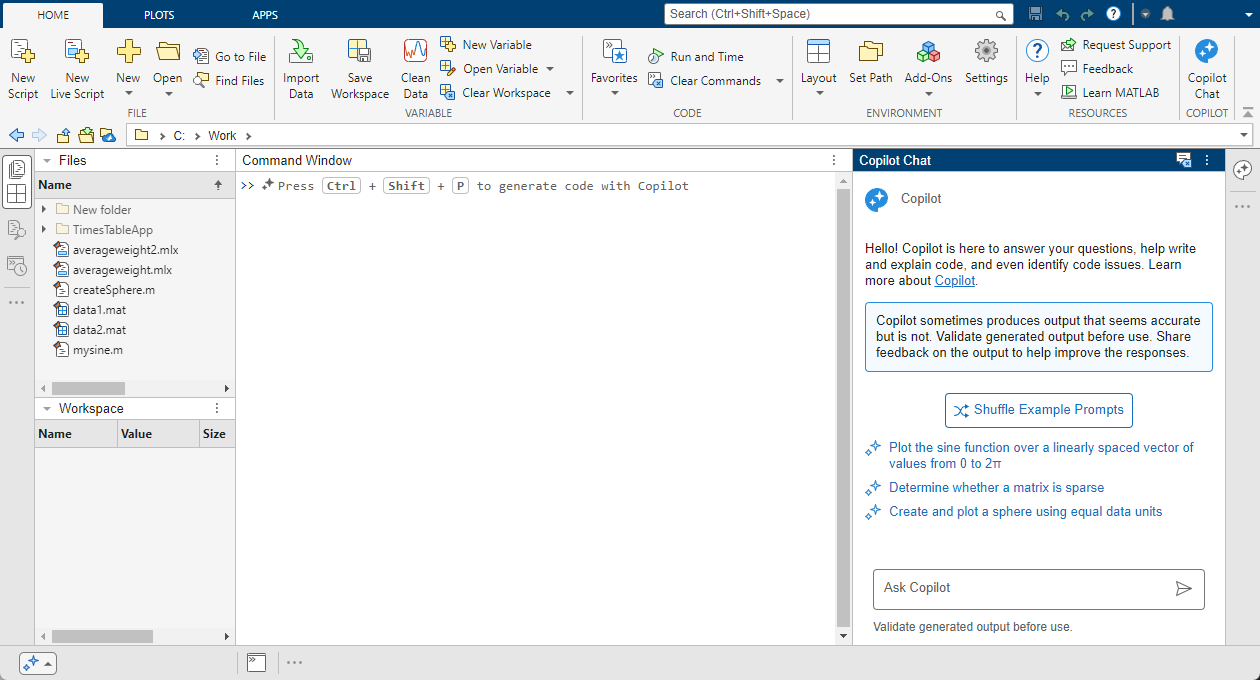
You can enter prompts—statements or questions that you write using natural language—in the Ask Copilot box.
For example, enter this prompt:
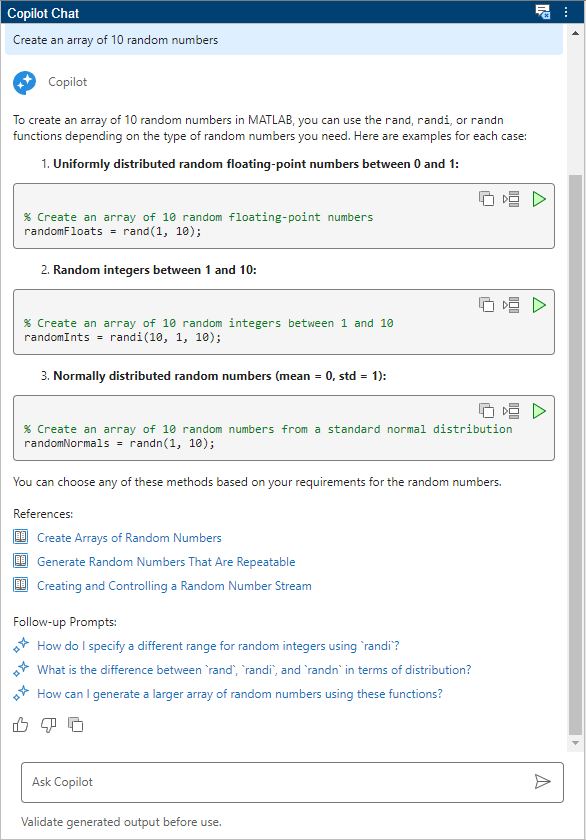
Create an array of 10 random numbers
MATLAB Copilot returns a response that can include generated code, references to documentation, and follow-up prompts. If you write a prompt in a language other than English, MATLAB Copilot returns a response in that language.
Insert or Run Code from Chat
When MATLAB Copilot generates code, you can insert it into your code file or run it in the Command Window. You can also copy it to the clipboard to manually paste the generated code where you want.
MATLAB Copilot returns generated code in code boxes. Every code box includes these three buttons:
— Copy code to the clipboard.
— Insert code in the Editor or Live Editor. MATLAB Copilot inserts the generated code at your cursor location in the open file. If no file is open, then this action opens an untitled file in the Editor and inserts the code.
— Run code in the Command Window.

Generate or Modify Code in Editor or Command Window
You do not need to use the Copilot Chat panel to generate code. You can generate new code or modify selected code as you work in the Editor, Live Editor, or Command Window. When you first start MATLAB or open a new code file, you see this keyboard shortcut hint:
Press Ctrl + Shift + P to generate code with
          Copilot
You can perform this action at any time. When you press Ctrl+Shift+P, an Ask Copilot box opens at your current cursor location in the Editor, Live Editor, or Command Window. Alternatively, in the Editor or Live Editor, select Copilot > Ask Copilot on the Editor or Live Editor tab of the MATLAB Toolstrip.

For example, in the Editor or Live Editor, create a code file named
mysine.m. In this file, insert the following code that creates a vector
x of values from 1 to 10 and a vector y of sine
values.
x = 1:10;
y = sin(x);
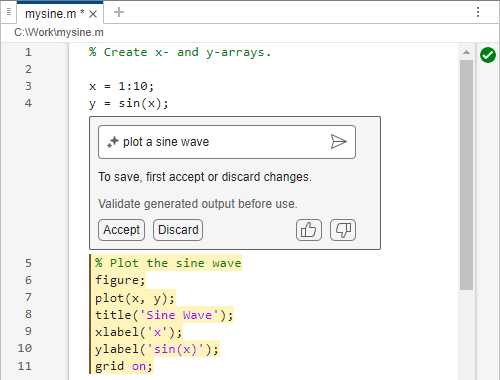
Then ask MATLAB Copilot to plot a sine wave by pressing Ctrl+Shift+P and typing
plot a sine wave in the box that appears. MATLAB Copilot generates the requested code under the box. The generated code is highlighted,
and you can choose to:
Accept all of the generated code.
Discard all of the generated code.
Revise the prompt you typed to improve the generated code.
Provide feedback using the and buttons.
Modify Generated Code with MATLAB Copilot
MATLAB Copilot might generate code that does not precisely match your expectations. In that case, you can ask MATLAB Copilot to modify the code it just generated. You can select the generated code and provide MATLAB Copilot with another prompt that provides more details.
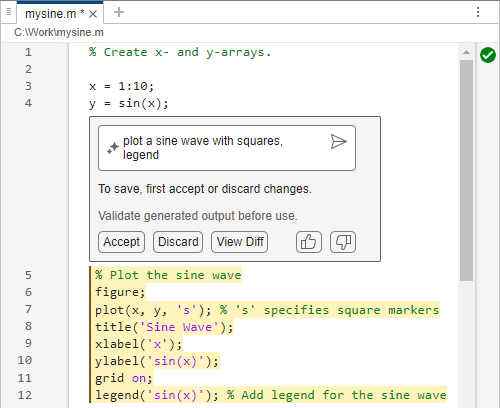
For example, ask MATLAB Copilot to modify the plotting code it generated in the previous example, by adding
square markers and a legend. If you already accepted the generated code, select it and press
Ctrl+Shift+P. In the Ask Copilot box that opens,
write a new prompt with more details (for example, Plot a sine wave with squares
and a legend, and update the title) and press Enter.
MATLAB Copilot displays the number of lines of code added or removed and the differences
between the modified code and the previously accepted code. You can accept or discard the
modified code, navigate between updated lines of code using the and buttons, toggle between viewing the differences or just the
generated code using the button, and show the differences in a separate Comparison
Tool window using the button. You can also send feedback on the generated code by
clicking or .
Generate Code with Autocompletions
In the Editor and Live Editor, you can also use Copilot autocompletion to generate code predictions. While MATLAB tab completion can complete function names or arguments, Copilot autocompletion can generate code based on the code and comments you have written. To use Copilot autocompletion:
In the Editor or Live Editor, type a comment, a function name, or some lines of code.
To generate code predictions using Copilot autocompletion, press the Enter key. The code appears as a suggestion in dimmed text at your cursor location.
To accept the suggestion, press Tab.
To accept the next word of a suggestion composed of many words, press Right Arrow.
To discard the suggestion, press Esc.
To see the context menu of autocompletion options, click the button.
For example, write a script that calls the sin function and then
the plot function. Then press Enter. MATLAB Copilot
autocompletion generates code for a next possible step. The generated code includes a
comment that describes the suggestion.
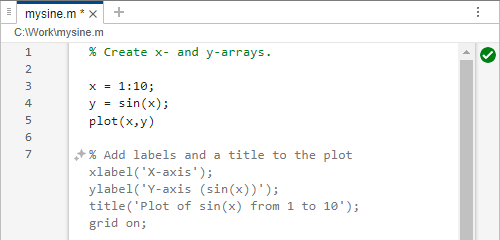
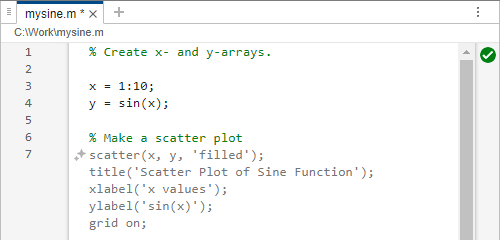
Now write a script that calls the sin function. Instead of calling
plot, add a comment that says, "Make a scatter plot." Then press
Enter. Copilot autocompletion treats that comment as a prompt and
generates code accordingly.
If you find autocompletions too obtrusive, then you can pause autocompletions and resume them later. When you pause autocompletions, MATLAB Copilot does not generate code, but you still have access to the autocompletion context menu. When you resume autocompletions after you had paused them, MATLAB Copilot can generate code again.
To pause autocompletions, open the autocompletion context menu by clicking the button to the left of the suggestion and select Pause Autocompletions. The menu includes options to accept or dismiss suggestions, pause autocompletions, or go to Copilot settings.
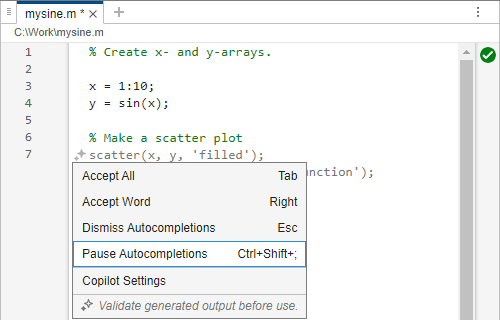
To resume autocompletions after they have been paused, click the button and select Resume Autocompletions. (When autocompletions are paused, the stars are unfilled and the context menu changes to offer the Resume Autocompletions option.)
You can also pause autocompletions or disable them entirely by changing MATLAB Copilot settings in the Settings window. For more information, see Change MATLAB Copilot Settings.
Generate Comments
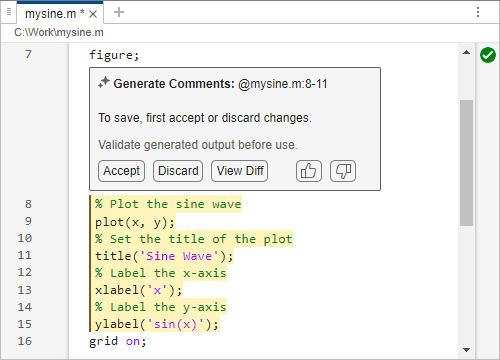
You can ask MATLAB Copilot to generate comments for your code. To generate comments for the current file:
Select the code for which you want to generate comments.
In MATLAB code files (
.m), to generate comments for the entire file, place your cursor anywhere in the file, without making a selection. (since R2026b)Right-click and select Generate with Copilot > Generate Comments.
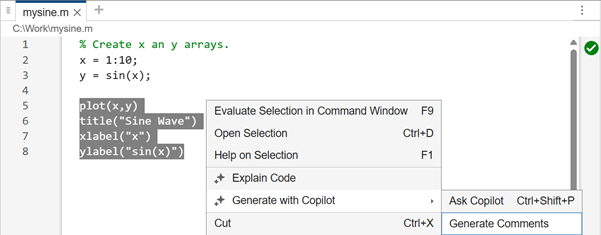
Alternatively, select Copilot > Generate Comments on the Editor or Live Editor tab of the MATLAB Toolstrip.
If you selected code, you can also click the icon that appears to the left of the selection and select Generate comments for selection. (since R2026b)
You can accept or discard the generated comments, navigate between comments using the and buttons, toggle between viewing the differences or just the generated comments using the button, and show the differences in a separate Comparison Tool window using the button. You can also send feedback on the generated comments by clicking or .
Generate Help
Since R2026a
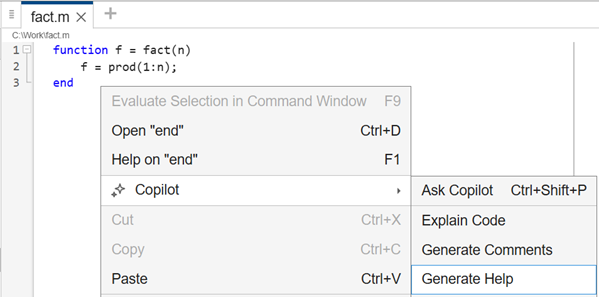
You can ask MATLAB Copilot to generate help text for a MATLAB function file (.m). To generate help text, choose one of
these options:
Select Copilot > Generate Help on the Editor tab of the MATLAB Toolstrip.
Put your cursor on the line with the function definition. Then, click the icon that appears to the left of the function name and select Generate help for function file. (since R2026b)
Right-click anywhere in the file and select Generate with Copilot > Generate Help from the context menu.
You can accept or discard the generated help text, or send feedback on the generated comments by clicking or .
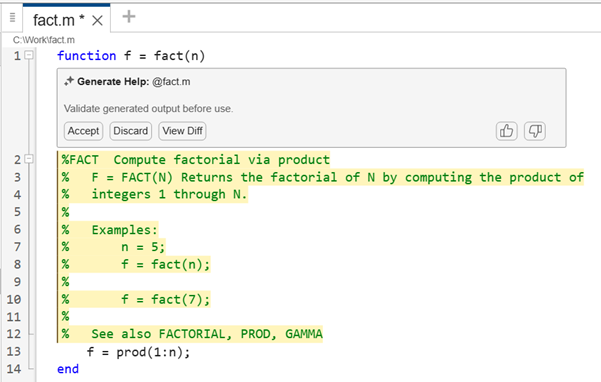
MATLAB Copilot generates help text only for the first function in the file, not local or nested functions.

