Main Content

PyTorch Model Predict

Predict responses using pretrained Python PyTorch model

Since R2024a

  • PyTorch Model Predict Block Icon

Libraries:
Deep Learning Toolbox / Python Neural Networks

Description

The PyTorch Model Predict block predicts responses using a pretrained Python® PyTorch® model running in the MATLAB® Python environment. MATLAB supports the reference implementation of Python, often called CPython. If you use a Mac or Linux® platform, you already have Python installed. If you use Windows®, you need to install a distribution, such as those found at https://www.python.org/downloads/. For more information, see Configure Your System to Use Python. Your MATLAB Python environment must have the torch module installed. The PyTorch Model Predict block has been tested using Python version 3.10 and torch version 2.8.

Load a Python model into the block by specifying the path to a PyTorch model file that you saved in Python using torch.save(), torch.jit.save(), torch.export.save(), or a .safetensors file. You can optionally load a Python function to preprocess the input data that Simulink® passes to the Python model, and a Python function to postprocess the predicted responses from the model. The PyTorch Model Predict block also allows you to specify the execution device for the Python model.

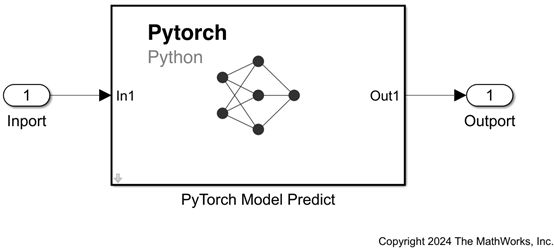
The input port In1 receives input data, optionally rearranges the input array dimensions, and converts the input data to a Python array. The preprocessing function (if specified) processes the converted data in Python and passes it to the PyTorch model. The model generates predicted responses for the input data in Python and passes the responses to the Python postprocessing function (if specified). The output port Out1 returns the predicted responses.

You can add and configure input and output ports using the Inputs and Outputs tabs of the Block Parameters dialog box (see Inputs and Outputs). The software attempts to automatically populate the table in each tab from the provided model file.

Note

You cannot run the PyTorch Model Predict block in Rapid Accelerator mode.

Examples

Ports

Input

expand all

Input data, specified as a numeric array. You can rearrange the dimensions of the input data that the block passes to the Python model by specifying a permutation vector on the Inputs tab of the Block Parameters dialog box (see Inputs).

The software attempts to automatically populate the table on the Inputs tab from the provided model file.

Data Types: single | double | half | int8 | int16 | int32 | int64 | uint8 | uint16 | uint32 | uint64 | Boolean | fixed point

Output

expand all

Predicted responses, returned as a numeric array. You can rearrange the dimensions of the output data returned by the Python model by specifying a permutation vector on the Outputs tab of the Block Parameters dialog box (see Outputs).

The software attempts to automatically populate the table on the Outputs tab from the provided model file.

Data Types: single | double | half | int8 | int16 | int32 | int64 | uint8 | uint16 | uint32 | uint64 | Boolean

Parameters

expand all

To edit block parameters interactively, use the Property Inspector. From the Simulink Toolstrip, on the Simulation tab, in the Prepare gallery, select Property Inspector.

Specify model file

Specify the name or path of a Python PyTorch model file, state_dict or .safetensors file, or click the Browse button. You must save the file in Python using torch.save(), torch.jit.save(), torch.export.save() or as a .safetensors weights file.

Programmatic Use

Block Parameter: ModelFile
Type: character vector
Values: path to PyTorch model file | path to state_dict file | path to .safetensors file
Default: "untitled"

PyTorch model class name, specified as a character vector. This parameter can only be specified when providing a state_dict or .safetensors weight file. You can optionally specify arguments to the model using function call format (for example, "torchvision.models.alexnet(num_classes=1000, dropout=0.2)").

Programmatic Use

Block Parameter: ModelClassName
Type: character vector
Values: PyTorch model class name | function call to PyTorch model class

Specify the name of the execution device for the Python model. If you provide the name of an execution device, do not enclose the name in quotation marks. The software selects cuda for the execution device if Parallel Computing Toolbox™ is installed and a GPU device is available. Otherwise, the software selects cpu.

To specify a CUDA execution device, you must first install Parallel Computing Toolbox and have a GPU device. For information on supported GPU devices, see GPU Computing Requirements (Parallel Computing Toolbox).

Programmatic Use

Block Parameter: DeviceComboBox
Type: unquoted text
Values: cpu |cuda | device name
Default: cpu

Specify the discrete interval between sample time hits or specify another type of sample time, such as continuous (0) or inherited (–1). For more options, see Types of Sample Time (Simulink).

By default, the PyTorch Model Predict block inherits sample time based on the context of the block within the model.

Programmatic Use

Block Parameter: SampleTime
Type: string scalar or character vector
Values: scalar
Default: "–1"

Inputs

Input port properties, specified as a table. Each row of the table corresponds to an individual input port of the PyTorch Model Predict block. The software attempts to automatically populate the input port properties table from the provided model file on the Specify model file tab.

Double-click a table cell entry to edit its value, and use the Move row up and Move row down buttons to reorder the table rows. Add and delete input ports by clicking the Add row and Delete row buttons, respectively. The buttons will be disabled if autofill was able to determine the number of inputs. If you specify multiple input ports, their order must correspond to the input order in the Python model (or Python preprocessing function, if specified).

The table has the following columns:

  • Input Name — Block input port label, specified as a character vector. The block does not pass the input port label to the Python model.

  • Python Datatype — Python or NumPy datatype to which the PyTorch Model Predict block converts incoming data before passing it to Python, specified as a character vector. The block supports the Python numeric datatypes "int" and "float", and the NumPy numeric datatypes "float16", "float32", "float64", "int8", "uint8", "int16", "uint16", "int32", "uint32", "int64", and "uint64". The default value is "float32".

  • Permutation to Python — New dimension arrangement for the input data, specified as a numeric vector with unique positive integer elements that represent the dimensions of the input data (see permute). For example, if the input data is a 2D matrix, you can specify [2 1] to switch the row and column dimensions. The PyTorch Model Predict block passes the rearranged array to the Python model (or Python preprocessing function, if specified).

  • Python NumDims — Number of dimensions for the input data, specified as a nonnegative integer. The internal default value is the dimensionality of the Simulink input signal. The PyTorch Model Predict block converts the input data in Simulink to a Python array with the specified dimensions, and then passes the data to the Python predict() function (or Python preprocessing function, if specified). The input data cannot contain more dimensions than the specified number, unless the extra dimensions are singletons. The block does not pass these extra singleton dimensions to Python. If the input data has fewer dimensions than the specified number, the block adds trailing singleton dimensions, as needed.

The entire column will be disabled if autofill was able to determine the values for that column. Disabled columns appear gray. Autofilled values that are not gray are default values that can be edited.

Programmatic Use

Block Parameter: InputTable
Type: cell array

Outputs

Output port properties, specified as a table. Each row of the table corresponds to an individual output port of the PyTorch Model Predict block. The software attempts to automatically populate the output port properties table from the provided model file on the Specify model file tab.

Double-click a table cell entry to edit its value, and use the Move row up and Move row down buttons to reorder the table rows. Add and delete output ports by clicking the Add row and Delete row buttons, respectively. The buttons will be disabled if autofill was able to determine the number of outputs.. If you specify multiple output ports, their order must correspond to the output order in the Python model (or Python postprocessing function, if specified).

The table has the following columns:

  • Output Name — Block output port label, specified as a character vector.

  • Permutation from Python — New dimension ordering for the array that the PyTorch Model Predict block passes to the output port, specified as a numeric vector with unique positive integer elements (see permute).

  • Max MATLAB Dim Sizes — Maximum size of the block output along each dimension, specified as an array of positive integers. Specify this parameter only if your Python model is capable of returning variable sized output during a single simulation run.

The entire column will be disabled if autofill was able to determine the values for that column. Disabled columns appear gray. Autofilled values that are not gray are default values that can be edited.

Programmatic Use

Block Parameter: OutputTable
Type: cell array

Pre/Post-processing

Specify the name or path of a file defining an optional Python preprocessing function for the input data, or click the Browse button. When the PyTorch Model Predict receives data, it converts it to a NumPy array. The preprocessing function processes the converted data in Python, and then passes the data to the Python model.

The preprocessing file must define the Python function with the signature

outputList = preprocess(model,inputList)
where outputList is a NumPy ndarray object, a torch.Tensor object, a list or tuple containing these objects. The input model is the Python model object, and inputList is a list of ndarray objects. The number of elements in inputList must match the number of input ports in the PyTorch Model Predict block. The number of elements in outputList must match the number of inputs required by the Python model. The preprocessing file can be the same as the postprocessing file specified by Path to Python file defining postprocess() if the file contains both defining functions.

Programmatic Use

Block Parameter: PreprocessingFilePath
Type: character vector
Values: Python file | path to Python file

Specify the name or path of a file defining an optional Python postprocessing function for the output data, or click the Browse button. The PyTorch Model Predict block processes the output data from the Python model using the Python function, and then outputs the data from the block.

The postprocessing file must define the Python function with the signature

outputList = postprocess(model,inputList)
where outputList is a NumPy ndarray object or a list or tuple containing this object, model is the Python model object, and inputList is a list of torch.Tensor objects. The number of elements in inputList must match the number of outputs in the Python model. The number of elements in outputList must match the number of output ports in the PyTorch Model Predict block. The postprocessing file can be the same as the preprocessing file specified by Path to Python file defining preprocess() if the file contains both defining functions.

Programmatic Use

Block Parameter: PostprocessingFilePath
Type: character vector
Values: Python file | path to Python file

Block Characteristics

Data Types

Boolean | double | enumerated | fixed point | half | integer | single

Direct Feedthrough

yes

Multidimensional Signals

no

Variable-Size Signals

no

Zero-Crossing Detection

no

Tips

  • If you encounter a Python library conflict, use the pyenv function to specify the ExecutionMode name-value argument as "OutOfProcess".

  • To load a model that has been saved as a full model file (using torch.save) or a weight file, the PyTorch model class needs to be defined in a standalone .py file. To do this, define the PyTorch model class in a file with a .py extension. The model class file must be on the Python path or in the current working directory. Next, import the model into Python using the import command and save it using the torch.save() function. The following code shows an example of saving a PyTorch model of class MyClass defined in the file MyModule.py.

    import MyModule
    mdl = MyModule.MyClass()
    torch.save(mdl,"savedMdl.pt")

  • If you execute the model class file in a script, notebook or at the command line instead of using the import command, the PyTorch Model Predict block throws the following error:

    AttributeError: Can't get attribute 'MyClass' on <module '__main__' (built-in)>
    This happens because torch.save() stores references to the class by its module path (e.g.,myModule.MyClass). If the class was defined while running the file as a script or in a notebook, its module is __main__ instead of an importable module name. To fix the error do either one of the following :-

    1. Recreate the model definition MyClassin a standalone .py file, for e.g. MyModule.py and resave the model.

      import MyModule
      mdl = MyModule.MyClass()
      torch.save(mdl,"savedMdl.pt")

    2. To reuse an existing saved model, whose model class was defined in the __main__ scope, do the following:

      1. Reload the saved model in the Python script or notebook containing the model class definition. Then, save only the model weights to a new file.

        class MyClass
        ...
        model = torch.load("savedMdl.pt")
        torch.save(model.state_dict(),"savedMdlWeights.pth")

      2. Copy the model class definition MyClass into a standalone .py file, e.g. MyModule.py and add that file to the Python path or current working directory.

        python MyModule.py
        
        class MyClass
        ...

      3. Then provide the path to the weight file and model class constructor command in the Block Parameters dialog box.

Version History

Introduced in R2024a

expand all