Generating Multichannel Audio
R2026bThis example shows how to generate audio signals on multiple output channels using a multichannel audio device. The example plays segments of Handel's "Hallelujah Chorus" through different speaker combinations to create listening effects, such as sound moving around the room and a growing choir.
The example first plays each segment on a single speaker paired with the sub-woofer, and then on progressively larger groups of speakers, simulating a growing choir. This example uses a 5.1 surround-sound audio device. Use daqlist("directsound") to identify available audio devices on your system. If your device supports only two output channels, see the Stereo Alternative section in this example.
Load Audio Data
Load Handel's "Hallelujah". The handel MAT-file contains the audio waveform y and the sampling frequency Fs.
load handel;
Create Data Acquisition Object
Create a DataAcquisition object using directsound as the vendor ID.
dq = daq("directsound");
Add Output Channels
Add six audio output channels using the addoutput function. Replace "Audio7" with the device ID of your multichannel audio device. You can obtain the device ID from the daqlist output.
deviceID = "Audio7";
numChannels = 6;
addoutput(dq,deviceID,1:numChannels,"Audio");
Set the generation scan rate to match the audio sampling frequency.
dq.Rate = Fs;
Plot Audio Data
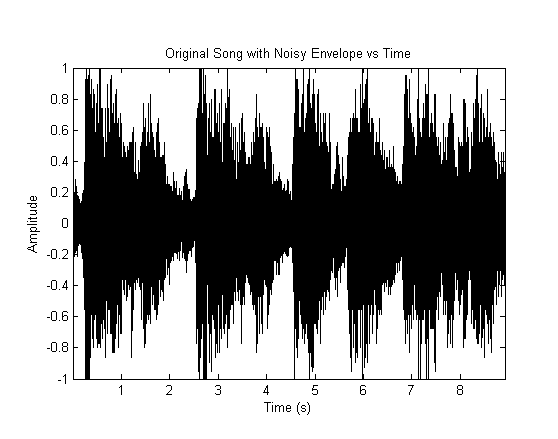
Plot the audio waveform to visually identify segments corresponding to each "Hallelujah" in the chorus.
figure;
t = (0:length(y)-1) / Fs;
plot(t,y,"k");
xlabel("Time (s)");
ylabel("Amplitude");
title("Original Song with Noisy Envelope vs Time");
Define Segment Boundaries
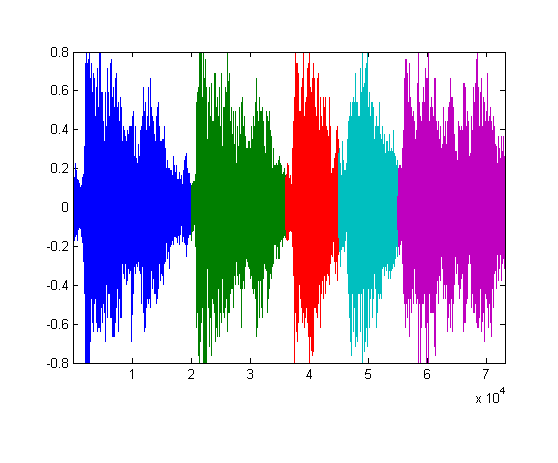
From the waveform plot, identify the approximate sample indices where each "Hallelujah" segment ends. These values divide the audio into five contiguous segments.
segmentEnd = [20000, 36000, 45000, 55000, length(y)];
Visualize the segment boundaries on the waveform.
figure;
hold on;
colors = [0 0 1; 0 0.5 0; 1 0 0; 0 0.75 0.75; 0.75 0 0.75];
segStart = [1, segmentEnd(1:end-1)+1];
for k = 1:length(segmentEnd)
    range = segStart(k):segmentEnd(k);
    plot(range,y(range),"Color",colors(k,:));
end
hold off;
Speaker Configuration
This example uses a standard 5.1 surround-sound speaker configuration. The channel-to-speaker mapping is:
Channel 1: Left Front
Channel 2: Right Front
Channel 3: Center
Channel 4: Sub-Woofer
Channel 5: Left Rear
Channel 6: Right Rear
Your speaker system might use a different channel ordering. Consult your audio device documentation to confirm the mapping.
Define Speaker Parameters
Set up a selection of speakers in a cell array named speakerselection to play five segments of "Hallelujah" on six different speakers.
nspeakers = 6;
nspeakergroups = 5;
speakerselection = cell(1,nspeakergroups);
Generate Surround Sound Effect Using Speaker and Sub-Woofer
Each segment plays on one speaker paired with the sub-woofer (channel 4). This produces the effect of the sound moving around the room.
speakerselection{1} = [4, 6]; % Segment 1: Sub-Woofer + Right Rear
speakerselection{2} = [4, 5]; % Segment 2: Sub-Woofer + Left Rear
speakerselection{3} = [1, 4]; % Segment 3: Left Front + Sub-Woofer
speakerselection{4} = [2, 4]; % Segment 4: Right Front + Sub-Woofer
speakerselection{5} = [3, 4]; % Segment 5: Center + Sub-Woofer

[singleChannelOutputs] = ...
    surroundSoundVoices(y,segmentEnd,nspeakers,nspeakergroups,speakerselection);
Write Single Channel Outputs
Write a sequence of single channel outputs and then pause before proceeding to the next section.
write(dq,singleChannelOutputs);
pause(3);
Generate Growing Choir Effect with Speaker Groups
Each segment plays on a progressively larger group of speakers. All groups include the sub-woofer (channel 4).
speakerselection{1} = [4, 5, 6];          % Segment 1: Sub-Woofer + Rear
speakerselection{2} = [1, 2, 4];          % Segment 2: Front Left/Right + Sub-Woofer
speakerselection{3} = [3, 4];             % Segment 3: Center + Sub-Woofer
speakerselection{4} = [1, 2, 3, 4];       % Segment 4: All Front + Sub-Woofer
speakerselection{5} = [1, 2, 3, 4, 5, 6]; % Segment 5: All Speakers

[multiChannelOutput] = ...
    surroundSoundVoices(y,segmentEnd,nspeakers,nspeakergroups,speakerselection);
Write Multichannel Outputs
Write the sequence of multichannel outputs.
write(dq,multiChannelOutput);
Stereo Alternative
If your audio device supports only two output channels, you can modify this example to work with stereo output. Replace the channel setup with:
numChannels = 2;
addoutput(dq,deviceID,1:numChannels,"Audio");
Then use a simplified speaker selection for two channels (left and right):
speakerselection{1} = 1;       % Left only
speakerselection{2} = 2;       % Right only
speakerselection{3} = [1, 2];  % Both
speakerselection{4} = 1;       % Left only
speakerselection{5} = [1, 2];  % Both
When calling surroundSoundVoices, adjust nspeakers to 2.
Helper Function
Use the surroundSoundVoices helper function to distribute audio segments across speaker groups. The function breaks the input waveform into contiguous segments defined by segmentEnds and routes each segment to its assigned group of speakers. Non-active speakers output a small non-zero baseline during that segment to keep DirectSound buffers active.
function [multiChannelOutput] = surroundSoundVoices(audioOut,segmentEnds,numSpeakers,numSpeakerGroups,speakerGroups)

% To prevent audio dropouts, initialize the output matrix with a small
% non-zero value, which keeps DirectSound buffers active on all channels.
multiChannelOutput = repmat(0.01,length(audioOut),numSpeakers);
startOfSegment = [1 (segmentEnds(1:end-1)+1)];

for i = 1:numSpeakerGroups
    speakergroup = speakerGroups{i};
    n = numel(speakergroup);
    for j = 1:n
        range = startOfSegment(i):segmentEnds(i);
        multiChannelOutput(range, speakergroup(j)) = audioOut(range);
    end
end

end

