Detect colors close to white
Show older comments
Which color space should I use if I need to find pixels close to white. For example, I start with RGB space, where white would be (255,255,255). So, anything close to it would be white. But, how much difference is tolerable. Is it OK to go to 230 in R domain; and 220 in Blue etc. (these values are just examples) while keeping other color components constant.
Or is there a better color space than RGB where I can go. And how to find colors closer to white there.
Accepted Answer

John D'Errico
on 22 Aug 2015
Edited: John D'Errico
on 22 Aug 2015
2 votes
RGB is not sufficiently uniform to be usable here.
Convert to L*a*b*. Then just compute the Euclidean distance (often called delta E) from white. Anything within a given radius will be "close". You need only choose the radius then.
3 Comments


John D'Errico
on 27 Aug 2015
HSL is not really a good choice at all here.
You want something that is as uniform as possible, since you will be computing a 3-d Euclidean distance. The variables in an HSL encoding do not even have the same units, since one of them is degrees.
Again, compute the Euclidean distance in Lab. This is reasonably good. (Not perfect, although I think I recall a paper by Hung and Berns that tried to adjust Lab for better uniformity.)
More Answers (2)
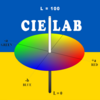
Image Analyst
on 27 Aug 2015
Compute the delta E between the image and the white lab:
lab = rgb2lab(rgbImage);
lImage = lab(:,:,1);
aImage = lab(:,:,2);
bImage = lab(:,:,3);
Then compute the delta between them and the white values
deltaL = LWhite - lImage;
Same for a and b, then add a fraction of the delta image to your test image, then convert back with lab2rgb(). The fraction ranges from 0 for no change to 1 which will make the image all the white value.

Ning Wu
on 26 Aug 2015
0 votes
7 Comments
John D'Errico
on 27 Aug 2015
Again, work in Lab.
Given a color that has coordinates C=[L,a,b], suppose you want to move it towards white by one unit. This is just a simple linear contraction.
Assume that you have a known white point. I'll call it WP. That may be [100 0 0] if you have done some sort of von Kries to make it so, or not.
mapDistance is the distance that points will be moved, unless the point is already closer to white than thisamount.
mapDistance = 1;
% V is a vector that points towards the white point.
V = WP - C;
% D is the distance to the white point.
D = norm(V);
% Chat is a corrected point, that is moved by one
% unit towards white. If the point was within
% 1 unit of white, then the point just gets mapped
% to white.
Chat = C + (V/D)*max(D,mapDistance);
Remap your colors back into RGB afterwards.
Of course, all of this can trivially be done in a vectorized form if you will be mapping many points.
Or, you might choose to map all points by some fractional amount of their distance to white, say move the colors by 5%.

Alex Burt
on 28 Aug 2015
John: will this cause color shift in RGB space if operations are performed in lab. And how about the edges at white objects where deltaE will change drastically. Similar comment applies to other answer.
Image Analyst
on 28 Aug 2015
You're changing values. Therefore it will change colors no matter what color space you do operations in. Spatial color artifacts (like funny edge colors that get introduced) should not occur because there are no spatial operations being done, just point operations.
Image Analyst
on 30 Aug 2015
Alex, if you do have spatial operations, like ROI processing where you process some part(s) of the image and not others, or the scanning window does different things at each location, then you can get funny color artifacts, particularly at edges (rather than in uniform areas).
One way to deal with that is to convert to HSV and only operate on the V channel, not the Hue or Saturation channel, or convert to LAB and operate only on the L channel, not the A or B channel.
Alex Burt
on 31 Aug 2015
Operating on L channel only does not help. The problem is that at the boundaries of the interesting region, L inside/outside boundary is different, but gradually changing. Modifying pixels inside the region by a factor makes a big discontinuity at the boundaries for L which is indeed visible. Is there a way this can be mitigated.
Image Analyst
on 31 Aug 2015
Of course there will be a difference between pixels you modified inside and outside the ROI. And if that difference is great enough, then there can be a noticeable boundary or edge created. But you should not have strange hue effects there, like bright red or blue pixels like you would if you had operated on all channels because you're not changing the hue.
To soften the effects of an ROI edge, you need to do anti-aliasing, like is done in Photoshop. Basically blurring/interpolating the values inside and outside over a band of a few pixels thick around the ROI boundary.
Categories
Find more on Image Category Classification in Help Center and File Exchange
Community Treasure Hunt
Find the treasures in MATLAB Central and discover how the community can help you!
Start Hunting!
