Create External Data Files to Use in Test Cases
R2026bYou can create or generate Microsoft® Excel® files, MAT files, and MATLAB® scripts that contain data you can use in test cases. In Excel and MAT files, you can specify inputs, baseline signal data, and parameter overrides. In MATLAB script (.m) files, you can specify only parameter override values. Use external data files when you want to use the same data, such as inputs and parameter values, in different test cases.
Note
You can use inputs from an external file only for tests that run in the current release. To select the current release in the Simulink® Test Manager, in the System Under Test section of a test case, enable Select releases for simulation.
For inputs and baseline signals, you can specify the data and time associated with the signal, and indicate whether the signals are scalar, multidimensional, or complex. You can optionally specify the data type, block path, port index, units, interpolation type, and function-call execution times.
To use an external file for a test case, click Create Test Case from External File and specify the file at the top of the Simulink Test Manager Test Case pane. For an example of how to use external files in a test case, see Use External File Data in Test Cases.
Create External Excel File
To use an Excel file as an external data file for a test case, create an Excel file and format it manually or generate an Excel file from your model data.
Create or Generate an Excel File
You can manually create an Excel file or automatically generate one from the data in your model. You can:
Generate an Excel file from the data in the Simulink Test Manager. Click Create in the test case Inputs or Parameter Overrides section in the Simulink Test Manager. For baseline data, in the Baseline Criteria section, click Capture to open the Capture Baseline dialog box. Then to create an Excel file, in the displayed dialog box, select Excel as the file format, specify the file name, and click Capture.
Generate an Excel template file by using the Create Test from Spreadsheet wizard. Open the Create Test from Spreadsheet wizard by clicking New > Test from Spreadsheet in the Simulink Test Manager. Follow the wizard to create a spreadsheet that contains inputs, baseline criteria, and parameter override data from the test case. Use this process to ensure that the format of the data in the Excel file is correct. For an example of using the wizard, see Generate an Excel File.
Manually create an Excel File. Create an Excel file and manually add data to it in the correct format. See "Excel Format for Input and Baseline Data" and "Formatting Parameter Overrides in an External Excel File" below.
If your Excel file has more than one sheet, the Simulink Test Manager uses the data in each sheet as a separate iteration. To add iterations from an external file to a test case, first click Create in the Inputs section of the Test Manager. Then, in the Create Input Data File dialog box, click Add iterations to run this input to set the external input data file to use iterations. After you create the input file, specify the iteration data in that file.
Excel Format for Input and Baseline Data
An external Excel file that contains inputs or baseline data includes a time column and one column for each signal.
The first column contains time values. The header row of the column must be
time. The time values must increase monotonically.If your data includes signals with different time vectors, the file can include multiple time columns. Every time column has the name
time. Time columns specify the sample times for signals to the right, up to the next time column. For example, the first time column defines the time for signal1 and signal2, and the second time column defines the time steps for signal3.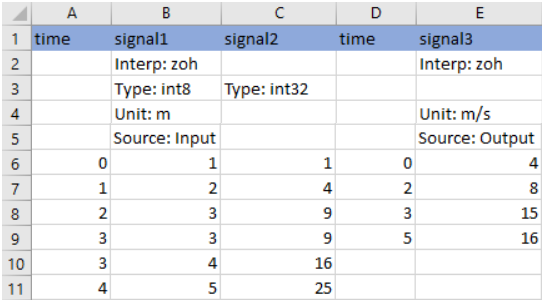
Each additional column contains the data for a signal and the header row of the column must be the name of the signal. You must include a signal value for each time value.
Each signal column heading must uniquely identify the signal. If multiple signals at different levels in the model hierarchy have the same name, the header row of the column must include the block path. If the signal does not have a name, for a generated Excel file, the Simulink Test Manager assigns a signal name using this format:
block_name: port_index.
You can also include optional metadata for signals, such as data types, units,
source types, and interpolation methods. List the metadata for each signal in rows
between the signal names and the signal data. You can specify
any combination of metadata for each signal. For
example, in the image above, Source: Input identifies an input
signal and Source: Output is a baseline signal. For more
information on how to format data in Excel files, see Microsoft Excel Import, Export, and Logging Format.
Note
Simulink.ValueType data is not supported in Excel files that
are used with the Simulink Test Manager.
For discrete signals, if you do not list the interpolation method in the file, the signal defaults to zero-order hold interpolation. Continuous signals default to linear interpolation.
Formatting Parameter Overrides in an External Excel File
Parameter data in an Excel file uses two columns.
The first column contains the parameter names. Its header row must be
Parameter:.The second column contains the values for each parameter. Its header row must be
Value:.
Specify the names and values for parameter in the first row that contains signal data. This image shows parameter overrides for two parameters, X and Y:
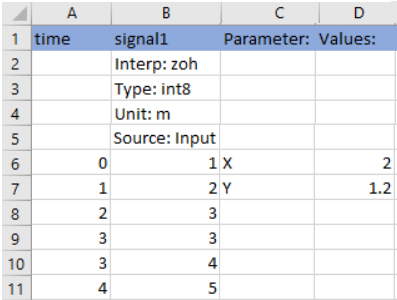
For Simulink.Parameter,
Simulink.DataDictionary, or
Simulink.LookupTable objects that have multiple possible
values for a parameter, specify the parameter name and list its values in a single
cell of the adjacent column. The values you do not specify use the values set in the
model.
Create External MAT Files
Use the Test Manager to generate a MAT file that contains inputs, baseline, or parameter override data from a model. You can then edit the input and baseline data by using the Signal Editor.
In the System Under Test section of the test case, specify the model from which you want create a MAT file.
For input data, in the Inputs section of the test case, click Create. For baseline data, in the Baseline Criteria section, click Capture.
In the dialog box, set File Format to
MAT, specify the location for the MAT file, and click Create for input data or Capture for baseline data, respectively.
To edit the inputs or baseline data in an existing MAT file:
In the Inputs or the Baseline Criteria sections of the test case, select the file and click Edit. The Signal Editor opens.
In the left pane of the Signal Editor, expand the data node. Then, select the signal that you want to modify.
In the left panes, update the data as desired. You can also change the axes limits and the display format.

To update the signal data in the MAT file, click Apply.
Click Save to save the updated data in the test case.
Create External MATLAB Scripts
You can use MATLAB scripts (.m files) to specify initial parameter values
or parameter overrides for a test case. The scripts include MATLAB language commands
formatted in the same way as command line code. To edit a script file, open the file in
a text editor. For example, a MATLAB script file that sets two parameter values contains
code in this format:
a_min = 1.3;
a_max = 22.4;
See Also
sltest.testmanager.BaselineCriteria | sltest.testmanager.TestInput

