Overview of the New Requirements Editor UI
R2026bThe Third-Party Tool Connector for Requirements Toolbox™ add-on provides a new Requirements Editor UI with enhanced performance. Use the new Requirements Editor UI to:
Create and open requirements
Import requirements from Jama Connect® and Codebeamer® without using ReqIF files
If you have MATLAB® Copilot, the new Requirements Editor UI provides AI-powered analyses for requirements and links.
Requirement sets that you create in the new Requirements Editor UI are compatible with the Requirements Editor app.
Note
You cannot use the new Requirements Editor UI to create links, track changes, or generate reports. For more information, see Limitations.
For more information about accessing the new Requirements Editor UI, see Install Third-Party Tool Connector for Requirements Toolbox Add-On.
Updated User Interface
The new Requirements Editor UI has an updated interface for authoring and managing requirements. The UI includes the Property Inspector pane to view and edit requirement details and the Requirements Advisor pane to analyze requirements and links.
Property Inspector
Use the Properties and Links tabs in the Property Inspector pane to view and edit requirement properties. To modify the requirement details, expand the Details section.
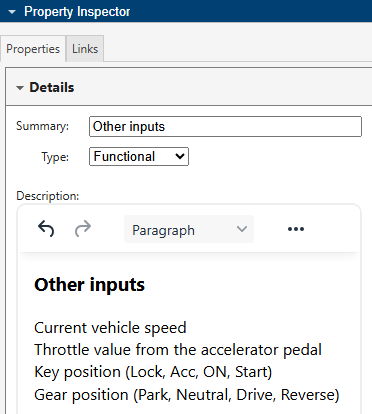
If you click a link set, the Property Inspector pane includes the Properties tab.
Requirements Advisor
Use the Requirements Advisor pane to analyze requirements and links for conformance and consistency with MATLAB Copilot.
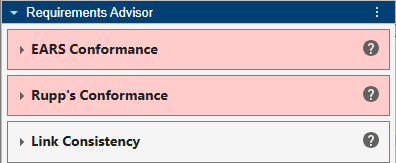
For more information about how to analyze requirements and links, see Review Requirements for Standards Conformance and Check Consistency Between Requirements and Linked Artifacts.
Author and Edit Requirements
You can add parent and child requirements, organize the requirement hierarchy, and edit requirement properties.
To create a requirement set, add requirements to it, and define the requirement hierarchy:
In the Requirement Set section, click New Requirement Set. In the Create Requirement Set dialog box, specify the file location and enter a name for the requirement set. Click Save.
To add a top-level parent requirement, in the Requirements section, click Add Requirement > Add Requirement. In the Property Inspector pane, click the Properties tab. Enter requirement summary, description, and rationale information.
To add a child requirement, select the parent requirement and click Add Requirement > Add Child Requirement. In the Property Inspector pane, click the Properties tab and enter summary, description, and rationale information.
Modify the requirement hierarchy:
Alternatively, you can drag requirements to define the requirement hierarchy.To move a requirement up a level of hierarchy, select the requirement and click Promote.
To move a requirement down a level of hierarchy, select the requirement and click Demote.
You can edit the summary or description of existing requirements by using the Property Inspector pane or by double-clicking the requirement summary or description in the requirement set.
To delete requirements, select the requirement and click Delete.
Open Requirements Toolbox Files
To open a requirement or link set in the new Requirements Editor UI, click Open. Click Browse this PC and, in the Open Requirement or Link Set File dialog box, navigate to the file. Click Open.
The Requirements Editor displays the requirements or links in the file. To view the links for a requirement, select the requirement. Then, in the Property Inspector pane, click the Links tab.
Limitations
The new Requirements Editor UI does not support:
Creating requirement links.
Visualizing links with traceability matrices and traceability diagrams.
Tracking changes to requirement links.
Requirements Editor customization, including filtering, creating views, and modifying displayed columns.
Exporting requirements and links.
Creating reports for requirements and links.
Creating or modifying requirement type profiles.
For unsupported workflows, use the Requirements Editor app.

