Coverage Results Explorer
R2026bView, manage, and filter model coverage results
Description
Use the Coverage Results Explorer to view coverage results for cumulative or individual runs, create and load coverage filters, create coverage reports, and change coverage report settings.
The Coverage Results Explorer is a tool to interactively manage coverage data. You can manage which runs are included in the current cumulative data, manage coverage filters, and change coverage report settings. For more information, see Manage and Aggregate Coverage Results Using the Coverage Results Explorer.
From the Filter Editor pane, you can also invoke Simulink® Design Verifier™ to create model coverage justification filter rules for dead logic or invoke Polyspace® Code Prover™ to create code coverage justification filter rules for dead logic.
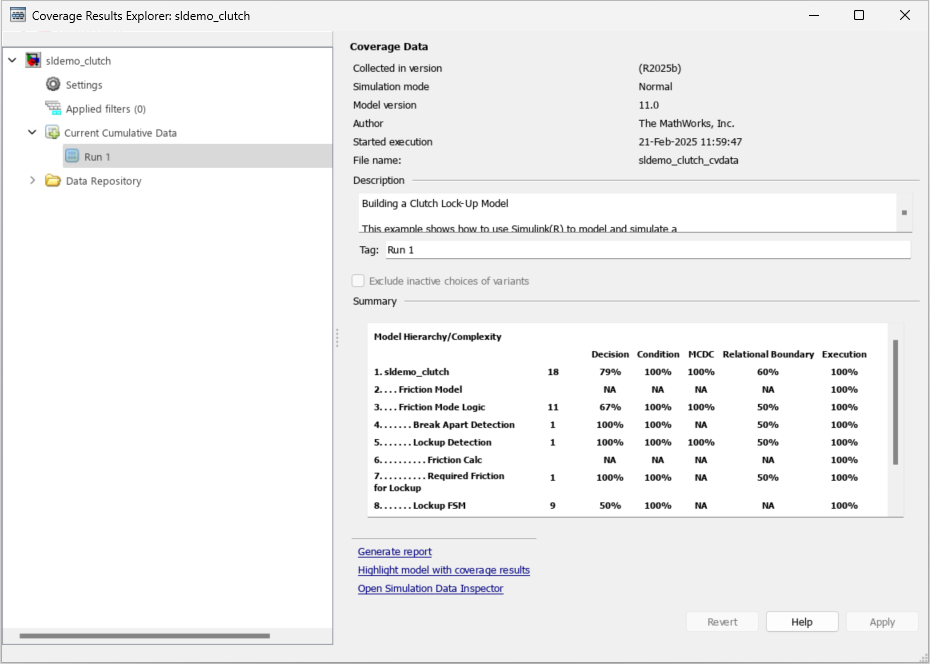
Open the Coverage Results Explorer
In the Coverage tab of the Simulink Toolstrip, under Review Results, click Results Explorer.
Examples
To create, load, and edit coverage filters, in the left pane, click Applied filters.
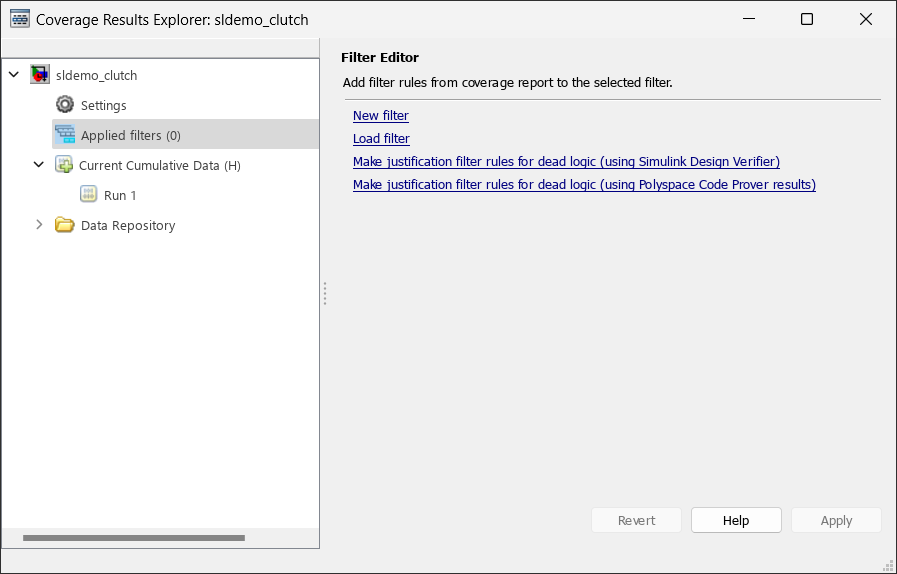
This table describes the available options:
| Option | Description |
|---|---|
New filter | Creates a blank filter and opens the Filter Editor pane. |
Load filter | Opens the Load filter window. When you select a coverage filter and then click Apply, you apply that filter to the coverage results. |
Make justification filter rules for dead logic (using Simulink Design Verifier) | Analyzes the model for design errors by running the Simulink Design Verifier design error detection analysis. For more information, see Analyze Models for Design Errors (Simulink Design Verifier).
Note This option runs a non-exhaustive analysis, regardless of the setting of the Run exhaustive analysis parameter. For more information, see Design Verifier Pane: Design Error Detection (Simulink Design Verifier).
|
Make justification filter rules for dead logic (using Polyspace Code Prover results) | Opens the Polyspace Code Prover results file window. Select a results file to generate justification filter rules for dead logic and apply it to the coverage results. |
In the Coverage Results Explorer, click Current Cumulative Data to see aggregated coverage data for multiple simulations. To see coverage results for a single simulation, expand Current Cumulative Data and click the run that you want to view.
To change the name of a coverage run, click the run name and set the Tag field to the desired string, then click Apply.
You can right-click coverage data and select Exclude from cumulative data to remove it from the Current Cumulative Data section. The coverage data removed remains in the Data Repository and you can add and remove it to or from the cumulative data.
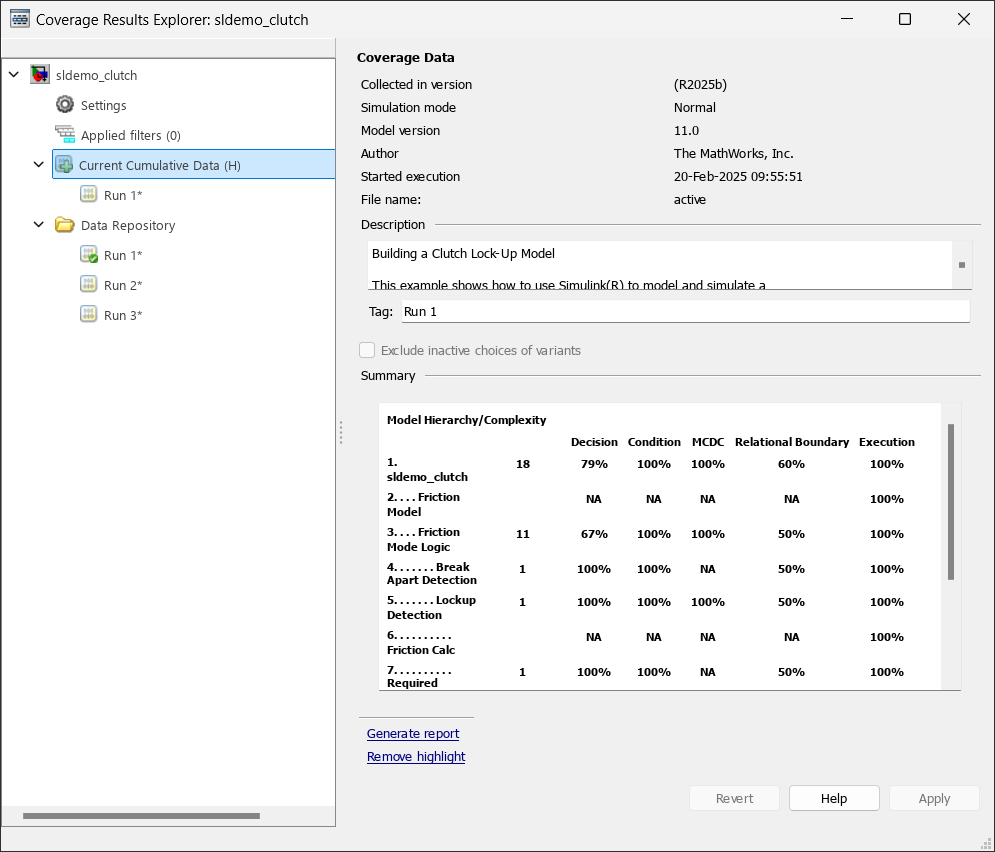
You can select the Exclude inactive choices of variants option if your model contains variant blocks or variant configurations of Stateflow® charts. For more information, see Model Coverage for Variant Blocks.
To view recent coverage simulations, in the left pane, click Data Repository. The Data Repository pane displays recent coverage simulations performed, even if you exclude them from the cumulative data.
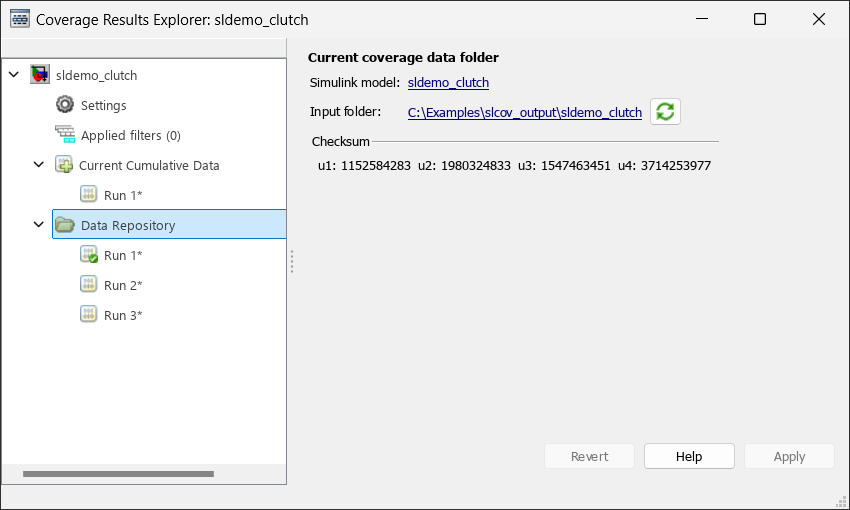
The Input folder field displays which folder the Coverage
Results Explorer looks in for coverage results. You can change the value of the
Input folder setting by setting the Output directory parameter. The Checksum section
displays the checksum for the current coverage results. Each set of coverage data has
its own checksum, and aggregating coverage data requires the checksums of the cvdata
objects to match.
To synchronize the data in the input folder and the data in the Data Repository,
click Synchronize with the current coverage data folder  .
.
To load existing coverage data to the data repository:
Right-click Data Repository.
Select Load coverage data.
Select existing coverage data for the current model and click Open.
Related Examples
Parameters
Version History
Introduced in R2016b

