Specify Data Types Using Data Type Assistant
R2026bThe Data Type Assistant is an interactive graphical tool that simplifies the task of specifying data types for blocks and data objects. The assistant appears on block and object dialog boxes, adjacent to parameters that provide data type control, such as the Output data type parameter. For example, it appears on the Signal Attributes tab of the Block Parameters dialog box for the Constant block.
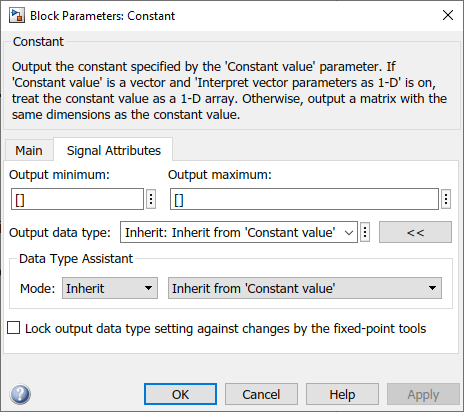
For these objects, access to the Data Type Assistant is from a tool:
Simulink.BusElementobjects — Access is from the Type Editor.Simulink.SignalandSimulink.Parameterobjects — Access is from Model Explorer.
Show or hide the Data Type Assistant by clicking the applicable button:
Click the Show data type assistant button
 to display the assistant.
Click the Hide data type assistant button
 to hide a visible assistant.
To use the Data Type Assistant to specify a data type:
From the Mode list, select the category of data type that you want to specify. In general, these options are included.
Mode Description Related Information InheritA rule that determines how the output signal inherits its data type.
Data Type Inheritance Rules Built inA built-in data type for a block or data object.
Built-In Data Types Fixed pointA fixed-point data type for a block or data object.
Specify Fixed-Point Data Types with the Data Type Assistant (Fixed-Point Designer)
EnumeratedAn enumerated object as a data type for a block.
Use Enumerated Data in Simulink Models Bus objectA
Simulink.Busobject as a data type for a block or data object.ImageA
Simulink.ImageTypeobject as a data type for a block or data object (Computer Vision Toolbox™).Simulink.ImageType(Computer Vision Toolbox)Value typeA
Simulink.ValueTypeobject as a data type for a block orSimulink.BusElementobject.ExpressionAn expression that evaluates to a numeric data type object.
Data Type Expressions The assistant changes dynamically to display different options that correspond to the selected mode. For example, setting Mode to
Expressionin the Block Parameters dialog box for a Constant block updates the values in the boxes next to Output data type and Mode.
To the right of the Mode list, select or enter a data type.
For example, suppose you designate the variable
myDataTypeas an alias for asingledata type. You create an instance of theSimulink.AliasTypeclass and set itsBaseTypeproperty by entering these commands.myDataType = Simulink.AliasType myDataType.BaseType = 'single'You can use this data type object to specify the output data type of a Constant block. Enter the data type alias name,
myDataType, as the value of the expression in the assistant.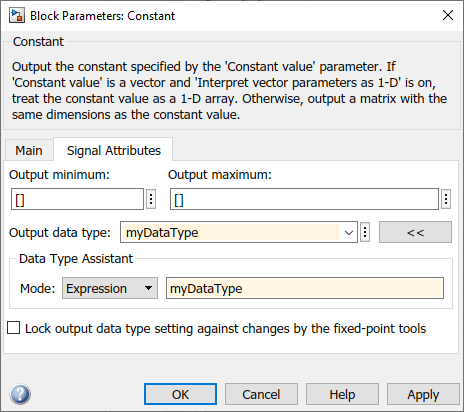
Click OK or Apply to apply your changes.
The assistant uses the data type that you specified to populate the associated data type parameter in the block or object dialog box. For example, the Output data type parameter of the Constant block specifies the same expression that you entered using the assistant.

For more information about the data types that you can specify using the Data Type Assistant, see Entering Valid Data Type Values. For details about specifying fixed-point data types, see Specify Fixed-Point Data Types with the Data Type Assistant (Fixed-Point Designer).
See Also
Simulink.NumericType | fixdt | Simulink.ImageType (Computer Vision Toolbox)

