Filter Simulink Model Comparisons Programmatically
R2026bThis example shows you how to programmatically save, load, and apply filters when visualizing differences between two Simulink™ models. Filters allow you to control which differences appear when comparing the models.
Compare Two Models
In this example, the mysimple_stats_block1 and mysimple_stats_block2 models consist of a Constant block and a MATLAB Function block. To compare these two models, use the visdiff function.
comp = visdiff("mysimple_stats_block1.slx","mysimple_stats_block2.slx");
Inspect the comparison result. The FilterSummary property shows which filters are currently active.
comp.Result
ans =
  ModelDiffResult with properties:

    FilterSummary: "Applied filters: Nonfunctional, Ports, Annotations"
          Matches: [3×6 table]
       HasChanges: 1
comp.Result.FilterSummary
ans =
"Applied filters: Nonfunctional, Ports, Annotations"
By default, the Comparison Tool hides nonfunctional changes such as block repositioning, label positions, font and color settings, and system display preferences.
Create and Export Filter Using Comparison Tool
Create a custom filter using the Comparison Tool. At the MATLAB Command Window, run:
visdiff("mysimple_stats_block1.slx","mysimple_stats_block2.slx");
To show only changes to the Constant block, in the Model Element section, clear the All checkbox. Then, select the Constant checkbox.
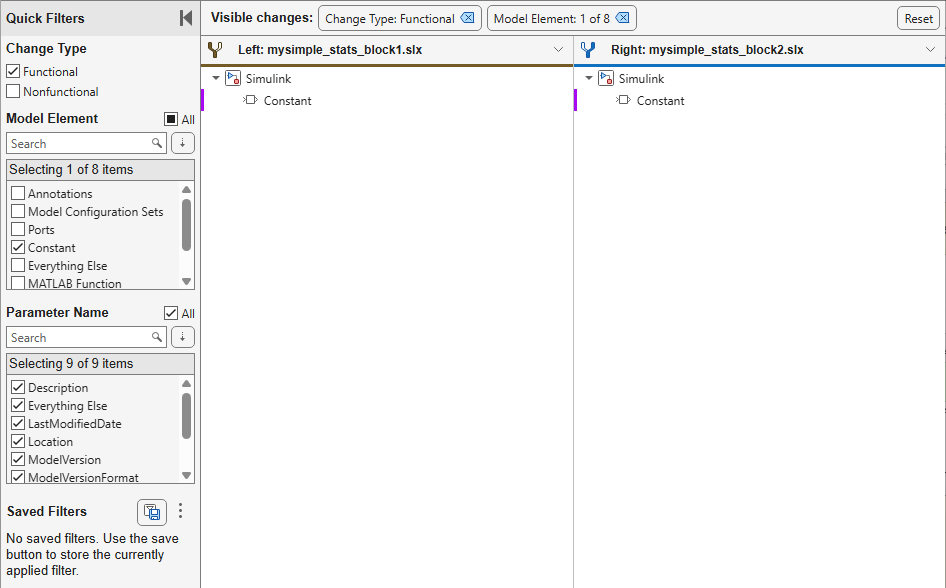
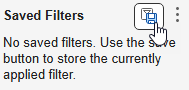
Create a filter from the current selection. To create a filter, click the button next to the Saved Filters section.
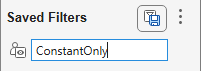
Then, in the field that appears, assign a name to the filter. Enter ConstantOnly.
Now save the filter you just created to a MATLAB® Workspace variable using the Simulink.comparisons.loadFilters function.
filters = Simulink.comparisons.loadFilters;
The filters variable is a Simulink.comparisons.Filter object with a Name property. You can use the Name property of the Filter object to change the name of the filter programmatically.
To reuse this filter programmatically or to share it with others, export the filter to a JSON file by using the Simulink.comparisons.saveFilters function.
Simulink.comparisons.saveFilters(filters,"./ConstantOnlyFilter.json",WriteMode="overwrite");
If you do not specify where to save the filter, the software automatically saves it to your Saved Filters list inside the Comparison Tool.
Apply Filters Programmatically
Load the exported filter and apply it to the comparison. The Matches table shows only the model root and the Constant block.
constantFilter = Simulink.comparisons.loadFilters("ConstantOnlyFilter.json");
comp.filter(constantFilter);
comp.Result.Matches
ans = 2×6 table
LeftPath RightPath ChangeType Details LeftObject RightObject
____________________________ ____________________________ ___________ __________ _____________________________________ _____________________________________
{["Simulink" ]} {["Simulink" ]} "unchanged" 1×1 struct {1×1 SimulinkObject (model) } {1×1 SimulinkObject (model) }
{["Simulink" "Constant"]} {["Simulink" "Constant"]} "modified" 1×1 struct {1×1 SimulinkObject (Constant Block)} {1×1 SimulinkObject (Constant Block)}
Get insights using Copilot
Now load the filter inside the MFunctionOnlyFilter JSON file and apply it to the same comparison. This filter focuses on the MATLAB Function block only.
mFunctionFilter = Simulink.comparisons.loadFilters("MFunctionOnlyFilter.json");
comp.filter(mFunctionFilter);
comp.Result.Matches
ans = 2×6 table
LeftPath RightPath ChangeType Details LeftObject RightObject
___________________________________ ___________________________________ ___________ __________ ____________________________ ____________________________
{["Simulink" ]} {["Simulink" ]} "unchanged" 1×1 struct {1×1 SimulinkObject (model)} {1×1 SimulinkObject (model)}
{["Simulink" "MATLAB Function"]} {["Simulink" "MATLAB Function"]} "modified" 1×1 struct {1×1 Stateflow.EMChart } {1×1 Stateflow.EMChart }
Get insights using Copilot
The Matches table shows only the model root and the MATLAB Function block.
Configure Default Filters
To configure MATLAB® to use a filter for all future comparisons, set the software default filter. Use the PersonalValue option to persist the setting across sessions.
s = settings();
s.comparisons.slx.DefaultFilterPath.PersonalValue = fullfile(pwd, "MFunctionOnlyFilter.json");
s.comparisons.slx.DefaultFilterName.PersonalValue = "MFunctionOnly";
If you want to clear the default filter setting, at the MATLAB® Command Window, run:
s.comparisons.slx.DefaultFilterPath.clearPersonalValue();
s.comparisons.slx.DefaultFilterName.clearPersonalValue();
Integrate Filters with MATLAB® Project
When you collaborate with others using source control, you may want to apply the same comparison filter without overwriting their software personal preferences. With MATLAB® projects, you can configure specific team filters to automatically apply when a project opens and restore the original filters of the user when it closes. This section shows the content of the files you must add to the Startup files and Shutdown files pane of a project.
On Project Startup
Add these commands to a startup script to set the project filter as the software default filter for all comparisons during this session. Use the TemporaryValue option to ensure that the setting disappears automatically if the software exits unexpectedly.
 s = settings();
 s.comparisons.slx.DefaultFilterPath.TemporaryValue = fullfile(currentProject().RootFolder,"MFunctionOnlyFilter.json");
 s.comparisons.slx.DefaultFilterName.TemporaryValue = "MFunctionOnly";
 disp("Default filters set for the project.");
Add these commands to another startup script to replace the user Saved Filters list in the Comparison Tool with the shared filters.
previousFilters = Simulink.comparisons.loadFilters;
Simulink.comparisons.saveFilters(previousFilters,fullfile(currentProject().RootFolder,".state","PreviousFilters.json"),WriteMode="overwrite");
newFilters = Simulink.comparisons.loadFilters(fullfile(currentProject().RootFolder,"MFunctionOnlyFilter.json"));
Simulink.comparisons.saveFilters(newFilters,WriteMode="overwrite");
disp("Saved Filters configured for the project.");
On Project Shutdown
Add these commands to a shutdown script to clear the temporary default filter setting.
if settings().comparisons.slx.DefaultFilterName.hasTemporaryValue
    settings().comparisons.slx.DefaultFilterName.clearTemporaryValue;
end
if settings().comparisons.slx.DefaultFilterPath.hasTemporaryValue
    settings().comparisons.slx.DefaultFilterPath.clearTemporaryValue;
end
disp("Default filter cleared.");
Add these commands to restore the original Saved Filters from the backup file created at the project startup.
savedFilterPath = fullfile(currentProject().RootFolder,".state","PreviousFilters.json");
if ~isfile(savedFilterPath)
    warning("Unable to find saved filter file: %s\nFilters were not restored.",savedFilterPath);
else
    previousFilters = Simulink.comparisons.loadFilters(savedFilterPath);
    Simulink.comparisons.saveFilters(previousFilters,WriteMode="overwrite");
    disp("Saved Filters restored.");
end

