Pick and Place Objects Using Stateflow and RTDE Blocks by Deploying to a Raspberry Pi Board
R2026bThis example shows you how to use a combination of Stateflow® and Simulink® RTDE (Real-time Data Exchange) blocks to perform a pick-and-place operation using Universal Robots UR Series cobot. The example deploys the code to a Raspberry Pi board, which acts as a controller for the connected cobot.
In this example:
Stateflow defines the state machine logic and manages the operational sequence and transitions.
RTDE (Real-Time Data Exchange) handles real-time communication with a Universal Robots UR5e Series cobot.
Raspberry Pi runs the deployed code, enabling low-cost, embedded control.
System Overview
In this example, a Stateflow chart is used to design a pick-and-place operation, and it includes states, transitions, and actions in the following sequence:
Move the cobot joints to the pick position (the position where objects to be picked are placed)
Close the gripper attached to the cobot to pick an object
Move the picked object to the place position
Open gripper to place the object
Return to home position.
The blocks in UR RTDE Blocks Simulink library, in Robotics System Toolbox Support Package for Universal Robots UR Series Manipulators, provides the necessary interfaces to communicate with a Universal Robots cobot, by sending joint positions and receiving feedback.
This example provides a Simulink model, rPiSimplePickAndPlace, which includes the various blocks from the UR RTDE Blocks Simulink Library.
modelName = "rPiSimplePickAndPlace";
open_system(modelName);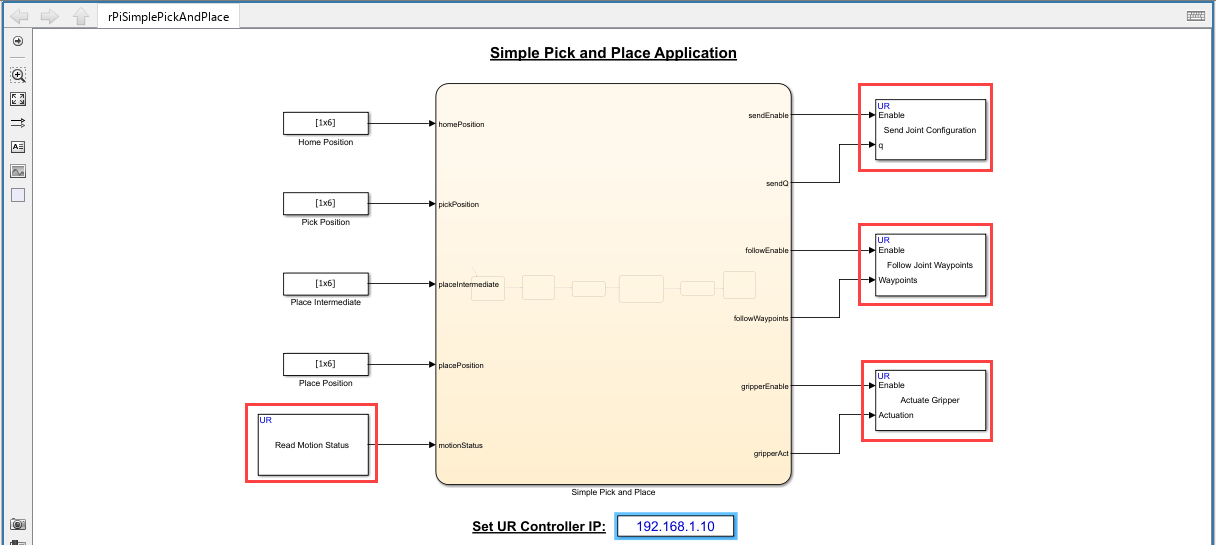
The coordinates of the positions (pick, place, home) are defined using Stateflow in the Simulink model. The complete model can then be deployed to a Raspberry Pi board, which acts as the controller.
Design State Machine by Integrating RTDE Blocks
In this example, the entry, during, and exit actions are defined for each state of cobot joint movement. This ensures that all required operations for a state are completed before moving on to the next state.
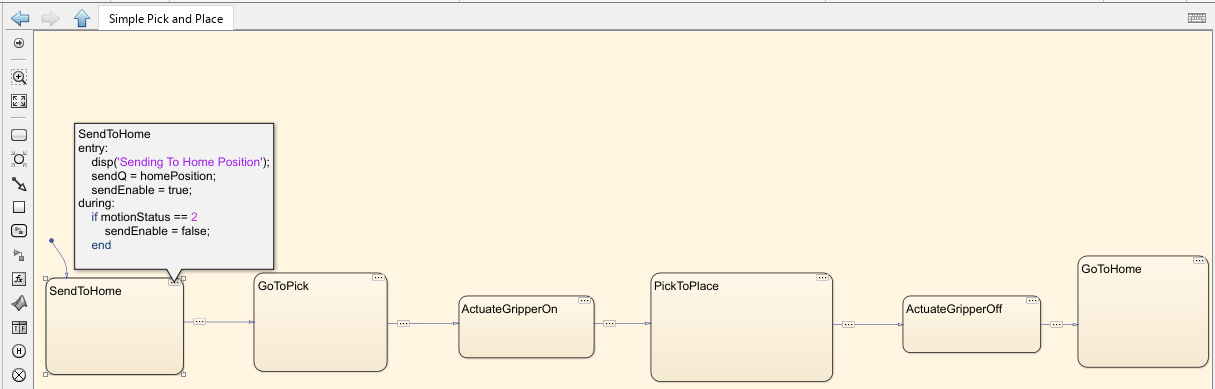
The Simulink RTDE block, Read Motion Status, helps to ensure that the transition happens only when the cobot confirms position. The block outputs the result as 2 every time the motion at each phase is completed.
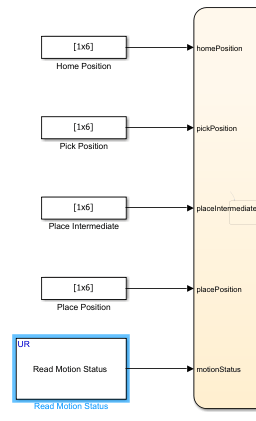
The cobot moves to the pick position using the Send Joint Configuration block that accepts joint configurations (q) in radians as a [1x6] vector. The Enable input port of the block accepts Boolean value and keeps the motion to the pick position active while its value remains true.
The gripper activation is done using the Actuate Gripper block. The pick to place (moving to the place position after gripping the object) logic is implemented using the Follow Joint Waypoints block. This block accepts joint space waypoints in radians as a [Nx6] vector, where N is the dimension of the trajectory.
Prerequisites for Deployment to Raspberry Pi
Follow these steps in sequence to prepare the connections and enable the connectivity medium before deploying to Raspberry Pi board.
1. Establish Connection from Host Computer to Raspberry Pi
Launch the Hardware Setup window of Raspberry Pi Blockset to establish connection between your host computer and the Raspberry Pi board via Linux. For more details, refer to and Set Up Operating System on Raspberry Pi Board (Raspberry Pi Blockset).
2. Set Up Raspberry Pi to Communicate with UR Series Cobot
Connect the UR Series cobot to the Raspberry Pi board via the Control Box's Ethernet port.
Access the command shell on Raspberry Pi remotely via PuTTY.
Follow the instructions for Linux described in Set Up Network Adapter and Basic Network Ping to set up network adapter for cobot communication, and perform a test ping from host computer to the cobot and ensure that the ping is successful.
3. Set Up RTDE Connectivity
Launch the Hardware Setup window of Robotics System Toolbox Support Package for Universal Robots UR Series Manipulators to set up RTDE connectivity and to set up the gripper. The Hardware Setup also verifies if the communication with the UR Controller via RTDE is successful. For more details, refer to Set Up UR Series Cobot for RTDE.
Deploy to Raspberry Pi Board
Before deployment, the Simulink model rPiSimplePickAndPlace needs to be configured for the correct Raspberry Pi hardware. You do this using the Configuration Parameters settings in Simulink.
Press Ctrl + E to open the Configuration Parameters.
Go to Hardware Implementation tab, and select the connected Raspberry Pi board from the list. This example uses Raspberry Pi (64bit) by default.
Click Apply and OK.

In the Deploy section of the Simulink model, click Build, Deploy & Start. The generated code is built on the Raspberry Pi hardware and runs automatically.
You can observe that the cobot performs the pick-and-place action by following the specified path based on the sequence that you defined using Stateflow.

