Review C/C++ Code Coverage Results
R2026bYou can calculate code coverage metrics to see how much of your C/C++ code is validated by existing tests. You can calculate the code coverage metrics of your tests in the Polyspace Platform user interface or using the polyspace-code-profiler command. See:
This topic shows how to review the results of code coverage calculation.
Open Code Coverage Results
You can open code coverage results in the Polyspace Platform user interface or in the Polyspace® Access™ web interface:
You can see code coverage results after building and running tests in the Polyspace Platform user interface with code coverage enabled or after calculating coverage using the
polyspace-code-profilercommand.In the Polyspace Platform user interface, once you open coverage results, the Results pane contains a Coverage node. You can right-click this node and open a summary of results in the Dashboard perspective or more detailed information in the Review perspective.
For more information, see Open Polyspace Results in Polyspace Platform User Interface.
You can upload code coverage results to a Polyspace Access web server, and review the results in a web browser.
In the Polyspace Access web interface, you see coverage results in the Project Explorer pane. You can select a coverage result set to open a summary of results in the Dashboard perspective or select the Review button on the toolstrip to open more detailed information in the Review perspective.
For more information, see Upload Results to Polyspace Access.
You see the same display of code coverage results in the Polyspace Platform user interface and the Polyspace Access web interface.
You can also review code coverage results in an HTML report. However, the Polyspace user interfaces show a clearer hierarchy of results, provides better navigation to source code and supports the ability to interactively justify results during review. For more information on the HTML report, see Structure of HTML Reports Generated from C/C++ Code Profiling Results.
See Overview of Coverage Results on Dashboard
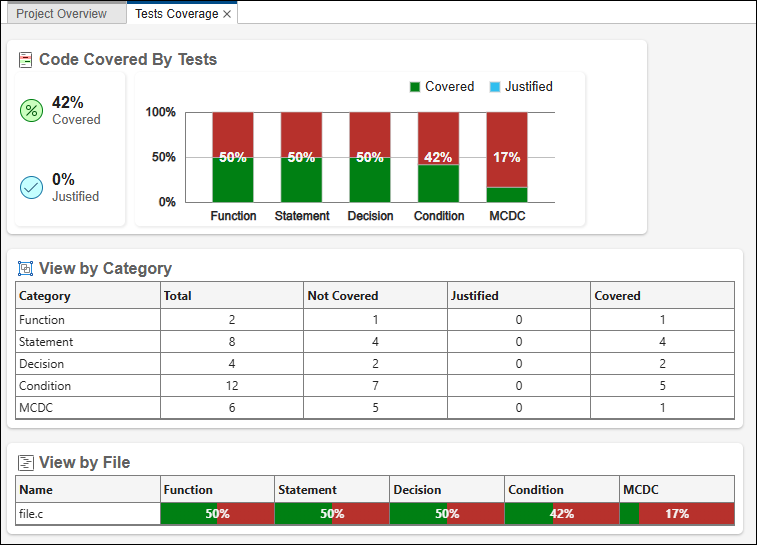
The Dashboard perspective of coverage results or the Code Coverage dashboard contains a high-level overview of the test coverage results. The overview is composed of the following sections:
Code Covered By Tests: This section shows the percentage of outcomes that are covered, not covered, or justified, for each coverage metric. To get more information about uncovered code, click the Not Covered statistic. This opens the Review perspective with Filter by Status set to
Not covered. You can then navigate through the Results List to view details about the uncovered code.The definition of a coverage outcome depends on the coverage metric computed. For instance, for statement coverage, the number of outcomes to be covered is the same as the number of statements, while for decision coverage, the number of outcomes to be covered is equal to the number of decision points times two (once for the true outcome of a decision and once for the false outcome). For more details on coverage outcomes, see the following sections.
View by Category: This section shows the number of outcomes that are covered, not covered, or justified, for each coverage metric.
View by File: This section shows the coverage per file as a percentage for each coverage metric.
View by Project: In the Polyspace Access web interface, you can also see a dashboard that spans several projects by selecting a parent folder in the Project Explorer pane. To help you distinguish between results from different projects, the Code Coverage dashboard in Polyspace Access has this additional section that shows a per-project breakdown of the test results.
A typical Code Coverage dashboard looks like the following.
Review Coverage Results and Identify Missing Coverage
In the Review perspective, all coverage metrics appear in the Results List pane. Use the options in the Family Filters section of the toolstrip to narrow down the results by type or status and specify whether or not you want to see outcomes. A summary of active filters appears just below the toolstrip to indicate which, if any, filters are applied to the results. Select any result in the list to see further details. To navigate the Results List from your keyboard, use the space bar to expand or collapse each node, and use the up and down arrow keys to move throughout the list.
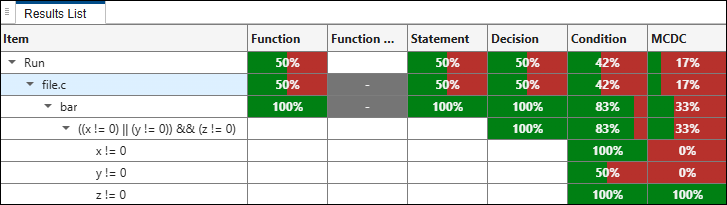
This snapshot of the Results List pane shows the coverage metrics for a function bar in a file example.c.
The function bar() is defined as:
int bar(int x, int y, int z)  {
    if (((x != 0) || (y != 0)) && (z != 0))
       return 1;
    return 0;
}x = 1, y = 1, z = 1x = 0, y = 1, z = 1x = 1, y = 0, z = 1x = 1, y = 1, z = 0
From a brief glance at the Results List pane, you can tell that the function bar() has full statement and decision coverage, but only partial condition and MC/DC coverage.
Click each row in the list to see further details in the Result Details pane and view the corresponding code element in the Source Code pane.
Result Details
The Result Details pane shows further details of the coverage calculation.
For instance, in the preceding example, selecting the row ((x != 0) || (y != 0)) && (z != 0) shows which coverage metrics are missing.

You see that the item is partially covered because it is missing condition and MC/DC coverage. The Metrics section shows a breakdown of the coverage:
100% decision coverage: Of 2 decision outcomes (true/false), 2 outcomes are covered and 0 justified.
83% condition coverage: Of 6 condition outcomes, 5 outcomes are covered and 0 justified.
The decision consists of 3 conditions, therefore has 6 condition outcomes, resulting from the true/false outcome of each condition. 2 of the 3 conditions are fully covered, but 1 condition is only partially covered, leading to coverage of 5 condition outcomes.
33% MCDC coverage: Of 3 MCDC outcomes, 1 outcome is covered and 0 outcomes justified.
In other words, in the tests, only 1 of 3 conditions flips from true to false and independently flips the parent decision outcome.
Source Code
The Source Code pane shows the code element being covered with a dashed underline.
For instance, in the preceding example, selecting the row y != 0 shows the condition in the source code with a dashed underline:
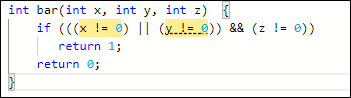
The source code highlight colors indicate coverage:
Red: No coverage.
Yellow: Partial coverage.
No color: Full coverage.
To see fully covered code highlighted in green, on the Polyspace Platform toolstrip, select Code View > Highlight Fully Covered Code.
Hover over an element in the code to see a tooltip with additional coverage information, or click an element in the code to select the corresponding row in the Results List and view the full Result Details.
Interpret Coverage Metrics
All coverage metrics are reported at the project, file and function level. The metrics are reported as a percentage, calculated as (<x>/<y>) ✕ 100, where <y> is the number of elements to cover and <x> is the number of elements actually covered by the tests.
For instance, if a function contains one if statement with two conditions joined by an operator such as || or &&, the function has one decision consisting of two conditions. Each decision and condition can have a true and false outcome. Therefore, the function has two decision outcomes and four condition outcomes to cover.
The Decision column for the function shows the percentage
(x/2) ✕ 100. Here,xis the number of decision outcomes covered by the tests. The number can be 0, 1, or 2.The Condition column shows the percentage
(<x>/4) ✕ 100. Here,xis the number of condition outcomes covered by the tests. The number can be 0, 1, 2, 3, or 4.
For efficient review:
Decide on desired targets for coverage.
For instance, you might want strictly 100% decision coverage, but will be satisfied with lower condition coverage.
After analysis, start reviewing the coverage metrics at the project level by click the row showing the project name along with analysis date and time. Focus on metrics that have less than your desired coverage.
For instance, if your target decision coverage is 100%, you can verify the percentage in the Decision column at the project level.
For metrics that have less than your desired coverage, drill down to files and then functions that have incomplete coverage. For metrics such as decision and condition coverage, you can drill down to individual decisions and conditions that are not covered.
For instance, if the project level decision coverage is less than the desired 100%, you can look at files and functions with partial decision coverage.
The next sections describe the various coverage metrics displayed in the Results List pane.
Function Coverage
The Function column shows what percentage of functions were covered by the tests.
If a function has tests written for it or if a function is called indirectly as a callee of a function under test, its function coverage is 100%. Otherwise, the function coverage is 0%.
In the preceding example, the Function column shows a value of 100% for the bar() function because there are tests written for this function.
Function Call Coverage
The Function call column for a given function shows what percentage of function calls within that function were covered by the tests.
The function call coverage is reported as a percentage (<x>/<y>) ✕ 100, where y is the number of calls in the function and x is the number of calls exercised in at least one test.
See also Function Call Coverage.
Statement Coverage
The Statement column shows what percentage of statements were covered by the tests. A statement is covered if the tests execute the statement at least once.
In the preceding example, the tests executed each statement in the bar() function at least once. Therefore, the Statement column shows a value of 100%.
Click the row with the function name to see further details in the Result Details pane. You see that four out of four statements were covered. These are the four statements:
int bar(int x, int y, int z)  { //Statement 1
    if (((x != 0) || (y != 0)) && (z != 0)) //Statement 2
       return 1; //Statement 3
    return 0; //Statement 4
}
See also Statement Coverage.
Decision Coverage
The Decision column shows what percentage of decision outcomes were covered by the tests. A decision is a Boolean expression with a true or false outcome, and typically results in a branch of code being executed or not. A true or false decision outcome is covered if the tests result in the outcome at least once.
In the preceding example, the function bar() contains one decision with two decision outcomes, true and false:
(((x != 0) || (y != 0)) && (z != 0))
x = 1, y = 1, z = 1x = 0, y = 1, z = 1x = 1, y = 0, z = 1
The test with input x = 1, y = 1, z = 0 results in the false decision outcome. Therefore, 100% of the decision outcomes are covered.
Click rows in the Results List pane to see further details of the decision coverage calculation in the Result Details pane.
Click the row with the function name to see the number of decision outcomes covered.
You can see that 2 out of 2 decision outcomes were covered.
Click the row with the decision to see how many tests covered each decision outcome. These details appear in the Decisions analyzed section.
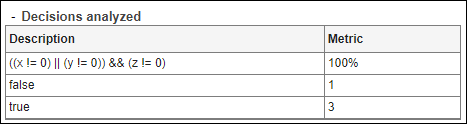
You can see that the decision outcome is true in three tests and false in one test.
See also Decision Coverage.
Condition Coverage
The Condition column shows what percentage of condition outcomes were covered by the tests. A condition is a Boolean expression without a Boolean operator such as && or ||. A decision can consist of multiple conditions or be a condition by itself. A true or false condition outcome is covered if the tests result in the outcome at least once.
In the preceding example, the function bar() contains three conditions with six condition outcomes.
| Condition | Condition Outcomes Covered |
|---|---|
x != 0 | The tests with input |
y != 0 | The test with input ((x != 0) || (y != 0)) || operator does not
evaluate the expression on the right side if the expression on the left side is true. |
z != 0 | The tests with these inputs result in the true outcome of the condition:
The test with input |
Click rows in the Results List pane to see further details of the condition coverage calculation in the Result Details pane.
Click the row with the function name to see the number of condition outcomes covered.
You can see that 5 out of 6 condition outcomes were covered.
Click the row with the decision to see how many tests covered outcomes of each condition involved in the decision. These details appear in the Conditions analyzed section.
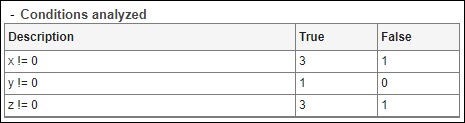
You can see that:
x != 0has a true outcome three times and a false outcome once.y != 0has a true outcome once, whenxis 0, and the false outcome never occurs. In all cases wherexis non-zero, the conditiony != 0is never evaluated.z != 0has a true outcome three times and a false outcome once.
Click the row with a condition to see how many times the true and false outcome occurs.
See also Condition Coverage.
MC/DC Coverage
The MCDC column shows what percentage of conditions were independently covered by the tests. If a condition is part of a decision, the condition is independently covered if at least one pair of tests exist where both these statements hold:
The condition was evaluated in both tests. The condition outcome was true in one test and false in the other.
Reversing the outcome of the one condition reversed the outcome of the decision in the two tests. The other conditions had no role in the decision outcome reversal.
MC/DC coverage is a stronger requirement than simple decision or condition coverage.
Polyspace Test™ evaluates masking MC/DC coverage instead of unique-cause MC/DC coverage.
In unique-cause MC/DC coverage, when reversing a condition outcome reverses the decision outcome, the other conditions that are part of the decision must not change their outcomes between the two tests.
In masking MC/DC coverage, the above strict requirement need not hold true. The other conditions can change as long as their combined result has no influence on the decision outcome.
For instance, consider the condition z != 0 from the preceding example. This condition is part of the decision:
(((x != 0) || (y != 0)) && (z != 0))
In unique-cause MC/DC coverage, both the outcomes of
x != 0andy != 0must stay the same when the outcome ofz != 0is reversed and results in a reversal of the decision outcome.In masking MC/DC coverage, only the overall outcome of
((x != 0) || (y != 0))must stay the same when the outcome ofz != 0is reversed. The individual outcomes ofx != 0andy != 0can change.
In either case, it is the change in the condition outcome of z != 0 that resulted in the reversed decision outcome. The stronger requirement of unique-cause MC/DC coverage is unnecessary in most cases.
Click rows in the Results List pane to see further details of the MC/DC coverage calculation in the Result Details pane.
Click the row with the function name to see further details in the Result Details pane.
You can see that 1 out of 3 conditions independently reversed the decision outcome.
Click the row with the decision to see a breakdown of the MC/DC coverage calculation. These details appear in the MC/DC analysis section. The red text corresponds to conditions that did not independently reverse the decision outcome.
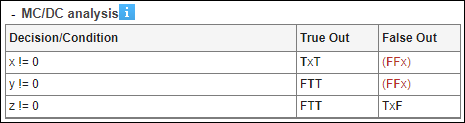
The column headers show the two decision outcomes. Each row shows:
One condition involved in the decision.
One test with a combination of condition outcomes where that condition is true and results in a true decision outcome. The true outcome of that condition is highlighted in bold.
One test with a combination of condition outcomes where that condition is false and results in a false decision outcome. The false outcome of that condition is highlighted in bold.
For instance, in the first row, you see these entries:
The condition
x != 0TxT: This means that one of the tests must have a true condition outcome forx != 0and this must result in a true decision outcome. That test also does not exercise the conditiony != 0and must have a true outcome forz != 0.FFx: This means that one of the tests must have a false condition outcome false forx != 0and this must result in a false decision outcome. That test also must have a false condition outcome fory != 0, in which case the conditionz != 0is not exercised.
Notice that it is the change in the condition outcome of
x != 0between the two tests that reverses the decision outcome. The other two conditions retain their outcomes between the two tests (xstands for true or false). You see the same pattern on the second and third row:In the second row, it is the change in outcome of
y != 0that reverses the decision outcome. The other two conditions retain their outcome between the two tests.In the third row, it is the change in outcome of
z != 0that reverses the decision outcome. The other two conditions do not retain their individual outcomes between the two tests. but their combined outcome is the same between the two tests. Masking MC/DC coverage allows this flexibility.
The combination of condition outcomes required for full MC/DC coverage that did not occur in the tests are shown in red. The red combinations indicate tests that you need to add for full MC/DC coverage. For instance, in this example, adding a test with input
x = 0, y = 0, with the value ofzbeing0or1, satisfies the requirements of full MC/DC coverage.
See also Modified Condition/Decision Coverage (MCDC) Coverage.
Relational Boundary Coverage
In the Polyspace Platform user interface, relational boundary coverage is not reported in a separate column in the Results List pane. Instead, if you select a decision containing a relational operator (==, <=, and so on), the Result Details pane shows this metric. A relational boundary is a metric that records whether a test examines a relational operation with equal values and values that differ
by one for integers and by a tolerance value for floating point numbers. For every condition in the code that involves integers, Polyspace checks three relational boundary outcomes. (equality, one less, and one greater). For conditions involving floating point numbers, Polyspace checks two relational boundary outcomes. (tolerance less than, and tolerance greater than)
In the preceding example, the function bar() contains three relational operations each with three boundaries:
| Relational Operation | Boundaries |
|---|---|
x != 0 |
|
y != 0 |
|
z != 0 |
|
Adding tests with the following inputs for the bar() function will result in partial relational boundary coverage.
x = 0, y = 0, z = 0
x = 1, y = 1, z = 1
x = -1, y = -1, z = -1
Even though these inputs cover all the needed boundary values, adding tests with these inputs only will only get partial coverage because the && and || operators allow for early exit in the (((x != 0) || (y != 0)) && (z != 0)) decision. Note that you cannot see which boundaries are missing coverage in the Polyspace Platform user interface. To see which boundaries are missing:
Set the coverage level to MCDC in the project configuration before running coverage computation.
Generate an HTML report from the coverage results by clicking Report in the toolstrip.
See also Relational Boundary Coverage
Function Exit Coverage
In the Polyspace Platform user interface, the function exit coverage is not reported in a separate column in the Results List pane. If you select a function name on this pane, the Result Details pane shows both function coverage and function exit coverage.
See Configuration Used for Coverage Calculation
You can see which coverage metrics were enabled when reviewing code coverage results.
After opening the coverage results, in the Results List pane, click the top-level Run node. The Result Details pane shows which metrics were enabled, in a section titled Run information. For instance, the following example shows that all coverage metrics except relational boundary coverage were enabled for the current results:
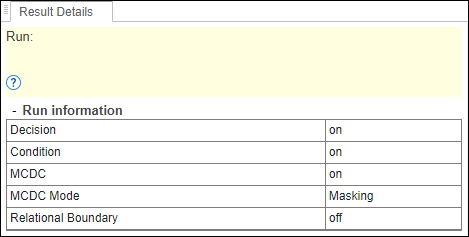
Filter Code Coverage Results
When reviewing code coverage results, you can use filters on the Polyspace Platform toolstrip to narrow down the scope of your review:
To filter to a specific coverage level, select a level for Filter by Type:
File: You see coverage only at the file level.
Function: You see coverage at file and function level.
Decision: You see coverage at file and function level, along with coverage for all decisions per function.
Condition: You see coverage at file and function level, along with coverage for all decisions per function and all conditions per decision.
Note that a decision is an expression in your code with a boolean outcome, for instance:
(x != 0) && (y != 0). A decision can consist of one or more conditions. In this example, the decision consists of two conditions:(x != 0)and(y != 0).
To filter to only uncovered results, select these items:
Filter by Status > Not covered: You see only elements that have 0% coverage, along with their parent elements. Here, 0% coverage implies 0% decision coverage for decisions or 0% condition coverage for conditions.
Filter by Status > Partially covered: You see only elements that have less than 100% coverage but more than 0% coverage, along with their parent elements. Here, 100% coverage implies 100% decision coverage for decisions or 100% condition coverage for conditions.
For more specific filtering, use the Show only and Filter out fields to show or hide results containing your specified text.
View Tests Associated with Coverage Results
When you select a coverage result in the Results List pane, the Result Details pane displays which tests covered the various outcomes of the coverage metric. For example:
If you select a function, you see which tests led to the function being called, either directly or indirectly.
If you select a decision point, you see which tests reached the decision point and resulted in either a true or false outcome.
You can also drill down to the outcome level and see which tests covered a specific outcome.
Select Show Outcomes on the toolstrip to display the true and false outcome of every metric in the Results List pane.
Select a true or false outcome to see in the Result Details pane which tests led to the outcome.
Note that some tests can exercise both the true and false outcome of a metric. For example, if a decision point is within a loop, a given test might result in a true outcome for some iterations and a false outcome for others.
Improve or Justify Code Coverage Results
When reviewing code coverage results, you can choose to add more tests to fix the missing coverage, or justify the missing code coverage. To fix the missing coverage, you can add tests manually or automatically generate tests. For more information, see Improve or Justify Missing Code Coverage Results.
See Also
polyspace-code-profiler | Statement Coverage | Decision Coverage | Condition Coverage | Modified Condition/Decision Coverage (MCDC) Coverage | Function Coverage | Function Exit Coverage | Relational Boundary Coverage
Topics
- Calculate C/C++ Code Profiling Metrics in Polyspace Platform User Interface
- Structure of HTML Reports Generated from C/C++ Code Profiling Results
- Automate C/C++ Code Profiling Using Polyspace Platform Projects
- Calculate C/C++ Code Coverage Using Self-Managed Builds
- Review C/C++ Test Execution Results
- Open Polyspace Results in Polyspace Platform User Interface

