Simulate and Generate Code for Airport Conveyor Belt Control System
R2026bThis example shows how to simulate and generate Structured Text code for a Stateflow® controller in an airport conveyor belt model using Simulink® PLC Coder™.
Open the Model
Open the AirportConveyorBelt model and update the diagram. The AirportConveyorBelt model simulates an airport baggage handling system with a main conveyor, feeder conveyor, and a Controller subsystem that uses a Stateflow chart to manage the belt start and stop logic based on sensor inputs and operator commands.
mdl = "AirportConveyorBelt";
open_system(mdl)
set_param(mdl, SimulationCommand="update");
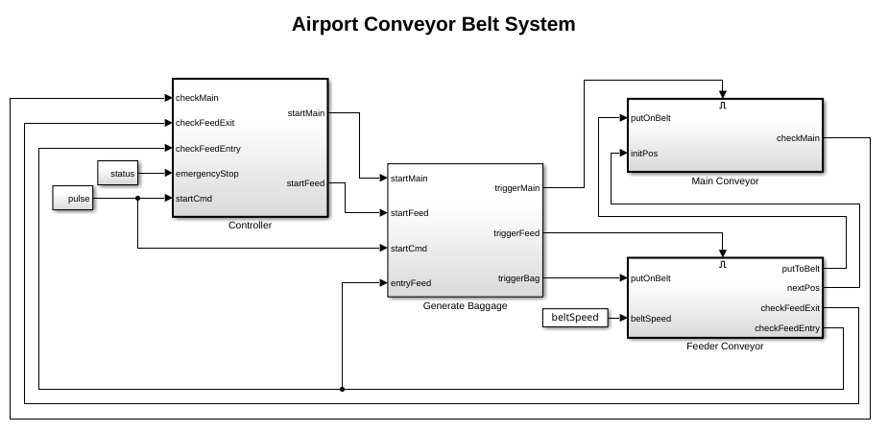
The model contains these subsystems:
Controller - Stateflow-based control logic that manages the belt start and stop decisions
Main Conveyor - Models the main conveyor belt segments
Feeder Conveyor - Models the feeder belt that merges baggage onto the main conveyor
Generate Baggage - Generates random baggage arrivals for simulation
The Controller subsystem accepts five sensor or command inputs (checkMain, checkFeedExit, checkFeedEntry, emergencyStop, startCmd) and produces two outputs (startMain, startFeed) that control the conveyor motors.
Simulate the Model
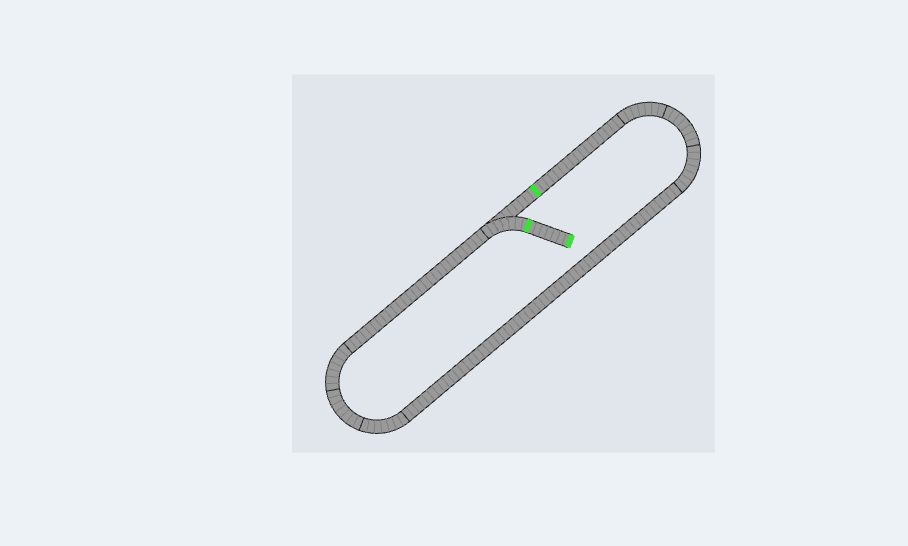
To start the simulation, click Run. Observe the conveyor belt animation. The Controller Stateflow chart manages the belt logic, starting and stopping the main and feeder conveyors based on sensor readings.
sim(mdl);
%
% You can generate Structured Text code for the Controller subsystem by
% using the PLC Coder app or by using the |plcgeneratecode| and
% |plcopenconfigset| functions.
Configure and Generate Code Using the PLC Coder App
To configure the model and generate Structured Text using the PLC Coder app:
Select the Controller subsystem and, in the Apps tab, select PLC Coder.
In the PLC Code tab, click Settings.
In the Configuration Parameters dialog box, click PLC Code Generation Settings.
Change the Target IDE parameter to the desired target.
Click OK.
Click Generate PLC Code.
The generated Structured Text file appears in the plcsrc folder.
Configure and Generate Code Programmatically
Set the target IDE and generate Structured Text code for the Controller subsystem.
plcopenconfigset(mdl);
set_param(mdl, PLC_TargetIDE="codesys23");
Generate code for the Controller subsystem using plcgeneratecode.
% generatedfiles = plcgeneratecode(mdl + "/Controller");
Close the Model
close_system(mdl, 0);

