buildtool
R2026bSyntax
Description
Run Tasks
buildtool invokes the build tool on the build file in your
project. It runs the default tasks in the plan defined by the build file as well as all
the tasks on which they depend.
By default, the command searches for a build file named buildfile.m
in your current folder or its parent folders. If the build file does not exist in your
current folder, the command searches through the parent folders until it finds
buildfile.m.
buildtool ___
specifies build options in addition to any of the input argument combinations in previous
syntaxes. For example, option1 ... optionNbuildtool -continueOnFailure continues running
the build upon a failure.
List Tasks
buildtool -tasks lists the tasks in your build file. The list
includes task names and descriptions.
buildtool -tasks all also
lists the tasks in task groups. For more information about task groups, see Create Groups of Tasks. (since R2024b)
Create Build File
buildtool -init creates a
build file named buildfile.m in your current folder (if one does not
exist). The build file contains tasks created from built-in task classes in the matlab.buildtool.tasks namespace. You can use this build file as a starting
point to define your build. (since R2024a)
Examples
Invoke the build tool to list and run the tasks in the plan returned by a build file.
Open the example and then navigate to the buildtool_example folder, which contains a build file.
cd buildtool_exampleThis code shows the contents of the build file.
function plan = buildfile
import matlab.buildtool.tasks.*

plan = buildplan(localfunctions);

plan("check") = CodeIssuesTask;    % Task for identifying code issues
plan("test") = TestTask;           % Task for running tests

plan.DefaultTasks = ["check" "test"];
end
List the tasks in the plan returned by the main function of the build file.
buildtool -taskscheck - Identify code issues test - Run tests
Run the default tasks in the plan. The build tool runs the "check" and "test" tasks. In this example, the tasks run successfully.
buildtool
** Starting check

Analysis Summary:
    Total Files: 3
         Errors: 0 (Threshold: 0)
       Warnings: 0 (Threshold: Inf)
           Info: 0 (Threshold: Inf)
** Finished check

** Starting test
...

Test Summary:
    Total Tests: 3
         Passed: 3
         Failed: 0
     Incomplete: 0
       Duration: 0.60934 seconds testing time.

** Finished test

Build Successful:
    2 Tasks: 0 Failed, 0 Skipped
    18.376 sec total build time
Now, run only the "test" task.
buildtool test** Starting test
...
Test Summary:
Total Tests: 3
Passed: 3
Failed: 0
Incomplete: 0
Duration: 0.057125 seconds testing time.
** Finished test
Build Successful:
1 Task: 0 Failed, 0 Skipped
3.4923 sec total build time
Run a task that accepts arguments to customize its actions.
Open the example and then navigate to the buildtool_example1 folder, which contains a build file.
cd buildtool_example1This code shows the contents of the build file. The build file specifies a "test" task that accepts an optional argument, tests, as well as a name-value argument, OutputDetail.
function plan = buildfile
% Create a plan from task functions
plan = buildplan(localfunctions);
end

function testTask(context,tests,options)
% Run unit tests

arguments
    context
    tests string = context.Plan.RootFolder
    options.OutputDetail (1,1) string = "terse"
end

results = runtests(tests, ...
    IncludeSubfolders=true, ...
    OutputDetail=options.OutputDetail);
assertSuccess(results);
end
Use the "test" task to run the tests in the tests subfolder of your current folder. In this example, the tests pass and the task runs successfully.
buildtool test("tests")** Starting test
...
** Finished test
Build Successful:
1 Task: 0 Failed, 0 Skipped
1.4456 sec total build time
Run the tests again and display test run progress at the "concise" level.
buildtool test("tests",OutputDetail="concise")** Starting test
Running SolverTest
...
Done SolverTest
__________
** Finished test
Build Successful:
1 Task: 0 Failed, 0 Skipped
1.0156 sec total build time
Create and run tasks that have inputs and outputs.
Open the example and then navigate to the incremental_build_example folder, which contains a build file.
cd incremental_build_exampleThis code shows the contents of the build file:
The
"pcode"task obfuscates its inputs and creates the P-code files in the same folders as the inputs. (For illustrative purposes, the"pcode"task in this example is created using a task function. The recommended practice is to create the task using thematlab.buildtool.tasks.PcodeTaskclass.)The
"archive"task creates an archive of its inputs.
function plan = buildfile
% Create a plan from the task functions
plan = buildplan(localfunctions);

% Specify the inputs and outputs of the "pcode" task
plan("pcode").Inputs = "source/**/*.m";
plan("pcode").Outputs = plan("pcode").Inputs.replace(".m",".p");

% Specify the inputs and outputs of the "archive" task
plan("archive").Inputs = plan("pcode").Outputs;
plan("archive").Outputs = "source.zip";
end

function pcodeTask(context)
% Create P-code files
filePaths = context.Task.Inputs.paths;
pcode(filePaths{:},"-inplace")
end

function archiveTask(context)
% Create ZIP file
task = context.Task;
zip(task.Outputs.paths,task.Inputs.paths)
end
Run the "archive" task. Because the inputs of the "archive" task are the outputs of the "pcode" task, the build tool runs the "pcode" task before running the "archive" task.
buildtool archive** Starting pcode
** Finished pcode
** Starting archive
** Finished archive
Build Successful:
2 Tasks: 0 Failed, 0 Skipped
0.37189 sec total build time
Run the "archive" task again. The build tool skips both of the tasks because none of the inputs or outputs of the tasks have changed.
buildtool archive** Skipped pcode (up-to-date)
** Skipped archive (up-to-date)
Build Successful:
2 Tasks: 0 Failed, 2 Skipped
0.11112 sec total build time
Add a file to the source folder, and then rerun the "archive" task. The build tool runs the "pcode" task because its inputs have changed. The build tool also runs the "archive" task because its inputs have changed.
fclose(fopen(fullfile("source","newFile.m"),"w"));
buildtool archive
** Starting pcode
** Finished pcode

** Starting archive
** Finished archive

Build Successful:
    2 Tasks: 0 Failed, 0 Skipped
    0.34168 sec total build time
Delete the ZIP file created by the "archive" task, and then run the task while displaying build output at the matlab.automation.Verbosity.Detailed level. The build tool skips the "pcode" task because none of its inputs or outputs have changed. However, the build tool runs the "archive" task because its output has changed. When displaying build output at the Detailed level or above, the build tool includes the reason that a task runs.
delete("source.zip")
buildtool archive -verbosity Detailed
** Skipped pcode (up-to-date)

** Starting archive because:
** --> Outputs modified
**     --> Files deleted: 'source.zip'
**  Evaluating task action: archiveTask
** Finished archive in 0.062955 seconds

Build Successful:
    2 Tasks: 0 Failed, 1 Skipped
    0.56945 sec total build time
Since R2026a
Run the tasks in a build file in parallel (requires Parallel Computing Toolbox™).
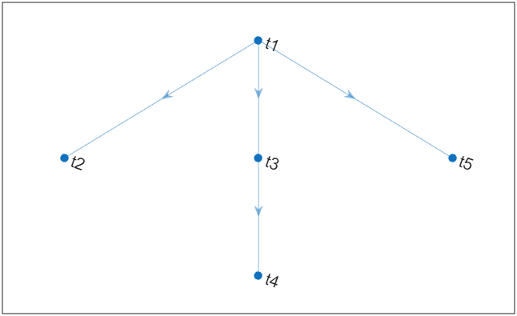
Create a build file named buildfile.m with the following code as
its contents. For illustrative purposes, this build file has five basic tasks with no
actions. The default task, "t1", in the plan depends on the
"t2", "t3", and "t5" tasks.
Additionally, the "t3" task depends on the "t4"
task.
function plan = buildfile
import matlab.buildtool.Task

% Create a plan with no tasks
plan = buildplan;

% Create tasks and add them to the plan
for i = 1:5
    plan("t" + i) = Task;
end

% Specify task dependencies
plan("t1").Dependencies = ["t2" "t3" "t5"];
plan("t3").Dependencies = "t4";

% Make the "t1" task the default task in the plan
plan.DefaultTasks = "t1";
end
Plot the tasks in the build file as a dependency graph. Because of the task dependencies in the build file, the task graph is composed of three branches that can run in parallel.
plot(buildfile)
Run the default task and its dependencies in parallel by specifying the
-parallel build option. The build tool schedules the tasks to run
on different workers in the current parallel pool. Tasks with dependencies start running
only after their dependencies have finished.
buildtool -parallelConnected to parallel pool with 6 workers.
== Scheduled t2 (Worker 1)
== Scheduled t4 (Worker 2)
== Scheduled t5 (Worker 3)
== Completed t2 (Worker 1)
** Done t2
== Completed t5 (Worker 3)
** Done t5
== Completed t4 (Worker 2)
** Done t4
== Scheduled t3 (Worker 1)
== Completed t3 (Worker 1)
** Done t3
== Scheduled t1 (Worker 1)
== Completed t1 (Worker 1)
** Done t1
Build Successful:
5 Tasks: 0 Failed, 0 Skipped
1.3501 sec total build timeInput Arguments
Tips
To maintain valid relative paths in tasks at run time, the build tool changes the current folder to the plan root folder before running the build and restores the current folder to its original state after running the build. To prevent a task from affecting subsequent tasks by changing the current folder, the build tool also restores the current folder after running each task.

