Set HDL Code Generation Options
R2026bConfiguring HDL code generation settings lets you control how HDL Coder™ generates code for your model. While some settings are shared across workflows, some apply only to specific modeling elements, such as an individual Simulink® block or subsystem.
You can use these methods to set HDL code generation options:
| Method | Description |
|---|---|
| HDL Code Tab in Simulink Toolstrip | Configure HDL code generation settings by using the HDL Code tab in the Simulink toolstrip. |
| HDL Code Generation Options in the Configuration Parameters Dialog Box | Configure HDL code generation settings by using the HDL Code Generation pane in the Configuration Parameters dialog box. |
| HDL Code Options in Block Context Menu | Configure HDL code generation options by right-clicking a block or subsystem. |
| HDL Block Properties Dialog Box | Set block-specific implementations and parameters by using the HDL Block Properties dialog box. |
HDL Code Tab in Simulink Toolstrip
You can configure HDL code generation settings by using the HDL Code tab in the Simulink toolstrip. The HDL Code tab provides shortcuts to code generation options and lets you initiate code generation. To access the HDL Code tab, open the HDL Coder app from the Apps tab on the Simulink Toolstrip.

This table describes the options in the HDL Code tab:
| Option | Description |
|---|---|
| Generic HDL Code | Select the output type for code generation. Choose Generic HDL Code to generate HDL code, or IP Core to generate an IP core. |
| Workflow Advisor | Open the HDL Workflow Advisor. |
| HDL Property Inspector | Open the HDL Property Inspector to view and set HDL block properties and implementation parameters for a block that you select in your model. |
| HDL Code Advisor | Open the HDL Code Advisor for the model or the selected Subsystem. |
| Settings | Open the HDL Code Generation pane in the Configuration Parameters dialog box. The Settings dropdown also includes:
|
| Target Interface | Configure the target interface for IP core generation. This option is applicable when you select IP Core as the output type for code generation. |
| Code for | Select the top-level Subsystem or model for which you want to generate HDL code. This option corresponds to the Generate HDL for option in the HDL Code Generation pane of the Configuration Parameters dialog box. |
| Generate HDL Code | Initiate HDL code generation; equivalent to the Generate HDL Code check box in the HDL Code Generation > Global Settings > Advanced tab of the Configuration Parameters dialog box. |
| Build Bitstream | Build the FPGA bitstream for deployment to the target hardware. This option is applicable when you select IP Core as the output type for code generation. |
| View Code | View the generated HDL code. |
| Navigate to Code | Select a block in your model and navigate to the HDL code generated for that block. To use this option, you must have generated a traceability report. |
| Open Report | Open the Code Generation Report if this report exists on the path. Otherwise, this button opens the HDL Check Report. |
| Generate Testbench | Initiate test bench code generation. To use this option, you must select a subsystem. If you do not select a subsystem in the Code for menu, the Generate Testbench option is not available. If you have HDL Verifier™ installed, you can generate an HDL cosimulation model or a SystemVerilog DPI component. |
| Share | Generate a protected model that you can share with a third party without revealing the intellectual property of the model. |
HDL Code Generation Options in the Configuration Parameters Dialog Box
You can configure HDL code generation settings by using the HDL Code Generation pane in the Configuration Parameters dialog box. This pane provides options for target language, folder settings, clock and reset signals, reporting, and optimization. To open this pane, in the Apps gallery, click HDL Coder. The HDL Code tab appears. In the Prepare section, click Settings.

HDL Code Options in Block Context Menu
You can configure HDL code generation options by right-clicking a block, a subsystem, or a model element that HDL Coder supports. To add HDL Coder app options to the context menu, point to Select Apps and click HDL Coder. The code generator enables items in the HDL Coder app section based on the following:
Block type: For subsystems, the menu enables options specific to subsystems.
Code and traceability status: Options are enabled only when HDL code and traceability information have been generated for the block or subsystem.
Note
You can also access these options from the HDL Code tab in the Simulink Toolstrip. To access this tab, open the HDL Coder app from the Apps tab.
This image shows the HDL Coder app section in the Simulink Context menu for a subsystem.
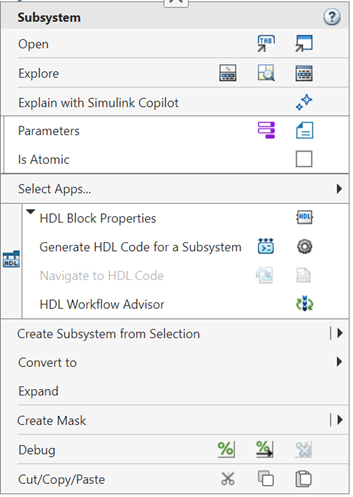
The table lists the buttons and options available in the HDL Coder app section:
| Button / Option | Action | Availability |
|---|---|---|
HDL Block Properties | Opens the HDL Block Properties dialog box for the block or subsystem. See Set and View HDL Model and Block Parameters. | Available for blocks or subsystems. |
Generate HDL Code | Depending on the selection in the Output section of the HDL Code tab in the HDL Coder app, this button generates either HDL code or an IP core:
| Available only for subsystems. |
Settings | Opens HDL Coder configuration parameter settings. | Available for blocks or subsystems. |
Navigate to Code | Navigates to the generated HDL code. For more information, see Navigate Between Simulink Model and HDL Code by Using Traceability. | Enabled when both code and a traceability report have been generated for the block or subsystem. |
Open Report | Opens the HDL Code generation report options. | Available for blocks or subsystems |
HDL Workflow Advisor | Opens the HDL Workflow Advisor for the subsystem. | Available only for subsystems. |


HDL Block Properties Dialog Box
You can set block-specific implementations and parameters by using the HDL Block Properties dialog box. HDL Coder provides selectable alternative block implementations for many block types. Each implementation is optimized for different characteristics, such as speed or chip area.
Most block implementations support several implementation parameters that let you control further details of code generation for the block.
This image shows the HDL Properties dialog box for a block.

There are several ways to specify implementations and implementation parameters for individual blocks or groups of blocks. See Set and View HDL Model and Block Parameters.

