Create Tracking Scenario Using Imported ADS-B Data
R2026bThis example demonstrates how to use the Tracking Data Importer app to import recorded Automatic Dependent Surveillance–Broadcast (ADS-B) data, create a tracking scenario based on the imported data, and generate detections of flight targets by adding radar sensors to the scenario.
ADS-B is a modern aviation surveillance technology in which aircraft automatically transmit their position, altitude, velocity, and identification information at regular intervals. These broadcasts can be received by ground stations, other aircraft, and hobbyist receivers, providing real-time data on aircraft movements. Recording ADS-B data involves capturing these transmissions and storing details such as flight number, position, altitude, speed, and timestamp.
Load and Preprocess ADS-B Data
This example utilizes a segment of recorded ADS-B data saved as a text file "ADSBData.txt", which contains ADS-B data near Boston area. You can read the data into a table variable in workspace by using the readtable function as follows.
rawTable = readtable("ADSBData.txt",TextType="string");
head(rawTable)
    Var1     Var2    Var3    Var4      Var5      Var6        Var7            Var8            Var9           Var10          Var11      Var12    Var13    Var14    Var15      Var16     Var17    Var18    Var19    Var20    Var21    Var22
    _____    ____    ____    ____    ________    ____    ____________    ____________    ____________    ____________    _________    _____    _____    _____    ______    _______    _____    _____    _____    _____    _____    _____

    "MSG"     3       1       1      "5F2697"     1      "2025/08/08"    15:56:32.279    "2025/08/08"    15:56:32.293    <missing>    23175     NaN      NaN     42.293    -71.564      NaN     NaN        0      NaN        0        0
    "MSG"     7       1       1      "99A0E1"     1      "2025/08/08"    15:56:32.338    "2025/08/08"    15:56:32.348    <missing>     5525     NaN      NaN        NaN        NaN      NaN     NaN      NaN      NaN      NaN      NaN
    "MSG"     7       1       1      "4BCA4E"     1      "2025/08/08"    15:56:32.344    "2025/08/08"    15:56:32.397    <missing>    40775     NaN      NaN        NaN        NaN      NaN     NaN      NaN      NaN      NaN      NaN
    "MSG"     4       1       1      "6776E8"     1      "2025/08/08"    15:56:32.350    "2025/08/08"    15:56:32.398    <missing>      NaN     440      237        NaN        NaN    -1280     NaN      NaN      NaN      NaN        0
    "MSG"     7       1       1      "6776E8"     1      "2025/08/08"    15:56:32.367    "2025/08/08"    15:56:32.400    <missing>    23875     NaN      NaN        NaN        NaN      NaN     NaN      NaN      NaN      NaN      NaN
    "MSG"     7       1       1      "6776E8"     1      "2025/08/08"    15:56:32.371    "2025/08/08"    15:56:32.401    <missing>    23875     NaN      NaN        NaN        NaN      NaN     NaN      NaN      NaN      NaN      NaN
    "MSG"     3       1       1      "67F71D"     1      "2025/08/08"    15:56:32.378    "2025/08/08"    15:56:32.401    <missing>    30850     NaN      NaN     41.856    -71.212      NaN     NaN        0      NaN        0        0
    "MSG"     7       1       1      "5F2697"     1      "2025/08/08"    15:56:32.379    "2025/08/08"    15:56:32.402    <missing>    23175     NaN      NaN        NaN        NaN      NaN     NaN      NaN      NaN      NaN      NaN
The raw table contains a total of 22 columns and approximately 100,000 rows. Below are the definitions for each column. Please note that the Hex Ident or ICAO codes shown in the table have been modified to distinguish them from real-world flight numbers.
Field # | Name | Description |
|---|---|---|
1 | Message Type | Always |
2 | Transmission Type | Indicates the type of message (see below) |
3 | Session ID | Internal session ID |
4 | Aircraft ID | Internal aircraft ID |
5 | Hex Indent | ICAO 24-bit aircraft address (e.g., |
6 | Flight ID | Internal flight ID |
7 | Date Generated | Date the message was generated |
8 | Time Generated | Time the message was generated |
9 | Date Logged | Date the message was logged |
10 | Time Logged | Time the message was logged |
11 | Callsign | Aircraft callsign (if available) |
12 | Altitude | Altitude in feet |
13 | Ground Speed | Speed over ground in knots |
14 | Track | True track angle in degrees |
15 | Latitude | Aircraft latitude |
16 | Longitude | Aircraft longitude |
17 | Vertical Rate | Rate of climb/descent in feet/min |
18 | Squawk | Transponder squawk code |
19 | Alert | Emergency alert flag (0 or 1) |
20 | Emergency | Emergency code flag (0 or 1) |
21 | SPI | Special Position Identification flag (0 or 1) |
22 | IsOnGround | Boolean flag indicating if aircraft is on ground (0 or 1) |
To recreate a tracking scenario, you need to extract positional information from the data. Note that rows with a Transmission Type value of 3 contain the aircraft’s latitude, longitude, and altitude information.
tempTable = rawTable(rawTable.Var2 == 3,:);
Columns 7 through 10 of the table represent recording time information, where columns 7 and 8 contain the time that the message was generated and columns 9 and 10 contain the time that the message was received. Therefore, you combine columns 7 and 8 as a datetime string column and save it back to column 7.
tempTable.Var7 = tempTable.Var7 + " " + string(tempTable.Var8);Next, keep only the columns that contain identification, time, or position information, and remove all other columns.
columnIndices = [5,7,12,15,16];
processedTable = tempTable(:,columnIndices);
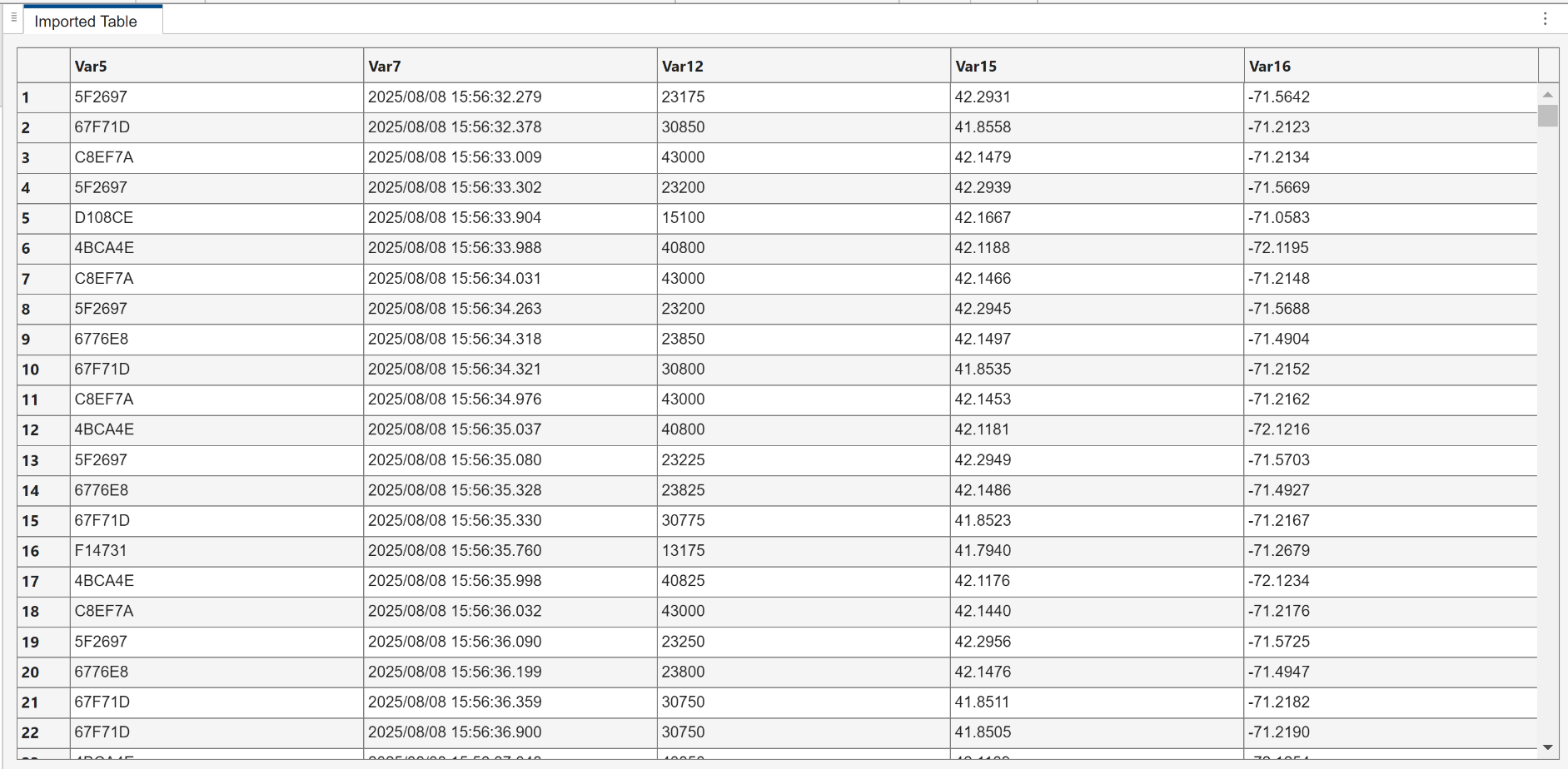
Display the processed table. As shown below, the table now contains the ICAO, time, altitude in ft, latitude in degrees, and longitude in degrees.
head(processedTable);
      Var5                Var7               Var12    Var15      Var16
    ________    _________________________    _____    ______    _______

    "5F2697"    "2025/08/08 15:56:32.279"    23175    42.293    -71.564
    "67F71D"    "2025/08/08 15:56:32.378"    30850    41.856    -71.212
    "C8EF7A"    "2025/08/08 15:56:33.009"    43000    42.148    -71.213
    "5F2697"    "2025/08/08 15:56:33.302"    23200    42.294    -71.567
    "D108CE"    "2025/08/08 15:56:33.904"    15100    42.167    -71.058
    "4BCA4E"    "2025/08/08 15:56:33.988"    40800    42.119     -72.12
    "C8EF7A"    "2025/08/08 15:56:34.031"    43000    42.147    -71.215
    "5F2697"    "2025/08/08 15:56:34.263"    23200    42.294    -71.569
Import Data in Tracking Data Importer App
Import Data
To import data, first launch the Tracking Data Importer app using the command:
trackingDataImporter
The app opens and prompts you to import truth data to begin. Click on the Import button and select the Import from workspace option. Follow the workspace importation dialog and import the processedTable variable into the app as follows.
Create Converter and Convert
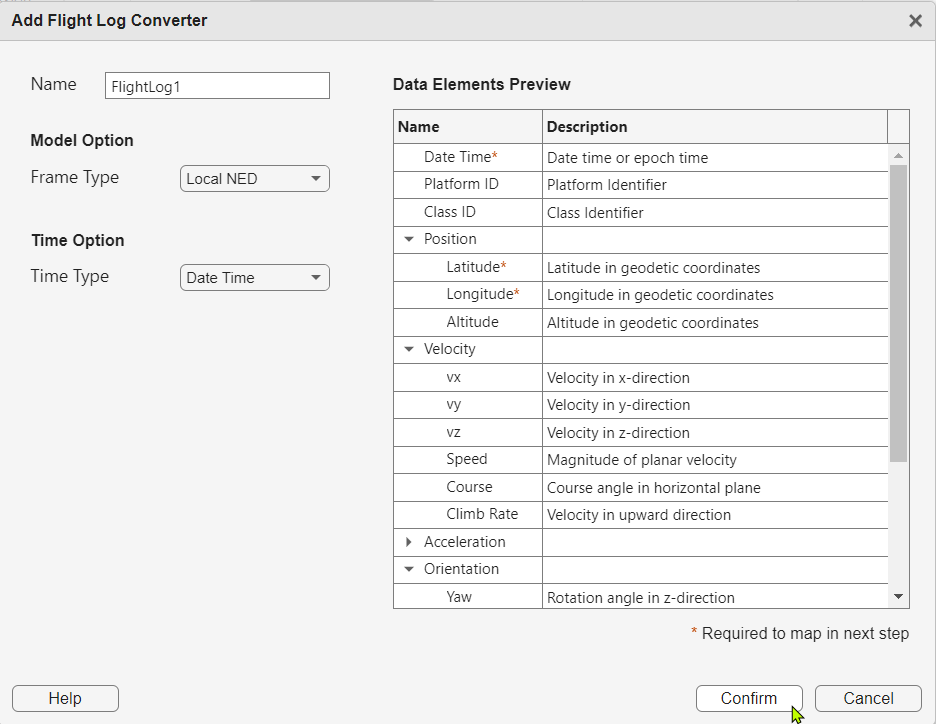
To identify information in the table, you create a converter that contains a list of data elements expected by the app and then map the imported table columns to these data elements. First, click the New Converter button in the toolstrip and select Flight Log. Click on the Confirm button in the opened dialog, which creates a new flight log converter.
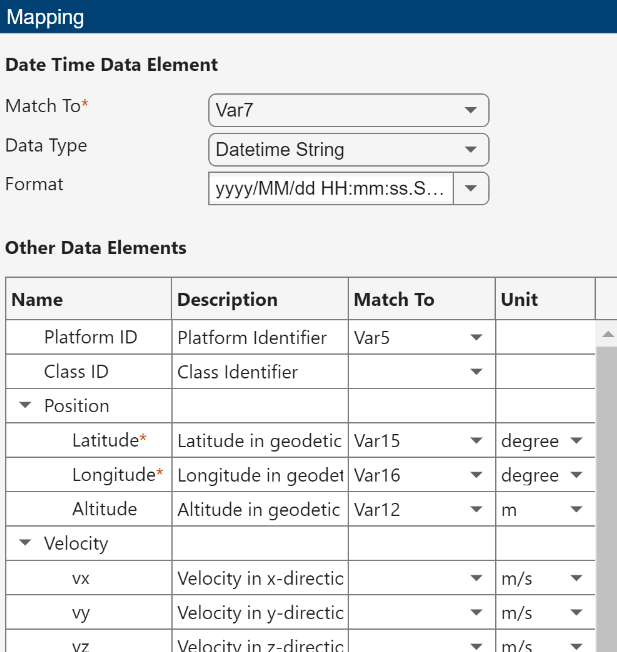
After that, the app opens a mapping panel that allows you to map between columns in the imported table with state elements contained in the flight log. Map Var7, Var5, Var15, Var16, Var12 to the elements of Data Time, Platform ID, Latitude, Longitude, and Altitude, respectively. Additionally, select the corresponding formats and units for these variables as shown below.
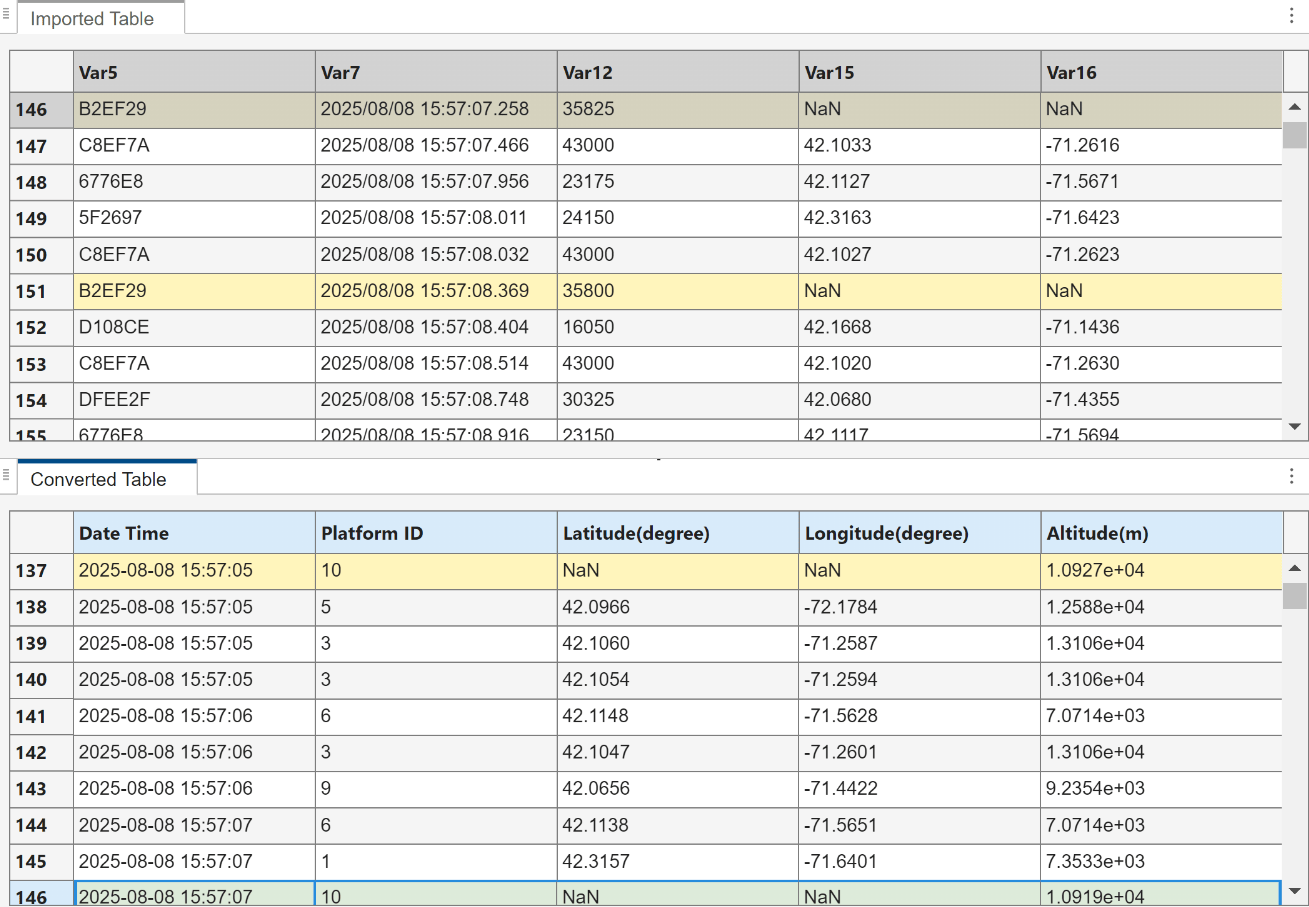
After the mapping, click the Convert button to convert the data based on the mapping. Please note that the original data sheet contains invalid or missing values; these cells are automatically detected by the app and highlighted in yellow, as shown below. The app will remove data rows containing invalid values during export.
Visualize Data
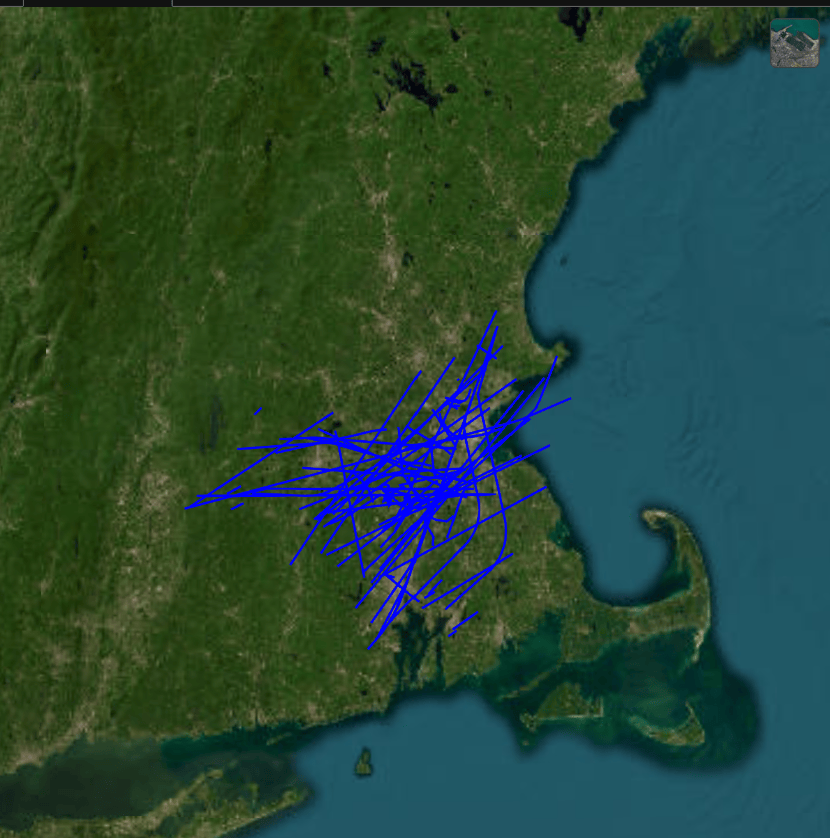
Click the Visualize button in the toolstrip to display the trajectories of aircraft on a globe. The display shows flight trajectories near the Boston area. You can further explore the data, such as platform waypoints and trajectories, by using context menus of the converted table. For more details, see the Import Flight Log Data Using Tracking Data Importer App example.
Export
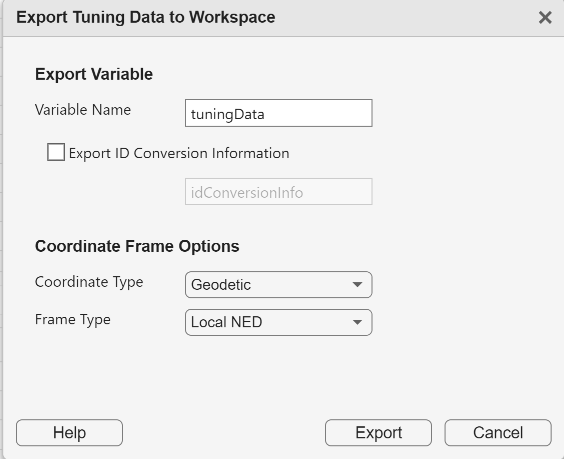
Finally, export the ADS-B data from the app as tuning data. The tuning data format stores each platform's pose history as a timetable, making it easy to define trajectories for a tracking scenario.
Click the Export button from the toolstrip and select the Tuning Data option. The export dialog opens and you can click the Export button to export the tuningData variable to workspace.
Create and Simulate Tracking Scenario
In this section, you create a tracking scenario based on the exported data and use simulated radar sensors to generate detections.
First, load the tuning data that was saved in a previous app session. The loaded data is identical to what was exported from the app.
load tuningData.mat Create a trackingScenario object. Set the IsEarthCentered property as true to define platform trajectories using geodetic coordinates.
scene = trackingScenario(IsEarthCentered=true,UpdateRate=0,InitialAdvance="UpdateInterval");Create platforms and associated trajectories using the tuning data.
for ii = 1:numel(tuningData)
    tt = tuningData{ii};
    toas = seconds(tt.Time);
    waypoints = tt.Position;
    if size(waypoints,1) > 1 % Discard single waypoint
        traj = geoTrajectory(waypoints,toas);
        platform(scene,Trajectory=traj);
    end
end
Define three radar stations as platforms in the tracking scenario.
stations = [42.3656 -71.0096 2; ... Boston
    42.2626 -71.8023 146; ... Worcester
    41.8240 -71.4128 19]; % Providence

stationBoston = platform(scene,Position=stations(1,:));
stationWorcester = platform(scene,Position=stations(2,:));
stationProvidence = platform(scene,Position=stations(3,:));
Create a monostatic radar for each station.
% First radar
rpm = 10; % Revolutions per minute
fov = [5;20]; % degree
scanrate = rpm*360/60;  % deg/s
updateRate = scanrate/fov(1); % Hz

radar1 = fusionRadarSensor(1,"Rotator",...
     UpdateRate=updateRate,...
     MountingLocation=[0 0 -50], ... m, top of tower
     FieldOfView=fov,... degrees
     MechanicalElevationLimits=[-15 -5], ... degree
     ReferenceRange=1e5,... m
     RangeLimits=[0 1e5],... m
     ReferenceRCS=10,... dBsm
     HasFalseAlarms=false,...
     HasElevation=true,...
     AzimuthResolution=0.01,... degree
     ElevationResolution=0.01,... degree
     RangeResolution=100,... m
     HasINS=true,...
     DetectionCoordinates="Sensor spherical");
stationBoston.Sensors = {radar1};

% Second radar
radar2 = clone(radar1);
radar2.SensorIndex = 2;
radar2.MountingAngles(1) = 120;
stationWorcester.Sensors = {radar2};

% Third radar
radar3 = clone(radar1);
radar3.SensorIndex = 3;
radar3.MountingAngles(1) = 240;
stationProvidence.Sensors = {radar3};
Create a trackingGlobeViewer object to visualize the scenario.
f = uifigure;
viewer = trackingGlobeViewer(f);
% Set camera orientation
camorient(viewer,[0 -90 0]);
% Set camera position
campos(viewer,[42.115 -71.46631 1.71357e5]);
The scenario simulation spans 50 minutes and includes 75 targets. For brevity, the simulation stop time is set to 60 seconds, but you can adjust this value to run the simulation for a longer duration as needed.
detLogs = []; % Save all the generated detections
scene.StopTime = 60; % seconds
Run the scenario, update the globe, and record detections.
restart(scene);
while advance(scene)
    platPoses = scene.platformPoses();
    plotPlatform(viewer,platPoses,"ECEF",TrajectoryMode="None");
    covcon = coverageConfig(scene);
    plotCoverage(viewer,covcon,"ECEF");
    detections = detect(scene);
    if ~isempty(detections)
        detLogs = [detLogs; detections]; %#ok<AGROW>
        plotDetection(viewer,detections,"ECEF");
    end
end
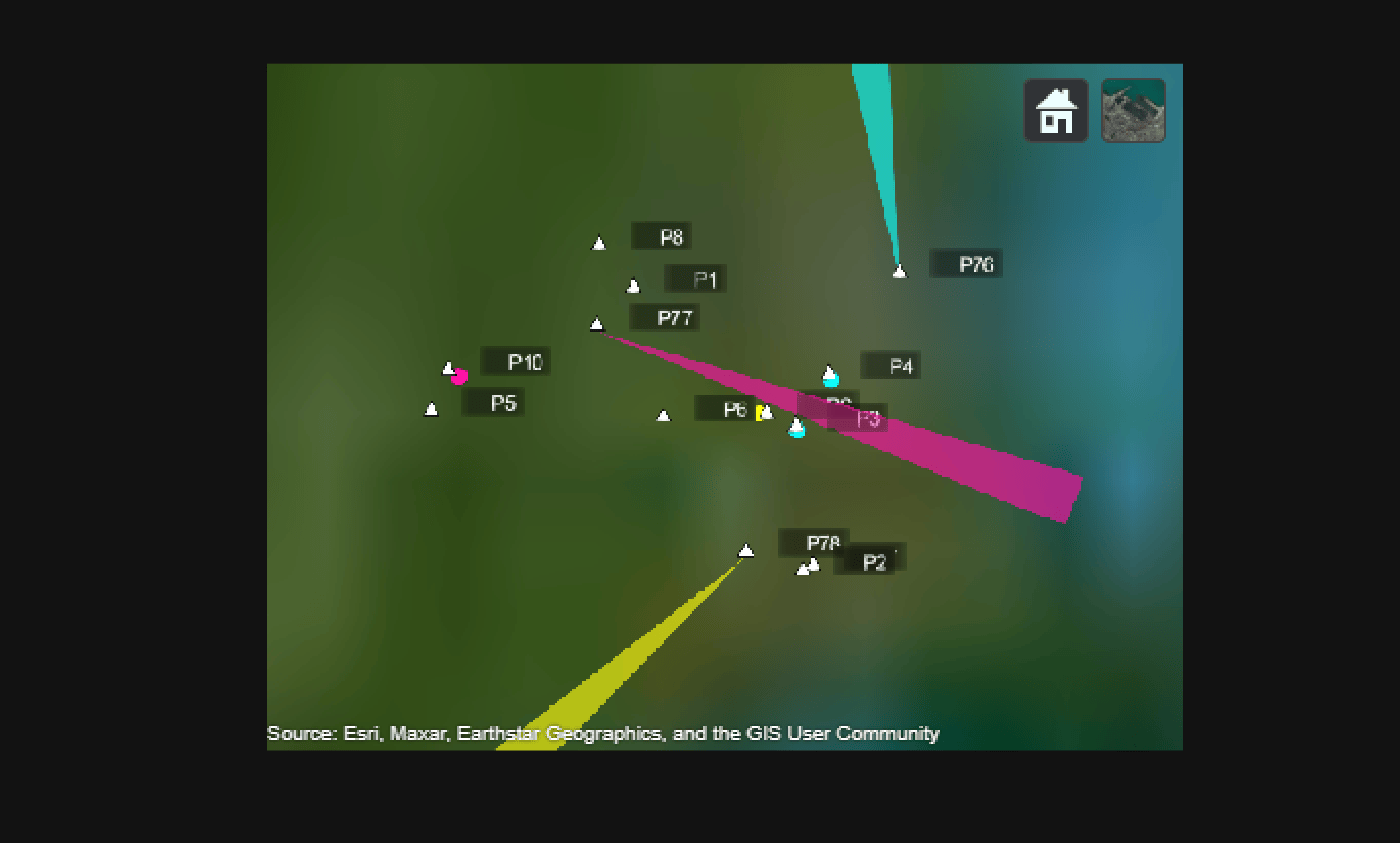
Take snapshot of the globe.
snapshot(viewer);
Calculate the total number of detections, as well as the number of unique platforms identified.
numDetections = numel(detLogs)
numDetections =
86
platformIDs = cellfun(@(det) det.ObjectAttributes{1}.TargetIndex, detLogs);
uniquePlatformIDs = numunique(platformIDs)
uniquePlatformIDs = 10
The results show that the sensors generated 86 detections over one minute period, corresponding to 10 unique platforms, representing all the platforms that appeared during this time. You can increase the simulation time or change the sensor configurations to produce more detections. As the next step, you can create a multi-object tracker to track the platforms based on the detections. For more details, see Air Traffic Control, Simulate and Track En-Route Aircraft in Earth-Centered Scenarios, and Track Heterogeneous Aircraft Using Heterogeneous Sensors.
Summary
The example provides a step-by-step guide to importing and cleaning ADS-B flight data, mapping and converting it using Tracking Data Importer, and building a simulated air traffic scenario with radar sensors for detection generation. This enables testing and development of tracking algorithms using real-world-like flight data.

