Log and Replay CAN FD Messages
R2026bThis example shows you how to log and replay CAN FD messages using MathWorks® virtual CAN FD channels in Simulink®. You can update this model to connect to supported hardware on your system.
Load the saved CAN FD messages from the SourceFDMsgs.mat file from the examples folder. The file contains CAN FD messages representing a 90-second drive cycle around a test track.
load SourceFDMsgs.matInspect the timetable containing the CAN FD messages. In particular, notice that the initial time stamp is not zero:
startTime = seconds(canFDMsgTimetable.Time(1)) %#ok<NOPTS>startTime = 88.6176
stopTime = seconds(canFDMsgTimetable.Time(end)) %#ok<NOPTS>stopTime = 177.2310
Convert these messages to a format compatible with the CAN FD Replay block and save them to a separate file.
canFDMsgs = canFDMessageReplayBlockStruct(canFDMsgTimetable);
save DriveReplayFD.mat canFDMsgs
whos
  Name                        Size               Bytes  Class        Attributes

  canFDMsgTimetable      100000x12            45411725  timetable
  canFDMsgs                   1x1              8401848  struct
  startTime                   1x1                    8  double
  stopTime                    1x1                    8  double
CAN FD Replay Model
This model contains:
A CAN FD Replay block that transmits to
MathWorks Virtual Channel 1.A CAN FD Receive block that receives the messages on a CAN FD network, through
MathWorks Virtual Channel 2.
The CAN FD Receive block is configured to block all extended IDs and allow only the WheelSpeed message with the standard ID 1200 to pass.

Configure the simulation start and stop time coherently with the initial and final timestamps of the messages timeseries. To this end, select the Modeling tab and click Model Settings. Then, in the Configuration Parameters dialog box, set the simulation start and stop time using the variables startTime and stopTime previously defined. Click Apply and close the Configuration Parameters window.

Run the simulation by clicking on the button Run.
Notice the warning in the Diagnostic Viewer:

The model is configured to use a fixed-step solver, with a time step of 0.01 s. However, the values of the start and stop time, as obtained from the recorded timeseries, are not integer multiples of the simulation time step. The default behavior in Simulink is to round those values to make them compatible with the simulation time step; they could also be rounded in a MATLAB® script before simulation. More information about the automatic parameter selection of Simulink solvers can be found in the documentation page Choose a Solver (Simulink).
Wheel Speeds Subsystem
The Wheel Speeds subsystem unpacks the wheel speed information from the received CAN FD messages and plots them to a scope. The subsystem also logs the messages to a file.
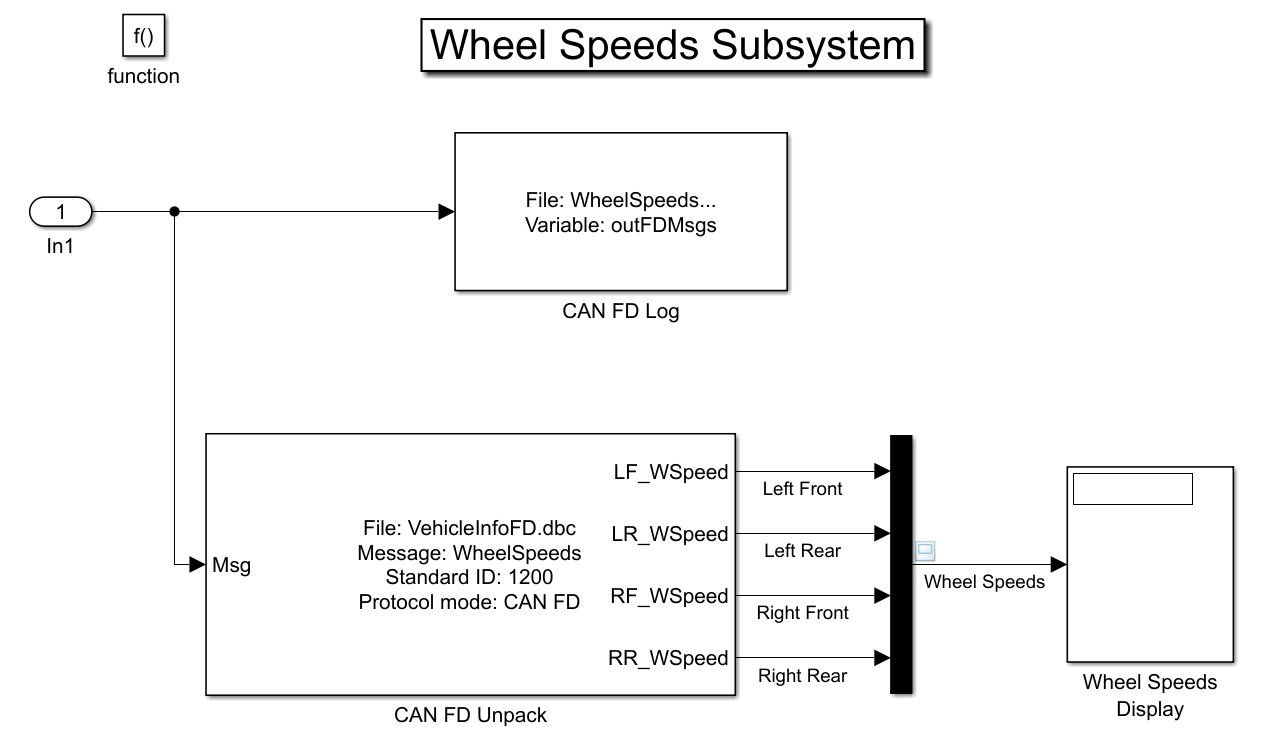
Visualize Wheel Speed Information
The plot in the Scope shows the wheel speed for all wheels for the duration of the test drive.
Depending on the configuration of your computer, the signals in the scope after simulation may be zero. This result is normal: model simulation and message transmission are executed on different threads and are not synchronized. Simulink attempts to simulate the model as fast as possible, and since the timeseries is very short, it is very likely that the reception of the first message has not been finalized by the time the simulation has ended.
A more appropriate approach to replaying logged signals in Simulink is to use simulation pacing to execute the model in approximate real-time conditions. In this way, the simulation of the model runs approximately at the pace the signals have been recorded. To enable simulation pacing click Run -> Simulation Pacing, and tick the checkbox Enable pacing to slow down simulation. Run the simulation again and inspect the Scope, which now shows the appropriate signals.

To learn more about simulation pacing, visit this page: Simulation Pacing Options (Simulink).
Load the Logged Message File
The CAN FD Log block creates a unique file each time you run the model. Use dir in the MATLAB Command Window to find the latest log file.
dir WheelSpeeds*.matWheelSpeeds_2023-Jun-20_123918.mat WheelSpeeds_2023-Jun-20_151835.mat
load WheelSpeeds_2023-Jun-20_123918.mat
whos
Name Size Bytes Class Attributes canFDMsgTimetable 100000x12 45411725 timetable canFDMsgs 1x1 8401848 struct outFDMsgs 1x1 7845516 struct startTime 1x1 8 double stopTime 1x1 8 double
Convert Logged Messages
Use the startTime variable to offset the recorded timestamps from the CAN FD Log block.
outFDMsgs.Timestamp = startTime + outFDMsgs.Timestamp;
Use the function canFDMessageTimetable to convert messages logged during the simulation to a timetable that you can use in the command window.
To access message signals directly, use the appropriate database file in the conversion along with canSignalTimetable.
db = canDatabase('VehicleInfoFD.dbc');
wheelSpeedMsgTimetable = canFDMessageTimetable(outFDMsgs, db);
wheelSpeedMsgTimetable(1:15, :)
ans = 15×12 timetable
88.829 sec 1201 0 '' 'CAN FD' [0,0,0,0,0,0,0,0] 8 8 0×0 struct 0 0 1 0
88.83 sec 1312 0 '' 'CAN FD' [250,0,200,50,0] 5 5 0×0 struct 0 0 1 0
88.831 sec 512 0 '' 'CAN FD' [2,1,1,250,1,231,129,255] 8 8 0×0 struct 0 0 1 0
88.832 sec 513 0 '' 'CAN FD' [12,103,255,255,39,16,1,255] 8 8 0×0 struct 0 0 1 0
88.832 sec 533 0 '' 'CAN FD' [2,26,2,26,2,24,0,0] 8 8 0×0 struct 0 0 1 0
88.832 sec 561 0 '' 'CAN FD' [15,4,255,255,0,0,0,0] 8 8 0×0 struct 0 0 1 0
88.832 sec 576 0 '' 'CAN FD' [63,141,140,32] 4 4 0×0 struct 0 0 1 0
88.832 sec 1616 0 '' 'CAN FD' 0 1 1 0×0 struct 0 0 1 0
88.836 sec 1200 0 'WheelSpeeds' 'CAN FD' [39,16,39,16,39,16,39,16] 8 8 1×1 struct 0 0 1 0
88.836 sec 1201 0 '' 'CAN FD' [0,0,0,0,0,0,0,0] 8 8 0×0 struct 0 0 1 0
88.836 sec 1216 0 '' 'CAN FD' 163 1 1 0×0 struct 0 0 1 0
88.841 sec 512 0 '' 'CAN FD' [2,1,1,250,1,231,129,255] 8 8 0×0 struct 0 0 1 0
88.842 sec 513 0 '' 'CAN FD' [12,103,255,255,39,16,1,255] 8 8 0×0 struct 0 0 1 0
88.842 sec 533 0 '' 'CAN FD' [2,26,2,26,2,24,0,0] 8 8 0×0 struct 0 0 1 0
wheelSpeedSignals = canSignalTimetable(wheelSpeedMsgTimetable);
wheelSpeedSignals(end-14:end, :)
ans = 15×4 timetable
    177.31 sec    57.4000    57.3700    57.2700    57.3500
    177.32 sec    57.3900    57.3500    57.3000    57.3200
    177.33 sec    57.3600    57.3900    57.4000    57.3100
    177.33 sec    57.4700    57.4600    57.4700    57.3700
    177.34 sec    57.5600    57.4100    57.4500    57.3900
    177.35 sec    57.4800    57.3300    57.4300    57.4000
    177.36 sec    57.3700    57.3500    57.4100    57.4100
    177.37 sec    57.3300    57.4100    57.4100    57.3900
    177.37 sec    57.3700    57.4400    57.4400    57.3600
    177.38 sec    57.4800    57.4700    57.4300    57.3500
    177.39 sec    57.5000    57.4300    57.4000    57.3300
    177.4 sec    57.4800    57.3600    57.3500    57.3200
    177.41 sec    57.4300    57.3500    57.2800    57.3300
    177.42 sec    57.2800    57.4000    57.2600    57.3600
plot(wheelSpeedSignals.Time, wheelSpeedSignals{:,:});
MathWorks CAN FD virtual channels were used for this example. You can however connect your models to other supported hardware.
See Also
Tools
- Simulation Pacing Options (Simulink)

