Configure Target Computer Settings by Using Simulink Real-Time Explorer
R2026bTo run a Simulink® Real-Time™ model on a Speedgoat® target computer, configure the target settings to match the capabilities of the target computer and connect to the target computer.
Manage Target Computer Definitions
These steps configure target computer configurations in Simulink Real-Time Explorer.
Open Simulink Real-Time Explorer. In the MATLAB® Command Window, type:
slrtExplorer
In the Target tab Targets Tree, use these buttons to configure connections in the Target Computers list.
 — Add target computer definition
and specify its settings. Use the displayed Add Target
Computer dialog box to configure the target computer
name, IP address, and
other settings. For example, Speedgoat target machines are preconfigured to IP address
— Add target computer definition
and specify its settings. Use the displayed Add Target
Computer dialog box to configure the target computer
name, IP address, and
other settings. For example, Speedgoat target machines are preconfigured to IP address
192.168.7.5and subnet mask255.255.255.0.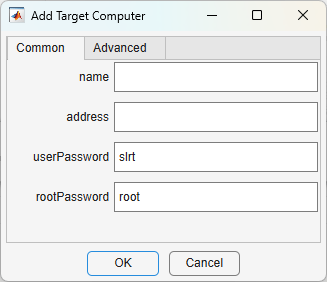
 — Add target computer definition
by copying settings from selected target computer. When a target
computer node in the Target Computers list is
selected, you can use the add-by-copying button. Use the displayed
Copy Target Computer dialog box to
configure the target computer Name,
IP address, and other settings.
— Add target computer definition
by copying settings from selected target computer. When a target
computer node in the Target Computers list is
selected, you can use the add-by-copying button. Use the displayed
Copy Target Computer dialog box to
configure the target computer Name,
IP address, and other settings.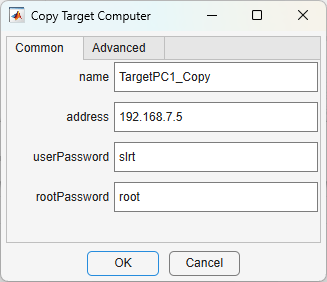
 — Permanently remove a target
computer definition.
— Permanently remove a target
computer definition. or
or  — Move the selected target
computer up or down in the Targets Tree.
— Move the selected target
computer up or down in the Targets Tree.
Note
In release R2026a and later, target computer IP address definitions in
Targetobjects are immutable and cannot be modified after the object is created. For this reason, the Target Configuration tab disables (grays out) the IP address field for target computer definitions.After configuring a target computer definition in explorer, connect to a target computer by toggling the Disconnected indicator to Connected.
Note
If your target machine has been used with an R2025b or a previous release and you have not yet migrated the target machine to the current release, you will see this message:
Please enter the following at the MATLAB command prompt
>> speedgoat.migrateTarget
before continuing with the next step.
Repeat this procedure as required for each target computer.
Change IP Address of Target Computer Definition and Hardware
To change the IP address of target computer definitions in the Targets Tree, you can use the Change IP Address button on the explorer Target Configuration tab.
In the Target tab Targets Tree, select a target computer definition to modify.
In the Target Configuration tab, click the Change IP Address button. Use the Configure Target Computer IP Address dialog box to remove the selected target computer definition, create a new definition with the same name, and the configure the IP address for both the target computer definition and the configuration on the target computer..
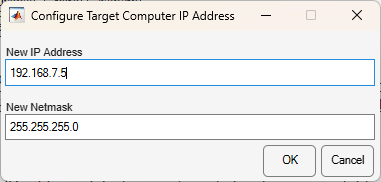
If you change the target computer IP address to different subnet, remember to change the development computer ethernet interface settings accordingly. For more information, see Enable Development Computer Communication (Windows) and Enable Development Computer Communication (Linux).
Note
For target machines that have been used with R2020a or a previous release and have not yet been migrated to at least R2020b, contact Speedgoat support through the Speedgoat customer portal.

