Get Started with Fast Restart
R2026bWhen you need to simulate a model iteratively to tune parameters, achieve a desired response, or automate testing, use fast restart to avoid compiling the model in every simulation. Fast restart allows you to perform iterative simulations without compiling a model or terminating the simulation each time. A generic workflow using fast restart involves the following steps.
Enable fast restart using the Fast Restart button on the Simulink® Toolstrip.
Simulate the model.
The first simulation compiles the model, initializes the simulation, and captures a snapshot of the simulation after initialization. When the simulation completes, the software skips the termination phase and uses the snapshot to reinitialize the simulation without compiling the model.
Perform any of these actions:
Change tunable parameters.
Switch between variable-step solvers.
Tune root-level inputs.
Modify variables in the base workspace or model workspace and data dictionary entries that are referenced by tunable parameters.
Change inputs to From File and From Workspace blocks.
Change the Initial state parameter for the next simulation.
Change data, add new scenarios, and rename signals and scenarios for Signal Editor blocks.
Change the signal logging override values for the model programmatically by using the
set_paramfunction and theDataLoggingOverrideparameter. See Override Signal Logging Settings Programmatically.
While initialized in fast restart, you cannot:
Change the dimension, type, or complexity of a signal or variable.
Make changes to nontunable parameters, such as sample times.
Make structural changes such as adding or deleting blocks or connections.
These changes require you to compile the model again. To make changes like these, disable fast restart, make your changes, and repeat this procedure.
Simulate the model. The model uses the new values of parameters and inputs that you provided but does not compile again.
Once you have achieved the desired response, disable fast restart.
Note
When you disable fast restart, the software does not retain any compilation information for the model. The next simulation you run after disabling fast restart compiles the model.
Prepare a Model to Use Fast Restart
Before you simulate a model in fast restart, check that the model meets these requirements:
If you have enabled callbacks in the model, check that none of the callbacks has code that structurally changes the model when the model is reinitialized.
For example, the software calls some callbacks, such as mask initialization callbacks, at the beginning of each simulation. Avoid using mask initialization code that makes structural changes to the model.
All blocks in the model must be supported for saving and loading
ModelOperatingPointobjects.For programmatic simulations, the simulation mode can be normal, accelerator, or rapid accelerator. (since R2025a) If you run the simulations from a user interface, such as the Simulink Editor, the simulation mode must be normal or accelerator.
Note
When fast restart is enabled, you cannot save changes you make to the model after it compiles. To save changes to the model, disable fast restart.
Enable Fast Restart
Use one of these methods to enable fast restart:
In the Simulink Toolstrip, on the Simulation tab, under Simulate, click Fast Restart.
In the MATLAB® Command Window, use the
set_paramfunction to enable fast restart.mdl = "MyModel"; set_param(mdl,FastRestart="on")
Run Fast Restart Simulations
After you open your model and enable fast restart, simulate the model.
Simulate the model by calling the
simor by clicking Run. The first simulation in fast restart requires the model to compile and capture a snapshot of the simulation after initialization.When the simulation completes, the software uses the snapshot to reinitialize the simulation without compiling the model. While reinitializing for the next fast restart simulation, the status bar indicates the simulation status as
Restarting, and the Simulink Editor is frozen like it is during model compilation and initialization.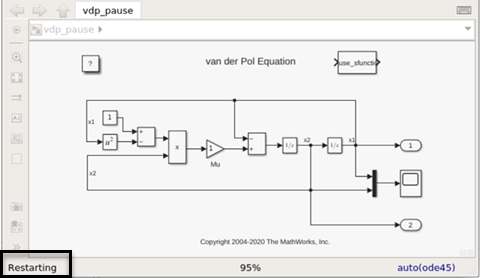
Adjust tunable parameters in the model, such as the gain value of a Gain block, or tune external input data for top-level input ports. You can also make changes to base workspace variables. You cannot adjust nontunable parameters such as sample time because doing so requires the model to compile once more.
Simulate the model again. Because the simulation is already initialized, it does not compile the model. When you start the simulation, the software applies updated variable and parameter values.
When you are satisfied with your results, disable fast restart by clicking Fast Restart again or by calling the
set_paramfunction again.To keep your changes, save the model.
Note
After a model is initialized in fast restart, the software issues a warning if you attempt to make a structural change to the model. To make such changes, disable fast restart.
Stop Fast Restart Simulations
When you click Stop during a fast restart simulation, the simulation does not terminate. After stopping, the software reinitializes the simulation in fast restart. While the simulation is reinitialized in fast restart, you can change tunable parameters in the model, but you cannot change nontunable parameters or make structural changes to the model. To terminate the simulation, disable fast restart.
Terminate Fast Restart Simulations
To terminate a fast restart simulation, disable fast restart. When you run the
simulation using a Simulation object, you can also terminate the simulation using the
terminate.
You can terminate fast restart simulations only while the simulation is
initialized in fast restart, except when you run the simulation using the
Simulation object.
The software terminates the simulation.
The software discards compilation information about the model.
The next simulation you run must compile the model.
Fast Restart Methodology
Specify Nontunable Parameter Values in Fast Restart Simulations
Once a simulation is initialized in fast restart, you cannot modify the values of nontunable parameters. To specify the values of nontunable parameters for fast restart simulations, use one of these approaches:
Specify nontunable parameter values in the model before running the first fast restart simulation.
When you modify nontunable parameters in the model, the changes do not revert when you disable fast restart.
Specify nontunable parameter values as part of the simulation configuration.
Nontunable parameter values specified as part of the simulation configuration do not revert between fast restart simulations. The nontunable parameter values revert when fast restart is disabled or you terminate the simulation.
To modify nontunable parameters in the model, use the
set_param function or a user interface, such as the
Configuration Parameters dialog box or the Property
Inspector.
To specify nontunable parameters as part of the configuration for the first fast restart simulation, use one of these approaches:
Specify nontunable parameters on a
Simulationobject. Once the simulation is initialized in fast restart, you cannot modify these values or the values of other nontunable parameters until you terminate the simulation. (since R2026a)Specify nontunable parameters on the
Simulink.SimulationInputobject that enables fast restart for individual, iterative simulations. You must specify the same nontunable parameters on allSimulink.SimulationInputobjects you use to simulate the model while initialized in fast restart.Specify the same nontunable parameter values on an array of
Simulink.SimulationInputobjects when you run a set of fast restart simulations using thesim,parsim, orbatchsimfunction with theUseFastRestartname-value argument.
Tune Parameters Between Simulations
When a model is initialized in fast restart, in addition to block parameter values and base workspace variables, you can tune parameters in the Data Import/Export and Solver panes in the Configuration Parameters dialog box. To open the Configuration Parameters dialog box, in the Simulink Toolstrip, on the Simulation tab, under Setup, click Model Settings.
Certain parameters are tunable only between simulations when the model is initialized in fast restart. They include:
Initial Value parameter of the IC block.
Initial Output parameter of the Merge block.
Data parameter of the From Workspace block.
Active scenario parameter of the Signal Editor block. You can edit the signal data, create and remove scenarios and signals, and so forth. You can change the Active signal and view the signal properties, but cannot edit the Signal Editor signal properties in fast restart.
Switch Solvers Between Simulations
While initialized in fast restart, you can change the selected solver between simulations, but you cannot change the solver type. For example, you can change the Solver parameter to select a different variable-step solver, but you cannot change the Type parameter to use a fixed-step solver instead of a variable-step solver.
Model Methods and Callbacks in Fast Restart
When fast restart is enabled, the simulator calls these model and block callbacks:
Call model
InitFcncallback.Call model
SetupRuntimeResourcesmethod.Call
mdlSetupRuntimeResourcesS-function method.
Call model
Startmethod.Call
mdlStartS-function method.
Call model
Initializemethod.Call
mdlInitializeConditionsS-function method.Note
Use the ssIsFirstInitCond flag to guard code that should run only during the initialization phase of any simulation, including the first and subsequent initializations in fast restart.
Call model and block
StartFcncallbacks.Note
Steps 1–5 apply to both fast restart simulations and simulations that do not enable fast restart.
For the first fast restart simulation, capture the model operating point after initialization by calling the
mdlGetOperatingPointS-function method.This is a standard execution phase of any simulation, with or without fast restart.
Call model
Outputs.Call model
Update.Call model
Derivatives.Repeat these steps in a loop until stop time or a stop is requested.
Call model
Terminatemethod.Call
mdlTerminateS-function method.
After simulation ends, call model and block
StopFcncallbacks. This is a standard phase of any simulation, with or without fast restart.Reinitialize the S-function in subsequent fast restart simulations using the model operating point captured after initialization in the first fast restart simulation. To set the S-function operating point, call the
mdlSetOperatingPointS-function method.Wait in a reinitialized state until one of these actions:
To run another simulation (programmatically or using the Simulink Editor) in fast restart, return to step 3.
To end Fast Restart mode and uncompile the model:
Call the model method
CleanupRuntimeResourcesand themdlCleanupRuntimeResourcesS-function method.Do not call
StopFcncallbacks again at this point.
In some cases, the Start and Terminate
methods are only called once and not for every fast restart simulation. In these
cases, these method calls are combined with calls to
SetupRuntimeResources and
CleanupRuntimeResources, respectively. These cases are as follows:
When an S-function contains custom
ModelOperatingPointsave and restore methods.When an S-function sets the flag
SS_OPTION_CALL_TERMINATE_ON_EXIT.When an S-function is inside a model reference that simulates in accelerator mode.
For more information on model callbacks, see Customize Model Behavior with Callbacks.
Operating Point and Initial State Values
You can change the initial state of the top model between fast restart
simulations. When you specify a new value for the Initial
state parameter while initialized in fast restart, the state
values are not applied to the model until you start the simulation. When you
specify the initial state as a Simulink.op.ModelOperatingPoint
object, the start time of the simulation does not update to the snapshot time of
the operating point until you start the simulation.
Analyze Data Using the Simulation Data Inspector
Fast restart simulations support logging. Data logs to the workspace and to
the Simulation
Data Inspector, where you can plot, inspect, and compare the data.
Each fast restart simulation creates a run in the Simulation Data
Inspector with a run name that indicates the name of the simulated
model, that the simulation used fast restart, and the run number. For example,
suppose a fast restart simulation of a model named MyModel
creates the third run in the Simulation Data Inspector. The run has
the name MyModel fast restart run 3.
Custom Code in the Initialize Function
When you place custom code in the Configuration Parameters > Simulation Target > Custom Code > Initialize function pane in the Configuration Parameters dialog box, this gets called only during the first simulation in fast restart.

