Compare Simulation Data
R2026bThe Simulation Data Inspector can compare data and metadata for runs and signals that you log in a simulation or import from the workspace or a file. You can analyze comparison results using tolerances, and you can configure the comparison behavior by specifying signal properties and comparison constraints. This example shows how to:
Compare signals and runs.
Analyze comparison results using the Compare pane in the Simulation Data Inspector.
Specify signal tolerances and global tolerances.
Configure comparison constraints.
For more information on tolerance calculations and signal properties that affect
comparisons, see How the Simulation Data Inspector Compares Data. To compare data programmatically, use the Simulink.sdi.compareRuns function or the Simulink.sdi.compareSignals function.
Compare Signals
To analyze the relationship between two signals in a model, you can compare the signals in the Simulation Data Inspector.
Navigate to the Compare pane.
To select the baseline signal, expand the Baseline drop-down list, select Signals, and choose the baseline signal.
To select the comparison signal, expand the Compare to drop-down list, select Signals, and choose the comparison signal.

Click Compare.
Alternatively, you can select the Baseline and Compare to signals using the context menu by right-clicking the signal in the Inspect pane.
When signals are not identical, they do not match within the absolute, relative, and
time tolerances, all set to 0 by default, and the Simulation Data
Inspector shows a mismatch.

Signal Time Tolerance
To account for a phase difference when comparing signals, add a time tolerance to the Baseline signal. To add a time tolerance, select the baseline signal and, in the Properties pane, enter a tolerance value into the Time Tolerance field.
When you specify a tolerance for a Baseline signal, the
Override Global Tolerance field automatically changes to
yes. When you click away from the Time Tolerance
field, the comparison runs again, using the signal-level tolerance you specified. If you
want to use global tolerance values for the signal, click the Override Global
Tolerance field and select no from the drop-down.
The Simulation Data Inspector draws a tolerance band around the plotted Baseline signal in the upper subplot and around the signed difference signal displayed in the bottom subplot. The bar along the top of the difference plot shows regions within tolerance and out of tolerance for the comparison in green and red.

Signal Magnitude Tolerance
To account for a magnitude difference when comparing signals, add an Absolute Tolerance or Relative Tolerance to the baseline signal. The Simulation Data Inspector applies a magnitude tolerance only to comparisons of numeric signals and ignores the magnitude tolerance for any nonnumeric signal comparisons, such as those that contain enumerated or Boolean data.
To add an absolute tolerance, select the baseline signal and, in the Properties pane, enter a tolerance value into the Absolute Tolerance field.
Note
The Simulation Data Inspector draws the tolerance region using the most lenient interpretation of the specified tolerances for each point. For more information on how the Simulation Data Inspector calculates the tolerance band, see Tolerance Specification.

Compare Runs
To compare all the signals in one run to all the signals in another run, use the Simulation Data Inspector to compare runs. Run comparisons can provide useful information about the effects of changing model parameters. For example, change the frequency cutoff of the filter for the control stick input signal. Then, evaluate the effect on the logged signals using the Simulation Data Inspector.
Navigate to the Compare pane.
To select the baseline run, expand the Baseline drop-down list, select Runs, and choose the baseline run.
To select the comparison run, expand the Compare to drop-down list, select Runs, and choose the comparison run.
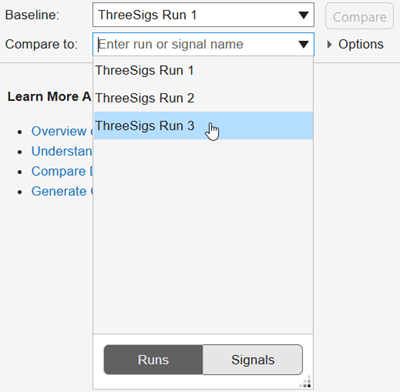
Click Compare.
The Compare pane lists all signals from the compared runs and summarizes the results of the comparison in the Results column.
 — Signals match
 — Signals do not match
 — Baseline signal not aligned to a signal in the
comparison run
— Baseline signal not aligned to a signal in the
comparison run
In this example, all three signals aligned, and none matched. You can click More to see the reason each signal comparison did not match. All three signals are out of tolerance.

Note
The Simulation Data Inspector only compares signals from the
Baseline run that align with a signal from the Compare
To run. If a signal from the Baseline run does not
align with a signal from the Compare To run, the signal is listed
in the Compare pane with a warning . For more information on signal alignment, see Signal Alignment.
To plot a comparison result, select the signal you want to view in the Compare pane. The top subplot shows the signals from the Baseline and Compare To runs. The bottom subplot shows the difference between the signals and the calculated tolerance band.

Global Tolerances
To analyze the signals in the run comparison, you can specify global tolerances. To specify global tolerances, click Options and under Global Tolerances, specify a global time, absolute, and relative tolerance.

Before R2024b: Click More to access global tolerance and constraint options.
Click the Compare button to run the comparison. The Simulation Data Inspector plots a tolerance band around the Baseline signal and on the signed difference plot.

To navigate through the out of tolerance regions, select a signal and click the arrow
buttons  in the toolbar. Two cursors on the plot show the
beginning and end of the first out of tolerance region. You can use your keyboard arrows
to explore the signal and tolerance values throughout each out of tolerance region. To
view the next out of tolerance region, click the right arrow button in the tool
strip.
in the toolbar. Two cursors on the plot show the
beginning and end of the first out of tolerance region. You can use your keyboard arrows
to explore the signal and tolerance values throughout each out of tolerance region. To
view the next out of tolerance region, click the right arrow button in the tool
strip.

To resolve the out of tolerance regions, you can modify the global tolerance values or add a signal-specific tolerance using the signal properties.
Configure Comparison Constraints
Another way to affect whether the comparison result is a match or mismatch is to apply constraints. For example, you can specify that the time vectors for signals must match in order for the result to be a match. To specify the constraint, click Options, then select Signal time vectors must match. To run a new comparison with this constraint, click Compare.
Before R2024b: Click More to access global tolerance and constraint options.
When you specify Signal time vectors must match, comparison results show signals as mismatches when their time vectors do not match. For example, all signals in a run might show as mismatches if they were logged from simulations of a model that uses a variable-step solver, and the conditions changed between simulations. When the comparison result is a mismatch due to a constraint, the Simulation Data Inspector does not compute results for that signal. When you select a signal, the plot area shows an explanation of why the signal result is a mismatch.

You can configure these comparison constraints:
Signal data types must match
Signal start and stop times must match
Signal time vectors must match
When you require a match in signal metadata, specifying a constraint can return a mismatch result more quickly because the comparison does not compute results when the specified metadata does not match.
You can also configure a comparison to stop computing results after detecting the first mismatched result. When you configure a comparison to stop on the first mismatch, the comparison always stops after detecting the first mismatch in the signal metadata. You can also choose to stop the comparison when the first mismatch result is due to an out-of-tolerance result when comparing the signal data.
The Simulation Data Inspector always aligns signals in the baseline and comparison runs.
When you configure a comparison to stop on the first mismatch, signals that do not align and
signals with units that do not match always cause a comparison to stop. By default, the
Simulation Data Inspector also compares the units of aligned signals when both the baseline
and comparison signals have units. When you configure the comparison to stop on the first
mismatch, mismatched units stop the comparison. To ignore mismatches in signal units, use
Simulink.sdi.compareRuns to specify
Units="Ignore". You can specify additional metadata for the comparison to
check by selecting one or more constraints.
Cancel Comparisons
When you compare large signals or runs containing many signals, comparisons can take some time. The Simulation Data Inspector displays incremental progress indicators during comparison, and the Compare button becomes a Cancel button you can click to cancel the comparison at any point. For hierarchical data, the Results column in the comparison view summarizes the results on each hierarchical node.


