Design Mask Dialog Box Layout
R2026bSimulink® Mask Editor helps you customize the dialog box of the block. You can use layout options in the Mask Editor to organize the mask parameters in a clear, concise, and user-friendly manner.
Horizontal Stretch:— Use the Horizontal Stretch property to determine whether a mask parameter control automatically expands to fill the available horizontal space within the dialog box layout. For example, if you have a text box for entering a file path, enabling Horizontal Stretch property ensures the text box expands horizontally, making it easier for users to see and edit the full path.
In the model slexMaskLayoutOptionsExample, refer to the block Horizontal Stretch Property.
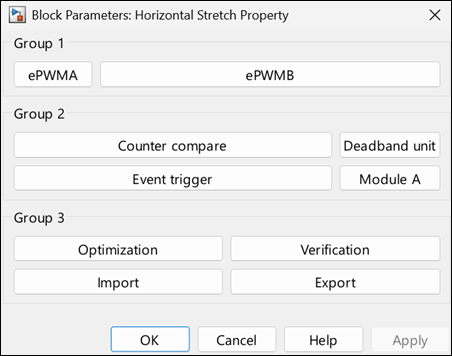
This block Horizontal Stretch shows few combinations that impact the Horizontal Stretch property. Consider these scenarios: Group 1: ePWMA: Horizontal Stretch is Off. ePWMB: Horizontal Stretch is On.
Result: ePWMA does not stretch horizontally whereas, ePWMB stretches.
Group 2: Counter compare and Module A: Horizontal Stretch is Off. Deadband unit and Event trigger: Horizontal Stretch is On.
Result: The value selected in the last row propagates to the controls of the corresponding column. Hence, Counter compare and Deadband unit inherit the horizontal stretch value from Event trigger and Module A respectively.
Group 3: Optimization and Verification: Horizontal Stretch is On. Import and Export: Horizontal Stretch is Off.
Result: All the four buttons stretch horizontally when you resize the mask dialog box.
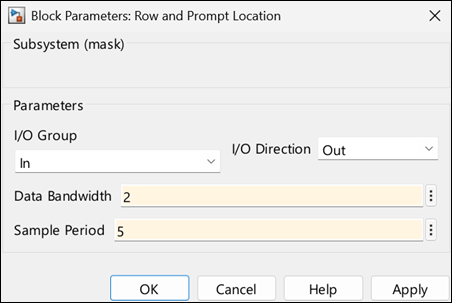
Row Location:— Specify whether the dialog control should be placed in the current row or start on a new row.
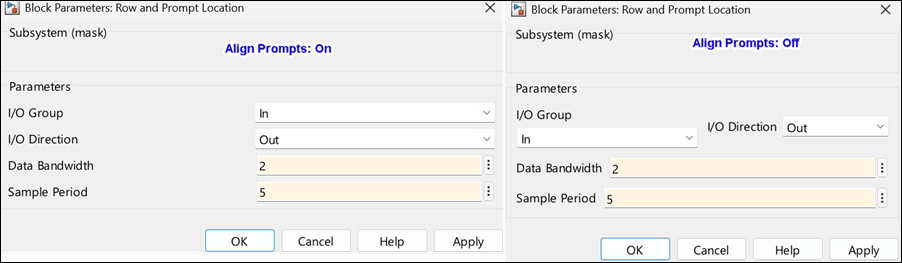
Prompt Location:— Specify the position of the prompt label in the dialog box. You can either align the prompt location to top or left of the row.
In the model slexMaskLayoutOptionsExample, refer to the block Row and Prompt Location.
Align Prompts:— This property is specific to containers. When you set this property, all the parameters within the container are aligned.