Open Template Files
R2026bEach report output type has a default template file for each output type, Microsoft® Word, PDF, and HTML. Each template file contains a template library of document
part templates. The names of document part templates for a reporter start with the name of
that reporter to distinguish them from built-in Word templates. For Word output, the
template library is in a Word template file named default.dotx. Its
document part templates are in the Word Quick Parts Gallery. For PDF, HTML, and single-file
HTML output, the template libraries are in default.pdftx and
default.htmtx or default.htmt template text files,
respectively. Each document part template is in a separate section of the template file. The
default.pdftx and default.htmtx files are zipped
files packages and must be unzipped before you can edit them.
Previewing Templates
Since R2024b
If you just want to preview the content and styles of a template, you can use
tmplview. This preview works for all of the DOM templates types.
Open Word Template Files
To open a Word template file, which contains a template library, right-click the
default.dotx file name and select Open.
Note
To open a Word template file, do not double-click its .dotx
file name. Double-clicking its file name opens a Word document
(.docx) file that uses the .dotx file
as its template.
For some reporters, such as the Section and Chapter reporters, when you open the Word
template file, a blank page appears. To see images of the individual templates, click
the Explore Quick Parts icon in the Text
section of the Insert ribbon. The document part templates for
reporters are of type mlreportgen.
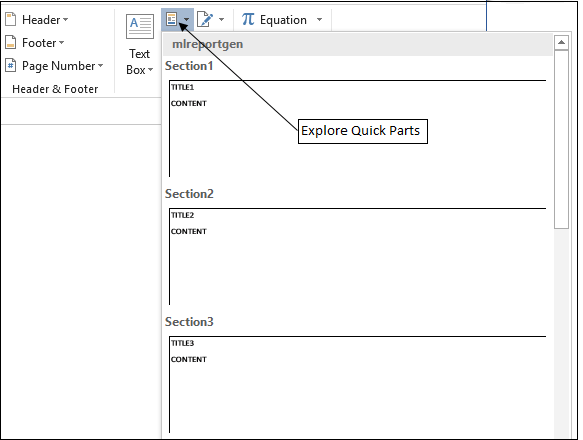
To view the contents of an individual template, click its image in the Quick Parts Gallery to copy it into the main part of the document.
To see its holes, select Design Mode in the Developer Ribbon. If the Developer Ribbon is not displayed, select File Options and then, Customize Ribbon. In the Customize the Ribbon list, check Developer.
To display paragraph and other formatting marks, select File Options and then, select Display. Check Show all formatting marks.
Note
If you do not want to change the template file, remove all copied templates from the main part of the document before you close or save the template file.
Open PDF Template Library Files
To open a PDF template library file, use unzipTemplate to unzip the default.pdftx file. Then,
use any text editor to open the docpart_template.html template
library file. The template library file has an html extension because
PDF templates are based on HTML templates.
Open HTML Template Library Files
Open an HTML Template Library File
To open an HTML template library file, use unzipTemplate to unzip the
default.htmtx file. Then, use any text editor to open the
docpart_template.html template library file.
Open a Single-File HTML Template Library File
To open a single-file HTML template, use any text editor to open the
default.htmt template library file.

