Generate C/C++ Tests for Scripts Calling Functions
R2026bUsing Polyspace® Test™, you can generate C/C++ unit tests with specific objectives instead of manually authoring tests. For instance, you can generate tests that call functions with boundary values for inputs, or tests that cover true and false outcomes of all conditions in a function (full condition coverage). If a function is not supported for automatic test generation due to incompatibility with graphical test authoring, you can write a C/C++ script calling the function and generate scripted tests from that script.
This example shows how to generate scripted tests from a C/C++ script. For an introduction to scripted tests, see Test C/C++ Functions by Using Scripts in Graphical Tests.
Example Files
This tutorial uses the files in the folder <polyspaceroot>\polyspace\examples\doc_pstest\coverage_tests\src. Here, <polyspaceroot> is the Polyspace installation folder, for instance, C:\Program Files\Polyspace\R2026b. To continue with this tutorial:
Create a new Polyspace Platform project and add the
srcfolder to the project.Select Parse Code on the toolstrip to analyze the files in the folder.
Open the project configuration. On the Projects tab, add the folder
<polyspaceroot>\polyspace\examples\doc_pstest\coverage_tests\srcfor the option Include paths.Even though the source folder is automatically added to the include search path for building sources, it is not added to the search path for building scripts in tests. In this example, you will be using definitions from source headers in test scripts. Therefore, you must add the source folder explicitly as an include path so that it is used for include search when building test scripts.
Specify Script and Generate Tests
Generate a scripted test by specifying the script body and appropriate constraints on the generated tests:
On the Polyspace Platform toolstrip, select Add Test > Generate Test(s) From Script (Coverage Metrics).
In the Generate Tests dialog box, specify a script for test generation:
Preamble: Add the following include statement:
This include file provides all function and type declarations that are required by your script, in particular, the declaration of the function#include "decls.h"checkAgainstSpeedLimitand the typebool.Test Script Body: Add the following script:
The script invokes the functionbool res = checkAgainstSpeedLimit(speed, limit);checkAgainstSpeedLimit()in the filehelpers.c:#include "decls.h" bool checkAgainstSpeedLimit(uint32_t speedReading, uint32_t limit) { bool speedOk; speedOk = 1; if(speedReading > SPEED_UPPER_BOUND || limit > SPEED_UPPER_BOUND) { return 0; } return speedOk; }
Add inputs for test generation:
In the Inputs section, select
 .
.Enter
speedfor Variable Name and selectunsigned intfor Variable Type.Repeat the previous steps for the other input
limit(also anunsigned inttype).
Constrain the values of the inputs:
For the input
speed, remove any entry in the Value column. Add1uin the Min column and250uin the Max column.For the input
limit, enter70uin the Value column.
The complete Generate Tests (coverage metrics) window looks like this:
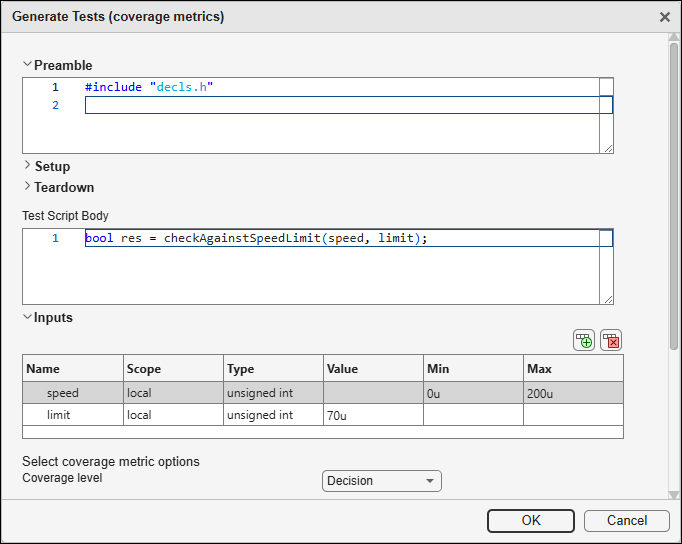
Set the Coverage level to
Decision. For more information on coverage levels, seeCoverage level (-cov-metric-level).Click Generate. The Generating tests window shows the progress of test generation.
The test generation step first analyzes the script and ensures that all variables in the script are defined either in the Preamble, the Test Script Body, or the Inputs section. If a definition is not found, the test generation fails. Otherwise, once test generation is complete, below the Tests node of your project, you see one or more generated tests with names such as Generated Scripted Test 1.
Review Generated Tests
The test generation in the previous section generates scripted tests with appropriate input values to satisfy decision coverage objectives. To complete the generated scripted tests, add observables and assessments to the tests:
Double-click a generated test name below the Tests node.
In the Observables section of the test, select
. Enter resfor Variable Name and selectunsigned intfor Variable Type.This action enters the variable in the Assessments section of the test.
In the Assessments section of the test, enter the value
1uif the value of the inputspeedis less than the inputlimit, otherwise enter0u.
Repeat these steps for any other generated tests (or any additional steps in this generated test). Then, build and run the tests to view the test results.

