Use the Prediction Error Variance Viewer
R2026bIntroducing the Prediction Error Variance Viewer
A useful measure of the quality of a design is its prediction error variance (PEV). The PEV hypersurface is an indicator of how capable the design is in estimating the response in the underlying model. A bad design is either not able to fit the chosen model or is very poor at predicting the response. The Prediction Error Variance Viewer is only available for linear models. The Prediction Error Variance Viewer is not available when designs are rank deficient; that is, they do not contain enough points to fit the model. Optimal designs attempt to minimize the average PEV over the design region.
With an optimal design selected, select Tools > Prediction Error Variance Viewer.
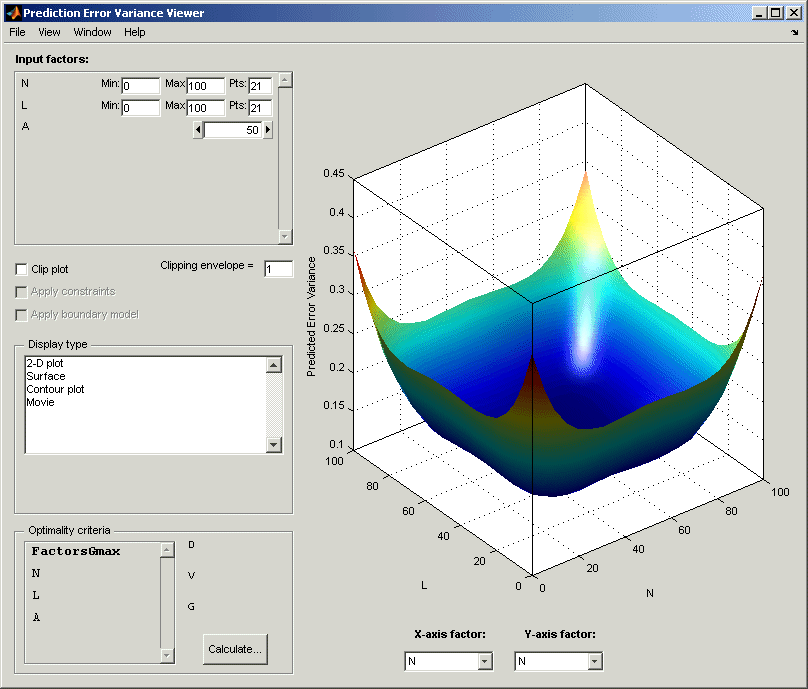
The default view is a 3-D plot of the PEV surface.
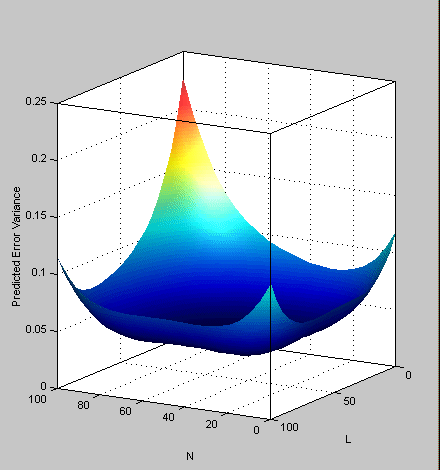
This shows where the response predictions are best. This example optimal design predicts well in the center and the middle of the faces (one factor high and the other midrange), but in the corners the design has the highest error. Look at the scale to see how much difference there is between the areas of higher and lower error. For the best predictive power, you want low PEV (close to zero).
You can examine PEV for designs and models. The two are related in this way:
Accuracy of model predictions (model PEV)=Design PEV * MSE (Mean Square Error in measurements).
You can think of the design PEV as multiplying the errors in the data. The smaller the PEV, the greater the accuracy of your final model.
Try the other display options.
The View menu has many options to change the look of the plots.
You can change the factors displayed in the 2-D and 3-D plots. The pop-up menus below the plot select the factors, while the unselected factors are held constant. You can change the values of the unselected factors using the buttons and edit boxes in the Input factors list, top left.
The
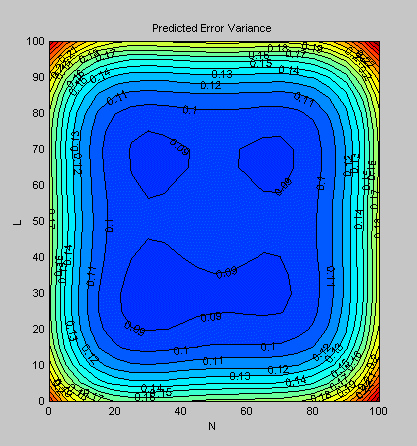
Movieoption shows a sequence of surface plots as a third input factor's value is changed. You can change the factors, replay, and change the frame rate.You can change the number, position, and color of the contours on the contour plot with the Contours button, as shown.
Add Points Optimally
You can further optimize the optimal design by returning to the Optimal Design dialog box, where you can delete or add points optimally or at random. The most efficient way is to delete points optimally and add new points randomly — these are the default algorithm settings. Only the existing points need to be searched for the most optimal ones to delete (the least useful), but the entire candidate set has to be searched for points to add optimally.
To strengthen the current optimal design:
Return to the Design Editor window.
Click the Optimal Design button in the toolbar again to reenter the dialog box, and add 60 more points. Keep the existing points (which is the default).
Click OK and watch the optimization progress, then click Accept when the number of iterations without improvement starts increasing.
View the improvements to the design in the main displays.
Once again select Tools > Prediction Error Variance Viewer and review the plots of prediction error variance and the new values of optimality criteria in the optimality frame (bottom left). The shape of the PEV projection might not change dramatically, but note the changes in the scales as the design improves. The values of D, V, and G optimality criteria will also change (you have to click Calculate to see the values).
To see more dramatic changes to the design, return to the Design Editor window (no need to close the Prediction Error Variance Viewer).
Split the display so you can see a 3-D projection at the same time as a Table view.
You can sort the points to make it easier to select points in one corner. For example, to pick points where N is 100 and L is 0,
Select Edit > Sort Points.
Choose to sort by
Nonly (reduce the number of sort variables to one) and click OK.
Choose Edit > Delete Point.
Using the Table and 3-D views as a guide, in the Delete Points dialog box, pick six points to remove along one corner. Add the relevant point numbers to the delete list by clicking the add (>) button.
Click OK to remove the points. See the changes in the main design displays and look at the new Surface plot in the Prediction Error Variance Viewer (see the example following).