Convert Model Containing MATLAB Function Block to Fixed Point
R2026bThis example shows how to use the Iterative Fixed-Point
Conversion workflow in the Fixed-Point Tool to convert a
model containing a MATLAB® Function block to fixed point. When you use automated fixed-point
conversion workflows on models containing MATLAB blocks, be sure to follow the best practices described in Best Practices for Working with the MATLAB Function Block in Automated Fixed-Point Conversion Workflows.
Open the Model
Open the ex_symm_fir model, which implements a symmetric FIR filter using a MATLAB Function block.
open_system("ex_symm_fir.slx")
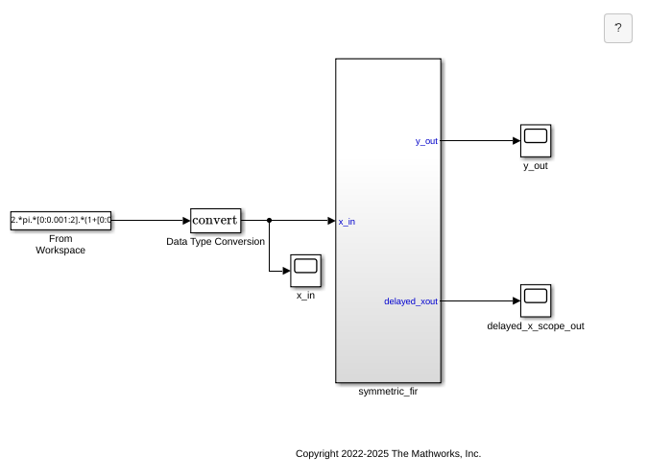
Simulate the model and inspect the model output. You can navigate the model hierarchy ex_symm_fir > symmetric_fir > MATLAB Function to inspect the symmetric FIR filter algorithm.
Prepare for Fixed-Point Conversion
Use the Fixed-Point Tool to prepare the system under design for automated fixed-point conversion. See Use the Fixed-Point Tool to Prepare a System for Conversion for more information on this step.
To open the Fixed-Point Tool, in the Apps tab, expand the Apps gallery and select Fixed-Point Tool.
In the Fixed-Point Tool, select the
Iterative Fixed-Point Conversionworkflow.In the Setup pane, under System Under Design (SUD), select
symmetric_fir. This subsystem contains the MATLAB Function block.Under Range Collection Mode, select Simulation ranges as the method of range collection. This option collects range minimum and maximum values by simulating the model.
In the toolstrip, click Prepare.
The Fixed-Point Tool checks the system under design for compatibility with the conversion process, including a check for MATLAB Function block best practices.
Collect and Visualize Range Information
Collect and visualize ranges to use for data type proposals.
Expand the Collect Ranges button arrow and select
Double precisionto override data types in the model with doubles during the range collection simulation.Click Collect Ranges to start the range collection simulation run.
The Fixed-Point Tool stores the simulation data in a run titled
BaselineRun. Examine the range information of the MATLAB variables in the Results spreadsheet.
Inspect Details in Instrumentation Report Viewer
Next, inspect details of the MATLAB Function block in the Instrumentation Report Viewer.
Double-click any variable in the Results spreadsheet to open the Instrumentation Report Viewer.
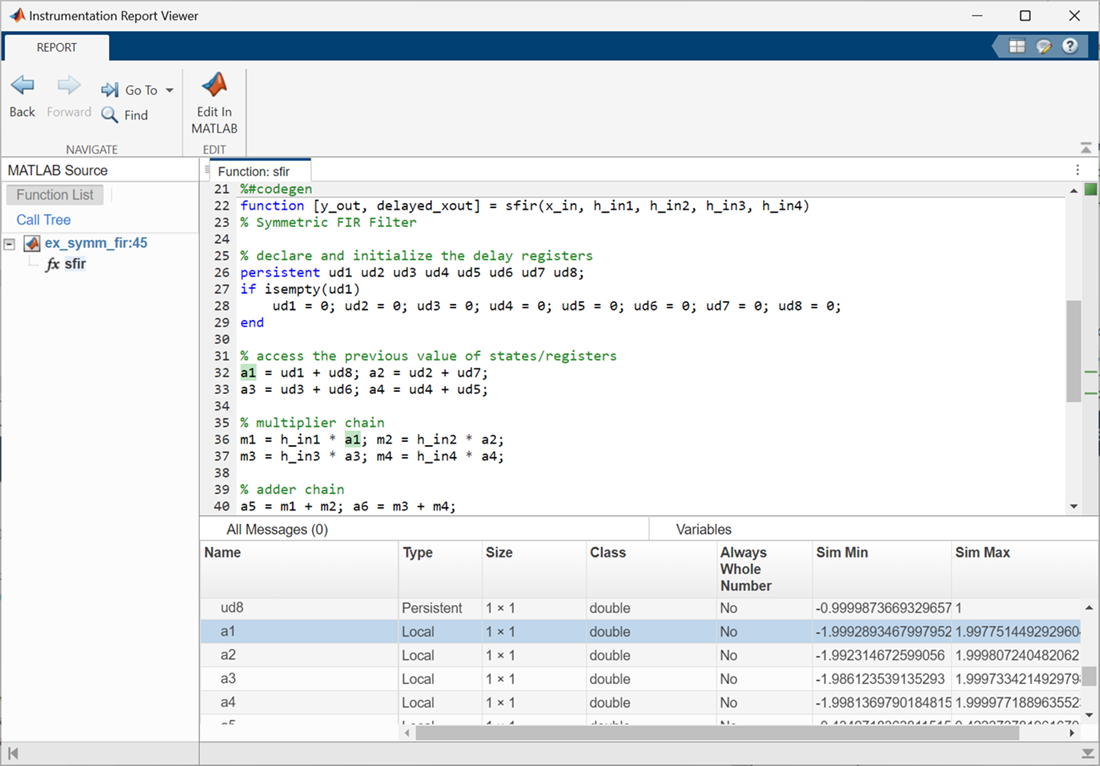
Hovering over variables and expressions in the report displays the logged information collected during the range collection simulation run.
The Variables tab displays detailed variable information, including simulation minimum and maximum values. You can click the histogram icon to view a histogram visualization for an individual variable in the Numeric Type Scope.
The Data Type Visualizer tab displays a bird's-eye-view of the histograms for all variables with instrumentation results.
Propose Data Types
Configure data type proposal settings, then propose fixed-point data types for the system under design.
In the Convert section of the toolstrip you can configure the data type proposal settings for the MATLAB Function block variables. In this example, use the default settings for proposal, conversion to fixed point, and MATLAB Function
fimath.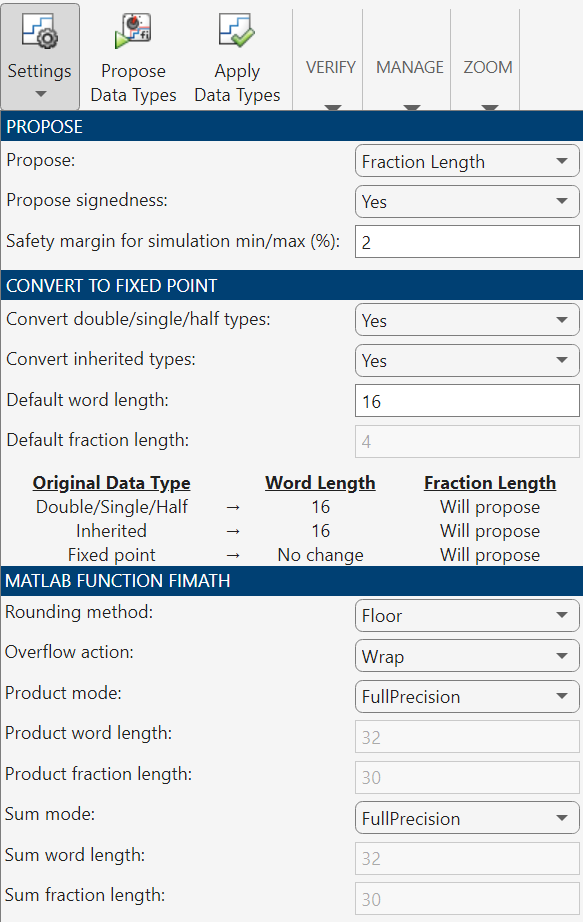
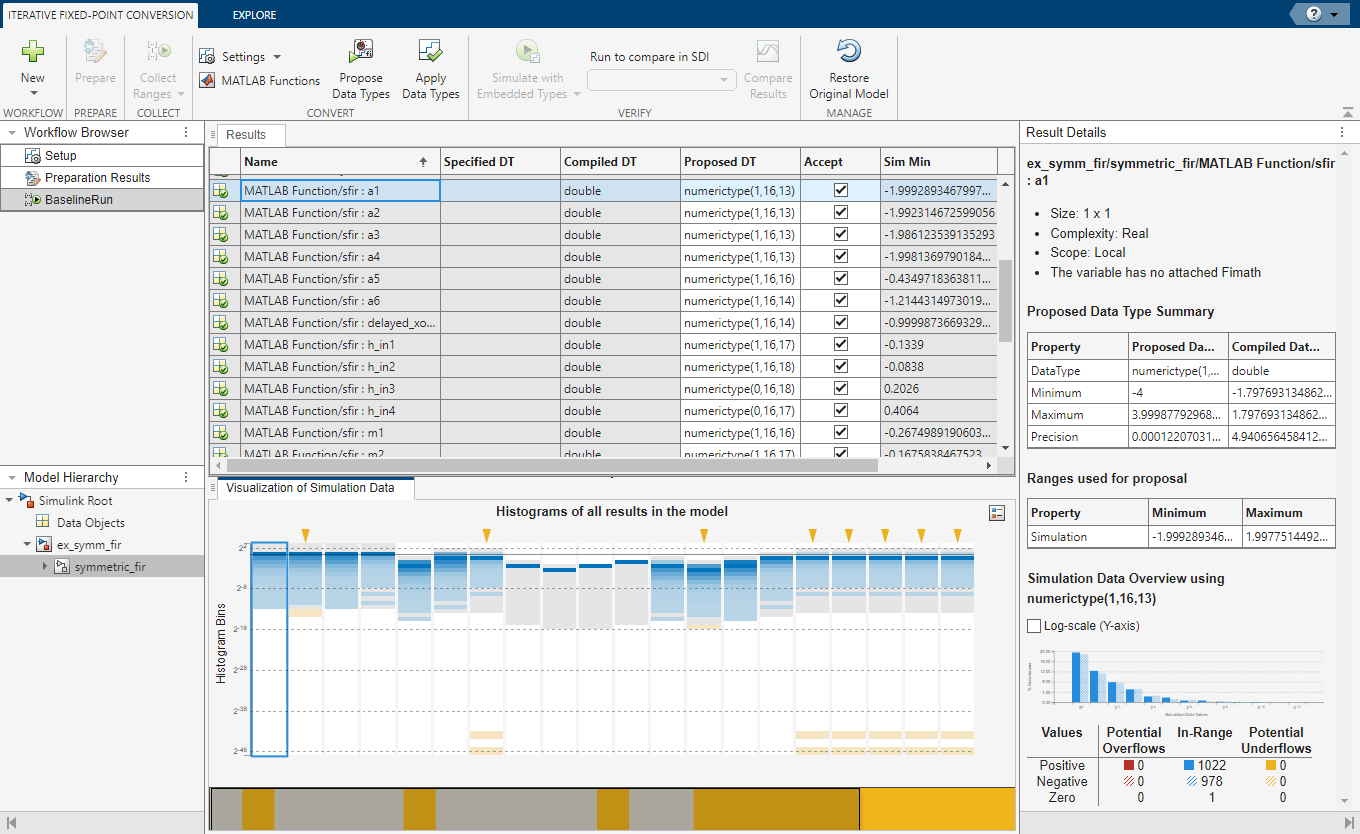
Click Propose Data Types to propose fixed-point data types based on the collected range information.
The data type proposals appear in the ProposedDT column of the spreadsheet.
Note
The SpecifiedDT column is always blank for MATLAB Function block variables.
Apply Proposed Data Types
When you have finished examining the proposed types, apply the proposed data types to the model. In the Fixed-Point Tool click Apply Data Types.
In the ex_symm_fir model, the MATLAB Function block is replaced with a variant subsystem.

The variant subsystem contains both floating-point and fixed-point versions of the MATLAB Function block. The active version is automatically controlled by the Fixed-Point Tool based on the data type override settings of the model. In this example, data type override is not currently enabled on the model, so the fixed-point version is the active variant.
Verify Results
Return to the Fixed-Point Tool to verify the results of the data type conversion.
In the Verify section of the toolstrip, click Simulate with Embedded Types to simulate the model using the newly applied fixed-point data types. The model simulates with the fixed-point MATLAB Function block variant. Again, inspect the model output.


