Import and Export Safety Analysis Manager Spreadsheets
R2026bIf you have safety analysis spreadsheets in Microsoft® Excel® files, you can import the spreadsheets to the Safety Analysis Manager to create Safety Analysis Manager spreadsheets. You can import spreadsheets that have defined column types and document attributes.
You can also export Safety Analysis Manager spreadsheets into a Microsoft Excel format. The exported spreadsheet has the same format as the imported Excel spreadsheet.
Configure and Import a Spreadsheet
To import a spreadsheet from Excel, first configure the spreadsheet:
Enter the headings for each column. For each heading cell, in the Home tab, in the Number section, set the number format list menu to
General. Each column must include a heading.In the rows below the headings, enter content that corresponds to each column. Use the same format for each cell in the column:
To define a check box column, enter
TRUEorFALSEinto the column cells.Otherwise, the importer interprets the cell columns as text.
Place your content in one sheet. If you import an Excel spreadsheet file with more than one sheet, the importer imports only the sheet in the first tab.
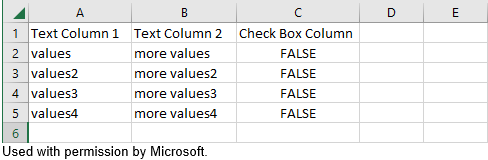
For example, this spreadsheet includes two text columns and one check box column.
Next, import the spreadsheet.
Close the Excel file.
Open the Safety Analysis Manager. In the Apps tab, under Model Verification, Validation, and Test, click Safety Analysis Manager. If you do not have a spreadsheet open, close the startup window.
In the File section, click Import Spreadsheet.
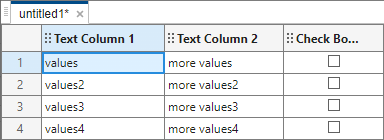
For example, importing the above spreadsheet produces this Safety Analysis Manager spreadsheet.
Import Document Attributes
To create a spreadsheet that includes document attributes:
In the cell in the first row and column of the spreadsheet, enter
DOCUMENT ATTRIBUTES.DOCUMENT ATTRIBUTESis case sensitive.In the cells in the
DOCUMENT ATTRIBUTEScolumn, enter the names of the document attribute properties. In the next column, enter the values.Leave an empty row between the document attributes and the spreadsheet.
In the row below the empty row, in the same column as the document attribute properties, enter the word
SPREADSHEET.SPREADSHEETis case sensitive.In the next row, enter the headings for each column. For each heading cell, in the Home tab, in the Number section, set the number format list menu to
General. Each section column must include a heading.In the rows below the headings, enter content that corresponds to each column.
For example, this image shows a spreadsheet that has two document attributes.
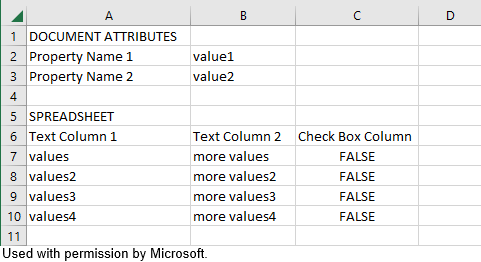
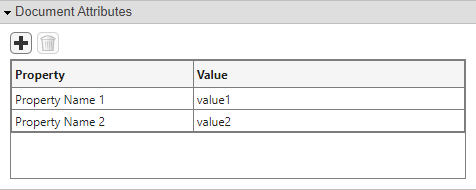
Importing this spreadsheet also imports the document attributes.
Export Spreadsheet to Excel
To export a spreadsheet to Excel:
Open a spreadsheet in the Safety Analysis Manager.
Click Export.
Save the file. When running Simulink® in Windows®, you can save the file with the
.xls,.xlsb,.xlsm, or.xlsxextension. When running Simulink in macOS or Linux®, you can save the file with the.xls,.xlsm, or.xlsxextension.

