Code Generation Configuration
R2026bThe model configuration parameters for code generation define how the code generator produces code and builds an executable from your model.
Toolchain
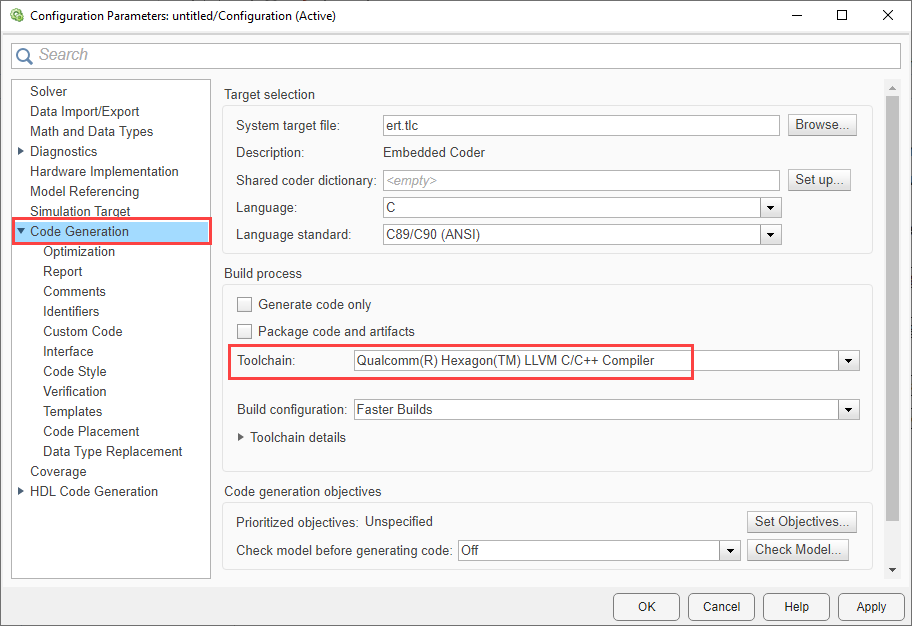
Open Configuration Parameters and navigate to Code Generation > Toolchain and select Qualcomm(R) Hexagon(TM) LLVM C/C++ Compiler
Build Configuration
The Build configuration parameter specifies compiler optimization or debug settings for the specified toolchain.
Faster Builds - Optimizes for shorter build times.
Faster Runs - Optimizes for executable program that runs faster. For Qualcomm Hexagon Processors, it is recommended to set the Build Configuration to Faster Runs.
Debug - Optimizes for debugging.
Specify - Displays a table of tools with editable options. Use the table to customize settings for the current model. See Toolchain details. This interaction helps synchronize the Toolchain value and Build configuration settings that you specify manually.
Code Replacement Libraries
Libraries that define code optimizations for specific target environment.
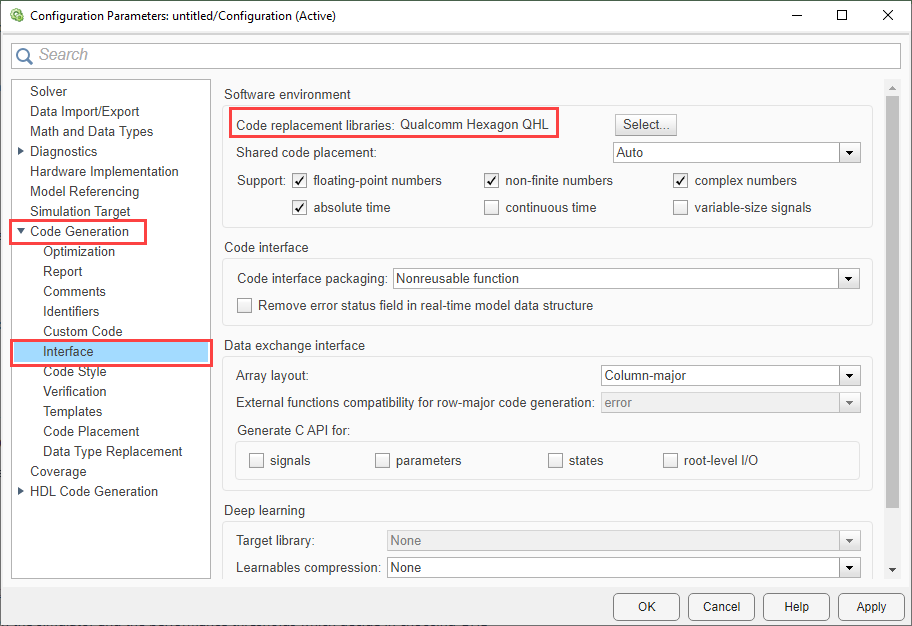
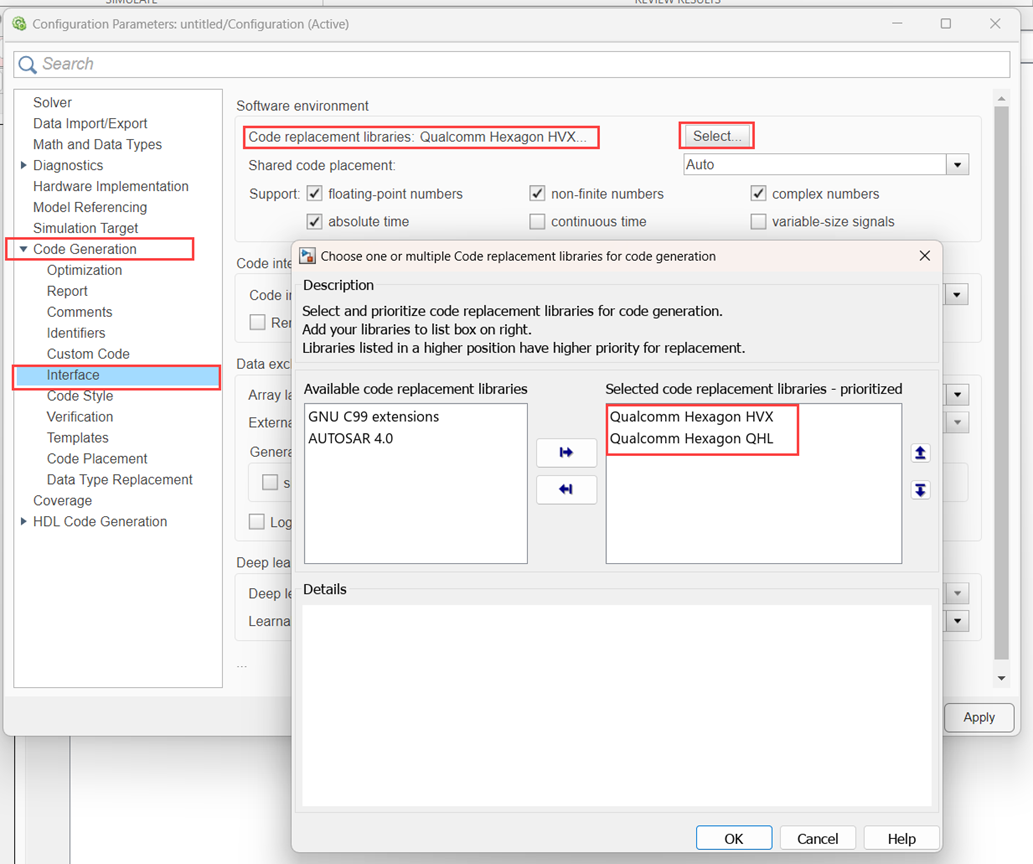
Open Configuration Parameters and navigate to Code Generation > Interface and set
Code Replacement libraries to Qualcomm Hexagon
QHL or Qualcomm Hexagon HVX or both.
Profiling
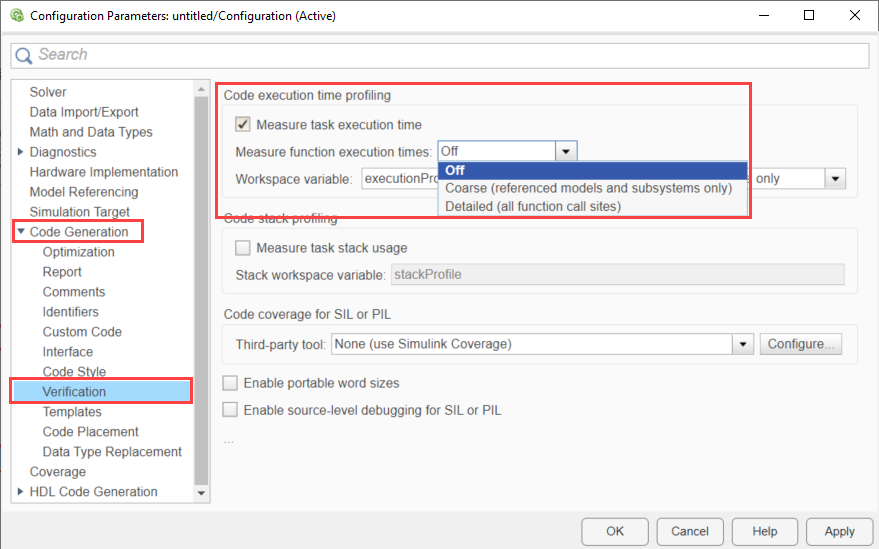
Measure execution times and generate metrics for tasks in generated code. Enable the code execution profiling to perform profiling through PIL.
Open Configuration Parameters and navigate to Code Generation > Verification >
Code execution profiling and set Measure function
execution time to Off.
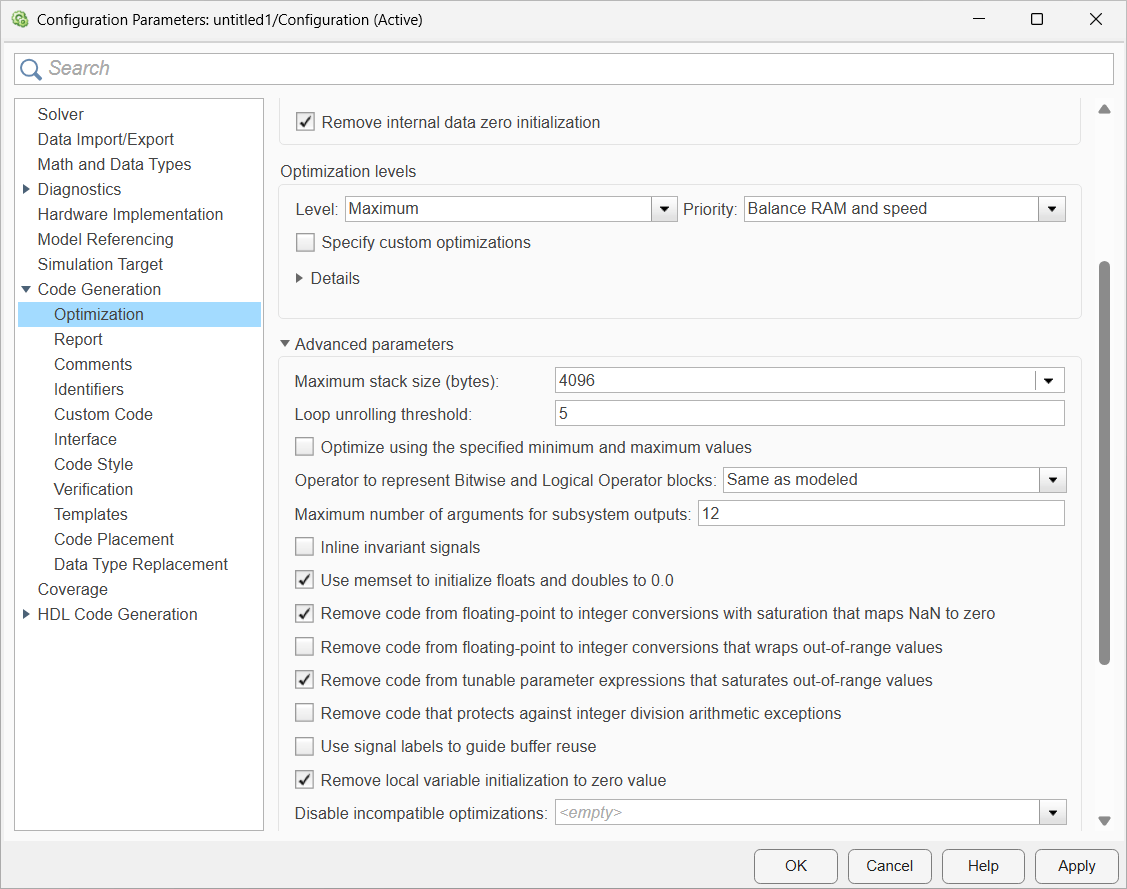
Optimization
To set the stack size for PIL simulation, go to Code Generation> Optimization> Advanced parameters and change the Maximum stack size (bytes) value.
See Also
Model Configuration Parameters for Qualcomm Hexagon Processors

