Qualcomm Hexagon Android Board Configurations
R2026bTo configure the Qualcomm® Hexagon® Android® Board hardware board, complete these steps.
Prerequisites
The board must be run on Android OS.
The board must be a Qualcomm Snapdragon processors with Hexagon DSP(adsp/cdsp) support. The DSP processor versions supported are V66,V68,V69,V73, V75, and V79.
The board must have root access.
Note
Copy the sysMon binary on to the target (If not present) from the SDK using the following adb command:
adb root
adb remount
adb push ${HEXAGON_SDK_ROOT}/tools/utils/sysmon/sysMonApp /data/local/tmp/
adb shell chmod 777 /data/local/tmp/sysMonApp
Press Ctrl+E to open the Model Configurations.
Set the Hardware Board to
Qualcomm Hexagon Android Board.The parameter values under Hardware board settings are automatically populated to their default values.
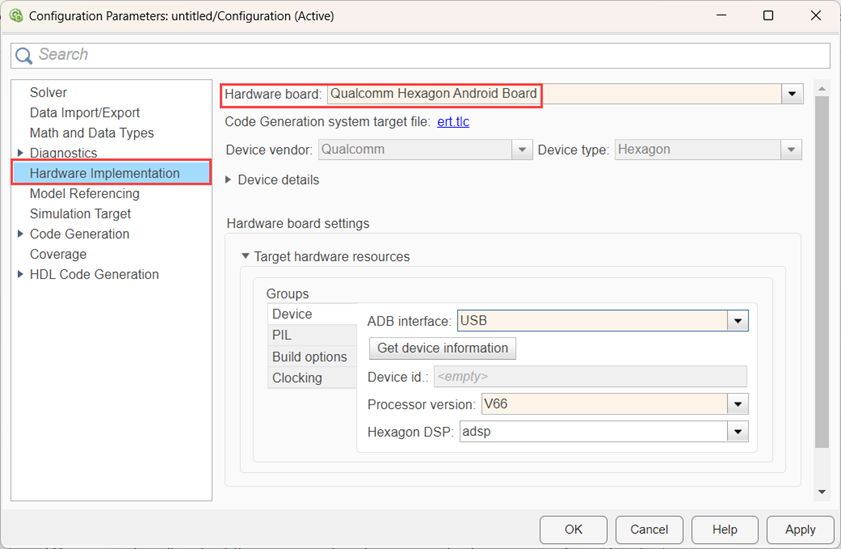
You can adjust these parameters for your particular use case.
Device
Use Qualcomm Device Cloud hardware
Select this option to use a hardware device with the Qualcomm Device Cloud instead of a locally connected physical board. For more information on connecting to a cloud device, see Qualcomm Device Cloud Overview.
Default:
off
SSH tunneling port
Specify the SSH tunneling port for the cloud device connection. This parameter is only available when Use Qualcomm Device Cloud hardware is selected.
Note
Enter the same port number as the SSH tunneling port value that the Qualcomm
Device Cloud interface displays as the ADB port when you connect to a device. For
example, if the Qualcomm Device Cloud interface shows the ADB port as
5044, set the SSH tunneling port to
5044.
Default:
<empty>
To check if the cloud device is connected, run the following command in Windows® Command Prompt.
adb -P <SSH tunneling port number> devices Port forwarded through ADB
Specify the port forwarded through ADB for the cloud device connection. This parameter is only available when Use Qualcomm Device Cloud hardware is selected.
For PIL simulation, specify an additional SSH port in the
8900-8909 range and configure port forwarding on the cloud
device. For more information, see Connect to Additional Ports on the Device.
Default:
<empty>
Interface
Select the Android Debug Bridge (ADB) interface for the selected hardware board.
ADB over USB — Select this option if you have connected to a USB device.
ADB over TCP/IP — Select TCP/IP interface if you have remotely connected hardware board.
Default:
ADB over USB
Supported interfaces:
ADB over USB and ADB over TCP/IP
IP address
Specify the IP address of the remotely connected hardware board. This parameter is
available only when Interface is set to ADB over
TCP/IP.
Default:
<empty>
Port
Specify the port number of the remotely connected hardware board. This parameter
is available only when Interface is set to ADB over
TCP/IP.
Default:
<empty>
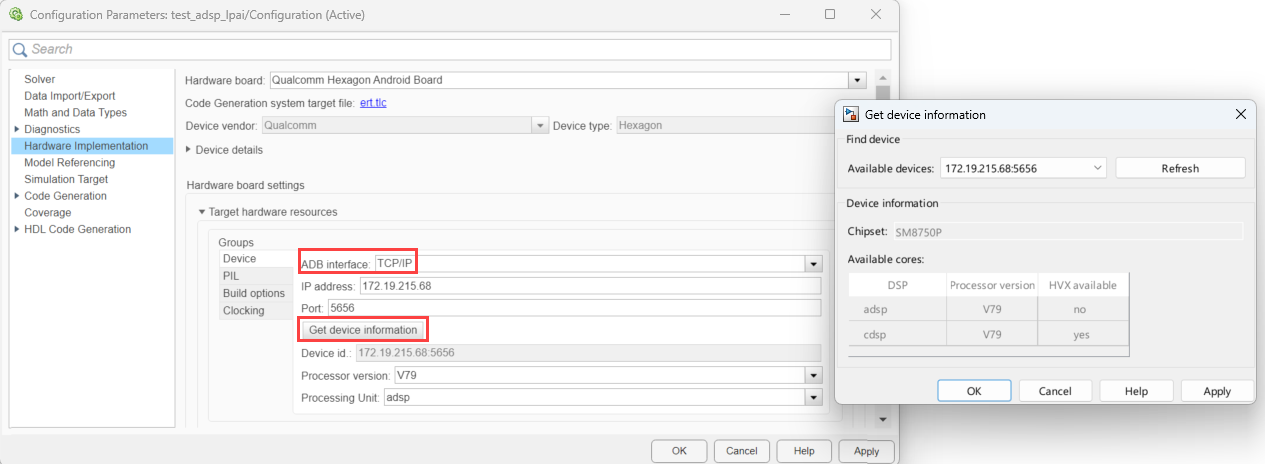
Get device information
Click Get device information to get the device ID, processor version, and available cores of the remotely connected hardware board.
Get device information when Interface is set to
ADB over
                  TCP/IP
.
Get device information when Interface is set to
ADB over USB.

Device id
Displays the connected device ID. This value auto-populates when you click Get device information.
Default:
<empty>
Processor version
Lists the device processor version for the selected hardware board.
Default:
V68
Supported versions:
V66, V68, V69,
V73, V75, and V79.
Processing unit
Select the processing unit for the selected hardware board.
Default:
adsp
Supported versions:
adsp and cdsp.
Enable HVX
Select to enable the Hexagon Vector eXtension (HVX vector processor). If this parameter is not enabled, the default configuration of the Qualcomm Hexagon Simulator board is Qualcomm Hexagon Library (QHL scalar processor).
To enable this parameter, set Processing unit parameter to cdsp.
Default:
off
Supported profilers:
off and on
eNPU version
Select an eNPU version using this parameter to use the eNPU Predict block to predict response using eAI model (eAI network).
Default:
None
Supported eNPU versions:
V3, V4, V5, and
V6
Use hardware for AI network simulation
Improve simulation speed of eNPU module, if the selected processor version is
V73 and the processing unit is
adsp. Enabling this option speeds up simulation of the
eNPU predict block by using the target eNPU.
Default:
off

PIL
Execution timeout
Specify the processor-in-the-loop (PIL) execution timeout in seconds.
Default:
30
Build Options
Build action
Defines how Embedded Coder® software responds when you press Ctrl+B to build
your model.
Default:
Build
-
Build Press
Ctrl+Bor click Build.Generates code from the model.
Compiles and links the code into an executable with libraries.
This option does not load and run the executable on the Qualcomm Hexagon processor.
Disable parallel build
Select to compile the generated code in parallel order for faster build.
on— When you select this option, the support package compiles generated code in a sequential order.off— When you clear the option, the support package compiles generated code in parallel. Parallel execution reduces the time taken to build the model.
Default:
off
Clocking
DSP Clock (MHz)
This option is for the CPU clock frequency of the microcontrollers on the target hardware. The DSP clock is dependent on the selection of Hexagon interface.
Default:
300

