Create, Configure, and Visualize Bluetooth Mesh Network
R2026bUsing this example, you can:
Create a Bluetooth® mesh network by configuring the nodes as source, destination, and relay.
Create and configure Bluetooth mesh profile.
Add On-Off application traffic between the mesh nodes.
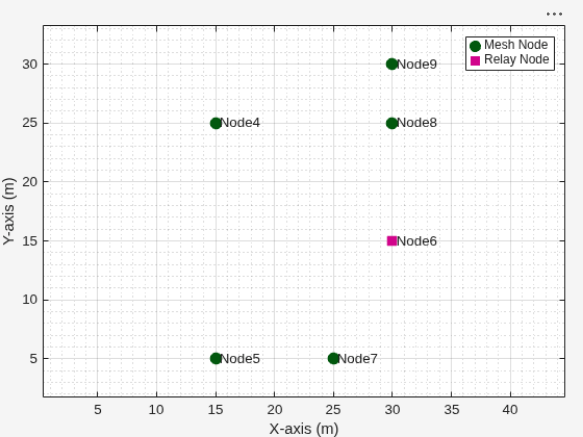
Visualize Bluetooth mesh network.
Specify the total number of Bluetooth LE mesh nodes and their respective positions in the network. This example creates a 6-node Bluetooth mesh network consisting of a relay node, an end node, and two source-destination pairs. For more information about the functionalities of these nodes, see Bluetooth Mesh Networking.
totalNodes = 6;
meshNodesPositions = [15 25; 15 5; 30 15; 25 5; 30 25; 30 30];  % In meters
Specify the relay node and source-destination node pairs. In this example, Node1 and Node2 are source nodes and the corresponding destination nodes are Node4 and Node5.
relayNode = 3;
sourceDestinationNodePairs = [1 4; 2 5];
Set the Bluetooth mesh profile configuration parameters. Create Bluetooth mesh nodes with "broadcaster-observer" role.
meshNodes = cell(1,totalNodes);
for nodeIdx = 1:totalNodes
    meshCfg = bluetoothMeshProfileConfig(ElementAddress=dec2hex(nodeIdx,4));
    if any(nodeIdx,relayNode)
        meshCfg.Relay = true;
    end
    meshNode = bluetoothLENode("broadcaster-observer", MeshConfig=meshCfg, ...
        Position=[meshNodesPositions(nodeIdx,:) 0], ...
        AdvertisingInterval=20e-3, ScanInterval=30e-3);
    meshNodes{nodeIdx} = meshNode;
end
Add traffic between Node1 - Node4 and Node2 - Node5 source-destination node pairs by using the networkTrafficOnOff (Wireless Network Toolbox) object. The networkTrafficOnOff object enables you to create an On-Off application traffic pattern.
% Add traffic between Node1 and Node4
traffic = networkTrafficOnOff(DataRate=1,PacketSize=15);
addTrafficSource(meshNodes{1},traffic, ...
    SourceAddress=meshNodes{1}.MeshConfig.ElementAddress, ...
    DestinationAddress=meshNodes{4}.MeshConfig.ElementAddress, ...
    TTL=3);

% Add traffic between Node2 and Node5
traffic = networkTrafficOnOff(DataRate=1,PacketSize=10);
addTrafficSource(meshNodes{2},traffic, ...
    SourceAddress=meshNodes{2}.MeshConfig.ElementAddress, ...
    DestinationAddress=meshNodes{5}.MeshConfig.ElementAddress, ...
    TTL=3);
Visualize the Bluetooth mesh network by using the wirelessNetworkViewer object.
meshNetworkGraph = wirelessNetworkViewer;
addNodes(meshNetworkGraph,meshNodes(setdiff(1:totalNodes,relayNode)),Type="Mesh Node");
addNodes(meshNetworkGraph,meshNodes(relayNode),Type="Relay Node");
References
[1] Bluetooth® Technology Website. “Bluetooth Technology Website | The Official Website of Bluetooth Technology.” Accessed December 25, 2025. https://www.bluetooth.com/.
[2] Bluetooth Special Interest Group (SIG). "Bluetooth Core Specification." Version 5.3. https://www.bluetooth.com/.
[3] Bluetooth Special Interest Group (SIG). "Bluetooth Mesh Profile." Version 1.0.1. https://www.bluetooth.com/.
[4] Bluetooth Special Interest Group (SIG). "Bluetooth Mesh Model Specification." Version 1.0.1. https://www.bluetooth.com/.

